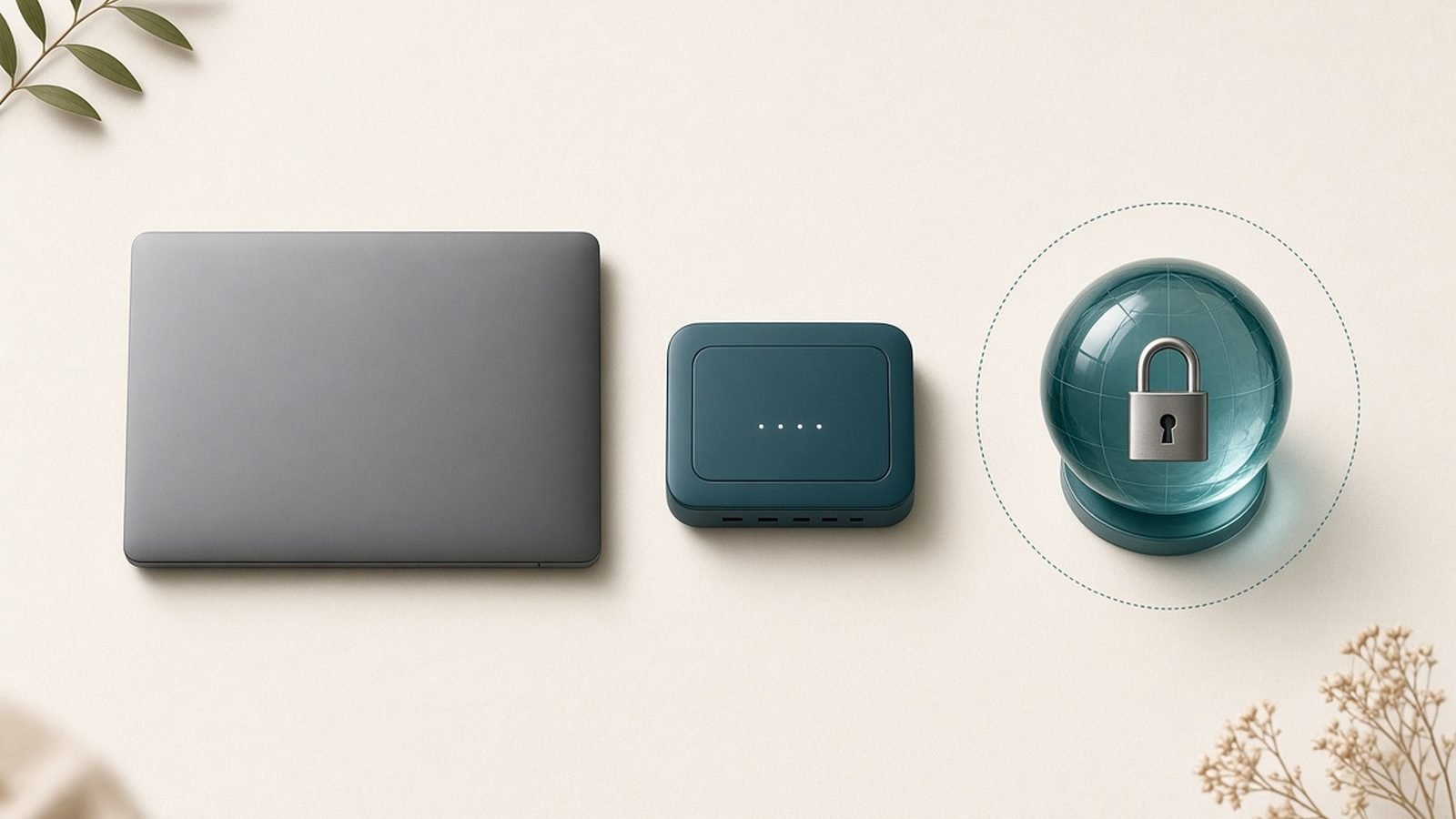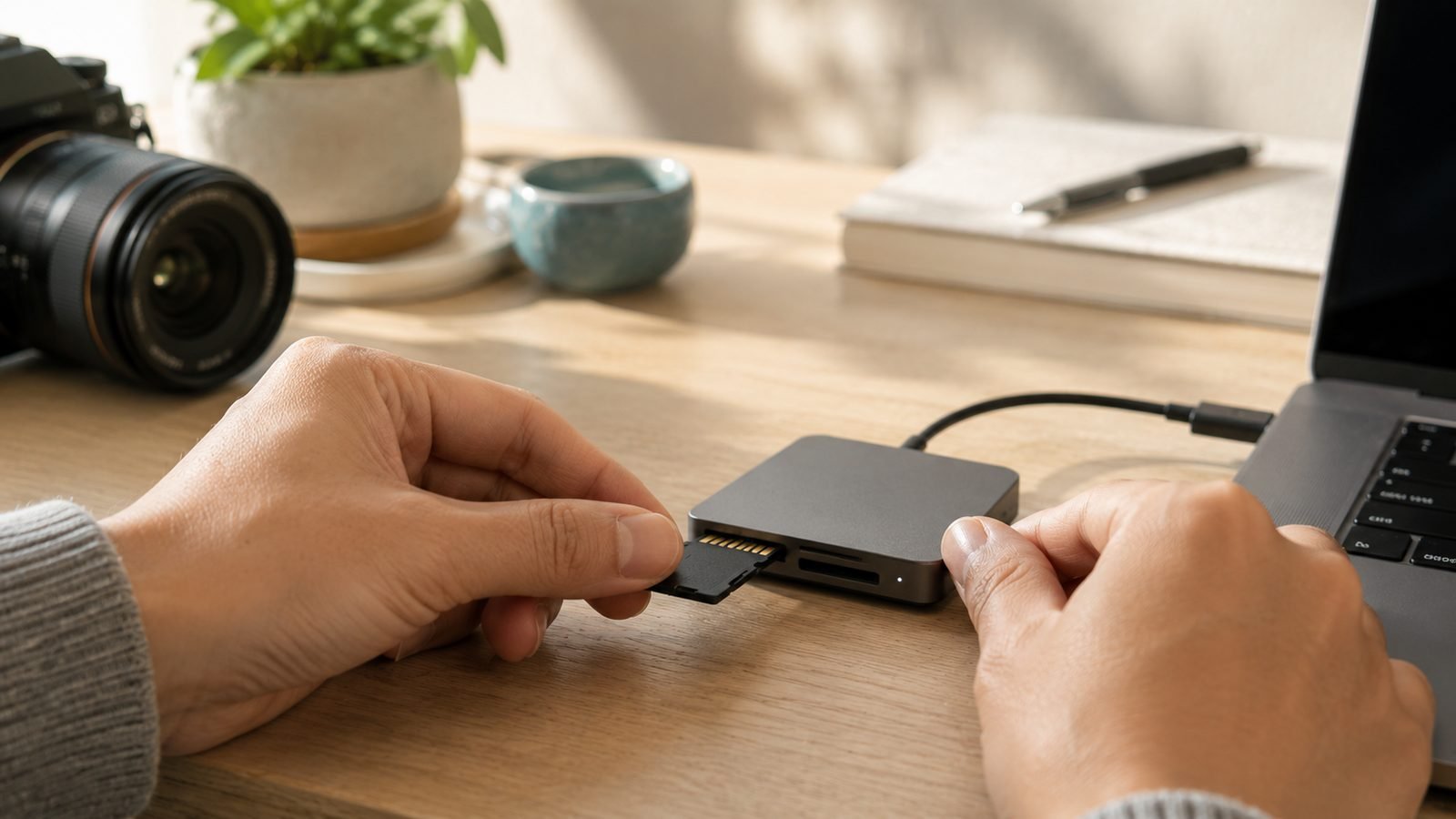
The reliable way to back up your photos is the 3-2-1 rule: keep 3 copies of every photo, on 2 different types of storage, with at least 1 copy off-site (typically the cloud). In practice that usually means the originals on your phone or PC, a local copy on an external drive, and an automatic cloud backup. Do this once, automate it, and a lost phone, a dead hard drive, a house fire or a ransomware attack can never wipe out your memories — because no single event can hit all three copies at the same time.
Most people have exactly one copy of their photos: on the phone in their pocket. That’s not a backup, it’s a single point of failure. This guide sets up real redundancy in about half an hour, then keeps running on its own.
Why one copy is a disaster waiting to happen
A photo library is uniquely unrecoverable. Lose a document and you can often rewrite it; lose your child’s first birthday and it’s gone. Yet phones get dropped in toilets, stolen and factory-reset by accident, drives fail without warning, and “I’ll sort it later” folders get deleted in a cleanup. Even a single cloud account can fail you — a forgotten password, a hacked login, or an accidental “delete all” that syncs everywhere within seconds. Redundancy across different systems is the only thing that survives all of these.
The 3-2-1 rule exists because it defends against the full range of failures at once: hardware death (covered by having copies on separate devices), account/software problems (covered by using two different platforms), and physical disasters like fire or theft (covered by the off-site copy).
Step 1: Gather all your photos in one place
Backups are only as complete as the library you point them at, so first consolidate. Photos are usually scattered across your phone’s camera roll, an old laptop, a couple of half-forgotten cloud accounts, memory cards and messaging apps.
- Pick a primary home for your collection — most people use their phone’s photo app (Apple Photos or Google Photos) or a dated folder structure on a computer (for example
Photos/2026/2026-07 July/). - Pull in the strays: export photos out of WhatsApp/Messenger, copy off old SD cards, and download anything trapped in a dormant cloud account.
- Delete obvious junk (blurry duplicates, screenshots you don’t need) before backing up, so you’re not paying to store noise.
This consolidated library is “copy 1.” Everything below protects it.
Step 2: Set up automatic cloud backup (the off-site copy)
The cloud copy is the most important because it’s off-site and hands-off. Turn on automatic upload so new photos are protected the moment you take them — no willpower required.
- iPhone: Settings, your name, iCloud, Photos, and turn on Sync this iPhone. iCloud’s free tier is only 5GB, so most people need a paid tier or a second service.
- Android/anywhere: The Google Photos app backs up automatically across phones and computers; check Backup is on and note that free storage counts against your 15GB Google account.
- For a larger or more private library: a dedicated service gives you more space and, in some cases, zero-knowledge privacy. Compare options in our Best Cloud Storage 2026: Top Personal Plans Compared guide, and if privacy matters, read Cloud Storage Encryption Explained (Zero-Knowledge & More) first so you know who can actually see your files.
Set it, confirm the first full upload completes on Wi-Fi, and this copy maintains itself forever.
Step 3: Create a local backup on an external drive (the second media type)
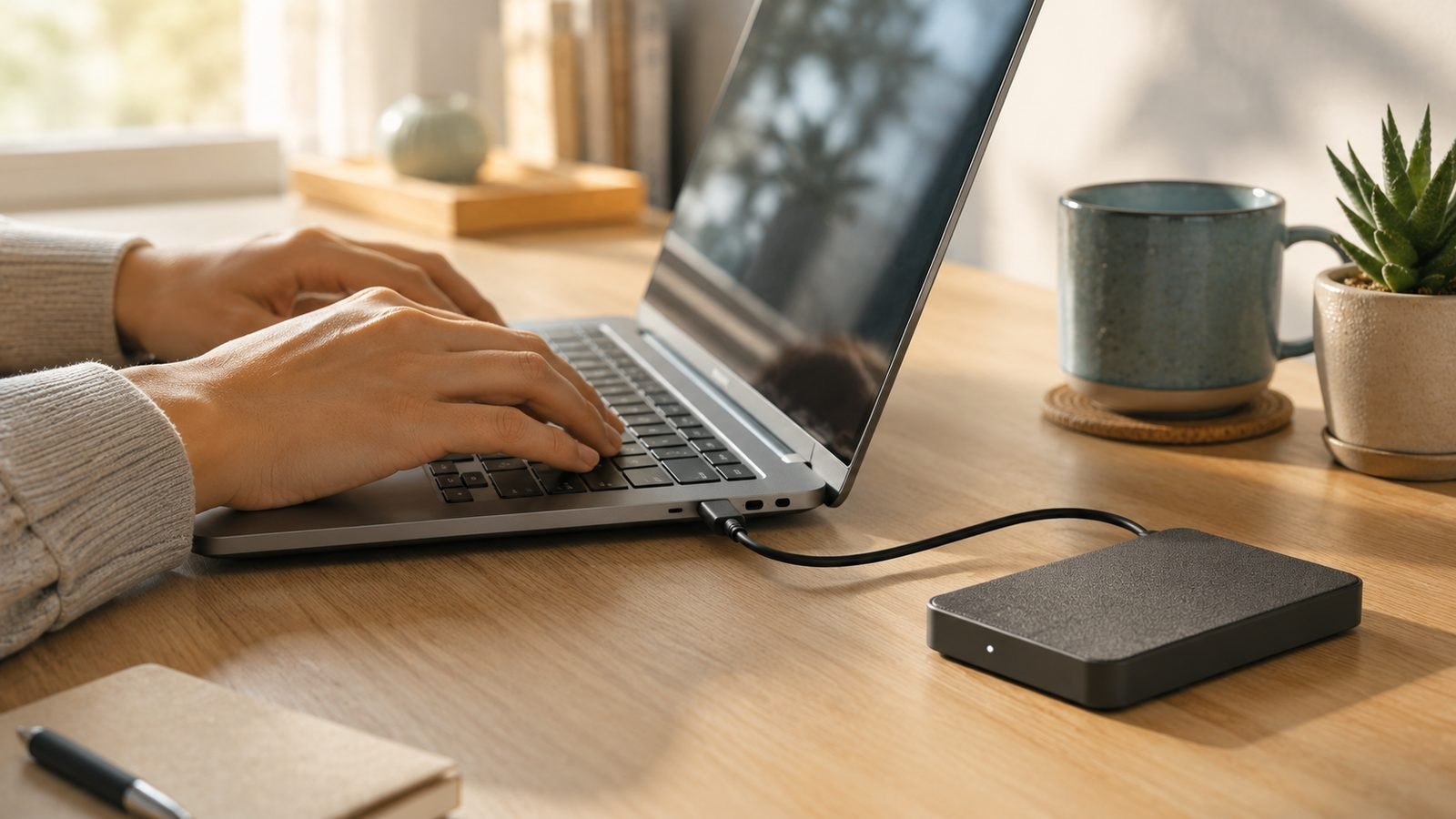
Cloud alone isn’t 3-2-1 — you want a copy on a different type of storage you physically control. An external hard drive or SSD is cheap insurance and gives you fast, offline access if the internet or a cloud account ever fails you.
- Buy an external drive with at least 2× your library size to leave room to grow. A basic portable HDD (around $60 / £55) is fine for photos; an SSD is faster but pricier.
- Copy your entire consolidated library onto it. On Windows, Try File History can automate this; on Mac, Time Machine does the same. Both back up continuously once configured.
- If you prefer manual control, drag-copy the library and repeat it on a schedule (see Step 4).
That’s “copy 3,” on a second media type, satisfying the “2” in 3-2-1. Keep the drive disconnected when not backing up — a drive that’s always plugged in can be encrypted by ransomware right alongside your PC.
Step 4: Automate and schedule it
A backup you have to remember is a backup that stops happening. Make the whole thing automatic:
- Cloud: already automatic once enabled — just occasionally confirm it’s still uploading.
- Local: let File History (Windows) or Time Machine (Mac) run continuously, or set a recurring calendar reminder (monthly is a sensible minimum for a manual copy).
- Verify every few months by opening a few backed-up photos from each location. An unverified backup is only a hope.
For a broader whole-computer approach beyond photos, our How to Back Up Your Computer to the Cloud (2026) guide extends the same thinking to documents and system files.
Step 5: Guard the accounts holding your backups
Your off-site copy is only as safe as the account it lives in. A hijacked Google or Apple account can expose or delete every photo at once. Protect it:
- Use a strong, unique password from a Best Password Managers 2026: Top Picks Compared & Ranked.
- Turn on What Is Two-Factor Authentication (2FA)? for the account — this single step blocks the vast majority of account takeovers.
- Know your provider’s deleted-items grace period (Google Photos and iCloud keep deleted photos ~30 days), which can save you after an accidental mass-delete.
Troubleshooting and common mistakes
- “Sync” is not “backup.” If deleting a photo on your phone also deletes it from the cloud, that’s sync — an accidental or malicious deletion propagates everywhere. Keep at least one copy (the external drive) that doesn’t sync, so a delete can’t cascade to it.
- Running out of free cloud space. The default 5GB (iCloud) or 15GB (Google) fills fast. Either pay for a tier or offload older years to the external drive and remove them from the phone.
- One cloud, no local copy. A single account is a single point of failure. The local drive is what saves you when the account itself is the problem.
- Never testing restores. Occasionally pull a photo back from each backup to confirm it actually works.
- Leaving the backup drive always connected. Disconnect it between backups so malware can’t reach it.
FAQ
What is the 3-2-1 backup rule?
Keep 3 copies of your data, on 2 different types of storage, with 1 copy off-site. For photos that’s typically the originals on your device, a local copy on an external drive, and an automatic cloud backup. It works because no single failure — hardware death, account loss, fire or theft — can hit all three at once.
Is iCloud or Google Photos a real backup?
They’re an excellent off-site copy, but on their own they’re only one copy — and if you use them as sync, deleting a photo can remove it everywhere. Treat them as one leg of 3-2-1, paired with a local external-drive copy that doesn’t sync, and you have genuine protection.
How much cloud storage do I need for photos?
Estimate about 2-5MB per phone photo and far more for video. A typical multi-year library runs from tens to a few hundred gigabytes, so most people outgrow free tiers quickly. Check your library size in your photo app’s settings, then pick a plan with headroom in our cloud storage guide.
Should I use an external hard drive or SSD?
For photos, a standard external HDD (around $60 / £55) is perfectly reliable and cheaper per gigabyte. An SSD is faster and more shock-resistant but costs more — worth it if you edit large libraries often. Either satisfies the “second media type” requirement; the key is that it’s separate from your main device.
How do I back up photos if I’m running out of phone storage?
Turn on cloud backup, confirm everything has uploaded, copy the library to an external drive as a safety net, and only then use your photo app’s “optimize” or “free up space” option to remove full-resolution copies from the phone while keeping thumbnails. Never delete from the phone until two other copies exist.
How often should I back up my photos?
Cloud backup should run automatically and continuously. For the local external-drive copy, monthly is a reasonable minimum, or more often if you shoot a lot. The goal is that the gap between backups is never longer than you’d be comfortable losing.
Zen Tech Hub may earn a commission from links on this page, at no extra cost to you.