If you think your PC or phone is infected, the fastest reliable fix is to disconnect from the internet, boot into Safe Mode, and run a reputable on-demand malware scanner like Malwarebytes to find and quarantine the threat. This guide walks through that process for Windows, Mac, Android and iPhone, then shows you how to stop it happening again. Most infections are removable at home without paying a “tech support” pop-up or wiping your device — you just need to do the steps in the right order.
Move calmly and in sequence. The biggest mistakes people make are entering passwords or card details into a scary pop-up, or paying a caller claiming to be Microsoft. Real malware removal is quiet, methodical and free-to-cheap. Here’s how.
Step 1: Recognize the signs of infection
Malware isn’t always obvious, but common warning signs include:
- Sudden slowdowns, crashes or the fan running constantly when idle
- Pop-up ads appearing outside the browser, or a flood of new toolbars
- Your browser homepage or search engine changed without permission
- Programs or apps you didn’t install
- Friends receiving spam messages from your accounts
- Unusually high data usage (especially on phones) or fast battery drain
- Antivirus or Windows Update mysteriously disabled
One or two of these can have innocent causes; several together strongly suggest an infection. A special case is ransomware — if your files are encrypted and a payment demand appears, do not pay; disconnect, and treat it as data loss recovery from backups.
Step 2: Disconnect from the internet
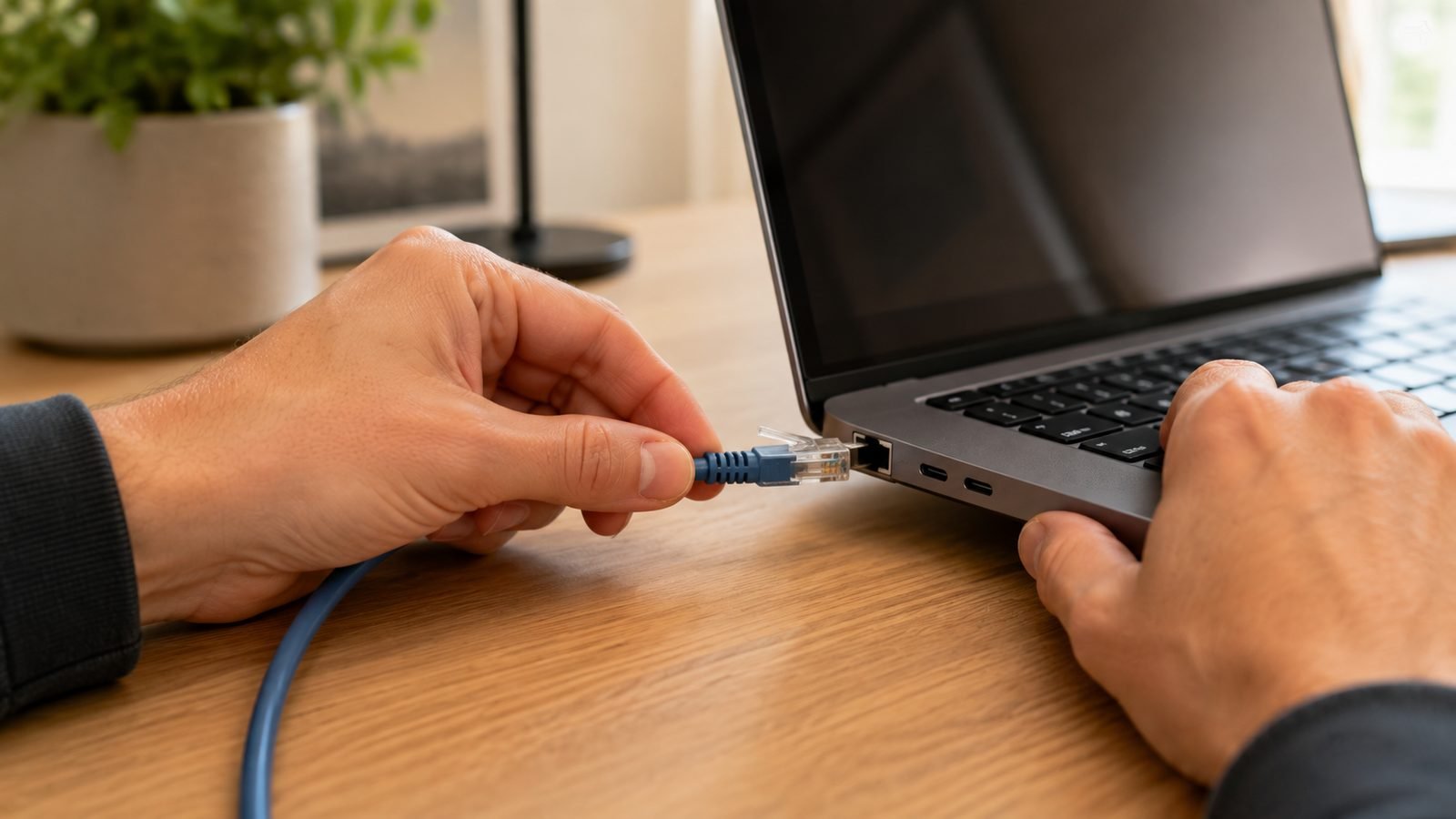
As soon as you suspect malware, cut its lifeline. Turn off Wi-Fi and unplug any Ethernet cable (or enable Airplane Mode on a phone). This stops malware from sending your data out, downloading more payloads, or spreading across your network. Keep the device offline until you’re ready to download tools in Step 4 — and download those from a clean device if you can.
Step 3: Boot into Safe Mode
Safe Mode starts your device with only essential software, which often prevents malware from loading and makes it far easier to remove.
Windows 11: Open Settings, System, Recovery, then Advanced startup, Restart now. After reboot choose Troubleshoot, Advanced options, Startup Settings, Restart, then press 4 (or 5 for Safe Mode with Networking, which you’ll need to download a scanner).
macOS (Apple silicon): Shut down, then press and hold the power button until startup options appear, select your disk, hold Shift and click “Continue in Safe Mode.” (Intel Macs: hold Shift immediately at startup.)
Android: Press and hold the power button, then long-press “Power off” until “Reboot to safe mode” appears, and confirm. You’ll see “Safe mode” in the corner. This is ideal for removing a misbehaving app.
iPhone: iOS has no Safe Mode, and true malware is rare due to app sandboxing. Skip to the iPhone notes in Step 4.
Step 4: Run a trusted malware scanner
This is the core of the fix. Use a reputable on-demand scanner — Try Malwarebytes is the standard recommendation because its free version is excellent specifically at finding and removing existing infections that a traditional antivirus missed.
Windows / Mac:
- In Safe Mode with Networking, download Malwarebytes from its official site only.
- Install and run a full scan (not just a quick scan).
- Let it quarantine or remove everything it flags, then reboot.
- For stubborn cases, run a second opinion scanner such as the Microsoft Safety Scanner or another reputable tool, since some threats hide from a single engine.
Android:
- In Safe Mode, open Settings, Apps, and look for anything you don’t recognize or recently installed before the trouble started. Uninstall it.
- If an app won’t uninstall, it may hold Device Administrator rights — go to Settings, Security, Device admin apps, revoke it, then uninstall.
- Install Malwarebytes or another reputable mobile scanner from Google Play and run a scan.
- Reboot out of Safe Mode.
iPhone: Genuine malware is very rare. Almost always the problem is a malicious website, a bad configuration profile, or a scammy calendar subscription. Fix it by: force-closing Safari, clearing Safari history and data (Settings, Apps, Safari), deleting unknown profiles (Settings, General, VPN & Device Management), removing spam calendars, and updating iOS. A restart resolves most “iPhone virus” pop-ups, which are just web scare-ads.
Step 5: Change your important passwords
Once the device is clean, assume any password you typed while infected may have been captured — especially by keyloggers or info-stealers. From a different, trusted device, change the passwords for your email, banking, and any account with saved payment details.
This is far easier if you use a password manager to generate and store unique passwords, so a single stolen credential can’t unlock everything. See our Best Password Managers 2026: Top Picks Compared & Ranked guide, and turn on two-factor authentication everywhere it’s offered.
Step 6: Verify and clean up
After removal, confirm the fix held. Reconnect to the internet, run one more full scan, and watch for the original symptoms. Then:
- Update your operating system and browser fully — many infections exploit known, already-patched holes.
- Remove browser extensions you don’t recognize and reset the homepage/search engine if malware changed them.
- Empty quarantine only after you’re confident the device is stable.
If symptoms persist after two clean scans and updates, the safest route is a full backup of your personal files (not programs) followed by a clean OS reinstall or factory reset.
Prevention: don’t get reinfected
Removal is temporary if the door stays open. Lasting protection comes from habits plus a good baseline:
- Keep real-time protection on. Windows Security is a solid free baseline; for stronger, cross-device coverage see our Best Antivirus Software 2026 for Windows and Mac guide.
- Update everything automatically. OS, browser and apps — unpatched software is the top infection route.
- Be skeptical of downloads and links. Don’t install “cracked” software, don’t open unexpected attachments, and never trust a pop-up telling you to call a number.
- Use a VPN on public Wi-Fi to encrypt your connection — our How to Set Up a VPN: Step-by-Step (2026) guide covers it, and Best VPN Services 2026: Which One Wins for US & UK? has picks.
- Back up regularly. A recent backup turns ransomware from a disaster into an inconvenience.
FAQ
How do I know if my computer has malware?
Watch for sudden slowdowns, crashes, unexpected pop-ups outside the browser, a changed homepage, unknown programs, or friends getting spam from you. Several of these together strongly suggest an infection — run a full scan with a trusted scanner to confirm.
Is Malwarebytes free version enough to remove malware?
For cleaning up an existing infection, yes — the free version is specifically good at scanning and removing threats on demand. For ongoing real-time protection you’ll want the paid version or a dedicated antivirus; see our Best Antivirus Software 2026 for Windows and Mac guide.
Can iPhones get malware?
True malware is very rare on iPhone thanks to app sandboxing. Most “iPhone virus” scares are malicious web pop-ups, bad configuration profiles or spam calendar subscriptions. Clearing Safari data, deleting unknown profiles and updating iOS resolves nearly all of them.
Should I pay to remove ransomware?
No. Paying funds criminals and offers no guarantee of getting files back. Disconnect the device, remove the malware, and restore your files from a clean backup. This is why regular backups matter so much.
Do I need to reset my PC to remove a virus?
Usually not. Most infections are removable with Safe Mode plus a couple of trusted scanners. A full reset is a last resort for stubborn threats that survive repeated clean scans and updates.
How can I prevent malware in the future?
Keep real-time protection and automatic updates on, avoid cracked software and suspicious links, use unique passwords via a password manager, back up regularly, and use a VPN on public Wi-Fi. Good habits prevent far more infections than any single tool.
Zen Tech Hub may earn a commission from links on this page, at no extra cost to you.