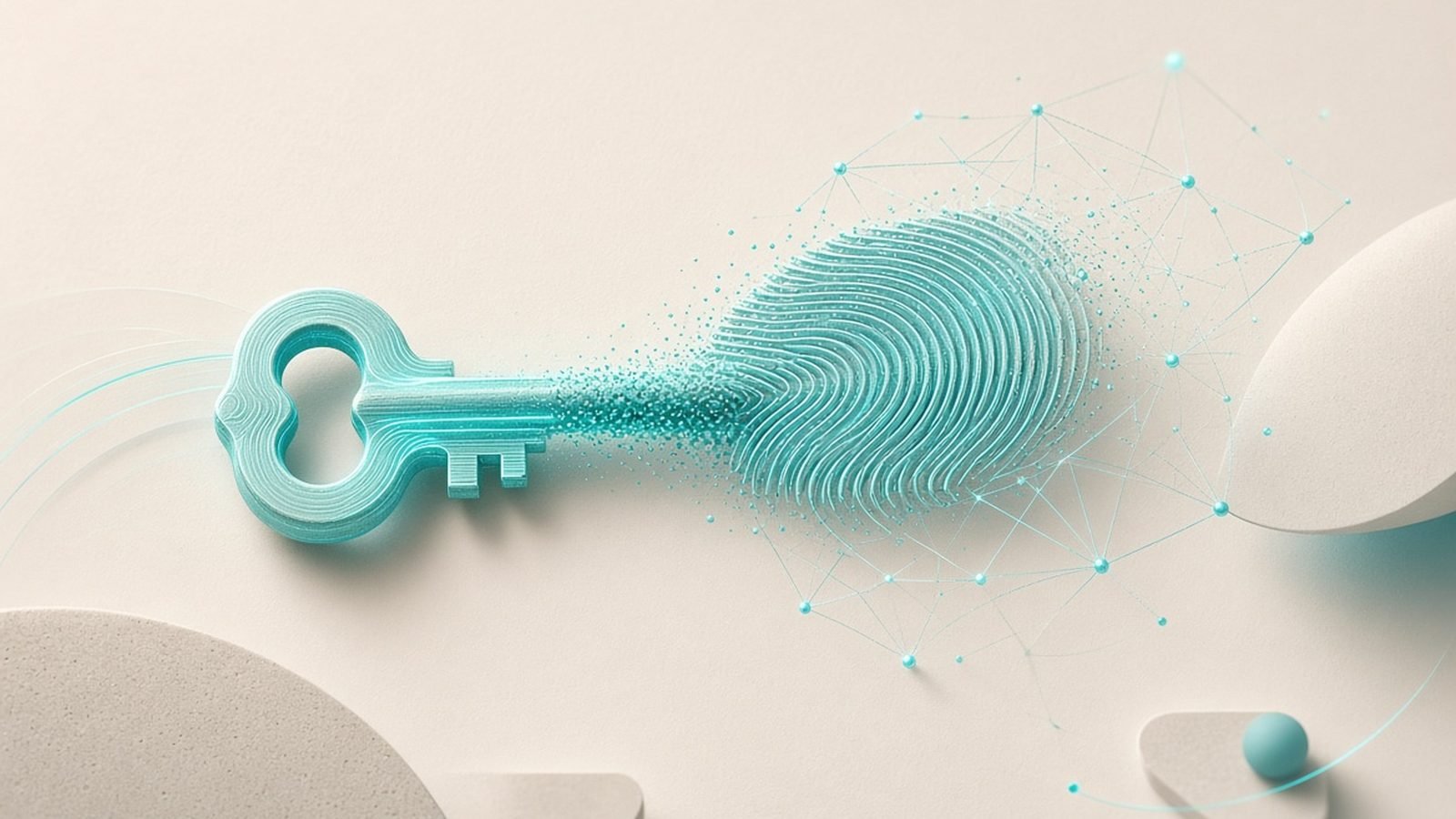
A passkey is a way to sign in to an account with your fingerprint, face or device PIN instead of typing a password. Behind the scenes it replaces the password with a pair of cryptographic keys: a public key stored on the website and a private key that never leaves your device. Because you never type a secret and there’s no password sitting on a server to steal, passkeys are essentially immune to phishing, credential stuffing and password-database breaches — the three ways most accounts actually get hacked. They’re not a future promise: Google, Apple, Microsoft, Amazon and thousands of other services support them right now.
If that sounds like a big claim, it is — and it holds up. Passkeys are the biggest practical upgrade to everyday account security in decades, precisely because they remove the human weak point. Here’s how they work and how to start.
What is a passkey, really?
A passkey is built on public-key cryptography (the FIDO/WebAuthn standard). When you create one for a site, your device generates two mathematically linked keys:
- A public key, which the website stores. It’s useless to a thief on its own — it can only verify a signature, not create one.
- A private key, which stays locked on your device (in secure hardware) and never gets sent anywhere.
To log in, the site sends a challenge, your device signs it with the private key after you approve with your fingerprint, face or PIN, and the site checks that signature against the public key. You prove you hold the private key without ever revealing it. There is no shared secret to phish, guess, reuse or leak.
How signing in with a passkey works
In practice it feels simpler than a password, not more complex:
- You go to log in, and the site offers “Sign in with a passkey.”
- Your device prompts you to confirm — Face ID, a fingerprint, or your device PIN.
- You’re in. No username-and-password to type, no code to copy from a text.
The biometric never leaves your device and is never sent to the website — it only unlocks the local private key. So a company you log into never receives your fingerprint or face; it only receives a one-time cryptographic signature.
Why passkeys beat passwords
Passwords fail in predictable, well-understood ways. Passkeys close each gap:
- They can’t be phished. A passkey is cryptographically bound to the real website’s domain. If you land on a convincing fake, the passkey simply won’t work there — it has nothing to hand over. This alone defeats the most common attack.
- There’s nothing to steal in a breach. Servers store only public keys, which are worthless to attackers. A leaked passkey database gives them nothing usable.
- No reuse problem. Every passkey is unique to one site by design, so there’s no equivalent of using the same password everywhere.
- No weak passwords. There’s no human-chosen secret to be short, guessable or written on a sticky note.
- Faster. A fingerprint or glance beats typing a long password plus a texted code.
Compared with a password even a good one protected by What Is Two-Factor Authentication (2FA)?, a passkey rolls strong authentication and phishing resistance into a single tap.
How passkeys sync across your devices
A fair worry: if the private key lives on my phone, am I locked out when I switch phones? Modern passkeys solve this by syncing through your platform’s account:
- Apple syncs passkeys via iCloud Keychain across your iPhone, iPad and Mac.
- Google syncs them through your Google account across Android and Chrome.
- Microsoft and third-party password managers (1Password, Bitwarden, Dash and others) also store and sync passkeys, including across ecosystems — handy if you mix an Android phone with a Windows PC.
The keys are end-to-end encrypted in transit and storage, so the platform syncs them without being able to read them. Using a cross-platform Best Password Managers 2026: Top Picks Compared & Ranked to hold your passkeys is often the most flexible option if you don’t live entirely inside one company’s world.
Logging in on a device that isn’t yours
You can still use a borrowed or public computer. When a site asks for a passkey there, choose the option to use a phone, and it shows a QR code. You scan it with your own phone, approve with your fingerprint, and your phone signs the challenge over a local Bluetooth-verified link. The private key never transfers to the borrowed machine — it just authorises that one login. This is also why passkeys resist remote phishing: the proximity check can’t be faked from across the internet.
The limits and open questions
Passkeys are excellent, but honesty requires noting the rough edges in 2026:
- Account recovery still matters. If you lose all your devices and your platform account, recovery falls back to that account’s own security — so protect your Apple/Google/Microsoft account fiercely, ideally with its own passkey or hardware key.
- Ecosystem friction. Syncing across, say, Apple and Windows is smoother than it was but still less seamless than within one ecosystem; a third-party manager smooths this over.
- Not everywhere yet. Adoption is broad but incomplete. Many accounts still need a password as a fallback, so you won’t delete every password just yet.
- Shared-device awkwardness. Passkeys are tied to individuals, which complicates accounts a household genuinely shares.
None of these undermine the security case — they’re transitional. The direction of travel is clear.
Should you switch now?
Yes, incrementally. You don’t have to convert everything overnight. Start with your most important accounts — email, Google/Apple/Microsoft, banking and shopping — because those are the highest-value targets and the ones where phishing hurts most. Add a passkey wherever you see the option; you can usually keep your password as a backup during the transition. Over time, as more sites support them, passwordless simply becomes your default. In the meantime, keep unique passwords in a manager and 2FA on anything without passkey support.
How to set up your first passkey
The exact menu varies, but the pattern is consistent:
- In the account’s security settings, look for “Passkeys” or “Passwordless sign-in.”
- Choose create a passkey and confirm with your fingerprint, face or PIN.
- Pick where to store it — your platform account or your password manager.
- Test it by signing out and back in with the passkey.
Try it first on your Google or Apple account, where the flow is polished, then repeat for other services. It usually takes under a minute per account.
FAQ
What are passkeys in simple terms?
A passkey lets you sign in with your fingerprint, face or device PIN instead of a password. Your device holds a secret key that never leaves it and proves your identity with a one-time cryptographic signature. There’s no password to type, phish, reuse or steal from a server, which makes passkeys dramatically more secure than passwords.
Are passkeys safer than passwords?
Yes, substantially. Passkeys can’t be phished because they’re bound to the real website’s domain, there’s no password stored on servers to leak in a breach, and each one is unique to a single site. They eliminate the most common causes of account takeover — phishing, reused passwords and database breaches — in one step.
What happens if I lose my phone with my passkeys?
You’re generally fine, because passkeys sync through your Apple, Google, Microsoft or password-manager account and reappear on your other devices. You can also access them on a new phone by signing back into that account. This is why securing the underlying platform account, ideally with its own passkey or a hardware key, is important.
Can I use passkeys across Apple, Google and Windows?
Yes, though it’s smoothest within one ecosystem. Apple syncs via iCloud Keychain and Google via your Google account, while a cross-platform password manager like 1Password or Bitwarden can store passkeys and sync them across Apple, Android and Windows together — the best option if you mix devices from different companies.
Do passkeys replace two-factor authentication?
Effectively, yes — a passkey already combines something you have (your device) with something you are (your biometric), so it’s inherently multi-factor and phishing-resistant. Where passkeys aren’t yet supported, keep using a strong unique password plus two-factor authentication as the next best protection.
Can I still log in on a public or borrowed computer with a passkey?
Yes. The site shows a QR code, you scan it with your phone and approve with your fingerprint, and your phone signs the login over a local verified connection. Your private key never transfers to the borrowed machine — it only authorises that single sign-in, which is part of why passkeys resist remote attacks.
Zen Tech Hub may earn a commission from links on this page, at no extra cost to you.