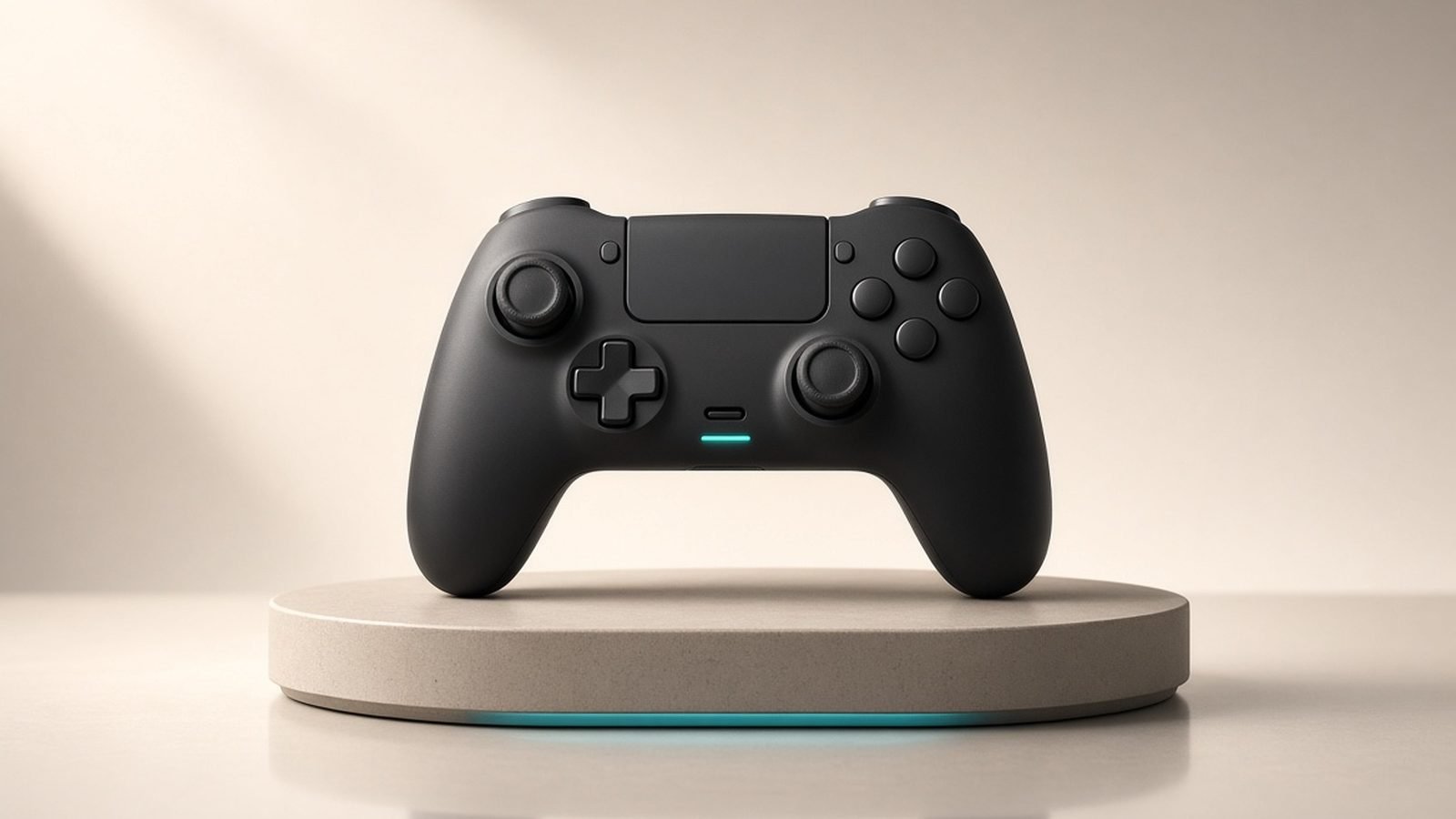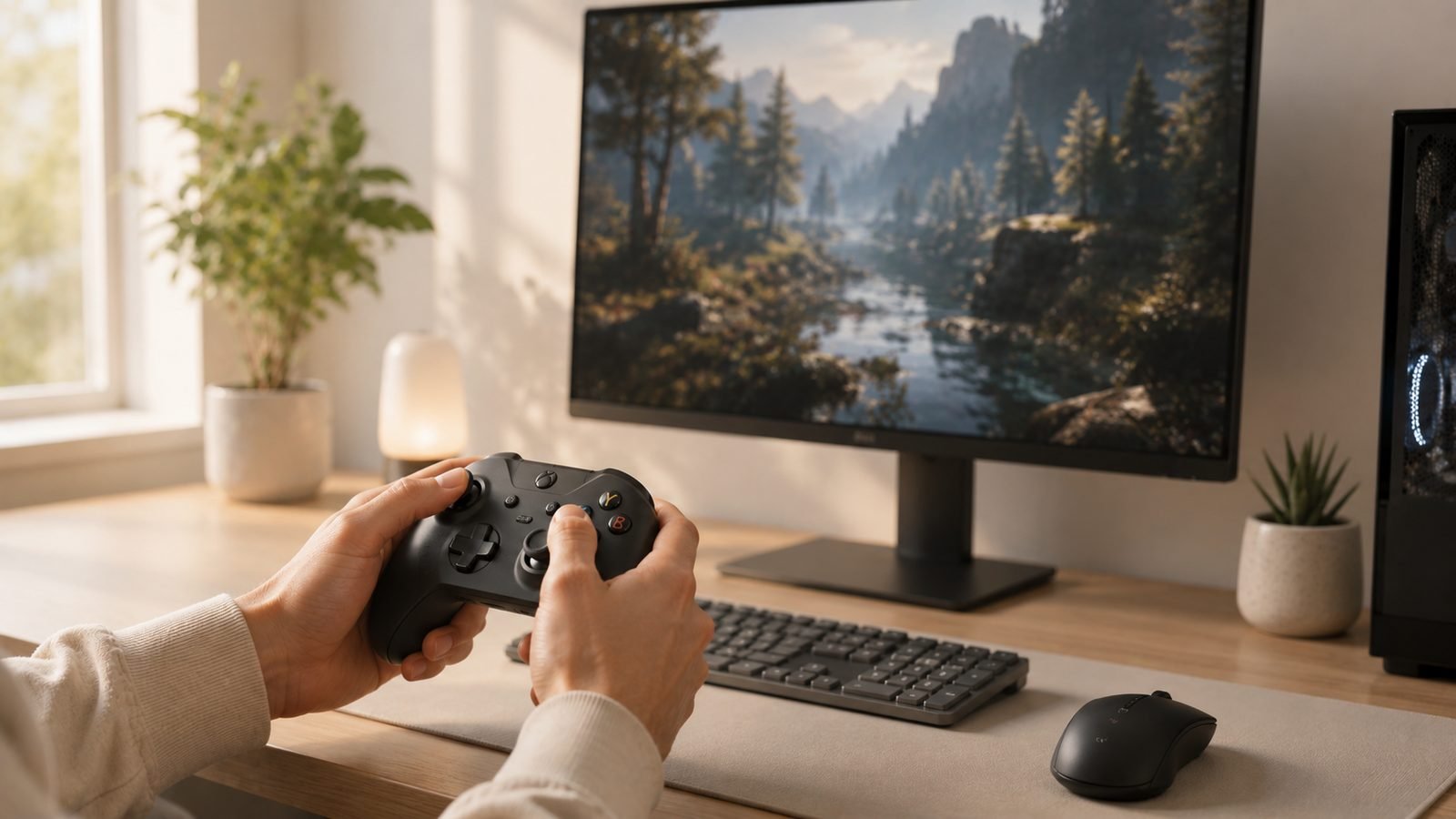
Learning how to connect a PS5 controller to PC takes about two minutes once you know which method fits your setup. The Sony DualSense is one of the best pads you can use on a computer, but Windows treats it differently depending on whether you go wired, wireless, or through Steam. This guide walks all three routes, then fixes the problems that trip most people up.
If you don’t own the pad yet, it runs around $74.99 / £64.99 and is widely stocked.
Three ways to connect: which to pick
There are three practical routes for DualSense on PC setup. Pick based on what you want out of it.
| Method | Best for | Setup time | Haptics & triggers | Lag |
|---|---|---|---|---|
| USB-C wired | Simplicity, zero latency, competitive play | 30 seconds | Best support | None |
| Bluetooth | Cable-free couch or living-room play | 2 minutes | Works, game-dependent | Slightly higher |
| Steam Input | Any game, remapping, big-picture play | 3 minutes | Handled by Steam | Low |
Short version: go wired if you want the least hassle and the most reliable rumble. Use Bluetooth for wireless comfort. Route through Steam if a game refuses to see the pad natively or you want deep remapping.
Method 1: USB-C wired (simplest)
Wired is the most reliable way to use a DualSense on a PC, and it’s the one we’d start with.
Grab a USB-C to USB-A (or USB-C) data cable — not a charge-only cable. The cable that ships with the PS5 works.
Plug the USB-C end into the controller and the other end into your PC.
Windows 10 and 11 detect it instantly as a generic gamepad. No driver install needed.
Launch your game or Steam. It’s ready.
Wired mode gives you the lowest latency and the most consistent haptic feedback, which is why competitive players prefer it. It also charges the pad while you play.
Method 2: Bluetooth pairing step-by-step
Want it cable-free? PS5 controller Bluetooth PC pairing is straightforward, as long as your machine has Bluetooth. Most laptops do; many desktops don’t.
On your PC, open Settings > Bluetooth & devices and make sure Bluetooth is On.
Click Add device > Bluetooth.
On the DualSense, hold the PS button and the Create button (top-left, next to the D-pad) together for about three seconds until the light bar flashes blue rapidly. That’s pairing mode.
Select Wireless Controller in the PC’s device list.
The light bar goes solid once connected.
If your desktop has no Bluetooth radio, a cheap USB dongle solves it. A TP-Link Bluetooth 5.3 adapter runs around $15 / £13 and takes one free USB port.
Check price: TP-Link USB Bluetooth 5.3 Adapter
Method 3: Steam Input setup and per-game settings
Steam has the best DualSense support outside of first-party PlayStation games, and DualSense Steam Input setup unlocks remapping, gyro aiming, and per-game profiles.
Connect the pad first (wired or Bluetooth, above).
Open Steam and go to Settings > Controller.
Enable PlayStation Controller Support. Steam now recognises the DualSense by name and lets you set the light bar and rumble.
To remap a specific game, right-click it in your library, choose Properties > Controller, and pick or build a layout.
In Big Picture mode, you get the full configurator, including gyro-to-mouse and back-button mapping.
Steam Input also acts as a translation layer, so games that only expect an Xbox pad will still work. If a title double-reads your inputs, see the fix below.
Getting haptics and adaptive triggers working
The DualSense’s headline features are its haptic rumble and adaptive triggers — the resistance you feel in the L2/R2 buttons. Getting DualSense adaptive triggers on PC working depends on the game.
Native support is game-by-game. Titles like Returnal, Marvel’s Spider-Man and Ghost of Tsushima read the DualSense directly and expose full trigger resistance — usually best over USB.
Over Bluetooth, many games still deliver haptics, but based on owner reports it’s less consistent than wired.
Steam-routed games get standard rumble reliably; advanced trigger effects depend on the developer.
If features feel flat, plug in via USB first — in our research that resolves most missing-haptics complaints. For remapping fans, the DualSense Edge adds back buttons and swappable sticks; to use DualSense Edge on PC the connection steps are identical, and its extra buttons configure through Steam Input.
Fixes: not connecting, lag, double input
If your PS5 controller is not connecting to PC, or acting strangely, work through these in order.
Not detected at all? Swap the cable first — confirm it carries data, not just power. This is the single most common culprit. Then try a different USB port.
Bluetooth won’t pair? Remove any old “Wireless Controller” entry from your Bluetooth list, then re-pair. Only one device can hold the pairing at a time, so unpair from your PS5 first.
Input lag over Bluetooth? Move closer to the radio, or switch to wired. A dedicated Bluetooth 5.x dongle usually beats a cheap built-in radio.
Double inputs (menus jumping, character moving twice)? Steam Input and the game are both reading the pad. Either disable PlayStation support in Steam for that game, or launch the game through Steam so only one layer is active.
Drift or dead buttons? Owner reports point to stick-module wear over time; the Edge’s replaceable sticks are the long-term answer.
Accessories worth having
Two add-ons make DualSense on PC noticeably better: a proper USB-C data cable for lag-free wired play and charging, and a Bluetooth 5.3 USB adapter if your desktop lacks a radio — cheap insurance for stable wireless.
Check price: TP-Link USB Bluetooth 5.3 Adapter
If you’re weighing the DualSense against other pads, our Best PC Controllers 2026: Wired, Wireless and Pro Picks roundup and the DualSense Edge vs Xbox Elite Series 2: Best Pro Controller? comparison go deeper. Budget-minded readers should also see the 8BitDo Ultimate 2 Review: The Best Value PC Controller of 2026. More guides live in the Gaming.
FAQ
Does a PS5 controller work on PC without any software? Yes. Plug it in over USB or pair it via Bluetooth and Windows 10 or 11 recognises it as a generic gamepad with no drivers. However, many games map buttons assuming an Xbox controller. For correct prompts, remapping, and reliable rumble, routing through Steam Input is the smoother experience.
Why won’t my PS5 controller connect over Bluetooth? The most common causes are a stale pairing entry and a controller not actually in pairing mode. Remove old “Wireless Controller” entries, then hold the PS and Create buttons until the light bar flashes rapidly. Remember the pad can only be paired to one device at a time, so unpair it from your PS5 first.
Do adaptive triggers work on PC? Sometimes. Adaptive triggers and haptics are supported game-by-game, and they work most reliably over a wired USB connection. Titles built with DualSense features expose full resistance; older or cross-platform games may offer standard rumble only. If triggers feel dead, connect via USB before troubleshooting further.
Can I use the DualSense Edge on PC? Yes, and the connection steps are identical to the standard DualSense over USB or Bluetooth. The Edge’s back buttons and trigger stops are recognised, but you’ll get the most from them by mapping the extra inputs through Steam Input or a game’s native binding menu.
Is wired or wireless better for PC gaming? Wired wins for latency, battery, and the most consistent haptics, making it the pick for competitive play. Bluetooth is better for couch and living-room comfort. If wireless feels laggy on a desktop, a dedicated Bluetooth 5.x dongle usually outperforms an older built-in radio.
Zen Tech Hub may earn a commission from links on this page, at no extra cost to you.