The best free video editing software in 2026 is genuinely free — no watermark stamped over your footage, no 720p export cap, no trial that expires the week you finally learn the keyboard shortcuts. That wasn’t true five years ago, and plenty of “free” editors still play those games. The five picks below don’t.
In our research for this guide, we compared feature sets, export limits and system requirements across more than a dozen free editors, and weighed them against hundreds of owner reports from YouTube creators, students and small businesses. The short version: DaVinci Resolve 20 is the best free editor for most people, CapCut is the fastest route to short-form content, and your operating system probably already includes a perfectly usable backup option.
Here’s how they stack up.
Free Video Editors at a Glance
| Editor | Best for | Watermark? | Max free export | Platforms | Paid upgrade |
|---|---|---|---|---|---|
| DaVinci Resolve 20 | Overall / serious editing | No | 4K (UHD) | Windows, Mac, Linux | Studio, around $295 / £235 one-time |
| CapCut | TikTok, Reels, Shorts | No (core tools) | 4K | Windows, Mac, iOS, Android, web | Pro, around $9.99 / £7.99 per month |
| Microsoft Clipchamp | Windows beginners | No | 1080p (4K needs premium) | Windows 11, web | Via Microsoft 365, around $9.99 / £8.49 per month |
| iMovie | Mac and iPhone users | No | 4K | macOS, iOS | Final Cut Pro, around $299 / £299 one-time |
| VN Video Editor | Mobile editing | No | 4K | iOS, Android, Mac, Windows | VN Pro (optional) |
Every editor in this table exports without a watermark on its free tier. That was our first filter, and it eliminated a surprising number of big names — Filmora, Movavi and most “free” online editors watermark everything until you pay.
Best Free Editor Overall: DaVinci Resolve 20
Around $0 — free forever; Resolve Studio around $295 / £235 one-time
Blackmagic Design makes cameras and cinema hardware, and Resolve exists partly to sell that hardware. The result is a pricing model that feels almost too good: the free version of DaVinci Resolve 20 includes professional editing, the industry’s most respected colour grading tools, Fusion visual effects and the full Fairlight audio suite. Films that played in cinemas were graded in this software, and the core of it costs nothing.
Version 20 pushed the free tier further with AI-assisted tools like automatic dialogue transcription, text-based editing and smart reframing for vertical crops. You can cut a YouTube video, grade it properly, mix the audio and export in 4K UHD — no watermark, no time limit, no account nagging.
The honest trade-off is the learning curve. Resolve is organised into pages (Cut, Edit, Color, Fairlight, Deliver), and based on hundreds of owner reports, the first week is genuinely disorienting if you’ve never edited before. It also wants real hardware: 16GB of RAM and a dedicated GPU make a dramatic difference, and older laptops with integrated graphics will struggle with 4K timelines.
Pros:
- Professional-grade colour, editing, VFX and audio — completely free
- No watermark, no export time limits, 4K UHD output on the free tier
- One-time Studio upgrade instead of a subscription
- Runs on Windows, Mac and Linux
Cons:
- Steepest learning curve of any pick here
- Demands a capable GPU and 16GB+ RAM for smooth playback
- Free version caps exports at UHD (no 8K) and locks some AI/noise-reduction tools
Who it’s for: anyone serious about learning to edit — YouTubers, aspiring filmmakers, students. If you’re willing to invest a weekend in tutorials, nothing free comes close, and the skills transfer directly to paid professional work.
Try DaVinci Resolve Studio activation key
Best for Social and Short-Form: CapCut
Free; CapCut Pro around $9.99 / £7.99 per month
If your output is TikTok, Reels or YouTube Shorts, CapCut is the fastest tool for the job — full stop. ByteDance built it as TikTok’s companion editor, and it shows in the best ways: one-tap auto-captions that are startlingly accurate, trending templates, beat-synced cuts and direct vertical-video export presets. Edits that take an hour in a traditional timeline take ten minutes here.
The desktop version (Windows and Mac) has matured into a legitimate editor with keyframes, chroma key and multi-track timelines, so it’s no longer just a phone app. In our research, it’s the editor beginners stick with most often, simply because the gap between “installed it” and “posted something” is so short.
Two caveats keep it out of the top spot. First, the feature paywall is creeping: effects, filters and some AI tools that were free in 2023–24 now carry a Pro badge, and owner reports regularly complain about opening old projects to find a previously free effect locked. Second, CapCut processes many AI features in the cloud, and its ByteDance ownership raises the same data-privacy questions as TikTok — worth knowing if you edit client footage or anything sensitive. If that bothers you, the CapCut alternatives worth trying are VN (below) for mobile and Resolve’s Cut page for desktop.
Pros:
- Best auto-captions in any free editor
- Templates and presets built for TikTok, Reels and Shorts
- 4K export with no watermark on core tools
- Works on phone, desktop and browser with cloud sync
Cons:
- More features migrate behind the Pro paywall every year
- Cloud processing and ByteDance ownership raise privacy questions
- Weak for long-form, multi-camera or colour-critical work
Who it’s for: short-form creators who value speed over control. If you post daily to TikTok or Instagram, start here; if you outgrow it, your next stop is Resolve or Premiere Pro.
Try Adobe Premiere Pro (CapCut upgrade path)
Best Built Into Windows: Microsoft Clipchamp
Free; premium features via Microsoft 365, around $9.99 / £8.49 per month
Clipchamp ships with Windows 11, which makes it the video editor for PC free of any download at all — it’s already on your machine. Microsoft has quietly turned it from a clunky web app into a pleasant, genuinely simple editor: drag clips onto a timeline, trim, add text and transitions, apply auto-captions, export to 1080p without a watermark.
The free stock library (video, music, sound effects) is better than it has any right to be, and integration with OneDrive and Teams makes it a natural fit for work presentations, school projects and quick screen-recording edits. The built-in screen and webcam recorder is an underrated bonus for tutorial makers.
The ceiling is low, though. There’s no proper colour grading, limited keyframing, and 4K export sits behind the Microsoft 365 premium tier. Performance on longer projects can also get sluggish because of its web-app foundations. Treat it as the editor for people who will never open a colour wheel — which, honestly, is most people.
Pros:
- Pre-installed on Windows 11 — zero setup
- Clean, beginner-friendly interface with solid auto-captions
- Generous free stock media library
- Watermark-free 1080p exports
Cons:
- 4K export requires a Microsoft 365 subscription
- No advanced colour tools, limited effects and keyframing
- Sluggish with long or complex projects
Who it’s for: Windows users who need to cut a video this afternoon — family montages, work clips, school assignments — with no interest in “learning editing” as a skill.
Try Microsoft 365 Personal (Clipchamp premium)
Best for Mac Users: iMovie
Free with every Mac and iPhone
iMovie remains the answer to “what should I use?” for anyone on a Mac who hasn’t already picked a side. It’s free, pre-installed, exports 4K with no watermark, and its Magic Movie and Storyboards features on iOS can assemble a respectable edit almost automatically.
Apple hasn’t given iMovie a major overhaul in years, and it shows in the two-track timeline and limited effects. But what it does, it does with typical Apple polish: buttery playback of iPhone footage, dead-simple titles, and a hand-off between iPhone and Mac that no competitor matches. When you hit its ceiling, Final Cut Pro (around $299 / £299 one-time) opens iMovie projects directly.
Pros:
- Free on every Mac and iPhone, 4K export, no watermark
- Handles iPhone footage (including HEVC and cinematic mode) flawlessly
- Easiest learning curve on this list
Cons:
- Only two video tracks; limited effects and audio control
- Mac and iOS only, and development has clearly slowed
- No direct path to advanced colour or VFX work
Who it’s for: Apple households, students and anyone editing iPhone footage casually. Serious Mac editors should skip straight to Resolve or Final Cut Pro.
Try Apple Final Cut Pro (iMovie upgrade path)
Best Free Mobile Editor: VN Video Editor
Free; optional VN Pro subscription
VN is the editor mobile creators recommend to each other once they’ve tired of CapCut’s paywall creep. It offers a real multi-track timeline, curve-based speed ramping, keyframes, LUT support and 4K export — on a phone, free, with no watermark and no forced account.
Based on aggregated user reviews, VN’s standout trait is restraint: the free tier has stayed genuinely complete for years, with Pro adding conveniences rather than holding basics hostage. Desktop versions for Mac and Windows exist and share project formats with mobile. The trade-offs are a smaller template library than CapCut, weaker auto-captions and occasional translation quirks in the interface.
Pros:
- Full multi-track editing, keyframes and speed ramps on mobile
- 4K export, no watermark, no account required
- Free tier has remained genuinely free over time
Cons:
- Fewer templates and effects than CapCut
- Auto-captions lag behind CapCut’s accuracy
- Smaller community, fewer tutorials
Who it’s for: mobile-first creators who want manual control instead of templates, and anyone actively looking for CapCut alternatives with a cleaner free tier.
Try VN Video Editor (upgrade path: DaVinci Resolve Studio)
When to Upgrade: Resolve Studio, CapCut Pro and Premiere Pro Compared
Free tools cover more ground in 2026 than paid tools did in 2020, but three upgrade paths still make sense.
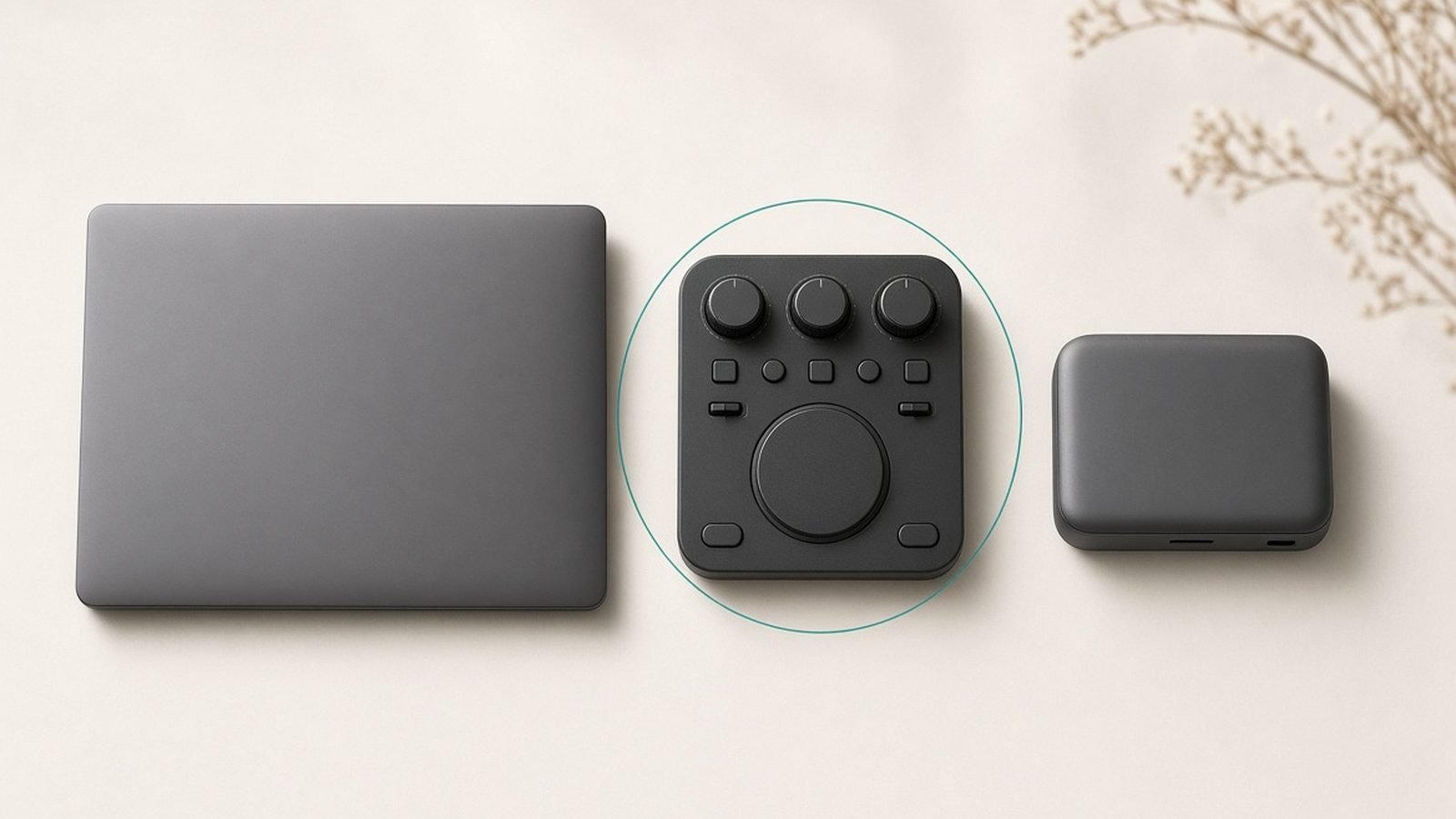
DaVinci Resolve free vs Studio is the easiest call. Studio costs around $295 / £235 once — not per year — and adds the Neural Engine AI suite (magic mask, voice isolation, superscale upscaling, film-grade noise reduction), 120fps support and exports beyond UHD. The free version genuinely covers most creators; buy Studio when you hit noisy low-light footage or client work, and note the licence often comes bundled free with Blackmagic’s Speed Editor keyboard, which is the smart way to buy it.
CapCut Pro at around $9.99 / £7.99 per month unlocks premium effects, faster cloud rendering and the growing pile of Pro-badged AI tools. It’s worth it for daily short-form posters; casual users should bank the money.
Adobe Premiere Pro (around $22.99 / £21.98 per month) is the move when editing becomes income. It remains the industry-standard timeline: best-in-class team workflows, After Effects and Photoshop integration, AI-powered text-based editing and enhanced speech, plus the plugin ecosystem clients expect. The subscription stings next to Resolve’s one-time fee, but if your collaborators, employer or clients live in Adobe’s ecosystem, fighting that is a losing battle. Adobe pairs naturally with the rest of a creative stack — see our guide to the Best Photo Editing Software 2026: Free & Paid Picks Ranked for the Lightroom/Photoshop side.
Free Editor Limitations: Watermarks, Exports and 4K
Every pick above passed our no-watermark test, but “free” still comes with fine print worth reading before you commit hours to a project:
- Export ceilings. Resolve free tops out at 4K UHD (fine for YouTube), Clipchamp free at 1080p. Check the cap before you shoot in 4K.
- Feature drift. CapCut has repeatedly moved free features behind Pro. Anything cloud-based can change terms overnight; offline tools like Resolve and VN can’t retroactively lock your installed version.
- Codec support. Free tiers sometimes skip formats — Resolve’s free Linux build has historically had limited H.264/AAC handling, and some editors charge for HEVC.
- Account and cloud requirements. A free video editor no watermark policy means little if the tool demands an account and uploads your footage for processing. Resolve, iMovie and VN edit fully offline; CapCut and Clipchamp lean on the cloud.
A quick security note, since this is our beat: only download editors from official sites or OS app stores. “Free video editor” is a favourite lure for malware-laden clones — the fake CapCut and Resolve installers circulating on ad networks are well documented. More on safe software sourcing in our Software, Security & AI.
System Requirements: Will It Run on Your Laptop?
The best video editing software for beginners is the one your machine can actually run. Rough guidance from published specs and owner reports:
- DaVinci Resolve 20: realistically 16GB RAM and a dedicated GPU (or Apple Silicon) for 1080p; 32GB and a mid-range GPU for comfortable 4K. Integrated-graphics laptops will frustrate you.
- CapCut desktop: modest — 8GB RAM handles 1080p short-form fine, since heavy AI work happens in the cloud.
- Clipchamp: anything that runs Windows 11 runs Clipchamp, though long timelines want 16GB.
- iMovie: effortless on any Apple Silicon Mac and on iPhones back several generations.
- VN: the lightest touch here — mid-range phones from the last four years cope with 4K timelines using proxies.
If your laptop is older, start with CapCut, Clipchamp or VN; if you have a gaming PC or an M-series Mac, go straight to Resolve. And if you plan to lean on AI-assisted editing features, our roundup of the Best AI Tools 2026: Top Assistants and Apps Ranked covers what’s worth your time.
Verdict: Which Free Video Editor Should You Download?
- Most people, long-term: DaVinci Resolve 20. Steep first week, unmatched ceiling, genuinely free.
- Short-form creators: CapCut — fastest captions and templates in the business; watch the paywall.
- Windows users in a hurry: Clipchamp, because it’s already installed.
- Apple casuals: iMovie, then Final Cut Pro if you get serious.
- Mobile-first control freaks: VN Video Editor.
The smart play for a new YouTuber: rough-cut and caption in CapCut while you learn Resolve on weekends. Within a couple of months, you’ll have professional-grade skills that cost you nothing but time.
FAQ: Free Video Editing
What is the best free video editing software with no watermark?
DaVinci Resolve 20 is the best free video editor with no watermark in 2026. It includes professional editing, colour grading, visual effects and audio mixing, and exports up to 4K UHD free. CapCut, Clipchamp, iMovie and VN also export without watermarks, but Resolve offers by far the most capability without paying.
Is DaVinci Resolve really free, and what’s the catch?
Yes — Blackmagic Design profits from cameras and hardware, so the software is a genuine loss-leader. The free version has no watermark and no time limit. The catches: exports cap at 4K UHD, some AI tools and noise reduction require the roughly $295 / £235 Studio licence, and it needs a reasonably powerful computer.
Is CapCut still free in 2026?
CapCut’s core editor, auto-captions and watermark-free 4K export remain free, but ByteDance has steadily moved effects, filters and AI features behind CapCut Pro (around $9.99 / £7.99 per month). Owner reports note previously free effects becoming Pro-only in existing projects, so budget-conscious creators should keep alternatives like VN or Resolve in mind.
What’s the best free video editor for YouTube?
For long-form YouTube videos, DaVinci Resolve 20 — free 4K UHD export, proper colour tools and strong audio cleanup. For Shorts, CapCut’s vertical presets and auto-captions are faster. Many YouTubers use both: Resolve for main uploads, CapCut to repurpose clips into Shorts and Reels.
Do free video editors support 4K export?
Most now do. DaVinci Resolve, CapCut, iMovie and VN all export 4K free with no watermark. Clipchamp is the exception, capping free exports at 1080p and reserving 4K for Microsoft 365 subscribers. Smooth 4K editing depends more on your hardware — expect to need 16GB of RAM or proxy workflows.
Should I pay for Premiere Pro instead of using free software?
Only when editing earns money or your collaborators use Adobe. Premiere Pro (around $22.99 / £21.98 per month) offers industry-standard workflows and deep After Effects integration, but Resolve’s free tier matches or beats it for solo creators. Learn free first; subscribe when a client or job requires it.
Zen Tech Hub may earn a commission from links on this page, at no extra cost to you.