If your robot vacuum keeps losing its map, refuses to finish mapping, or splits your living room into five phantom rooms, the good news is that mapping problems are almost always fixable at home — no new robot required. The quick answer: run one slow, uninterrupted mapping run in good lighting with doors open and clutter cleared, keep the dock in a fixed spot, and update the firmware. That single clean run solves the majority of cases.
Below is the full, ordered fix list — from the fast wins to the deeper resets — plus the brand-specific quirks that trip up Roborock, Roomba, Eufy and Dreame owners. Work through them top to bottom and stop when your map holds.
Why robot vacuum mapping fails (a 30-second primer)
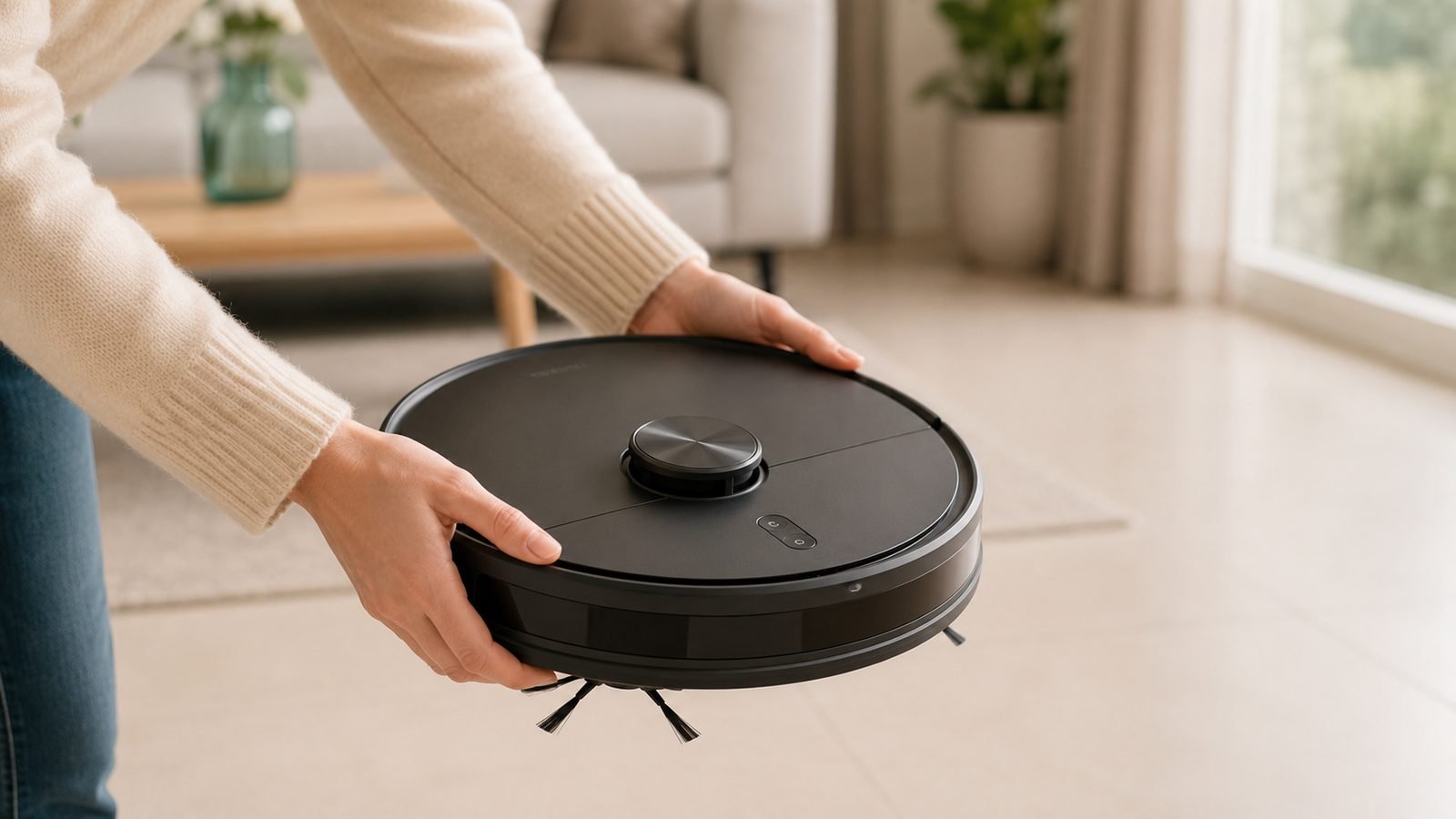
Robots build maps in one of two ways. LiDAR robots (most Roborocks, Dreames and newer Eufys) spin a laser to measure the room and are fast and accurate, but a dirty or blocked laser turret, mirrors and very dark glass can confuse them. Camera / vSLAM robots (many Roombas and some Eufys) navigate by sight and need decent lighting — they struggle to map in the dark.
Most mapping failures come down to five things: a bad first mapping run, dirty sensors, poor lighting, a moved dock, or stale firmware. Knowing which type of robot you own tells you which to suspect first — lighting for camera bots, the turret and reflective surfaces for LiDAR bots.
Step 1: Run a proper first mapping run
A clean initial map is 80% of the battle. Most robots let you run a dedicated “mapping run” or “quick mapping” that explores without cleaning — use it. Before you start:
- Open every interior door you want mapped. Closed doors become walls.
- Turn the lights on, especially for camera-navigation robots.
- Clear the floor of cables, socks, low toys and anything the robot could snag on and abort the run.
- Tuck in trailing curtains and cords, and lift dangling charger cables.
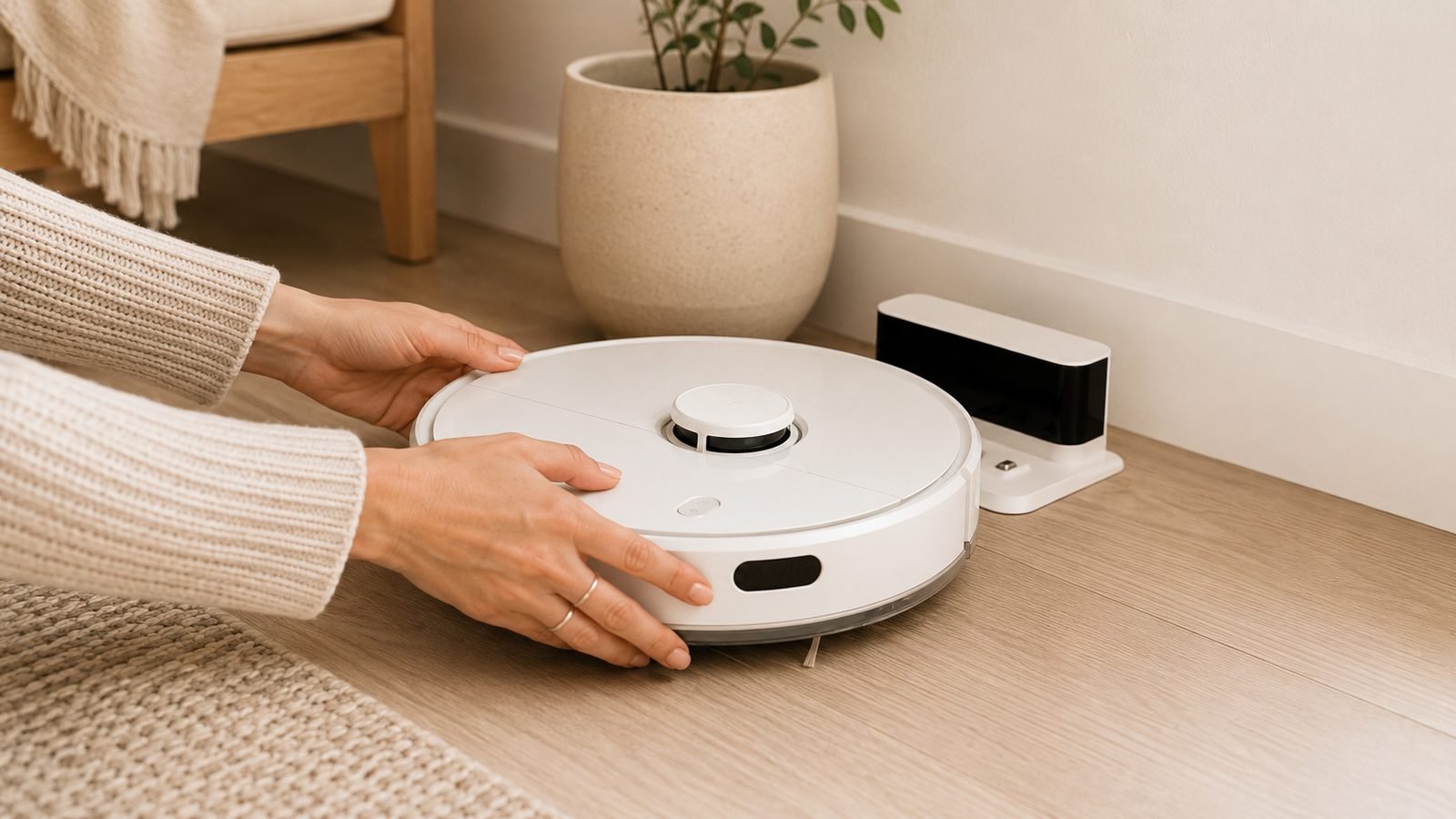
- Let it finish uninterrupted — don’t pick the robot up or send it home mid-map, which is the single most common cause of a half-finished map.
Let it complete the full circuit and return to the dock on its own. Then check the app map and edit room divisions if needed.
Step 2: Clean the sensors and LiDAR turret
Dust is the quiet killer of accurate maps. On a LiDAR robot, gently wipe the spinning laser turret’s window and make sure it rotates freely — pet hair wound under the turret is a classic cause of drifting maps. On camera-navigation robots, wipe the camera lens like you’d clean glasses. Also clean the cliff sensors on the underside and any wall/bump sensors on the front bumper.
Use a dry microfibre cloth, or a cotton bud with a drop of isopropyl alcohol for stubborn film — never household spray cleaner, which fogs sensor windows. This five-minute job fixes a surprising share of “the map keeps drifting” complaints, especially on robots more than a year old.
Step 3: Fix the lighting (camera robots especially)
Camera and vSLAM robots physically cannot map a pitch-dark room. If your robot maps fine by day but fails on a night schedule, that’s the cause — leave a lamp on or reschedule to daylight hours. LiDAR robots are unaffected by darkness, but they can be fooled by mirrors, floor-to-ceiling glass and highly reflective surfaces, which scatter the laser and create phantom walls or gaps. If a specific area maps wrong every time, look for a reflective surface there and consider a no-go zone across it.
Step 4: Keep the dock still — move dock, then remap
Maps are anchored to the dock’s position. If you move the dock even a metre and don’t remap, the robot navigates confidently to where the dock used to be and the whole map drifts out of alignment. The rule is simple and absolute: move the dock first, then create a fresh map — never the reverse. Put the dock in its permanent home against a wall on hard flooring, and leave it there.
This is also the top cause of the related “won’t return to dock” fault — if that’s happening too, our dedicated guide walks through it. Robot Vacuum Won't Return to Dock? 11 Fixes That Work
Step 5: Update the firmware
Mapping logic lives in firmware, and manufacturers ship regular improvements to navigation and map stability. Open the app, check for a pending update and install it. Conversely, if your mapping problems started within a day or two of an update, a bad build is possible — check your model’s subreddit or the manufacturer’s forum before assuming your hardware failed.
Step 6: Split, merge and label rooms correctly
Sometimes the map is fine but the room segmentation is wrong — one big room chopped into fragments, or two rooms merged. Every major app (Roborock, eufy, Dreame, iRobot) lets you manually split and merge rooms and rename them. Do this once, carefully, after a good mapping run:
- Merge phantom sub-rooms the robot over-divided.
- Split an open-plan space along the natural boundary if you want zone control.
- Add no-go zones around pet bowls, cable nests, reflective surfaces and delicate rugs.
- Name rooms so voice commands (“clean the kitchen”) work.
Step 7: Handle multi-floor mapping properly
If you carry the robot between floors, you need multi-floor / multi-map support — most current LiDAR robots store several maps and auto-recognise which floor they’re on; many older or budget models store only one and wipe the map every time you move the robot. Check your model’s spec. If it supports saved maps, create and store each floor separately from that floor’s dock (or a temporary dock position), and confirm the app is set to auto-select maps. If it only holds one map, that’s a hardware limitation, not a fault — and a reason to upgrade if multi-floor is important to you.
Step 8: The nuclear option — full map reset
If the map is corrupted beyond editing, delete it and start clean. In the app, remove the saved map (and, on some robots, run a factory reset of the map data specifically). Then return to Step 1 and run one careful mapping run. A fresh map on current firmware, in good light, with the dock fixed, resolves the large majority of persistent cases.
Brand-specific mapping quirks
| Brand | Common mapping quirk | Fix |
|---|---|---|
| Roborock | Map drifts after moving dock | Remap after any dock move; clean turret |
| Roborock | Phantom walls near mirrors/glass | Add no-go zone over reflective area |
| iRobot (Roomba) | Imprint Smart Map won’t complete in dim rooms | Map in daylight / add lighting |
| iRobot (Roomba) | Map lost after relocating Home Base | Run new Smart Map training run |
| Eufy | vSLAM models lose map on dark schedules | Reschedule to daytime or leave a lamp on |
| Dreame | Multi-floor map not auto-selecting | Enable multi-map, remap each floor |
Two notes worth knowing. Roomba’s iMprint Smart Mapping needs a few training runs to become reliable — don’t judge it on the first attempt. And Roborock and Dreame both anchor maps hard to the dock, so their most common mapping complaint is almost always a moved dock without a remap.
When it’s the hardware (and time to upgrade)
If you’ve run a clean map in good light, cleaned the sensors, fixed the dock and updated firmware, and the map still won’t hold, the LiDAR module or camera may be failing — worth a warranty claim if the robot is under a year old. If it’s an older bump-navigation model that never mapped well, the honest truth is that modern LiDAR robots have largely engineered this problem away. For a sense of what reliable mapping feels like now, our Roborock Saros 10 Review 2026: Is the Flagship Worth It? and value-focused Eufy X10 Pro Omni Review 2026: Self-Emptying Value Pick both cover robots with fast, stable mapping, and our Roborock vs Dreame (2026): Which Robot Vacuum Brand Wins? comparison weighs the two best-mapping brands head to head.
A quick, cheap thing to try before upgrading: if pet hair is jamming your turret and wrecking maps, a fresh set of brushes and a Check price: replacement side brush / filter kit keeps debris off the sensors and is a two-minute fix.
FAQ
Why won’t my robot vacuum finish mapping the house?
Usually because the run was interrupted, a door was closed, or the floor had clutter it snagged on and aborted. Run a dedicated mapping run with all interior doors open, clutter cleared, lights on and the robot left to finish on its own. Don’t pick it up or send it home mid-map — that’s the most common cause of a half-finished map.
Why does my robot vacuum keep losing its map?
The two big causes are a moved dock and stale firmware. Maps anchor to the dock, so moving it without remapping breaks alignment. Update the firmware, keep the dock fixed, and if the map is corrupted, delete it and run one clean mapping run. Camera-navigation robots also lose their bearings in the dark.
How do I reset my robot vacuum’s map?
In the app, open the map settings and delete the saved map (some robots have a separate map-data reset). Then place the dock in its permanent spot and run a fresh mapping run in good lighting with doors open. On multi-map robots, delete only the problem floor’s map so you don’t lose your other floors.
Why does my robot map the wrong rooms or add phantom walls?
Reflective surfaces are the usual culprit for LiDAR robots — mirrors and floor-to-ceiling glass scatter the laser into fake walls or gaps. Add a no-go zone over the reflective area. If rooms are over-divided, use the app’s merge tool; if two rooms merged, use split. A dirty turret can also cause drift, so clean it first.
Can robot vacuums map multiple floors?
Most current LiDAR robots store several maps and auto-detect which floor they’re on; many older or budget models store only one and wipe it when moved. Check your model’s spec for “multi-floor” or “multi-map” support. If it’s supported, map each floor separately and enable auto-map selection in the app.
Do I need good lighting for a robot vacuum to map?
Camera and vSLAM robots (many Roombas, some Eufys) do — they can’t map in darkness, so schedule mapping for daytime or leave a lamp on. LiDAR robots (most Roborocks, Dreames, newer Eufys) map fine in the dark because they use a laser, though they can still be confused by mirrors and glass regardless of lighting.
Zen Tech Hub may earn a commission from links on this page, at no extra cost to you.