A second monitor not detected in Windows 11 is one of the most common desk-setup headaches we see, and the good news is that most cases come down to a handful of predictable culprits. Before you assume your screen is dead, work through the fixes below in order. They move from the thirty-second checks to the deeper driver and bandwidth issues, so you rarely need to reach the bottom of the list.
Whether it is an HDMI monitor showing no signal, a USB-C monitor not detected on a laptop, or a docking station monitor not working after a Windows update, the process is the same: isolate each link in the chain until the fault reveals itself.
Quick checks first (cable, input, power)
Start with the boring stuff, because it fixes more setups than anything else. Confirm the monitor is powered on and not just in standby. Then check the input source with the monitor’s physical buttons or joystick, most displays do not auto-switch, so an HDMI monitor with no signal is often just parked on DisplayPort or the wrong HDMI port.
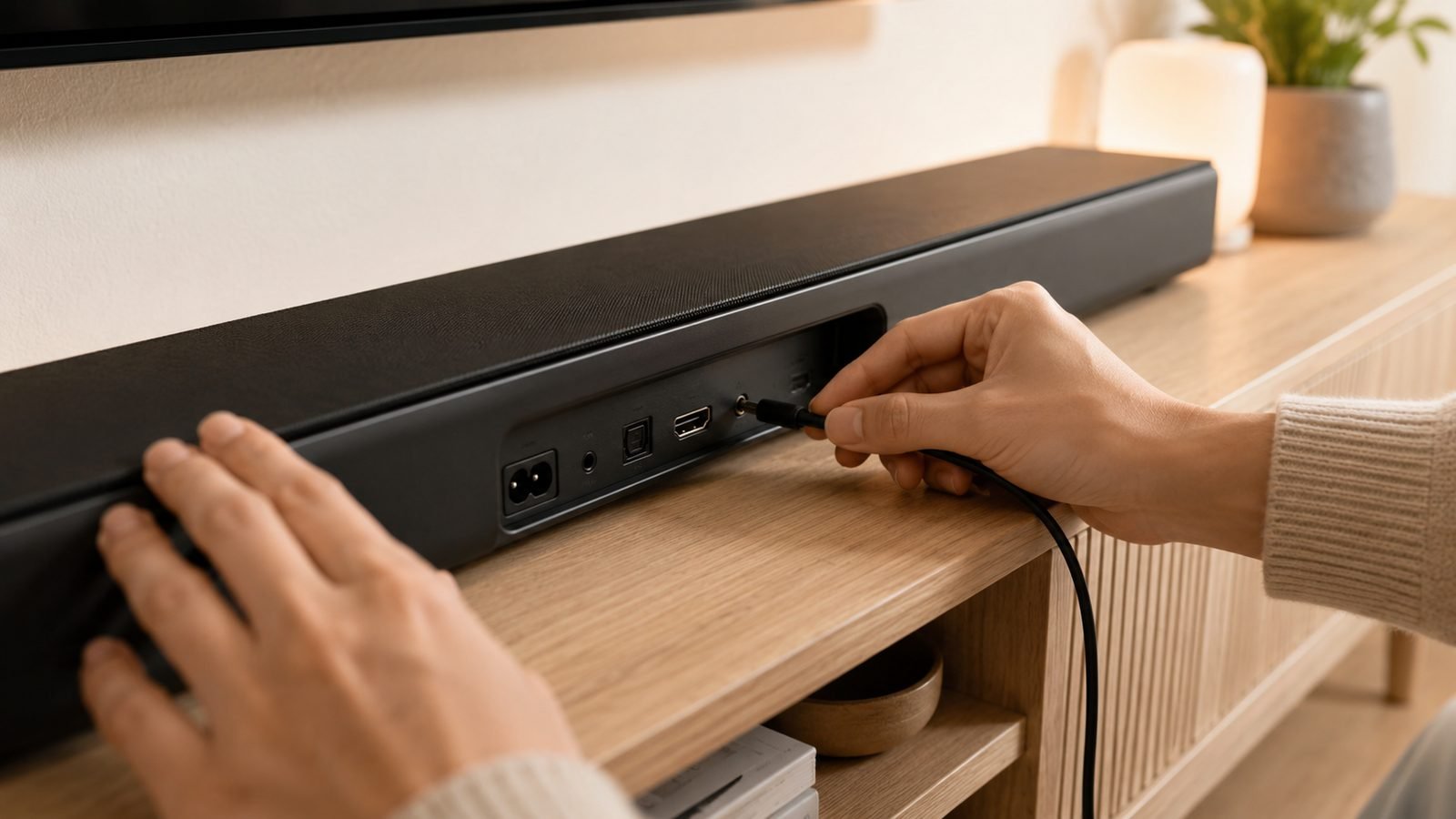
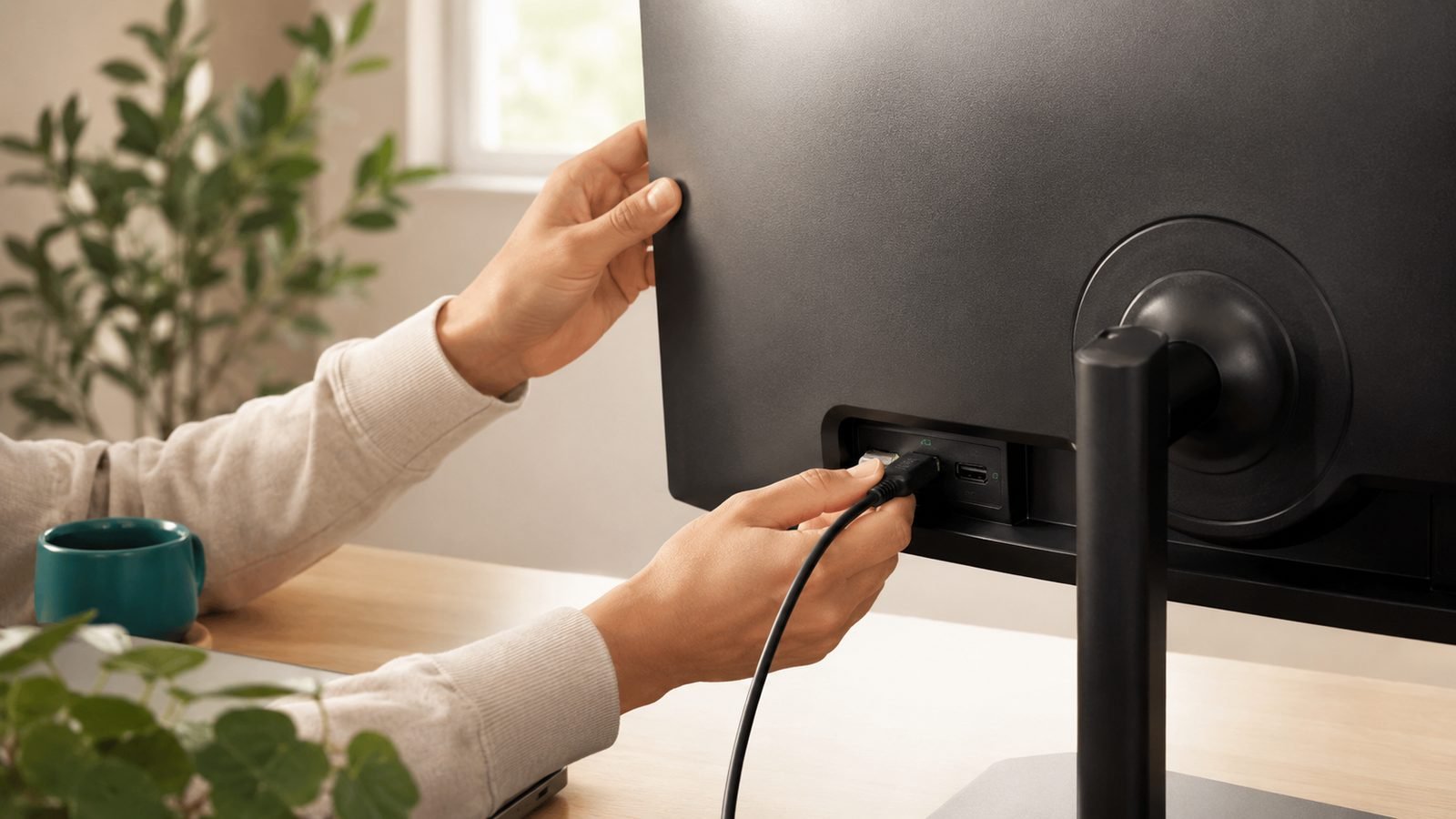
Reseat both ends of the video cable firmly. A partially seated DisplayPort connector is a classic cause of “displayport no signal” errors, and a single questionable cable drives a huge share of external-monitor-not-working-on-laptop reports. If you have a spare, swap it in now.
Fix 1-3: Windows detection, display settings and Win+P
Fix 1 - Force a detect. Right-click the desktop, open Display settings, scroll to Multiple displays and click Detect. Windows 11 does not always spot a screen that was connected after boot.
Fix 2 - Check Win+P mode. Press Windows + P and choose Extend or Duplicate. If it is set to “PC screen only,” your second monitor will never light up. This alone resolves a lot of Windows 11 display settings not showing second screen complaints.
Fix 3 - Restart the graphics stack. Press Windows + Ctrl + Shift + B. The screen flickers and the display driver resets, often waking a monitor that Windows sees but will not activate.
Fix 4-6: drivers - GPU, monitor and docking station
Fix 4 - Update the GPU driver. Grab the latest driver directly from NVIDIA, AMD or Intel rather than trusting Windows Update. A clean install clears the corrupted driver states that follow feature updates. If a recent update broke things, roll back in Device Manager instead.
Fix 5 - Refresh the monitor entry. In Device Manager, expand Monitors, right-click the generic PnP entry and choose Uninstall device, then Scan for hardware changes. Windows rebuilds the connection from scratch.
Fix 6 - Update docking station firmware. A docking station monitor not working is frequently a firmware problem, not a Windows one. Check the maker’s site (Dell, Lenovo, CalDigit, Anker) for a firmware updater. Also try plugging the monitor straight into the laptop, if it works direct but not through the dock, the dock or its firmware is your fault line.
Fix 7-8: USB-C and Thunderbolt-specific problems (alt mode, wattage)
USB-C is where things get subtle. Not every USB-C port carries video. The port must support DisplayPort Alt Mode, and many cheaper laptops route Alt Mode through only one of their ports. If your USB-C monitor is not detected, move the cable to a different port, ideally the one marked with a DisplayPort or Thunderbolt symbol.
Cables matter just as much. A charge-only or USB 2.0 cable physically fits but carries no video. Use a certified full-feature cable rated for video. This is exactly where a known-good cable earns its keep for diagnosis.
Check price: Anker USB-C to DisplayPort cable
The Anker USB-C to DisplayPort cable (around $20 / £18) is a cheap way to rule out cable faults, and it happily drives 4K at 60Hz and above.
Pros: inexpensive, reliably isolates cable faults, supports 4K 60Hz+, well-reviewed durability. Cons: DisplayPort-only, so no use for HDMI-only monitors; single length options can be short for tower setups.
On Thunderbolt docks, wattage is the hidden gotcha. If the dock cannot draw enough power, or your laptop’s charger is underpowered, downstream video ports can drop out under load. Use the dock’s supplied power brick, not a random USB-C charger, and give it a full power-cycle after connecting.
Fix 9-10: refresh rate, resolution and cable bandwidth limits
Fix 9 - Drop the refresh rate. A monitor detected but showing no signal is often a bandwidth mismatch. If Windows is pushing 4K at 144Hz down a cable that cannot carry it, the screen stays black. In Display settings, lower the resolution or refresh rate, confirm a picture, then raise it gradually.
Fix 10 - Respect cable bandwidth ceilings. HDMI 2.1, DisplayPort 1.4 and older standards each cap what they can carry. A 4K 120Hz panel needs a genuinely high-bandwidth cable, older or unbranded cables silently fall back and fail. Match the cable spec to the resolution and refresh rate you actually want. See our Monitor Refresh Rate Explained: Is 144Hz or 240Hz Worth It? guide for how the numbers translate into real bandwidth.
Mac users: quick equivalent fixes
On a Mac, the logic is nearly identical. Open System Settings > Displays and hold Option to reveal the Detect Displays button. Confirm your USB-C or Thunderbolt cable is a full-feature video cable and that the port supports DisplayPort Alt Mode. Unplugging any dock to test a direct connection follows the same fault-isolation approach as Windows.
When it’s the hardware: how to test each link in the chain
If software fixes fail, test one variable at a time. Swap the cable, try a different port on both ends, then connect the monitor to a completely different computer, if it stays dark everywhere, the panel or its power board is the suspect. Test your laptop against a different screen to clear the GPU output.
For anyone fighting chronic docking pain, the honest fix is often better hardware. Based on owner reports, a monitor with a reliable built-in Thunderbolt hub removes an entire failure point by driving the display and passing power over a single cable.
Check price: Dell UltraSharp U2725QE
The Dell UltraSharp U2725QE (around $679 / £619) is a 27-inch 4K panel with Thunderbolt 4 and a genuine hub, our pick as the upgrade path when a flaky dock keeps costing you time.
Pros: single-cable connect and charge, built-in reliable hub, sharp 4K IPS Black panel, strong owner reliability feedback. Cons: premium price; overkill if you only need a basic second screen.
If your priority is the display quality itself, our Best 4K Monitors for Work in 2026: USB-C & Thunderbolt and Best Ultrawide Monitors for Productivity 2026 roundups go deeper, and travellers should see Best Portable Monitors for Laptops 2026: Top Picks Ranked.
Verdict
Ninety percent of “second monitor not detected in Windows 11” cases are cable, input source, Win+P mode, or drivers, and you can clear those in five minutes. Keep a known-good cable like the Anker on hand for instant diagnosis. If a docking station keeps failing you, stop fighting it and move to a monitor with its own hub, the Dell UltraSharp U2725QE is the setup we would trust for a permanent desk. For more display guides, visit the TVs & Displays.
FAQ
Why is my second monitor detected but showing no signal? This is almost always a bandwidth or refresh-rate mismatch. Windows is sending a signal the cable or port cannot carry, often 4K at a high refresh rate over an older cable. Lower the resolution or refresh rate in Display settings, confirm a picture appears, then step it back up until it fails, and match your cable to that ceiling.
My HDMI monitor shows no signal but the cable is fine. What now? Check the monitor is on the correct HDMI input using its own menu, as most displays do not auto-switch. Then press Windows + Ctrl + Shift + B to reset the graphics driver, and force a detect in Display settings. If it still fails, test the same monitor on another device to rule out a dead port.
Why is my USB-C monitor not detected on my laptop? The port likely does not support DisplayPort Alt Mode, or your cable is charge-only. Move the cable to a USB-C port marked with a DisplayPort or Thunderbolt icon, and use a certified full-feature video cable. On thin laptops, only one port often carries video, so swapping ports is the fastest test.
Does updating Windows 11 cause monitor detection problems? It can. Feature updates sometimes replace or corrupt display and dock drivers. If a second screen stopped working right after an update, reinstall your GPU driver from the manufacturer, update your docking station firmware, and refresh the monitor entry in Device Manager. Rolling back a recent driver in Device Manager also resolves many post-update failures.
Zen Tech Hub may earn a commission from links on this page, at no extra cost to you.