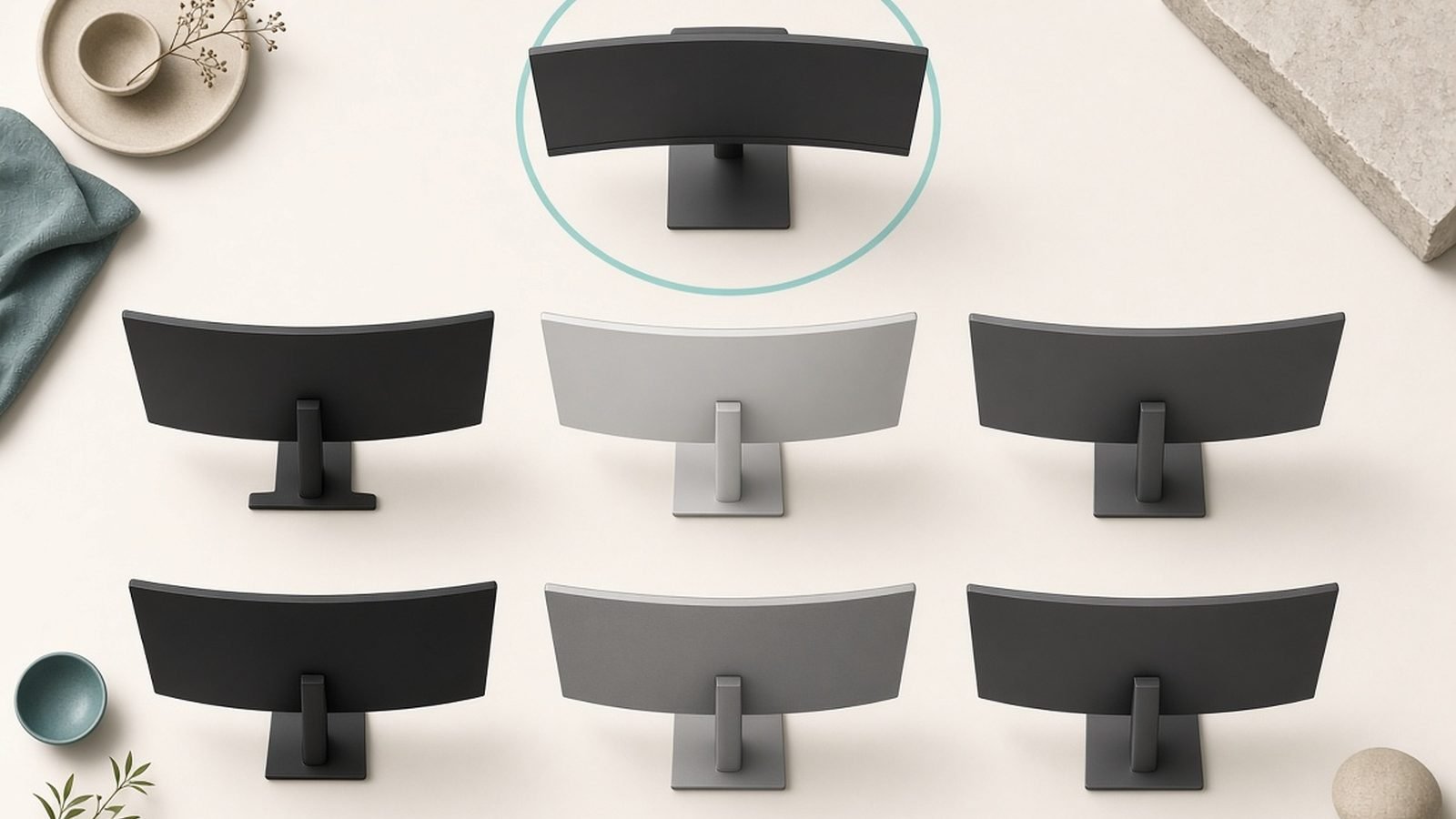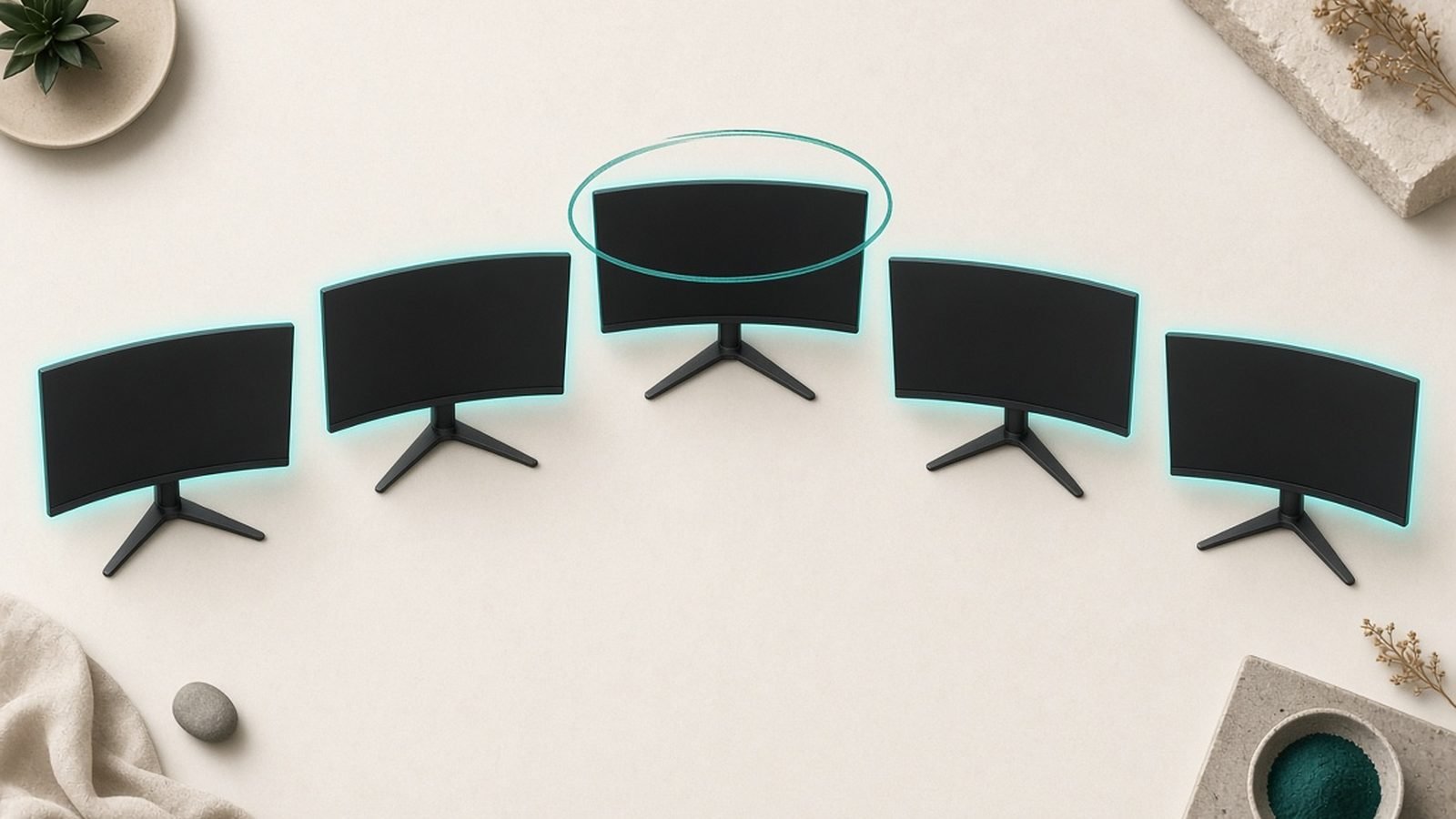
The best ultrawide monitor for productivity replaces two screens, one messy cable pile and a KVM switch with a single, seamless panel. In 2026 the category has matured: 5K2K resolution is no longer exotic, Thunderbolt 4 hubs are standard on the good ones, and prices span from under $300 to nearly $2,000. This guide picks the four ultrawides worth your money now and is honest about the trade-offs nobody puts on the box.
Our picks are based on manufacturer specifications, professional reviews and aggregated owner feedback rather than a single lab session, so treat this as informed buying advice, not bench measurements.
Ultrawide vs dual monitors: who actually benefits
The core question first, because it decides everything. In the ultrawide vs dual monitors debate, an ultrawide wins on three fronts: one uninterrupted canvas with no bezel down the middle, a single cable to your laptop, and a cleaner desk. For coding, spreadsheets, timelines, DAWs and anything you scroll horizontally, an unbroken 34-to-40-inch strip is genuinely better than two 27s.
Dual monitors still win in two cases. First, if you want one screen in portrait (great for reading documents or code diffs). Second, if you rely on hard edges to snap windows without thinking — some people never get comfortable managing windows on one wide pane. Modern window managers (Windows 11 FancyZones, macOS Stage Manager, or free tools) mostly solve that, but it is a real adjustment.
If you are still torn, our Best 4K Monitors for Work in 2026: USB-C & Thunderbolt guide covers the two-screen and single-4K routes.
How we picked
We weighted what matters for all-day work: resolution and pixel density (text sharpness beats raw size), connectivity (a proper hub that charges your laptop and drives ethernet), ergonomics, and panel type for a room with windows. Gaming was a tiebreaker, not a headline — except on the one pick that earns its place doing both. We then cross-checked each model against owner reports for the complaints spec sheets hide, like wobbly stands.
The best ultrawide monitors for productivity at a glance
| Monitor | Size / Res | Panel | Refresh | Hub | Price (approx) |
|---|---|---|---|---|---|
| Dell UltraSharp U4025QW | 40” 5120x2160 | IPS Black | 120Hz | Thunderbolt 4 | $1,899 / £1,819 |
| Dell UltraSharp U3425WE | 34” 3440x1440 | IPS | 120Hz | Thunderbolt 4 | $819 / £769 |
| LG UltraGear 39GX950B | 39” 5120x2160 | Tandem OLED | 165Hz | USB-C | $1,799 / £1,599 |
| Gigabyte GS34WQC | 34” 3440x1440 | VA | 135Hz | None (no USB-C) | $269 / £249 |
Prices move constantly — the Dell flagship in particular dips toward $1,699 on sale. Treat these as ballpark figures, not quotes.
Best overall: Dell UltraSharp U4025QW (40-inch 5K2K)
This is the definitive productivity ultrawide, and the reason the whole category is worth taking seriously. The U4025QW pairs a 40-inch 5120x2160 IPS Black panel with a 2500R curve, so you get the desktop real estate of two 27-inch QHD screens with none of the bezel — and crucially, at roughly 140 pixels per inch, text is genuinely sharp. Most 34-inch ultrawides sit near 110 PPI, which is fine; this is noticeably crisper for a full day of documents and code.
The built-in Thunderbolt 4 hub seals it. One cable delivers up to 140W of laptop charging, ethernet via RJ45, a downstream Thunderbolt port for daisy-chaining a second display, and a KVM to swap a work and personal machine. IPS Black roughly doubles the contrast of a normal IPS panel, so blacks look properly dark in an office, and 120Hz keeps scrolling smooth. This is the standout thunderbolt ultrawide monitor for a docking-station lifestyle.
The honest downsides: it is expensive, and in our research the most consistent owner complaint is a stand that wobbles if you type heavily. Many buyers swap to a monitor arm. HDR is present (DisplayHDR 600) but this is an edge-lit panel, so treat it as a bonus, not a reason to buy. As a 5K2K monitor 2026 buyers can rely on for work, nothing else is this complete.
Pros - Sharpest big-canvas ultrawide for text at ~140 PPI - Full Thunderbolt 4 hub: 140W charging, RJ45, KVM, daisy-chain - Excellent IPS Black contrast for a bright office
Cons - Premium price - Stand wobble reported by many owners; budget for an arm - Edge-lit HDR is merely okay
Who it’s for: professionals and developers who dock a laptop daily and want one cable to run everything. If that’s you, this Dell U4025QW review verdict is simple — buy it.
Check price: Dell UltraSharp U4025QW (40-inch 5K2K)
Best value 34-inch: Dell UltraSharp U3425WE
If the flagship’s price makes you wince, the U3425WE delivers most of what makes Dell’s UltraSharp line the best ultrawide monitor for work at less than half the cost. You get a 34-inch 3440x1440 IPS panel at 120Hz, and — the important part — the same class of Thunderbolt 4 hub as its bigger sibling: up to 90W charging, RJ45 ethernet, and a KVM for running two computers off one keyboard and mouse.
That combination is rare at this price. Plenty of 34-inch ultrawides give you the panel; very few give you the dock. For a home office where the monitor is the hub of your desk, this is the sensible default. The 21:9 shape is ideal for side-by-side documents, wide spreadsheets and a video call parked in a corner.
Compromises are modest. HDR is basic, so this is a productivity screen first. Pixel density at ~110 PPI is good but not the retina-like sharpness of the 40-inch 5K2K. And at 34 inches you are choosing a comfortable, familiar footprint over maximum canvas.
Pros - Thunderbolt 4 hub with 90W charging, RJ45 and KVM - Sharp, smooth 120Hz IPS for all-day work - Fits normal desks without dominating them
Cons - Modest HDR - Lower pixel density than 5K2K panels - Not a gaming display
Who it’s for: the value buyer who wants Dell’s docking and KVM smarts without spending flagship money. The best all-round pick for most people.
Check price: Dell UltraSharp U3425WE (34-inch)
Best work-and-play: LG UltraGear 39GX950B (39-inch 5K2K OLED)
One screen for serious work and serious gaming used to mean compromise. The 39GX950B ends that. It is a 39-inch 5120x2160 tandem OLED running at 165Hz, so you get the sharp, spacious 5K2K desktop of the Dell flagship plus true OLED blacks, per-pixel contrast and a response time that makes it a genuine high-end gaming monitor. A dual-mode option lets you drop to a lower resolution at a much higher refresh rate for competitive play.
For anyone whose desk does double duty — design or code by day, demanding games at night — this is the most exciting ultrawide of 2026. OLED’s perfect blacks and instant pixel response also make it a lovely panel for video editing and photo work.
The catch is inherent to OLED. Static productivity UIs — taskbars, docks, IDE panels, spreadsheet gridlines — are exactly the fixed elements that raise long-term burn-in risk. LG includes mitigation (pixel shifting, logo dimming, panel refresh routines) and warranty cover, but in our research the standing owner advice is to hide taskbars, vary layouts and let the care cycles run. Connectivity leans gaming: USB-C is present but the dock feature set is lighter than Dell’s Thunderbolt hubs.
Pros - 5K2K OLED at 165Hz — one screen truly does both jobs - Perfect blacks and instant response for creative work - Dual-mode high-refresh option for gaming
Cons - Burn-in care needed for static work interfaces - Lighter USB-C dock than the Dell rivals - Premium price
Who it’s for: the creator-gamer who refuses to choose. If your evenings involve AAA titles, this earns its keep. Prefer a pure OLED gaming ultrawide? See our Alienware AW3423DWF Review: Still Worth It in 2026?.
Check price: LG UltraGear 39GX950B (39-inch 5K2K OLED)
Best budget: Gigabyte GS34WQC
The GS34WQC is the entry ticket to ultrawide productivity, and at around $269 / £249 it is remarkable that the ticket is this cheap. You get a 34-inch 3440x1440 VA panel with a steep 1500R curve and a 135Hz refresh rate — plenty to feel the ultrawide difference on a spreadsheet or a wide code window without spending real money.
VA brings genuinely good contrast for the price, so dark scenes and dark-mode apps look punchy. This is the pick if you are ultrawide-curious and want to find out whether the shape suits you before committing four figures.
Be clear about what you are giving up. Brightness is weak, so this struggles in a bright, sunlit room — position it away from windows. There is no USB-C, meaning no single-cable laptop docking or charging; you connect via DisplayPort or HDMI and power your laptop separately. Colour accuracy and uniformity are ordinary. None of that is a dealbreaker at this price, but it is why the Dells cost what they do.
Pros - Ultrawide productivity for under $300 / £250 - Strong VA contrast for dark rooms and dark mode - 135Hz feels smooth day to day
Cons - Weak brightness — poor in sunlit rooms - No USB-C, no docking or charging - Average colour accuracy
Who it’s for: first-time ultrawide buyers, students and second-desk setups who want the format without the outlay.
Check price: Gigabyte GS34WQC (34-inch)
Ports, KVM and daisy-chaining compared
Connectivity is where these split hardest. Both Dells are full Thunderbolt 4 docks: one cable charges the laptop (140W on the U4025QW, 90W on the U3425WE), carries ethernet via RJ45, drives a built-in KVM to switch two machines, and — on the 40-inch — lets you daisy-chain a second Thunderbolt display. For a tidy, single-cable desk, that is the whole ballgame.
The LG offers USB-C connectivity but a slimmer hub, reflecting its gaming focus — fine if your PC is the main driver, less ideal as a laptop dock. The Gigabyte has no USB-C at all: DisplayPort and HDMI only, and you power your laptop separately. If cable-count and docking matter to you, the two UltraSharps are in a different league. To understand why 120Hz and 165Hz feel different from an old 60Hz panel, our Monitor Refresh Rate Explained: Is 144Hz or 240Hz Worth It? explainer breaks it down.
Desk setup: depth, arms and curve radius
Ultrawides need room. A 40-inch panel wants a desk at least 70cm (about 28 inches) deep so you can sit back far enough to take in the edges. Curve radius matters too: a tighter number wraps more. The Gigabyte’s 1500R is aggressive and immersive; the Dell’s gentler 2500R feels more natural for document work. Neither is wrong — it is preference.
Given the stand wobble owners report on the U4025QW, a VESA monitor arm is the upgrade we would budget for on day one. It frees desk depth, kills the wobble and lets you dial in height and distance. It is the single best accessory for any large curved monitor for office use.
Verdict: which ultrawide should you buy?
For most people who work all day and want one cable to rule the desk, the Dell UltraSharp U3425WE is the smart buy — Thunderbolt docking, KVM and a sharp 120Hz panel at a fair price. If budget is no object and you want the sharpest, most complete productivity screen made, the Dell UltraSharp U4025QW is the best ultrawide monitor for productivity in 2026, full stop — just plan for a monitor arm. Gamers who also work should stretch to the LG UltraGear 39GX950B and mind the burn-in advice. And if you just want to try the format, the Gigabyte GS34WQC gets you there for under $300.
FAQ
Is a 34 or 40-inch ultrawide better for productivity?
In the 34 vs 40 inch ultrawide decision, 40-inch 5K2K gives you more usable space and much sharper text (~140 PPI vs ~110), effectively replacing two 27-inch QHD screens. But it demands a deeper desk and costs far more. A 34-inch fits normal desks, costs less and suits most home offices. Choose 40 only if you have the depth and the budget.
Do I need Thunderbolt on an ultrawide monitor?
Not strictly, but a thunderbolt ultrawide monitor turns the screen into a full dock: one cable charges your laptop, adds ethernet and USB ports, and can run a KVM or daisy-chain a second display. If you dock a laptop daily it is transformative. If you use a fixed desktop PC, plain DisplayPort is fine and saves you money.
Will an OLED ultrawide get burn-in from office work?
It’s the real risk with OLED for productivity, because taskbars, docks and IDE panels stay static for hours. Modern panels like the LG 39GX950B include pixel shifting, logo dimming and refresh cycles, plus warranty cover. Based on owner reports, hiding taskbars, varying layouts and letting care routines run keeps it manageable — but it is a maintenance commitment an IPS panel simply doesn’t have.
Are these ultrawide monitors available in the UK?
Yes. All four sell through UK retailers, and we have listed indicative GBP pricing beside each. For the best ultrawide monitor UK buyers should note that Dell often runs direct-site discounts, while the LG and Gigabyte are widely stocked at Amazon and specialist monitor retailers. Prices shift with sales, so compare before buying.
Why won’t my ultrawide show its full resolution?
Usually a cable or driver issue — an ultrawide connected over an older HDMI port may cap resolution or refresh rate. Use DisplayPort or USB-C/Thunderbolt and update your GPU driver. If Windows only detects part of your setup, our Second Monitor Not Detected in Windows 11: 10 Fixes guide walks through the fixes.
For more panels, guides and comparisons, browse the TVs & Displays.
Zen Tech Hub may earn a commission from links on this page, at no extra cost to you.