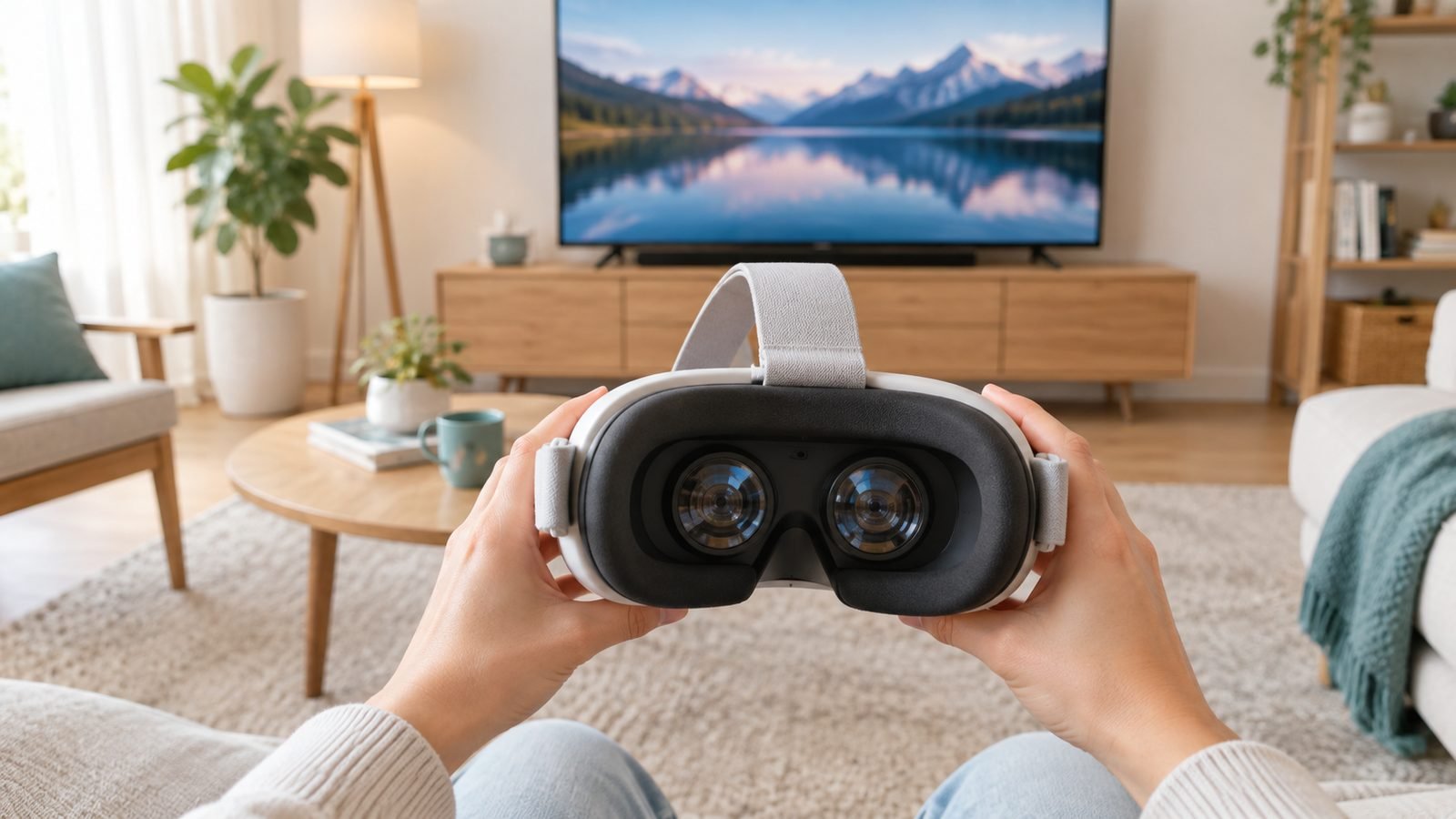
Want the room to see what you see in VR? Learning how to cast Meta Quest 3 to TV turns a solo headset session into a party — perfect for family game nights or coaching a nervous first-timer through Beat Saber. The good news: it takes about 60 seconds once you know the route.
This guide covers four methods, from the built-in headset cast to HDMI capture, and finishes with fixes for the lag and “device not found” errors that trip most people up. Every step is identical on the Quest 3 and the cheaper Quest 3S. One expectation to set now: casting tops out at 1080p and shows a flat 2D window of a 3D world — great on a TV, but not as crisp as the view inside the lenses.
What you need before casting
A Meta Quest 3 or 3S, updated to the latest software.
A casting target: a TV or dongle with Chromecast built in, a Samsung TV, a phone, or a computer.
All devices on the same Wi-Fi network — ideally the 5GHz band, not 2.4GHz.
The Meta Horizon app installed on your phone (formerly the Meta Quest app) for the phone-based route.
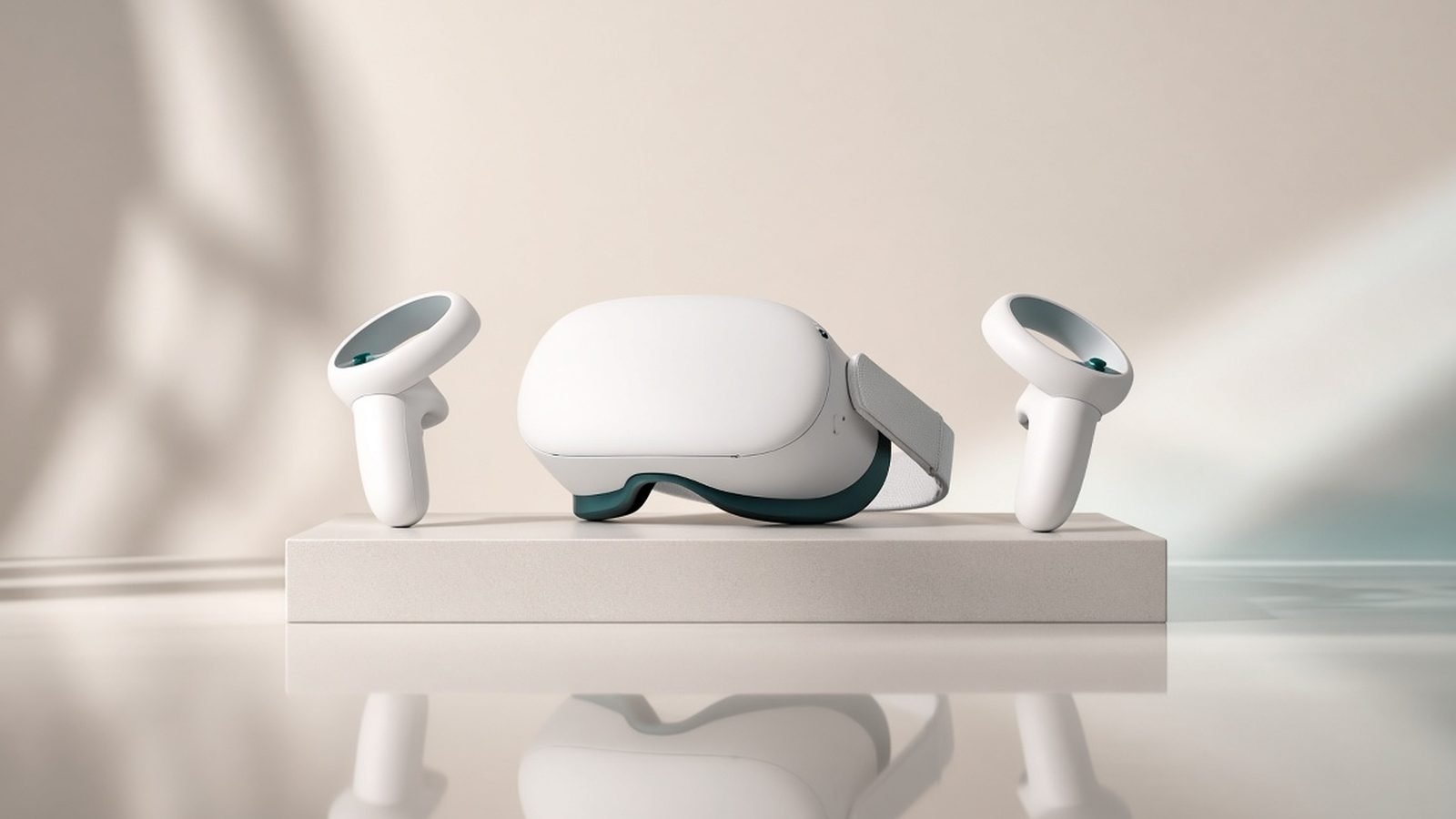
The Meta Quest 3 (512GB) runs around $499 / £469; the Quest 3S is cheaper and casts identically. One thing to know upfront: casting streams live video over your local network, so a weak or congested connection is the single biggest cause of stutter.
Check price: Meta Quest 3 (512GB)
Method 1: Cast directly from the headset to a Chromecast TV
This is the fastest route and needs no phone. It works with any TV that has Chromecast built in (most Google TV, many Sony, TCL, and Hisense models) or a plugged-in Chromecast dongle.
Put on the headset and press the Meta/Oculus button on your right controller to open the universal menu.
Select the Camera icon, then Cast.
Choose your TV or dongle from the list of available devices.
Select Next to start. A red dot appears in your view while casting is live.
To cast Quest 3S to Chromecast, the steps are word-for-word the same. When you’re done, reopen the Cast panel and hit Stop.
Method 2: Cast via the Meta Horizon phone app
No Chromecast? Your phone can act as the middleman. This Meta Horizon app casting route mirrors the headset to your phone, which you then send to the TV.
Open the Meta Horizon app and make sure the headset is connected.
Tap the Cast icon (top-right on most versions).
Set Cast from to your headset and Cast to to This Phone.
Once the VR view appears on your phone, use your phone’s own screen-mirroring (AirPlay on iPhone, Smart View / Google Cast on Android) to throw it to the TV.
It’s a two-hop chain, so it adds a little latency — fine for showing off gameplay, less ideal for fast rhythm titles. This is also the simplest way to cast Quest 3 to a Samsung TV: use Samsung’s Smart View from an Android phone as the final hop, since Tizen sets don’t natively accept a Quest cast.
Method 3: Cast to a computer browser (and mirror to TV)
For the sharpest, most controllable feed, cast to a web browser on a PC or Mac.
In any browser, go to oculus.com/casting and sign in with the same Meta account.
In the headset, open Cast and choose Computer as the target.
The stream appears in your browser tab — connect that computer to your TV over HDMI, or full-screen it on a laptop already wired to a screen.
This is our pick for streamers and anyone recording clips, since you can drop the browser window into OBS. It’s also a reliable meta quest cast to TV without Chromecast workaround if you already have a laptop near the television.
Method 4: HDMI options for TVs without casting
If your TV is older, or you simply want zero wireless lag, go wired.
Cast the headset to a computer (Method 3), then run that computer’s HDMI out to the TV — or, for a console-free setup, use a Chromecast-style streamer as a dedicated low-lag receiver. The is our accessory pick here: it adds Chromecast to any HDMI TV and, in our research, owners rate it as the most stable Quest cast target versus older Chromecast dongles. It runs around $99 / £99.
Check price: Google TV Streamer
Google TV Streamer — quick take
Pros: Reliable, low-lag Chromecast target; cheap; adds streaming apps to any TV.
Cons: Still capped at 1080p from the headset; another box and remote to manage.
Best for: Anyone with a TV that lacks built-in Chromecast who casts regularly.
Fixing lag, stutter and “device not found” errors
Most casting complaints trace back to Wi-Fi or a stale session. Work through these in order.
If casting is not working / device not found: - Confirm the headset and TV are on the same network and band (5GHz preferred). - Restart both devices — a headset reboot clears most Quest 3 casting not working faults. - Update the headset and the Meta Horizon app; version mismatches break discovery. - Disable any VPN or “guest network” isolation on your router.
For lag and stutter (the Quest 3 cast lag fix): - Move closer to the router or switch to a 5GHz/6GHz network. - Close other bandwidth-heavy devices (4K streams, big downloads). - Prefer the wired browser-to-HDMI route (Methods 3–4) for the smoothest feed — some latency is inherent to wireless casting.
Verdict: which method should you use?
For a quick living-room show-and-tell, Method 1 (direct to Chromecast) wins on speed. If your TV can’t cast, add a and you’re back to that one-tap experience. Streamers and clip-makers should use the browser route for quality and recording control, while wired HDMI is the answer when any lag is a dealbreaker.
Whichever Quest you own, the workflow is the same — see our Meta Quest 3S Review 2026: Best-Value VR, Still? and Meta Quest 3 vs Quest 3S: Is the Upgrade Worth $200? if you’re still deciding, and our Best VR Headsets 2026: Quest 3S to Galaxy XR Compared roundup for the wider picture. More wearables coverage lives in the Wearables.
FAQ
Can you cast Meta Quest 3 to a Samsung TV directly? Not natively — Samsung’s Tizen TVs don’t accept a Quest cast on their own. Cast the headset to an Android phone via the Meta Horizon app, then use Samsung’s Smart View to mirror the phone to the TV. Alternatively, plug a Chromecast dongle into the Samsung’s HDMI port and cast to that instead.
Why is my Quest 3 casting so laggy? Casting streams live video over Wi-Fi, so a weak connection causes stutter. Switch to a 5GHz network, move closer to the router, and stop other heavy downloads. For lag-free viewing, cast to a computer and run HDMI to the TV rather than relying on a wireless hop.
Does casting work the same on the Quest 3S, and at what resolution? Yes — the Quest 3 and 3S share the same software, so every method here works identically. Both cast at a maximum of 1080p, showing a flat 2D crop of the 3D scene. It looks sharp on a TV but won’t match the detail inside the headset, and there’s no official setting to cast at a higher resolution.
Zen Tech Hub may earn a commission from links on this page, at no extra cost to you.