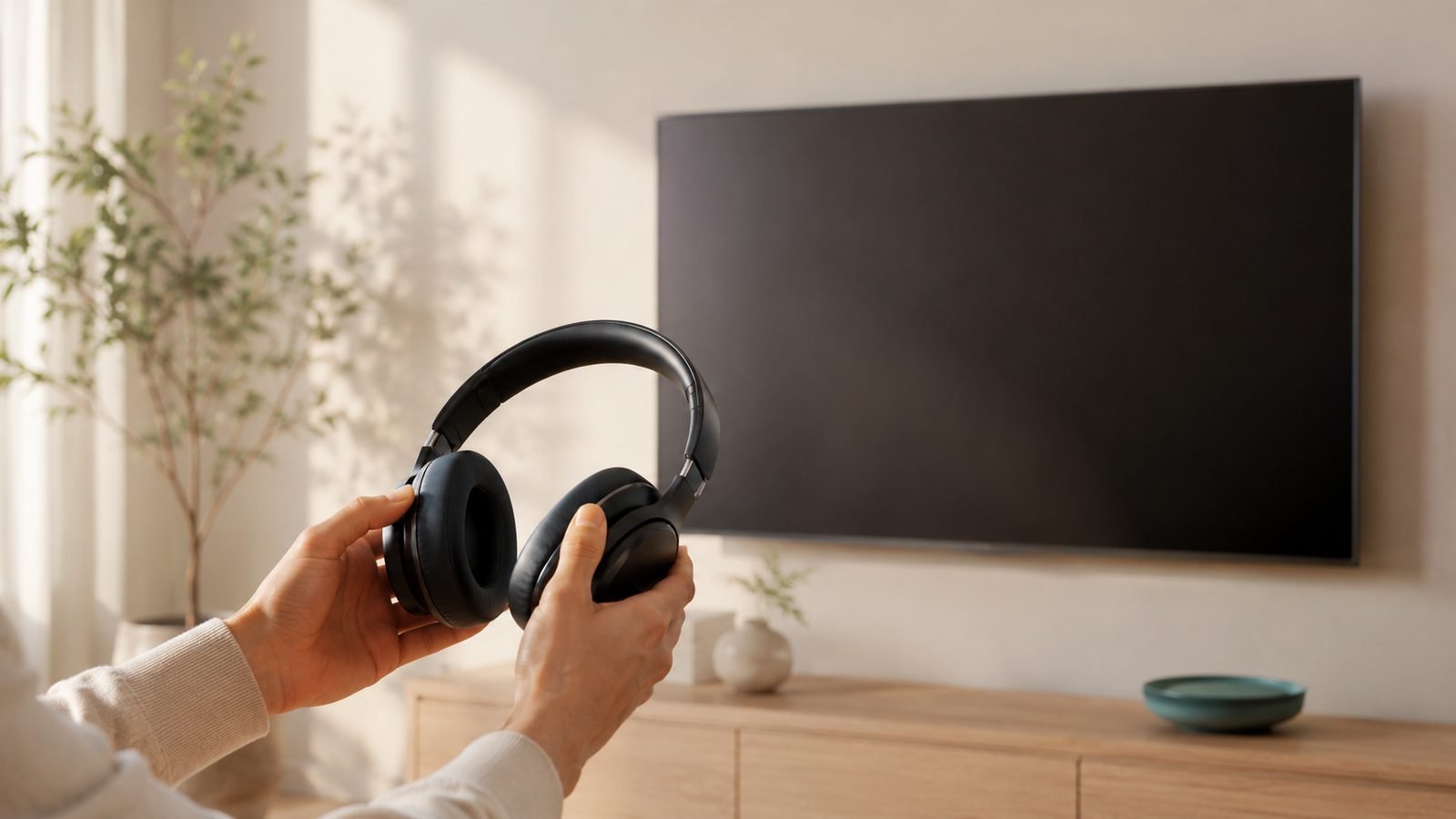
Whether you want to listen to TV with headphones while others sleep or just crave clearer dialogue, figuring out how to connect Bluetooth headphones to TV audio takes five minutes once you know which of three routes applies to your setup. Most TVs sold since 2020 pair headphones directly from the settings menu. Older or budget sets need a cheap Bluetooth transmitter. And streaming devices like Apple TV, Fire TV, and Roku bring their own pairing menus that often work even when the TV itself can’t.
Below: all three routes, step-by-step instructions per TV brand, the lip-sync fix, and the gear worth buying.
Quick Answer: The Three Ways to Do It
- Pair directly in your TV’s settings — if your TV has built-in Bluetooth (most Samsung, LG, Sony, and Android/Google TVs from 2020 onward do).
- Pair through your streaming device — Apple TV, Fire TV, Chromecast/Google TV, and newer Roku players all support Bluetooth or Wi-Fi headphone audio, regardless of the TV behind them.
- Add a Bluetooth transmitter for TV use — a small box that plugs into your TV’s optical or 3.5mm output and beams audio to any headphones. It’s the way to connect Bluetooth headphones to TV sets with no Bluetooth at all, and often the best route even for TVs that have it, because a good transmitter fixes audio delay.
Here’s how the three routes compare:
| Route | Works with | Cost | Latency | Dual headphones? |
|---|---|---|---|---|
| TV’s built-in Bluetooth | Most 2020+ smart TVs | Free | Varies (often noticeable) | Rarely |
| Streaming device pairing | Apple TV, Fire TV, Roku, Google TV | Free (if you own one) | Good on Apple TV/Roku | Apple TV: yes (2x AirPods) |
| Bluetooth transmitter | Any TV with optical/AUX out | ~$30–$70 / £30–£60 | Excellent with aptX LL | Yes, most models |
Step 1: Check If Your TV Has Bluetooth
Before buying anything, confirm what your TV can do. The fastest check: open your TV’s settings and look for a Sound Output, Bluetooth, or Accessories menu. If you see an option to search for or pair devices, you’re set.
Brand shortcuts:
- Samsung: Settings → Sound → Sound Output. If “Bluetooth Speaker List” appears, your set supports Samsung TV Bluetooth headphones pairing. Nearly all 2017+ models do.
- LG: Settings → Sound → Sound Out. Look for “Bluetooth Device” or “LG Sound Sync.” WebOS TVs from 2018 onward support LG TV Bluetooth headphones directly.
- Sony: Settings → Remotes & Accessories → Bluetooth settings. Google TV-based Sony sets (2021+) support A2DP headphone audio; some older Android TV models only pair remotes and gamepads.
- Fire TV (built-in or stick): Settings → Controllers & Bluetooth Devices → Other Bluetooth Devices.
- Roku TV: most Roku TVs don’t pair headphones directly, but the Roku mobile app’s free private listening feature streams TV audio to headphones connected to your phone.
If none of those menus exist, skip ahead to the transmitter section — that’s your route, and it’s not a downgrade.
How to Connect Bluetooth Headphones to TV, Brand by Brand
The universal first step: put your headphones in pairing mode — usually holding the power or Bluetooth button for 5–7 seconds until an LED flashes or a voice prompt confirms it. Do this before starting the TV-side search, and keep the headphones close to the TV for the initial handshake.
Samsung TVs (Tizen, 2018–2026)
- Open Settings → Sound → Sound Output.
- Select Bluetooth Speaker List (on 2022+ models: Settings → All Settings → Connection → Bluetooth Device Manager).
- With your headphones in pairing mode, wait for them to appear, then select Pair and Connect.
- Audio switches to the headphones automatically. To go back to TV speakers, return to Sound Output and reselect them.
LG TVs (webOS)
- Press the Settings (gear) button → All Settings → Sound → Sound Out.
- Choose Bluetooth Device (older models: “LG Sound Sync / Bluetooth”).
- Select Device Selection, pick your headphones from the list, and confirm.
- Newer webOS versions offer a Bluetooth Surround / dual-output option that can play TV speakers and headphones simultaneously — handy for mixed households.
Sony TVs (Google TV / Android TV)
- Go to Settings → Remotes & Accessories → Pair accessory (or “Bluetooth settings”).
- Select your headphones when they appear and confirm pairing.
- If your headphones pair but produce no sound, your model may not support the A2DP audio profile — common on pre-2021 Sony Android TVs. A transmitter solves it.
Amazon Fire TV
- Settings → Controllers & Bluetooth Devices → Other Bluetooth Devices → Add New Device.
- Select your headphones from the scan results. The Fire TV mobile app also offers private listening if range or interference is a problem.
Roku
- Open the free Roku app on your phone, on the same Wi-Fi as your Roku.
- Tap the headphone icon (Private Listening) and connect any headphones — wired or Bluetooth — to your phone.
- Roku Ultra and Streambar models also pair headphones directly under Settings → Remotes & Devices.
No Bluetooth? Connect Wireless Headphones to a TV Without Bluetooth
If your TV predates built-in Bluetooth — or its implementation has annoying lag — a Bluetooth transmitter for TV is a $30–$70 fix. It plugs into your TV’s optical (Toslink), 3.5mm headphone, or RCA output and transmits audio to any Bluetooth headphones.
What actually matters when buying one:
- aptX Low Latency or aptX Adaptive support. This is non-negotiable. Standard Bluetooth codecs introduce 150–250ms of delay — enough to make mouths and words visibly disagree. aptX Low Latency cuts it to roughly 40ms, which is imperceptible. (Your headphones need to support the codec too; more on that in Bluetooth Codecs Explained: AAC vs aptX vs LDAC vs LC3.)
- Optical input. Many modern TVs have no 3.5mm jack, so optical is the reliable connection. Set the TV’s digital audio output to PCM, not Dolby Digital — transmitters can’t decode bitstream audio.
- Dual-link. The better transmitters pair two sets of headphones at once.
Based on our research and aggregated owner feedback, the Avantree Audikast Plus (around $70 / £60) is the transmitter to beat: optical, AUX and USB inputs, aptX Low Latency, and dual-headphone pairing. Full details below.
Check price: Avantree Audikast Plus transmitter
One setup note that trips people up: if the TV keeps playing sound through its own speakers alongside the transmitter, set the sound output to “external/optical” in settings. Running a soundbar too? You can usually chain the transmitter off the TV’s second output — see How to Set Up a Soundbar: HDMI ARC vs eARC vs Optical.
How to Connect AirPods to a TV
AirPods complicate things because they don’t have a conventional pairing button workflow — but they absolutely work.
Apple TV (the easy route). On an Apple TV 4K, AirPods signed into the same iCloud account appear automatically: open Control Center (hold the TV button on the remote), select the audio output icon, and pick your AirPods. Latency is excellent, and tvOS supports two pairs of AirPods simultaneously with independent volume — the simplest “listen together” setup on any platform. Spatial Audio works on AirPods Pro and Max too.
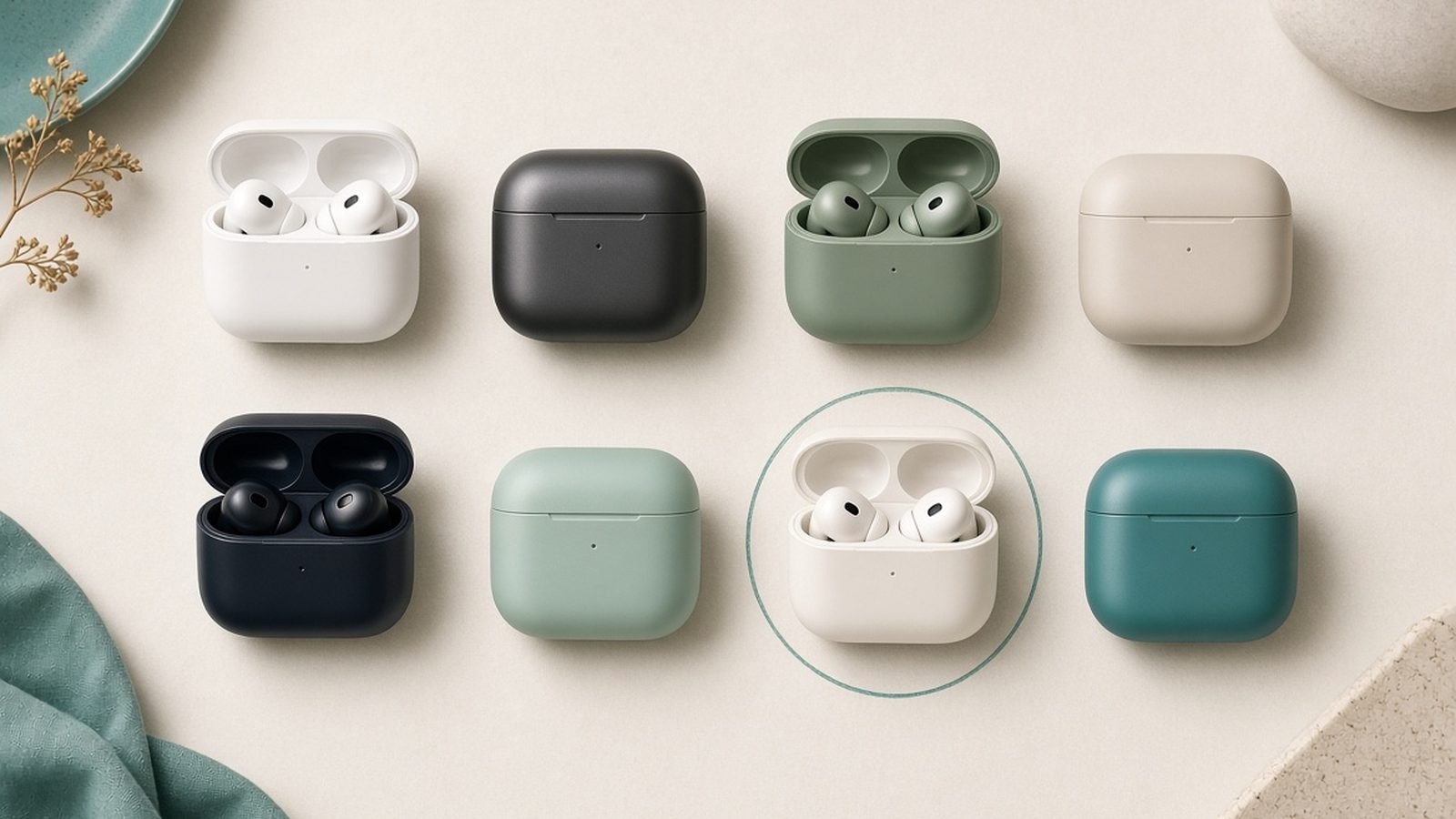
Any other TV. Put AirPods into manual pairing mode: with the AirPods in the open case, hold the case button until the status light flashes white. Then run your TV’s standard Bluetooth pairing steps above. AirPods pair fine with Samsung, LG, Sony, and Fire TV — you just lose automatic switching and, on some TVs, may notice lip-sync drift because AirPods use the AAC codec, which TVs handle inconsistently.
If you’re all-in on AirPods and your TV’s Bluetooth is laggy or absent, the Apple TV 4K (around $129 / £129) is arguably a better purchase than a transmitter — you get the flawless pairing and a top-tier streamer.
Fixing Audio Delay and Lip-Sync Issues
The most common complaint after learning how to connect Bluetooth headphones to TV audio is delay: voices arrive a beat after lips move. Causes and fixes, in order of effectiveness:
- Use aptX Low Latency end-to-end. Both transmitter and headphones must support it. This is the single biggest fix — around 40ms total delay versus 200ms+ over standard SBC.
- Look for LE Audio / LC3. The newer Bluetooth LE Audio standard (on 2024+ TVs, including Samsung’s Auracast-enabled sets) delivers low latency without proprietary codecs. If both TV and headphones list LE Audio or Auracast, enable it.
- Use the TV’s A/V sync slider. Note that most only delay audio further, not advance it. Some apps (Plex, Kodi) can delay video instead, which genuinely fixes it.
- Turn on Game Mode. It strips out video processing, shrinking the gap between picture and sound.
For a deeper dive into why codecs matter, see Bluetooth Codecs Explained: AAC vs aptX vs LDAC vs LC3.
Listening Together: Dual-Headphone Setups
Two people, one sleeping baby? Three good options:
- Dual-link transmitter: The Avantree Audikast Plus pairs two headphones at once (dual mode drops to standard latency unless both sets support aptX LL — a real trade-off worth knowing).
- Apple TV + two AirPods: tvOS handles two pairs natively with per-person volume.
- Auracast: Samsung and LG’s newest sets broadcast to unlimited LE Audio headphones. If everyone has 2024+ earbuds, this is the endgame.
Best Headphones and Transmitter for TV Listening
You don’t need “TV headphones” — you need comfortable headphones with long battery life and, ideally, aptX Low Latency support. Our current picks:
Avantree Audikast Plus — best Bluetooth transmitter for TV
Around $70 / £60. The plug-in fix for TVs without Bluetooth and the lip-sync cure for TVs with it. Optical, AUX, and USB inputs; aptX Low Latency; dual-headphone support; no battery to charge since it’s mains/USB powered. Based on hundreds of owner reports, setup friction is low and range complaints are rare.
Pros
- aptX Low Latency eliminates perceptible lip-sync lag
- Optical input works with virtually every modern TV
- Pairs two headphones simultaneously
- Always powered — no charging, no dropouts mid-film
Cons
- Dual mode disables low-latency unless both headphones support aptX LL
- Requires setting TV output to PCM (one-time fiddle)
- Overkill if your TV’s built-in Bluetooth already syncs well
Who it’s for: anyone with an older TV, a laggy smart TV, or a two-viewer household.
Sony WH-CH720N — best headphones for nightly TV sessions
Around $128 / £89. At 192g these are among the lightest full-size noise-cancelling headphones available — and comfort is what matters at hour three of a binge. Battery is rated at 35 hours with ANC on. In our research, owners consistently praise the fit for long sessions and glasses-wearers; common gripes are the plasticky build and merely decent ANC.
Pros
- Exceptionally light and comfortable for multi-hour viewing
- 35-hour battery; multipoint pairing (TV transmitter + phone)
- Clear, dialogue-friendly tuning
- Frequently discounted below list price
Cons
- No aptX Low Latency (SBC/AAC only) — pair with a low-latency setup thoughtfully or rely on the TV’s AV sync
- Build feels budget
- ANC trails the class leaders
Who it’s for: the nightly viewer who values comfort and battery over audiophile specs. If you want stronger ANC in the same budget, see our roundup at Best Noise Cancelling Headphones Under $200 in 2026.
Apple TV 4K — best route for AirPods owners
Around $129 / £129. Not headphones, but the cleanest answer to “how do I connect AirPods to my TV.” Automatic iCloud pairing, two simultaneous pairs, Spatial Audio, and lower latency than any TV’s native Bluetooth we’ve seen owner data on.
Pros
- Zero-effort AirPods pairing and switching
- Two AirPods pairs with independent volume
- Doubles as the best premium streamer
Cons
- Expensive if you only want headphone audio
- Benefits are largely locked to the Apple ecosystem
Who it’s for: households already carrying AirPods who also want a better streaming box.
Which should you buy?
- TV has no Bluetooth, or has lip-sync lag: Avantree Audikast Plus, plus any comfortable headphones.
- You need headphones too: add the Sony WH-CH720N — the comfort/battery combo is ideal for TV.
- You own AirPods: Apple TV 4K beats any transmitter for simplicity.
For more listening-gear guides, browse our audio hub: Audio.
FAQ
Can I connect any Bluetooth headphones to my TV? If your TV has Bluetooth audio support, yes — any headphones that pair with a phone will pair with the TV. The exceptions are TVs whose Bluetooth only supports remotes and controllers (some pre-2021 Sony Android TVs); there, a transmitter on the optical output works with any TV and any headphones.
Why is there a delay between the picture and my headphones? Standard Bluetooth codecs buffer 150–250ms of audio, enough to break lip-sync. Fix it with an aptX Low Latency transmitter paired with aptX LL headphones (about 40ms delay), or use LE Audio if your 2024+ TV and earbuds support it. Your TV’s AV sync slider can help, but most only delay audio further rather than advancing it.
How do I connect wireless headphones to a TV without Bluetooth? Plug a Bluetooth transmitter into the TV’s optical (Toslink) or 3.5mm output, set the TV’s digital audio output to PCM, put your headphones in pairing mode, and hold the transmitter’s pairing button. From then on it reconnects automatically whenever both power on. Expect to spend around $30–$70 / £30–£60 for a good aptX Low Latency model.
Can two people listen to the TV with headphones at once? Yes, three ways: a dual-link transmitter like the Avantree Audikast Plus pairs two headphones simultaneously; Apple TV 4K supports two pairs of AirPods with independent volume; and new Auracast-enabled Samsung and LG TVs can broadcast to unlimited LE Audio headphones.
Will the TV speakers stay on while I use headphones? Usually the TV mutes its speakers automatically when Bluetooth audio connects. Some LG and Samsung models offer a dual-output mode that keeps both active — useful if one person wants headphones and another wants speakers. With an optical transmitter, you may need to manually switch the sound output in settings.
Do AirPods work with Samsung, LG, and Sony TVs? Yes. Put the AirPods in manual pairing mode (hold the case button until the light flashes white) and pair through the TV’s standard Bluetooth menu. You lose Apple-exclusive perks like automatic switching and Spatial Audio, and AAC latency on some TVs is noticeable — an Apple TV 4K restores all of that.
Zen Tech Hub may earn a commission from links on this page, at no extra cost to you.