Your laptop’s microphone sits below the keyboard, a foot or more from your mouth, aimed at the room and the fans — and that one piece of physics is why you sound thin and far away on every call, however fast your connection. The way to improve mic quality for calls follows directly from it: give the computer a proper input device, get it close to your mouth, turn on your app’s noise suppression, and wear headphones so the other side never hears an echo. Four changes, only one of which costs money, and they solve most of what makes people sound distant, muffled or robotic on Zoom, Teams and Google Meet. This guide orders them from free fixes to worthwhile upgrades — test after each one, and stop when colleagues stop asking you to repeat yourself.
This guide is ordered from free fixes to worthwhile upgrades. Start at the top, test after each change, and stop when colleagues stop asking you to repeat yourself. Clear call audio is mostly about distance and settings, not expensive gear.
First, Stop Using the Laptop’s Built-In Mic
Your laptop microphone sits below the keyboard, often a foot or more from your mouth, pointing at the room and the fans. That distance is why you sound thin, echoey and far away even on a fast connection. It is the number one cause of poor call audio, and it is the first thing to change.
You have three better inputs, in rough order of quality: a dedicated USB microphone, wired earbuds or a headset with an inline mic, or your phone’s earbuds. Even cheap wired earbuds beat a laptop mic because the capsule sits closer to your mouth and away from the fans. Whatever you use, the principle from every good-audio guide applies here too: get the microphone closer to your face. Halving that distance makes your voice dramatically louder relative to background noise.
Select the Right Input Device (People Skip This)
Plugging in a good mic does nothing if the app is still listening to the laptop. This is the most common invisible mistake. Every call app lets you choose your input, and it does not always pick the right one automatically.
- Zoom: Settings > Audio > Microphone. Pick your device and use “Test Mic” to see the level move.
- Microsoft Teams: Settings > Devices > Microphone. Choose your mic and check the test bar.
- Google Meet: click the three dots > Settings > Audio, then select the correct microphone.
While you are there, check the input level. If you sound quiet, your gain may be too low; if you sound distorted, it may be too high. On Windows, Settings > System > Sound > (your mic) > Input volume; on macOS, System Settings > Sound > Input. Aim for the meter to move well but not slam to the top when you speak normally.
Turn On Noise Suppression Correctly
Modern call apps have excellent built-in noise removal that strips out keyboard clatter, fans and background chatter, often better than a hardware solution. Use it, but choose the right level.
In Zoom, Settings > Audio > Background noise suppression offers Low, Medium and High. Medium suits most rooms; High is for noisy environments but can make music or a second voice sound strange. Teams has a Noise suppression setting (Auto, Low, High) under Devices, and Google Meet has a Noise cancellation toggle in Audio settings. Turn these on. They are the single biggest quality win after fixing your input device, and they cost nothing.
One caution: aggressive noise suppression occasionally clips the start of words or adds a slight underwater quality. If people say you sound processed, drop from High to Medium. A little natural room tone sounds better than an over-scrubbed voice.
Wear Headphones to Kill Echo
If the people on your call complain about echo, hearing themselves a fraction of a second later, the culprit is almost always your speakers. Your laptop or desk speakers play their voice, your microphone picks it back up, and it loops back to them. There is one reliable fix: wear headphones or earbuds.
With headphones on, your mic never hears the other side, so the echo simply cannot form. This single change fixes the most annoying call-audio problem there is, and it works no matter what microphone you use. Software echo cancellation helps, but headphones remove the cause entirely. If you take a lot of meetings on speakers, this is the habit to build.
Fix Your Position and Your Room
Two quick physical adjustments punch above their weight.
Position: place your microphone off to the side of your mouth rather than directly in front of it. Speaking straight into a mic drives bursts of air, plosives, into the capsule, that annoying “pop” on P and B sounds. Angling it slightly to the side, or a hand’s width away and off-axis, keeps your voice full without the pops. Keep the mic consistent in distance so your volume does not drift as you move.
Room: the same reflections that ruin recordings hurt calls. A bare, hard-surfaced room adds a hollow echo to your voice. You do not need treatment, just record in a space with some soft furnishings, carpet, curtains, a sofa, and stay close to the mic. Close a window if traffic is loud. These cost nothing and make you sound like you are in a studio rather than a stairwell.
Check Your Connection
Sometimes the mic is fine and the internet is the problem. If your voice breaks up, cuts out or turns robotic, that is dropped packets, not a bad microphone. Call apps compress audio hard, and a weak connection turns even a great mic to mush.
Move closer to your router or use a wired Ethernet connection for important calls, close bandwidth-hungry apps and downloads, and turn off your camera if the line is struggling, video eats far more bandwidth than audio, so dropping it often rescues your voice. A stable connection with a modest mic beats a great mic on a flaky link every time.
When to Upgrade: A Real Microphone
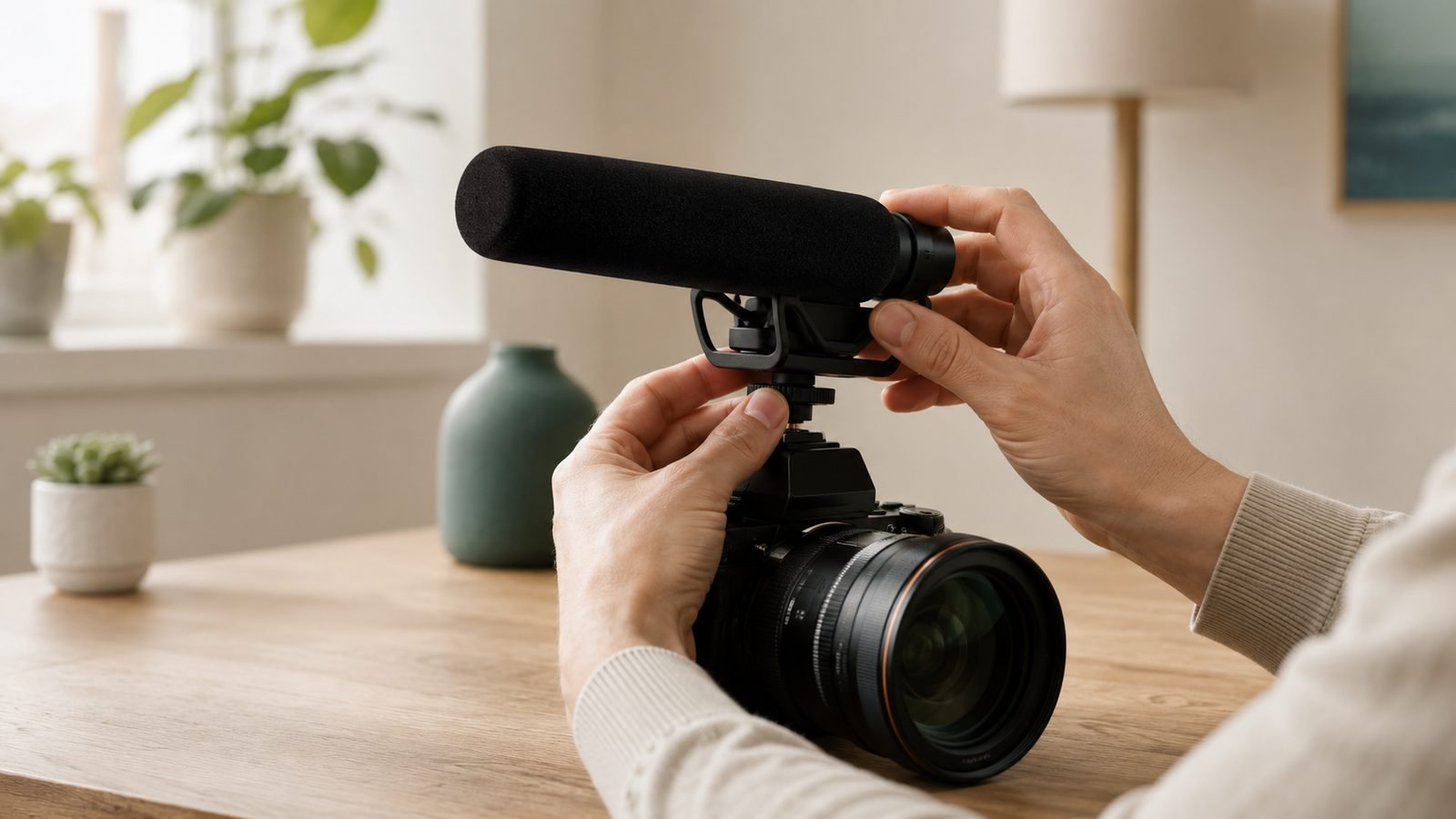
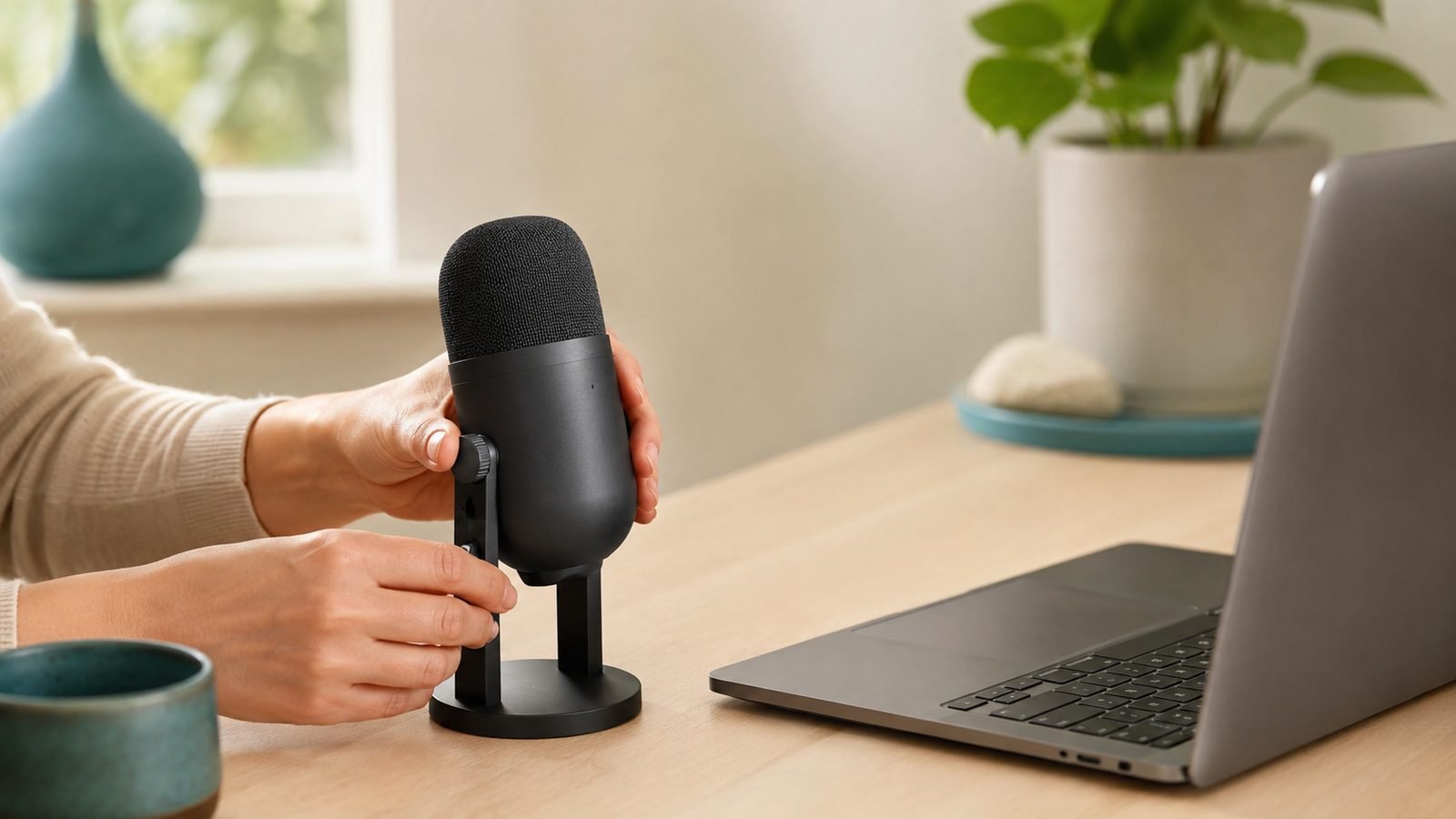
Once the free fixes are done and you still want to sound better, or you are on calls all day and want to sound genuinely professional, a dedicated microphone is the upgrade that lasts. A USB microphone plugs straight in, needs no interface, and doubles for recording, streaming and video calls. It puts a large, quality capsule close to your mouth and instantly outclasses any laptop or headset mic.
Our Best USB Microphones in 2026 for Streaming and Podcasting guide breaks down picks for every budget, from compact desk mics to broadcast-style options. If you move between meetings and video, a wireless lav can double up too, our DJI Mic 3 vs Rode Wireless Micro 2026: Best Creator Mic? comparison covers two systems that work for calls as well as filming, and the techniques overlap heavily with our How to Get Better Audio for YouTube Videos walkthrough.
Check price: USB desk microphone
Troubleshooting: Common Call Audio Problems
- “You sound quiet”: raise your input level in the OS or app, and move closer to the mic. Check the app is using the right input device, not the laptop mic.
- “You sound distorted or crackly”: input level too high, lower it, or a failing connection. Test on a wired line.
- Echo on the other end: wear headphones. Your speakers are feeding your mic.
- Robotic or underwater voice: either aggressive noise suppression (drop to Medium) or a poor connection (go wired, drop video).
- Popping on P and B sounds: angle the mic off to the side of your mouth, or add a little distance.
- Keyboard and fan noise: turn on the app’s noise suppression and point the mic away from the laptop.
FAQ
Why do I sound quiet or distant on calls?
Almost always because the app is using your laptop’s built-in microphone, which sits far from your mouth. Select a closer input, a USB mic, wired earbuds or a headset, in your call app’s audio settings, and raise the input level in your operating system. Getting the mic near your face is the biggest single improvement, and it is free.
What are the best mic settings for Teams and Zoom?
Select your dedicated microphone (not the laptop) as the input, set the level so the test meter moves well without maxing out, and turn on noise suppression at Medium for most rooms. Wear headphones to prevent echo. In Zoom, that is under Settings > Audio; in Teams, under Settings > Devices. These defaults handle the majority of meeting-audio problems.
How do I stop echo on video calls?
Wear headphones or earbuds. Echo happens when your speakers play the other person’s voice and your microphone picks it back up, sending it looping back to them. Headphones stop your mic from ever hearing the other side, which removes the cause completely. Software echo cancellation helps, but headphones are the reliable fix, no matter which microphone you use.
Is a USB mic better than a headset for meetings?
For pure audio quality, yes, a USB microphone has a larger capsule and sounds fuller and more professional. A headset wins on convenience and echo control, since the mic moves with you and you are already wearing headphones. If you take calls all day and want to sound your best, a USB mic plus separate headphones is the strongest combination.
Why does my voice sound robotic on calls?
Two usual causes. Either your connection is dropping packets, which compresses and garbles the audio, in which case go wired or turn off your camera to free up bandwidth. Or your app’s noise suppression is set too aggressively and is scrubbing your voice, in which case lower it from High to Medium. Test after each change to find the culprit.
Zen Tech Hub may earn a commission from links on this page, at no extra cost to you.