Choosing a laptop in 2026 comes down to one thing first: what you’ll actually do with it. Get that right and the specs fall into place. The quick answer for most people is a laptop with a modern efficient chip, 16GB of RAM, a 512GB SSD, and a good IPS or OLED screen — which lands around $800–$1,200 / £750–£1,150 and comfortably handles browsing, work, streaming and light creative tasks for years.
This guide walks you through it in order: define your use, then work through the CPU, memory, storage, screen, battery and build, and finally match it to a budget. By the end you’ll know exactly which specs matter for you and which are marketing noise you can safely ignore.
Step 1: Start with what you’ll actually use it for
Before any spec, be honest about your real workload. Most buyers overspend by chasing numbers they’ll never use, or underspend on the one thing that would have mattered.
- Everyday use (browsing, email, documents, streaming, video calls): almost any modern laptop with 16GB of RAM is plenty. Don’t overpay.
- Office and productivity (lots of tabs, spreadsheets, multitasking): prioritize 16GB of RAM (or 32GB if you’re heavy), a comfortable keyboard, and good battery. Our best business laptops guide collects our picks for this workload.
- Creative work (photo, video, design): you need a strong CPU, 32GB of RAM, a color-accurate screen, and often a discrete GPU. Our Best Laptops for Video Editing 2026: The Complete Guide guide goes deep on this.
- Programming: RAM and a fast SSD matter most, plus a good keyboard and screen. See Best Laptops for Programming 2026: Devs' Picks.
- Gaming: you need a discrete NVIDIA or AMD GPU and good cooling — a different class of machine entirely, covered in Best Gaming Laptops 2026: RTX 50-Series Picks Ranked.
- AI and machine learning: memory and either a GPU or unified memory decide what you can run; Best Laptops for AI & Machine Learning 2026 breaks it down.
Write down your top two or three tasks. Every decision below flows from them.
Step 2: Pick the platform — Windows, Mac or ChromeOS
The operating system shapes everything, so decide early.
Windows is the most flexible: the widest software and game library, every price point, and endless hardware choice. It’s the default for gaming, most business software, and anyone who wants options.
macOS (MacBooks) offers excellent battery, silent operation, superb build quality and a polished, low-maintenance experience. It’s outstanding for creative work and everyday use, but pricier at entry level and limited for gaming and some niche Windows-only apps. If you’re leaning this way, Best MacBook 2026: Which Mac Laptop Should You Buy? compares the current lineup.
ChromeOS (Chromebooks) is fast, affordable, secure and simple — ideal for browsing, web apps and students — but can’t run native Windows or Mac software. See Best Chromebooks 2026: Affordable & Simple if this fits your needs.
If your must-have software only runs on one platform, that decision is already made for you.
Step 3: Understand the processor (CPU)
The CPU is the engine, but you don’t need to memorize model numbers — you need to match tier to task.
In 2026, Windows laptops run Intel Core Ultra (Series 2, “Lunar Lake” and newer), AMD Ryzen AI, or Qualcomm Snapdragon X chips. Macs run Apple M4 and M5 series. Rough guidance:
- Light/everyday use: an efficient chip like Intel Core Ultra 5, Ryzen AI 5, Snapdragon X, or Apple M4 is plenty.
- Serious work and creative tasks: step up to Core Ultra 7/9, Ryzen AI 9, or Apple M5 Pro/Max.
- Battery-first buyers: Snapdragon X and Apple silicon are exceptionally efficient — real all-day runtime.
Ignore raw clock speeds in isolation. A newer, more efficient chip often beats an older “faster-sounding” one on both performance and battery. If a laptop is a Copilot+ PC, its NPU also handles on-device AI features — nice to have, not essential unless you specifically want them.
Step 4: Get the RAM right (this is where people go wrong)
RAM is the most common mistake buyers make, in both directions.
16GB is the sensible minimum in 2026. It handles everyday use, heavy browsing and office work comfortably, and it’s what most people should buy. Do not buy 8GB unless it’s a very cheap secondary machine or a Chromebook for light use — it will feel cramped within a year.
Step up to 32GB if you edit video or photos, run virtual machines, keep dozens of tabs and apps open, or do serious creative and development work. 64GB or more is only for professional video, 3D, heavy machine learning and similar specialist work.
One crucial catch: most modern thin laptops solder the RAM to the board, and every MacBook has non-upgradeable memory. That means you must buy enough at purchase — you can’t add more later. When in doubt, size up one tier. It’s the cheapest future-proofing you can buy.
Step 5: Choose storage (SSD)
Storage is simpler. Always get an SSD (every decent laptop has one now — avoid any remaining spinning hard drives).
- 256GB: tight; only for light users who live in the cloud.
- 512GB: the sweet spot for most people — comfortable room for apps, files and some media.
- 1TB or more: for large photo/video libraries, lots of games, or offline work.
As with RAM, check whether the SSD is upgradeable. Some laptops let you swap it later (cheaply), while thin ultrabooks and all MacBooks solder it in. If it’s soldered, buy the capacity you’ll need in two years. An external SSD is a fine, affordable way to expand storage on a machine you can’t upgrade — a portable Check price: Samsung T9 portable SSD is a common pick for exactly this.
Step 6: Don’t skimp on the screen
You look at the screen every second you use the laptop, yet it’s where budget machines cut the most corners. Check three things:
Resolution: get at least Full HD (1920x1080). Higher-res panels (2.5K, 4K) are sharper but use more battery. Avoid the low-res 1366x768 panels still lurking on the cheapest laptops.
Panel type: IPS is the reliable standard — good colors and viewing angles. OLED is stunning (deep blacks, vivid color) and increasingly common, with a small long-term burn-in risk from static images. Mini-LED offers OLED-like contrast without that risk. Cheap TN panels are worth avoiding.
Brightness: aim for 300 nits or more for indoor comfort, and 400+ if you’ll work near windows or outdoors.
For creative work, also check color coverage (look for ~100% sRGB, or DCI-P3 for video). For everyday use, a bright Full HD IPS panel is all you need.
Step 7: Weigh battery, build and ports
The last practical factors, easy to overlook until they annoy you daily.
Battery: manufacturer claims are optimistic — expect roughly 60–70% of the quoted figure in real use. Apple silicon and Snapdragon X laptops genuinely last all day; high-power gaming and creator laptops need to stay near an outlet. If you travel or work untethered, make battery a priority, not an afterthought.
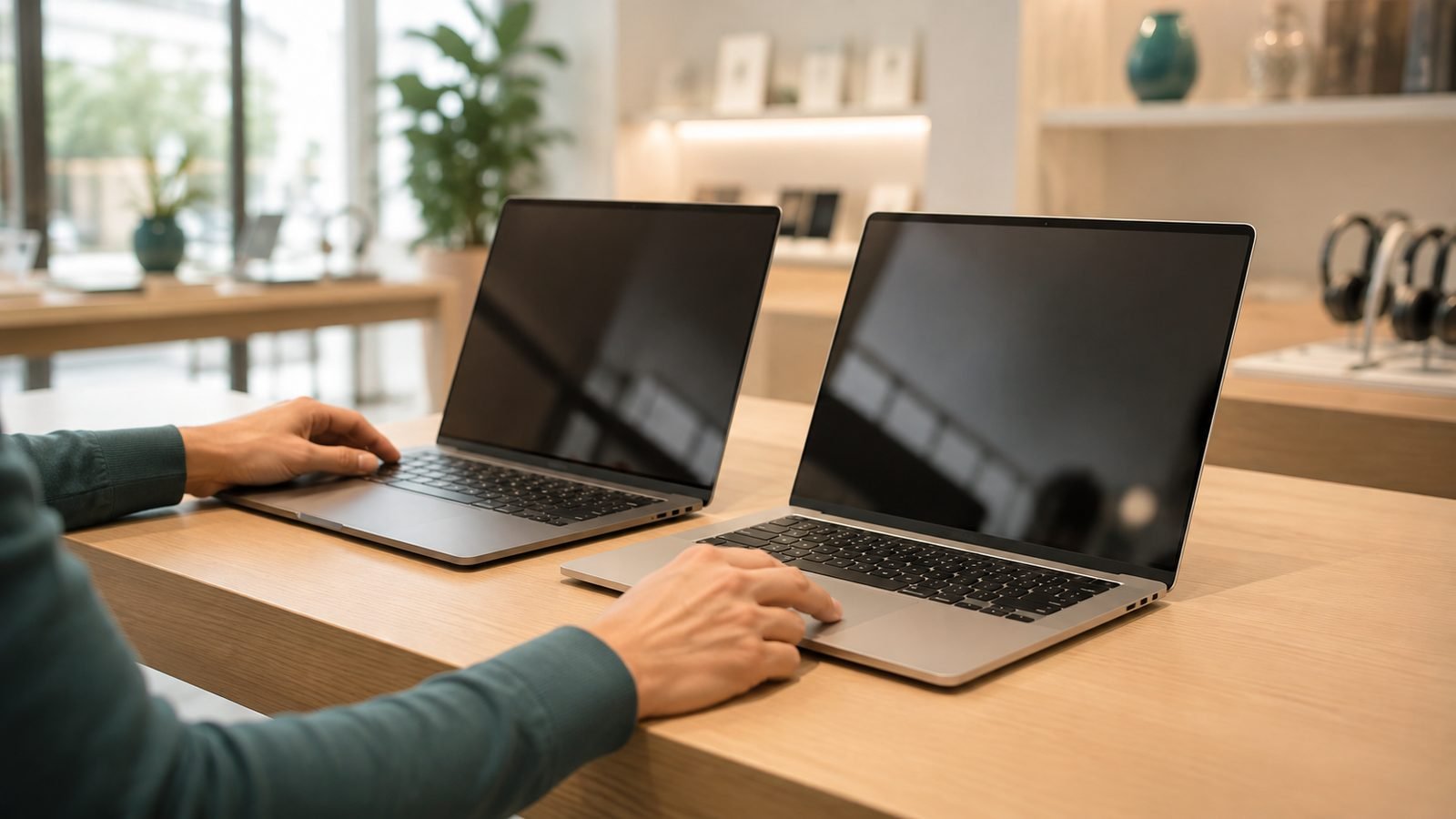
Build and weight: aluminum or magnesium chassis last longer and feel better than plastic. For a machine you carry daily, aim for under 3.5 lb / 1.6 kg. Check the keyboard and trackpad in person if you can — you’ll use them constantly.
Ports: make sure it has what you need. USB-C/Thunderbolt is standard, but check for USB-A, HDMI and a headphone jack if you rely on them. Thin laptops often drop ports, meaning a dongle or hub — a small but real daily friction. A basic Check price: USB-C hub solves it if your pick is port-light.
Troubleshooting: common laptop-buying mistakes
A few traps catch buyers again and again:
- Buying too little RAM to save money. It’s the number one regret. 16GB minimum, and you usually can’t upgrade later. Our best budget laptops guide only lists 16GB configurations for exactly this reason.
- Ignoring the screen. A dim, low-res panel makes even a fast laptop unpleasant. Don’t accept 1366x768.
- Chasing the highest numbers. A Core Ultra 9 with 64GB of RAM is wasted money for someone who only browses and writes email. Match specs to your actual use.
- Forgetting about soldered components. Confirm whether RAM and storage can be upgraded. If not, size up at purchase.
- Trusting quoted battery life. Discount marketing figures by a third and read real-world reviews.
- Overlooking weight and ports. A laptop that’s heavy or needs three dongles becomes a daily irritation.
Take five minutes to sanity-check your shortlist against this list before you buy.
FAQ
How much RAM do I need in a laptop in 2026?
For most people, 16GB — it handles everyday use, heavy multitasking and office work comfortably and is the sensible minimum. Step up to 32GB for video editing, virtual machines or serious creative and development work. Only specialist professionals need 64GB or more. Since most thin laptops and all MacBooks solder the RAM, buy enough at purchase because you usually can’t add more later.
How much should I spend on a laptop?
Around $800–$1,200 / £750–£1,150 buys an excellent laptop for the vast majority of people: a modern chip, 16GB of RAM, a 512GB SSD and a good screen. You can spend $500 / £480 for a solid everyday machine or a capable Chromebook. Only creative, gaming and professional workloads justify spending $1,500 / £1,400 or more — don’t pay for power you won’t use.
Is a MacBook or a Windows laptop better?
Neither is universally better — it depends on your needs. MacBooks excel at battery life, build quality, silent operation and creative work, but cost more at entry level and are poor for gaming and some Windows-only software. Windows laptops offer more choice, every price point, better gaming and the widest software library. Let your must-have apps and your budget decide.
What laptop specs matter most?
In order for most people: enough RAM (16GB), a good screen (Full HD IPS or better, 300+ nits), a modern efficient CPU, and a 512GB SSD. Battery life and build quality matter more day to day than a slightly faster processor. Avoid over-focusing on any single headline number — a balanced laptop beats one with a great CPU but skimpy RAM or a dim screen.
Should I buy an OLED laptop screen?
OLED screens look superb — deep blacks, vivid colors, great contrast — and are worth it if you value display quality or do creative work. The trade-offs are a slightly higher price, more battery drain, and a small long-term burn-in risk from static on-screen elements over years of use. If you’d rather avoid that risk, a bright IPS or mini-LED panel is an excellent alternative.
Do I need a Copilot+ PC or an NPU?
Only if you want on-device AI features like live captions, local image generation and Copilot running efficiently without the cloud. An NPU is nice to have but not essential for most tasks, and it won’t run large AI models or games. Don’t pay a premium for it unless those features matter to you — a strong CPU, enough RAM and a good screen matter far more.
Ready to shortlist? Start with our main Best Laptops 2026: Top Picks for Every Need roundup, then dive into the guide that matches your use — gaming, programming, video editing or AI.
Zen Tech Hub may earn a commission from links on this page, at no extra cost to you.