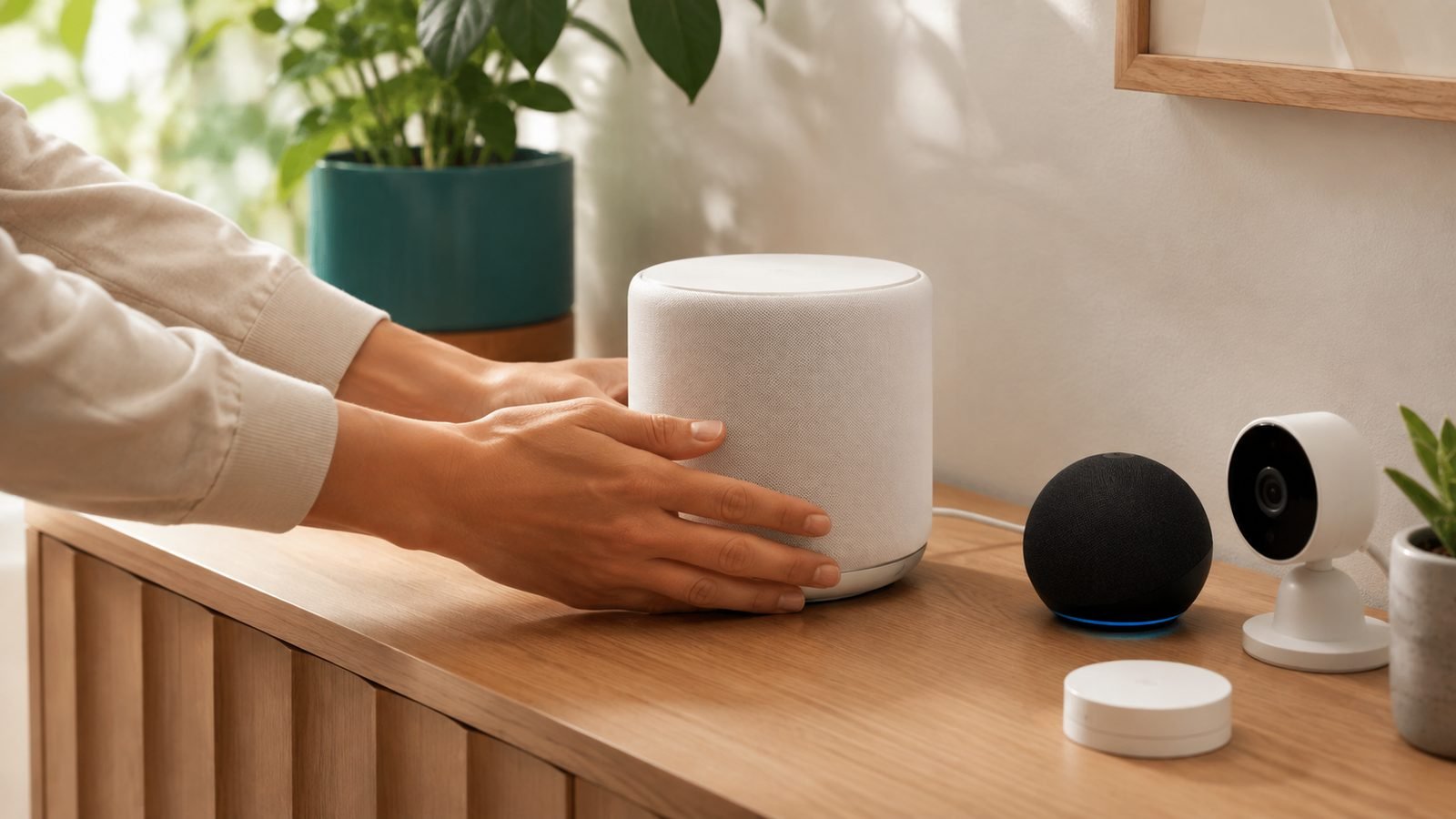
If your smart plugs, cameras and bulbs keep dropping offline, the fix is almost always the network, not the devices. The quick answer: give your smart gear a dedicated 2.4GHz connection with a clear channel (1, 6, or 11), place your router centrally and high, reserve static IPs for the flakiest devices, and add a mesh node if you have more than a handful of gadgets or a large home. Most “smart home keeps disconnecting” problems disappear once those four things are right.
This guide walks through the fixes in order of impact, from free five-minute changes to the hardware upgrades worth making. It’s aimed at anyone whose growing smart home has started to feel unreliable — the light that won’t respond, the camera that’s forever “offline,” the plug you have to re-pair every week.
Why smart devices drop off Wi-Fi
Three root causes account for the vast majority of drops:
- Band confusion. Most smart home devices — plugs, bulbs, sensors, many cameras and doorbells — are 2.4GHz only. Modern routers broadcast one combined network name for 2.4GHz and 5GHz (“band steering”), and cheap smart-device chips get confused when the router tries to push them onto a band they can’t use.
- Weak or congested signal. 2.4GHz travels far and through walls but is crowded — neighbours’ networks, microwaves and Bluetooth all share the space. A marginal signal drops under load.
- Router client limits and IP churn. Every router has a ceiling on simultaneous devices, and a busy DHCP table can hand a device a new IP mid-life, breaking its connection.
Fix those three and reliability transforms. Here’s how, cheapest first.
Step 1: Separate your 2.4GHz band (the single biggest fix)
Band steering is the number-one cause of smart devices dropping off. The fix is to give 2.4GHz its own name so your devices lock onto it and stay there.
- Log into your router (usually 192.168.0.1 or 192.168.1.1, or the manufacturer’s app).
- Find the wireless settings. If you see one combined SSID, look for an option to split the bands or disable band steering / Smart Connect.
- Give the 2.4GHz network a distinct name, e.g.
MyHome-IoT, and the 5GHz its own name. - Reconnect your smart devices to the 2.4GHz network specifically during setup.
On some ISP routers — including several BT, Sky and Virgin Media hubs in the UK, and common Xfinity/Spectrum gateways in the US — band splitting is buried or unavailable. If yours won’t split, a temporary workaround is to move your phone next to the router during device setup so it pairs on 2.4GHz, or (better) move to mesh (Step 5), which handles this gracefully.
Tip: naming the 2.4GHz network as a separate “IoT” SSID also makes it easy to keep smart gadgets on their own segment for security.
Step 2: Change your 2.4GHz channel
2.4GHz has only three non-overlapping channels: 1, 6, and 11. If you and three neighbours are all on auto, you may be piled onto the same one.
- Use a free Wi-Fi analyzer app on your phone to see which channels are busiest nearby.
- In your router’s 2.4GHz settings, switch from “Auto” to whichever of 1, 6, or 11 is least crowded.
- Set the channel width to 20MHz on 2.4GHz (not 40MHz) — narrower is more stable in congested areas and plenty for low-bandwidth smart devices.
This one change alone rescues a lot of intermittent, “works most of the time” drop-offs, especially in flats and terraced housing.
Step 3: Fix router placement and signal reach
2.4GHz is forgiving on range but not on obstacles. Give it the best start:
- Central and high. Put the router in the middle of the home, off the floor, out of a cupboard. Radio signal radiates outward and downward.
- Away from interference. Keep it clear of microwaves, cordless phone bases, baby monitors and large metal appliances — all 2.4GHz-noisy.
- Line of sight to trouble spots where possible. Thick brick (common in UK homes), foil-backed insulation and concrete all crush 2.4GHz.
The classic problem child is the front-door camera or doorbell, sitting at the far edge of the house behind an exterior wall. If a device there keeps dropping, signal is the likely culprit — measure it in the device’s app (look for RSSI, where closer to zero is stronger; better than -65 is the target) before assuming the device is faulty.
Step 4: Reserve static IPs and reboot smartly
Two quieter fixes that stabilise stubborn devices:
Reserve a static (DHCP) IP for your most-important or flakiest devices. In your router’s DHCP settings, bind the device’s MAC address to a fixed IP. This stops the router reassigning its address and breaking the connection — a proven fix for cameras and hubs that “randomly” go offline.
Reboot the right thing. When a device drops, a full power-cycle of the router (unplug 30 seconds, replug) clears more than a soft reboot. Some people schedule a weekly overnight router reboot to keep the DHCP table and memory clean; many routers have this built in.
Also check your router isn’t quietly hitting its device limit. Budget ISP routers can struggle past 30–40 connected devices, and a smart home of bulbs, plugs and sensors adds up fast. If you’re near the ceiling, that’s your signal to upgrade — see the next step.
Step 5: Upgrade to mesh Wi-Fi (when free fixes aren’t enough)
If you have a large home, thick walls, more than ~30 smart devices, or dead zones no amount of channel-tweaking fixes, mesh Wi-Fi is the durable answer. Mesh replaces your router’s Wi-Fi with several nodes that blanket the home in one seamless network and, crucially, handle band selection intelligently so weak devices stay connected.
Good options in our research: the TP-Link Deco X50 (around $130 / £110 for a two-pack) is a consistently well-reviewed budget Wi-Fi 6 mesh that comfortably handles a busy smart home; Amazon eero systems are the easiest to set up and integrate tidily with Alexa households. Either lets you place a node near a problem area — the front door, the garden office — for a rock-solid link.
Check price: TP-Link Deco X50 mesh (2-pack)
One caveat: a few older, single-band smart devices dislike mesh systems that hide the 2.4GHz band. Good mesh apps let you toggle band steering or create an IoT network — check that before buying if you own older gear.
Troubleshooting common patterns
One specific device keeps dropping, others are fine. Signal or IP problem for that device. Reserve a static IP for it, and if it’s at the edge of the house, add a node nearby.
Everything drops at once, periodically. Router-level issue — overheating, firmware bug, or hitting the device limit. Update firmware, improve ventilation, and consider a scheduled reboot or a router upgrade.
Devices drop right after you added several new ones. You may have hit the router’s client ceiling. Time for mesh or a better router.
A camera or doorbell specifically won’t stay online. Measure its signal in-app first. If it’s weak, that’s the cause — reposition the router or add a node. Our dedicated fixes for the Best Home Security Cameras 2026: Indoor & Outdoor Picks you own often trace back to exactly this.
New devices won’t even pair. Almost always band steering — your phone is on 5GHz and the device needs 2.4GHz. Split the bands (Step 1) or move your phone to 2.4GHz for setup.
FAQ
Why do my smart home devices keep disconnecting from Wi-Fi?
Usually band steering (the device gets pushed onto 5GHz it can’t use), a congested or weak 2.4GHz signal, or the router reassigning the device’s IP. Split your 2.4GHz onto its own network name, pick a clear channel (1, 6, or 11), and reserve a static IP for the worst offender. That resolves the large majority of cases.
Should smart home devices use 2.4GHz or 5GHz?
2.4GHz for almost all of them. Plugs, bulbs, sensors and many cameras and doorbells are 2.4GHz-only because it travels further through walls and sips less power. 5GHz is faster but shorter-range and often unsupported by smart-device chips. Reserve 5GHz for phones, laptops and streaming, and put smart gear on 2.4GHz.
How many smart devices can my Wi-Fi router handle?
Budget and ISP-supplied routers often start struggling past 30–40 connected devices, even if the spec sheet claims more, because smart devices hold constant low-level connections. A growing smart home is a common reason to move to a mesh system, which distributes the load across multiple nodes and handles far more devices reliably.
Will a Wi-Fi extender fix my smart home drops?
A basic extender can help a single dead spot, but it often creates a second network name you must reconnect devices to, and it halves throughput. For more than one problem area, or a home with many devices, a proper mesh system is a better long-term fix — it keeps one seamless network and manages bands intelligently.
Do smart home hubs reduce Wi-Fi problems?
Yes, often significantly. Hubs using Zigbee, Z-Wave or Thread take low-power devices (sensors, bulbs, locks) off your Wi-Fi entirely and onto their own mesh, freeing up the router and improving reliability. If your Wi-Fi is groaning under dozens of gadgets, moving them to a hub-based protocol is a genuine fix — see how they compare in our Zigbee vs Z-Wave Explained (2026): Which Should You Choose? explainer.
Zen Tech Hub may earn a commission from links on this page, at no extra cost to you.