If your security camera fires off a notification every time a shadow moves, a car passes or a moth flies past the lens at 2am, you’re not alone — and you can fix it in about ten minutes. The quick answer: turn on person-only / smart detection, draw tight activity zones around the areas that actually matter, dial motion sensitivity down a notch, and physically block the two biggest night-time triggers (bugs and spiders drawn to the infrared LEDs). Do those four things and most people cut their alerts by 80–90% without missing anything real.
Below is the full method, in order of impact, plus the settings paths and quirks for Ring, Nest, Eufy and Arlo. Work through it top to bottom and stop when your notifications feel useful again.
First, understand what’s triggering you
Most false alerts come from a short list of culprits: moving shadows and clouds, trees and plants swaying, passing cars and pedestrians on a street the camera can see, rain, snow and insects crossing the lens, heat sources like radiators or sun-warmed surfaces (for PIR sensors), and spiders that spin webs across the camera at night because bugs gather at the IR light. Identifying your top trigger tells you which fix to prioritise — a street-facing camera needs activity zones most, while a porch camera needs bug control most.
Spend two minutes scrolling your recent alert clips. The pattern will be obvious, and it tells you exactly where to start.
Step 1: Turn on smart / person detection
This is the single highest-impact setting. Almost every current camera can filter motion to only notify you about people (and often vehicles, packages and animals separately), ignoring generic motion like shadows and swaying branches. Turn it on:
- Ring: Smart Alerts → enable People Only Mode (some detection tiers need a Ring Home subscription).
- Nest: notifications settings → enable “People” (and other intelligent alerts; some require a Nest Aware subscription).
- Eufy: Detection → set to “Humans Only” (on-device AI, typically no subscription).
- Arlo: Smart Notifications → People (advanced object detection needs an Arlo Secure plan).
One honest note: on subscription-based brands, the best detection often sits behind a paid plan. If you’d rather not pay monthly, eufy and some others do human detection on-device for free — worth knowing before you buy. Our Best Home Security Cameras 2026: Indoor & Outdoor Picks guide flags which cameras include smart detection without a subscription.
Step 2: Draw tight activity zones
Activity zones tell the camera which parts of the frame to watch and which to ignore. This is where you kill street traffic, a neighbour’s driveway, or a busy pavement. In the app’s motion/detection settings, draw a zone around only what matters — your porch, your path, your driveway — and exclude the road, the sky and the neighbour’s property.
Keep zones tight but not tiny: too small and you’ll miss someone approaching; too broad and you’re back to alerting on everything. For a front door, a zone covering the path and doorway but stopping at the pavement is usually ideal. Redraw after any camera repositioning, since the zone is fixed to the frame, not the scene.
Step 3: Tune motion sensitivity
Sensitivity is a blunt but useful control. If you still get too many alerts after zones and person detection, lower it a notch; if you’re missing real events, raise it. Change it in small steps and review a day of alerts before adjusting again — swinging it to the extremes either floods you or misses the postman.
Some cameras also let you set a minimum object size or motion duration, which is excellent for ignoring insects and fast-moving small objects while still catching people. If yours has it, use it.
Step 4: Beat the night-time bug-and-spider problem
If your alerts spike after dark, insects are almost certainly the cause. The camera’s infrared LEDs attract bugs, spiders follow the bugs, and their webs and bodies right in front of the lens trigger constant motion. Fixes, in order of effort:
- Clean the lens and remove webs regularly — a quick wipe kills the current culprit.
- Move any nearby porch light that’s drawing insects, or switch it to a warmer bulb bugs ignore.
- Stick a couple of anti-spider / peppermint deterrent pads near (not on) the camera — a cheap, popular fix.
- Use an external IR illuminator placed away from the camera so bugs gather there instead of at the lens.
- Angle the camera slightly downward so the sky and its insects aren’t in frame.
This one change fixes the majority of “my camera alerts all night for nothing” complaints.
Step 5: Rule out placement and environmental triggers
Where and how the camera is mounted matters more than people expect:
- Avoid pointing at the sky, roads or reflective surfaces — moving clouds, traffic and glare all trigger motion.
- Keep swaying plants and trees out of frame, or trim them back; wind-blown foliage is a top daytime culprit.
- Watch for heat and light sources — vents, radiators, and sun moving across a wall fool PIR-based sensors.
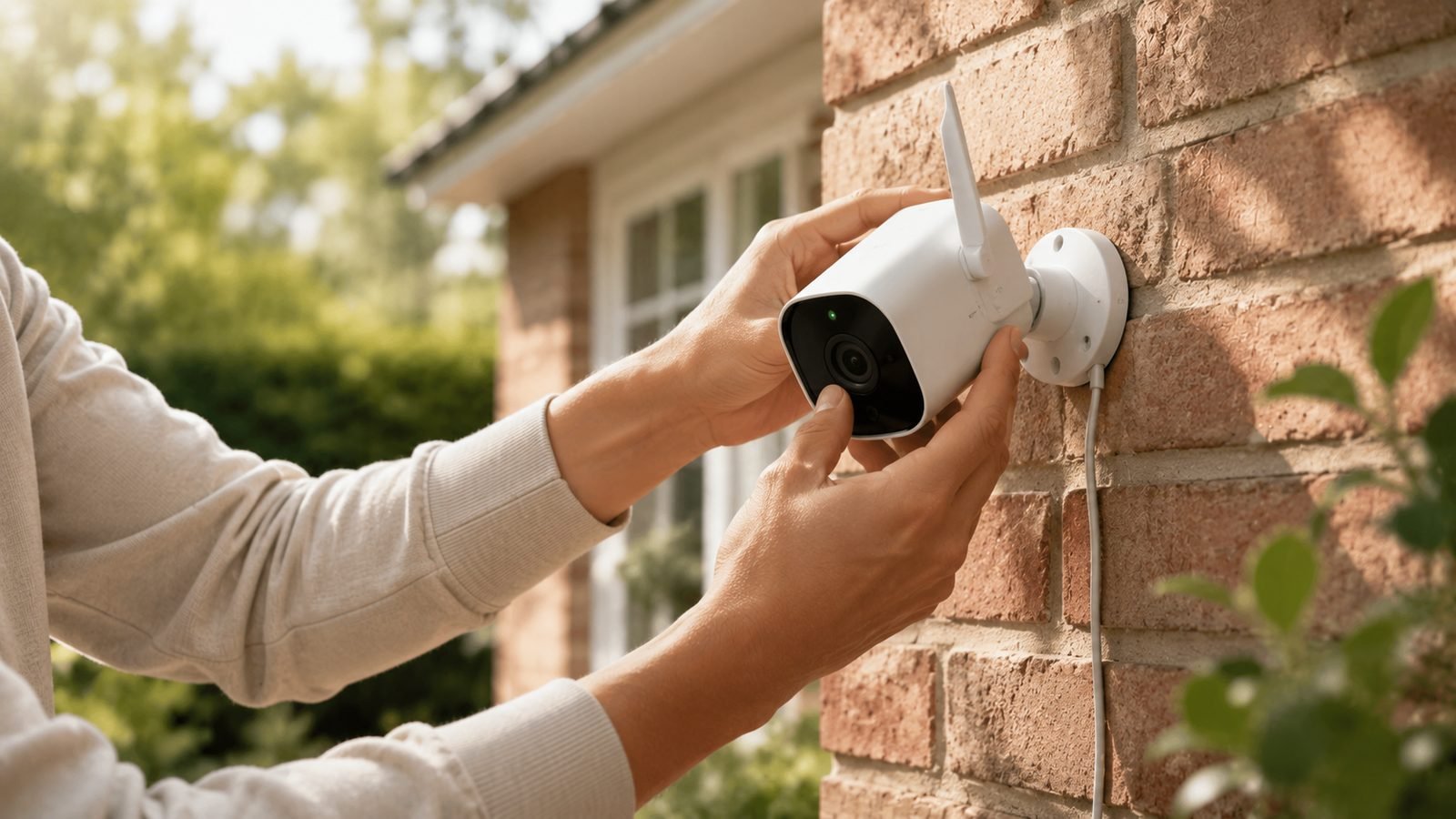
- Mount at the recommended height (usually around 2.4m / 8ft, angled down) so people trigger reliably but distant motion doesn’t.
If a specific camera is your worst offender, repositioning it a few degrees often does more than any software setting.
Step 6: Use schedules, modes and geofencing
You don’t need the same alerts all the time. Most apps support:
- Modes (Home / Away / Disarmed) that change which cameras alert based on whether you’re in.
- Geofencing, which arms cameras automatically when your phone leaves and disarms when you return — so you’re not pinged by your own family.
- Schedules that quiet a garden camera overnight or a driveway camera during the school run.
- Per-camera notification toggles, so a low-priority camera records without pinging your phone at all.
Set these once and a huge share of “annoying but not false” alerts simply stop reaching you.
Step 7: Reduce notification noise without losing coverage
A subtle but important distinction: you can keep a camera recording everything while only notifying you about what matters. Separate the two in settings — let cameras capture full motion history for review, but restrict push notifications to person/vehicle events in key zones. That way you never lose footage you might need, but your phone only buzzes for things worth looking at.
Brand quirks worth knowing
| Brand | Best false-alert setting | Note |
|---|---|---|
| Ring | People Only Mode + Motion Zones | Best smart alerts need a Ring Home plan |
| Nest | Intelligent alerts + Activity Zones | Familiar-face and some alerts need Nest Aware |
| Eufy | Humans Only detection | On-device AI, usually no subscription |
| Arlo | Advanced object detection + zones | Object detection needs Arlo Secure |
The pattern: Ring, Nest and Arlo put their sharpest detection behind subscriptions, while eufy leans on free on-device AI. If avoiding a monthly fee matters, choose your hardware accordingly — our Best Home Security Cameras 2026: Indoor & Outdoor Picks roundup notes which cameras do smart detection without a plan.
If nothing works: hardware and upgrade notes
If you’ve enabled person detection, drawn zones, tuned sensitivity and cleared the bugs and the alerts are still nonsense, the camera’s AI may simply be weak — common on older or very cheap models that only offer basic PIR motion with no object recognition. That’s a hardware limit, not a settings mistake, and the fix is a newer camera with on-device person/vehicle/package detection.
A worthwhile stopgap: an Check price: outdoor camera lens hood / bug-deterrent kit tackles glare and insects cheaply while you decide. When you do upgrade, prioritise on-device smart detection and generous activity zones over headline resolution — they matter far more for stopping false alerts.
FAQ
Why does my security camera keep sending false alerts?
Usually because generic motion detection is triggering on shadows, swaying plants, passing cars, rain or insects. The fix is to switch from basic motion to person/smart detection, draw activity zones around only the areas that matter, and lower sensitivity a notch. Night-time floods of alerts are almost always bugs and spiders drawn to the camera’s infrared light.
How do I stop my Ring camera sending too many notifications?
Enable People Only Mode and draw tight Motion Zones that exclude the road and pavement, then reduce motion sensitivity in small steps. Use Modes and geofencing so it stops alerting when you’re home. Note that Ring’s smartest detection tiers require a Ring Home subscription; the zone and sensitivity controls work without one.
How do I stop spiders and bugs triggering my camera at night?
Bugs are drawn to the camera’s infrared LEDs and spiders follow them. Clean the lens and clear webs regularly, move or warm up nearby porch lights, place peppermint or anti-spider deterrent pads near the camera, and consider an external IR illuminator positioned away from the lens so insects gather there instead. Angling the camera down also helps.
Should I turn down motion sensitivity or use activity zones?
Use activity zones first — they’re more precise, telling the camera which parts of the frame to watch and which to ignore. Then fine-tune sensitivity as a secondary control if you’re still getting or missing alerts. Zones kill specific problems like street traffic; sensitivity is a blunt overall dial. Together they’re far more effective than either alone.
Do I need a subscription to stop false alerts?
Not necessarily. Activity zones and sensitivity controls are free on virtually all cameras. However, the sharpest person/vehicle/package detection is behind a paid plan on Ring, Nest and Arlo, while eufy and some others do it free on-device. If you want smart detection without a monthly fee, check our Best Home Security Cameras 2026: Indoor & Outdoor Picks guide for subscription-free options.
Can I keep recording everything but only get alerts that matter?
Yes, and you should. Most apps separate recording from notifications, so you can capture full motion history for later review while restricting push alerts to person or vehicle events in your key zones. That way you never lose footage you might need, but your phone only buzzes for events actually worth your attention.
Zen Tech Hub may earn a commission from links on this page, at no extra cost to you.