If you own a Kindle, you are sitting on one of the best free-books setups going — and most people never switch it on. Learning how to borrow library books on Kindle takes about five minutes, costs nothing beyond a library card you probably already qualify for, and turns your e-reader into an endless reading machine.
The catch nobody tells you: the smooth “send to Kindle” flow through Libby is US and Canada only. UK readers can still read library books for free, but the route is different. We cover both below, plus fixes for when a book refuses to show up.
What you need before you start
Three things, all free:
A library card. Any US public library card tied to a system that uses OverDrive/Libby (nearly all of them do). No card? Many US libraries let you register online in minutes.
The Libby app. Made by OverDrive, Libby is the front door for library ebooks. Install it on a phone or tablet, or use libbyapp.com in a browser. Your Kindle e-reader itself does not run Libby — you browse and borrow elsewhere, then deliver to the Kindle.
An Amazon account — the same one your Kindle is registered to. This is what makes the Libby to Kindle handoff work.
That is it. No subscription, no card details, no trial that quietly renews.
Step-by-step: borrowing via Libby and sending to Kindle
This is the core flow for US and Canadian readers.
Open Libby and tap the menu to add your library. Search by name, city, or postcode, then sign in with your library card number and PIN.
Find a book. Browse or search the catalogue. Titles marked Available can be borrowed instantly; Borrow with a wait means you join a holds queue (more on that below).
Tap Borrow, confirm the loan period (usually 7, 14, or 21 days), and the book lands on your Libby Shelf.
Open your Shelf, tap Manage Loan on the title, then Read With…
Choose Kindle. Libby hands you off to an Amazon page in your browser.
On that Amazon page, tap Get Library Book, pick the Kindle device or app you want it delivered to, and confirm.
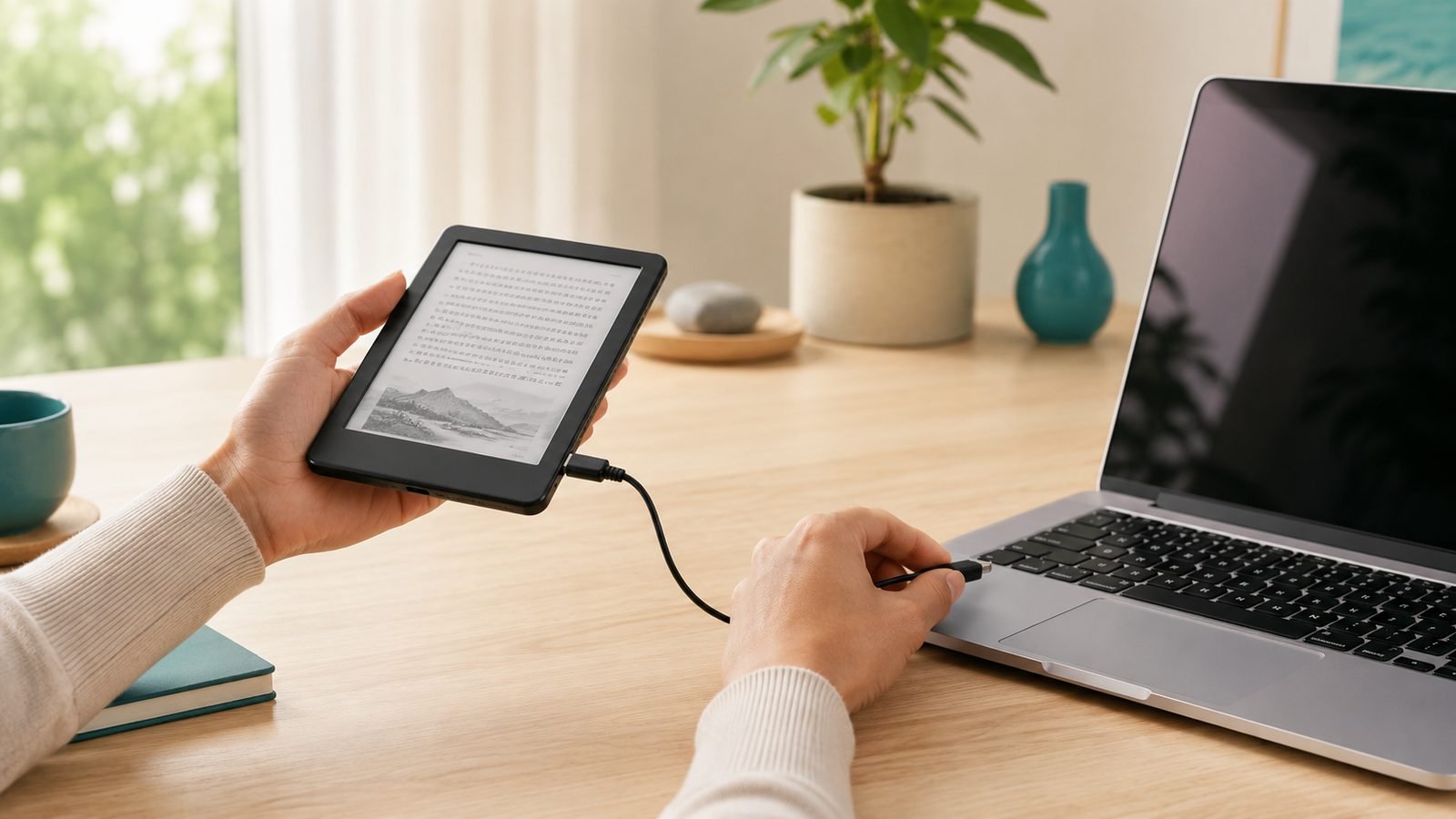
The book downloads the next time your Kindle connects to Wi-Fi. That final Amazon step is exactly what people mean when they talk about overdrive kindle delivery — OverDrive is the engine, Amazon is the delivery van.
Reading and syncing across devices
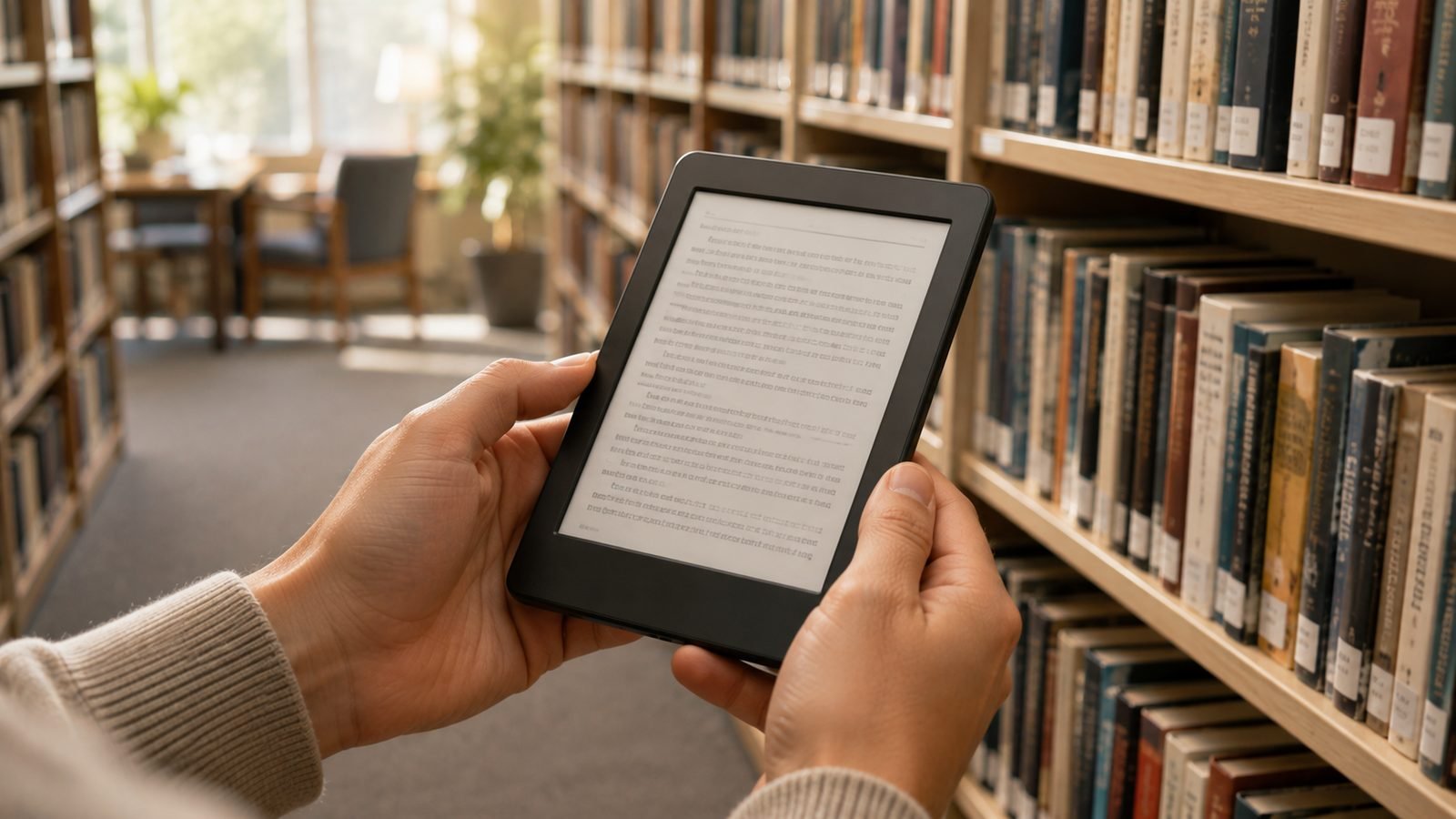
Once delivered, a library loan behaves like any Kindle book. It appears on your Home screen and syncs your furthest page read, bookmarks, and notes through Whispersync, so it opens on your phone’s Kindle app right where you left off on your Paperwhite.
For distraction-free library reading we keep coming back to the Paperwhite — glare-free E Ink, weeks of battery, and a warm front light for bedtime.
Amazon Kindle Paperwhite (12th gen)
Around $159.99 / £159.99. The 7-inch screen, faster page turns, and IPX8 waterproofing make it the natural home for borrowed books — not the cheapest Kindle, but the one owners keep for years.
Pros: Bright, even front light; roomy 7-inch display; excellent battery life; waterproof. Cons: No page-turn buttons; ads on the base model unless you pay to remove them.
Best for readers who want the sweet spot between the basic Kindle and the pricier Colorsoft. Not sure which model fits you? See Which Kindle Should You Buy in 2026? All 6 Models Ranked.
Check price: Kindle Paperwhite (12th gen)
Returning and renewing loans
Library ebooks return themselves automatically at the end of the loan — no fines, ever. But if you finish early and someone is waiting, returning early is the neighbourly move.
To return a library book on Kindle, go to Amazon’s Manage Your Content and Devices, find the title, and choose Return this book — or use Manage Loan → Return in Libby. To renew, open the same Manage Loan panel a few days before expiry; with no holds queue, Libby offers a Renew button. If others are waiting, request it again to rejoin the line.
UK readers: what’s different
Here is the differentiator most guides get wrong. Send-to-Kindle for library books works only in the US and Canada. If your library card is British, that “Read With Kindle” option will not deliver to your Kindle e-reader.
That does not mean no free books for Kindle in Britain — it means a different path:
Read inside the Libby app on your phone or tablet. Borrowing is identical; you just read in Libby rather than on the Kindle device.
Check your council. UK library books on Kindle UK availability is set council by council. Most authorities offer Libby/OverDrive; a few use BorrowBox instead, which also reads in-app.
If reading in a separate app annoys you, a colour E Ink alternative like the Kobo Libra reads library books natively. We compare them in Kindle Paperwhite vs Kobo Libra Colour: Which to Buy in 2026.
Fixes: book not delivering to your Kindle
If your Kindle library books are not showing up:
Force a sync. On the Kindle, swipe down and tap Sync, or toggle Wi-Fi off and on.
Check the delivery device. During the Amazon step it is easy to send a book to the app instead of your e-reader. Re-deliver from Manage Your Content and Devices.
Confirm one Amazon account. The Kindle and the Libby handoff must use the same login.
Region mismatch. A US-registered Kindle with a UK card (or vice versa) fails — the most common send Libby book to Kindle error.
Still dead on arrival? If the device never wakes to sync, see Kindle Won’t Turn On or Is Frozen? 7 Fixes That Work.
Free alternatives: Prime Reading and Kindle Unlimited
When the holds queue for a hot new release runs 14 weeks long, paid routes fill the gap. Prime Reading is bundled free with Amazon Prime — a rotating library of a few thousand titles. Kindle Unlimited is the bigger, paid all-you-can-read service.
Kindle Unlimited (subscription)
Around $11.99/mo / £9.49/mo, with a free trial. Based on owner reports, it shines for genre fiction, romance, and self-published series, and disappoints for brand-new bestsellers from big publishers.
Pros: Unlimited swaps; strong indie and genre catalogue; instant, no waitlists. Cons: Patchy on major new releases; another monthly bill on top of a device you already own.
Best for heavy readers who burn through library holds and want zero waiting. Weigh it properly in Is Kindle Unlimited Worth It in 2026? An Honest Breakdown.
Check price: Kindle Unlimited (subscription)
Verdict
For US and Canadian readers, borrowing library books on Kindle is the single best free upgrade to your device — set up Libby once and read forever. UK readers get the same free books, just inside the Libby app. Reach for Kindle Unlimited only when waitlists genuinely outpace your reading. Start with your library card; keep KU in your back pocket.
More e-reader guides: Tablets & E-Readers.
FAQ
Is borrowing library books on Kindle really free? Yes. A library card, Libby, and delivery through Amazon cost nothing. There are no late fees — loans expire and return automatically. The only paid options here are Prime Reading and Kindle Unlimited, which are alternatives, not requirements.
Can UK readers send Libby books to a Kindle e-reader? No. Send-to-Kindle for library loans is limited to the US and Canada. UK library members borrow the same titles through Libby but read them inside the Libby app on a phone or tablet, not on the Kindle device itself.
Why are my Kindle library books not showing up? Usually a sync issue or wrong delivery target. Force a Wi-Fi sync on the Kindle, then check Manage Your Content and Devices to confirm the book was sent to your e-reader and not the app. Make sure the Kindle and Libby use the same Amazon account.
How do I return a library book on Kindle early? Open Amazon’s Manage Your Content and Devices, find the title, and select Return this book — or use Manage Loan → Return in Libby. Early returns free the title for the next person in the holds queue and cost you nothing. When a loan simply expires, it returns itself automatically, with no action needed and no fines.
Zen Tech Hub may earn a commission from links on this page, at no extra cost to you.