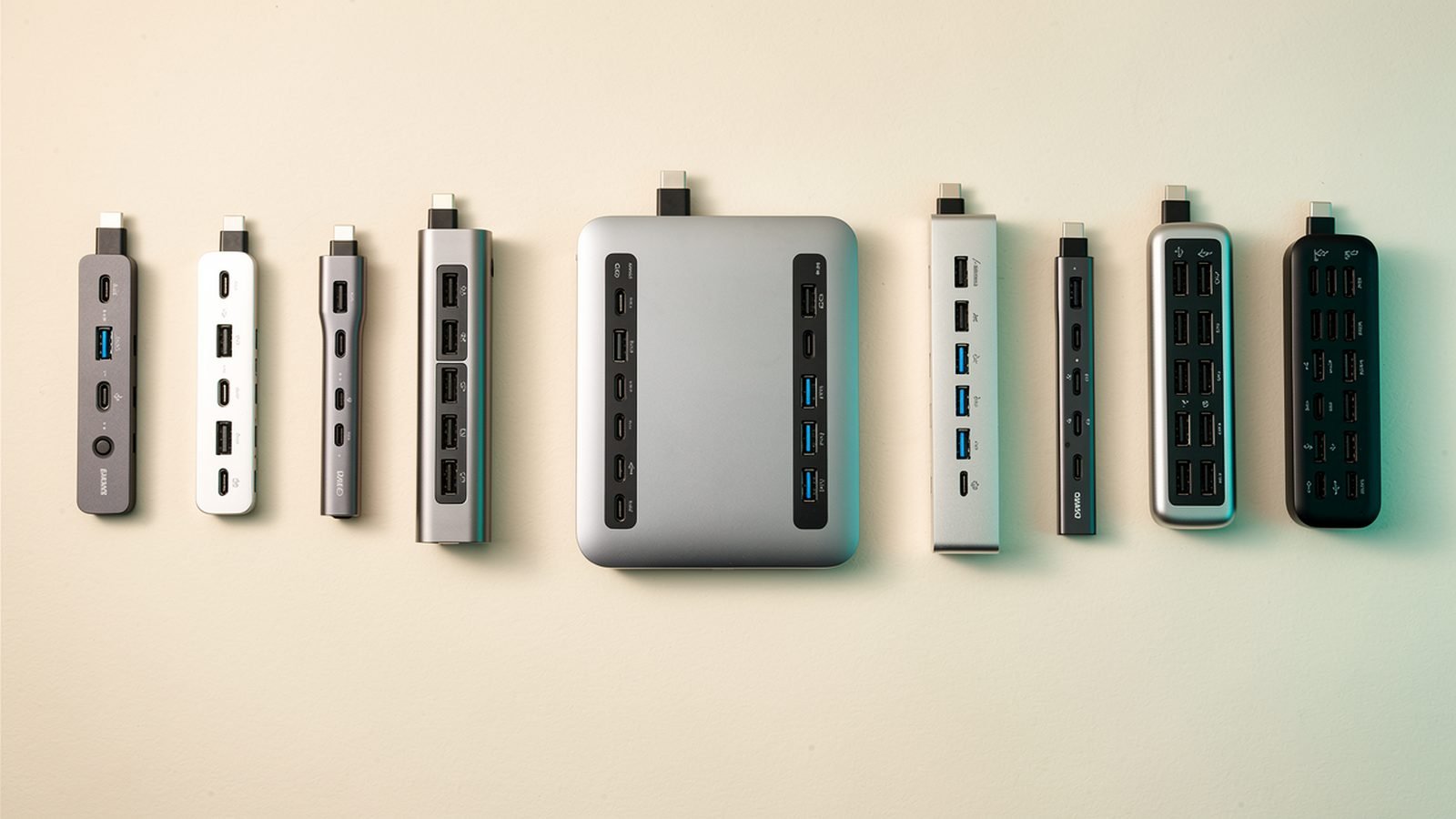
Working out how to connect two monitors to a laptop should take five minutes. Most people burn an evening on it, because the answer hinges on things nobody prints on the box: what your USB-C port supports, whether your chip allows two external displays at all, and which of three competing technologies your dock uses.
This guide untangles it all — including how to connect 2 monitors to a laptop with one USB-C port, on Windows or a MacBook — and which hardware to buy first time.
Quick Answer: The Three Routes Compared
| Route | Works on | Driver needed? | Typical cost | Best for |
|---|---|---|---|---|
| MST hub/dock | Windows, Linux, Chromebooks (not macOS) | No | around $30–60 / £30–55 | Windows users who want cheap and native |
| DisplayLink dock | Windows and macOS (incl. base M-chip MacBooks) | Yes | around $100–180 / £95–170 | MacBook Air/Pro owners, mixed fleets |
| Thunderbolt dock | Thunderbolt/USB4 laptops, Pro/Max MacBooks | No | around $250–450 / £230–420 | High-refresh, high-res, zero-compromise setups |
The shortcut: Windows laptop → MST dock. Base-chip MacBook (M1–M4, non-Pro) → DisplayLink dock. Thunderbolt laptop with budget → Thunderbolt dock. Now the detail, because the edge cases burn people.
What You Need: A 2-Minute Compatibility Check
Before buying anything, confirm three facts about your laptop:
- Does your USB-C port carry video? Look for a DisplayPort logo (a D-shaped icon) or Thunderbolt lightning bolt beside the port, or check the spec sheet for “DisplayPort Alt Mode,” “USB4” or “Thunderbolt.” A plain port with neither may be data-and-charging only.
- How many external displays does your chip support? Most recent Intel and AMD laptops handle two or three natively. Apple is the outlier: base M1/M2 MacBook Airs support one external display; M3/M4 Airs support two, lid-closed only; Pro/Max chips support two to four, lid open.
- Do your monitors take HDMI or DisplayPort? This determines whether you want a usb c to dual hdmi adapter or a dock with mixed outputs.
Fail check 1 or 2 and DisplayLink — which sends video as ordinary USB data — is your workaround. Everyone else has options.
Step 1: Identify Your Laptop’s Ports and Display Limits
On Windows: open Device Manager → Display adapters. Intel Iris Xe, Arc and most AMD Radeon integrated GPUs support at least three simultaneous displays including the laptop screen. Confirm DP Alt Mode or Thunderbolt 4/USB4 on your manufacturer’s spec page.
On macOS: check About This Mac, then Apple’s “supported displays” page for your chip. As of mid-2026: base M1/M2 = one external; base M3/M4 = two lid-closed, one lid-open; Pro/Max/Ultra = two or more, lid open.
Cable check: a charging-only USB-C cable will power a dock while silently carrying no video. Use the cable that shipped with the dock, or see USB-C Cable Types Explained: Speeds, Watts and Labels for spotting a full-featured cable.
Windows Route A: MST Hub or Dock (Native, No Drivers)
MST — Multi-Stream Transport — is part of the DisplayPort standard. It splits the single DisplayPort signal from your USB-C port into two or three independent streams: that’s how a $50 hub drives a genuine dual monitor setup over USB-C with zero software. The monitors behave exactly like directly attached displays, so gaming and colour work are uncompromised.
The catches:
- macOS does not support MST for extended displays. Plug an MST hub into a MacBook and both monitors mirror the same image — the single most common cause of dual-monitor returns.
- Bandwidth is shared. Over DP 1.4 Alt Mode you can typically run dual 4K60 with DSC (Display Stream Compression), or dual 1440p/1080p easily. Older DP 1.2 laptops may cap at dual 1080p60 or a single 4K.
If you run Windows, this is how to connect two monitors to a laptop for the least money — make it your default.
Mac and Windows Route B: DisplayLink Dock Explained
DisplayLink takes the opposite approach: it compresses your screen output in software and sends it over USB as data, which a chip in the dock decompresses. Because it’s data rather than Alt Mode video, it sidesteps Apple’s display limit entirely — a base M2 MacBook Air can drive two or three external monitors this way.
That makes it the standard MacBook dual monitor hub answer, and it settles the mst vs displaylink question: MST is better where it works, DisplayLink works where MST can’t.
Trade-offs:
- You must install the free DisplayLink Manager driver from Synaptics; macOS also asks for a screen-recording permission, which is normal.
- It uses a few percent of CPU/GPU. Fine for office work, video calls and 4K playback; wrong for fast gaming or frame-accurate colour grading.
- HDCP-protected content (Netflix in some apps) can be finicky.
Based on hundreds of owner reports, modern DisplayLink chips (DL-6000 series) are far smoother than the laggy adapters of a decade ago; for productivity, most people can’t tell the difference.
Route C: Thunderbolt Dock for Zero-Compromise Setups
Thunderbolt 4 and 5 (and USB4) carry vastly more bandwidth — 40Gbps, up to 120Gbps for display traffic on TB5. A Thunderbolt laptop docking station for dual monitor work gives you two native, uncompressed displays plus fast data, Ethernet and laptop charging through one cable. It’s the tidiest way to connect two monitors to a laptop — and the route for dual 4K at 120Hz+, 6K panels or heavy peripherals. The only catch is price: good docks start around $200 / £190.
One caveat: a Thunderbolt dock does not lift the one-display limit on base M1/M2 chips — Thunderbolt adds bandwidth, not display pipes. Pro/Max MacBook owners, though, get the best dual-monitor experience available.
How to Connect Two Monitors to a Laptop: Setup Steps (Windows and macOS)
Once the right hardware arrives, the dual monitor setup over USB-C takes minutes:
- DisplayLink docks only: install DisplayLink Manager first and enable “launch at login.” MST and Thunderbolt docks skip this step.
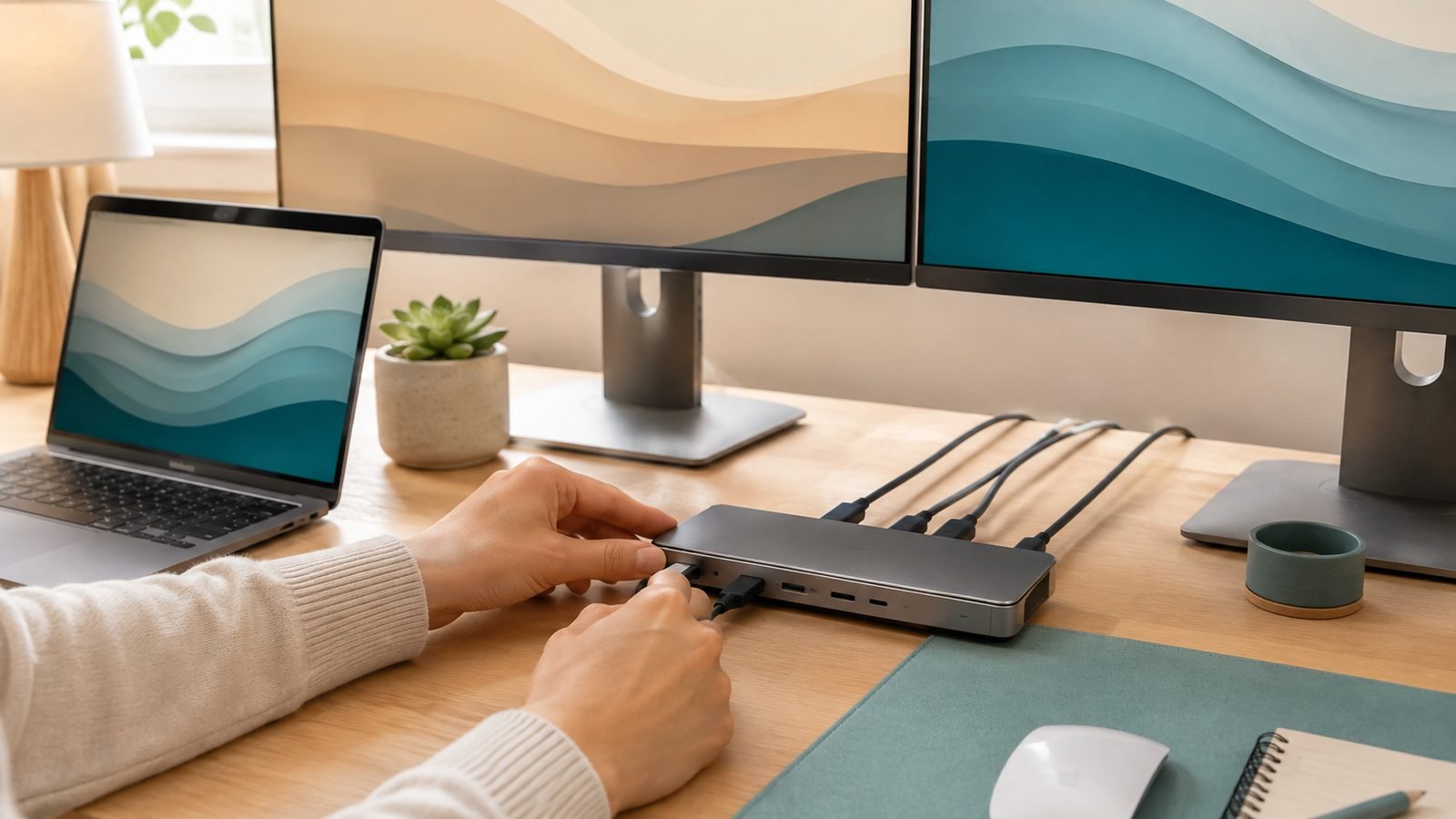
- Connect both monitors to the dock, then the dock to your laptop’s video-capable USB-C port with the supplied cable. Plug in the dock’s own power supply if it has one — underpowered docks cause flickering.
- Windows: right-click the desktop → Display settings. Set each monitor to “Extend desktop,” drag the numbered rectangles to match your physical layout, pick your main display, and check resolution and refresh rate under Advanced display.
- macOS: System Settings → Displays → Arrange. Drag the displays to match reality and the white menu-bar strip onto your primary screen. On base M3/M4 Airs, close the lid (with power and an external keyboard connected) to wake the second display.
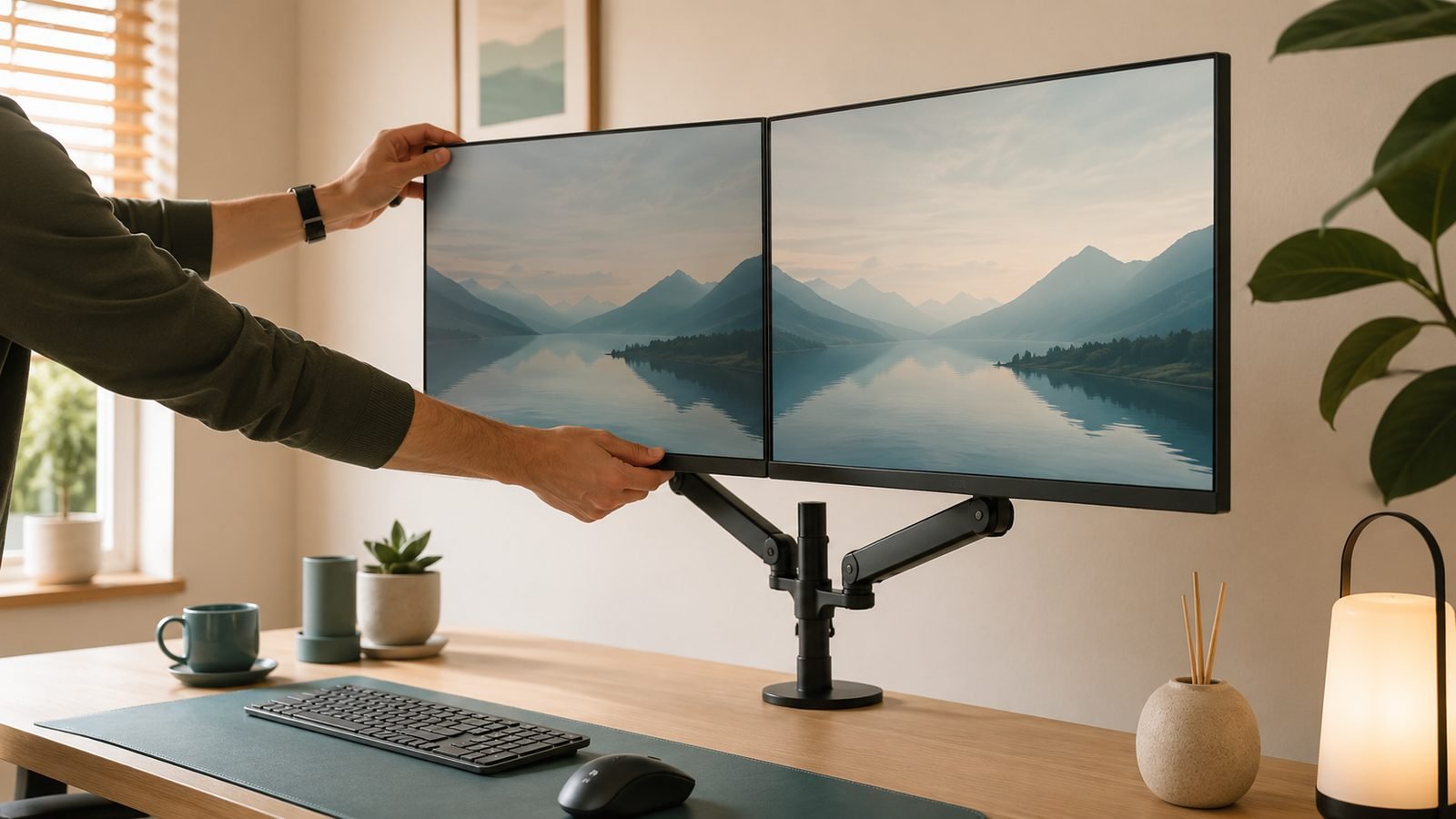
- Fine-tune: match scaling between monitors — 150% next to 100% makes windows jump sizes — and mount both panels at eye height with an arm from our Best Monitor Arms 2026: Single, Dual & Ultrawide Ranked guide.
Fixing “Second Monitor Not Detected”
When dual monitors are not detected, work through this list in order — in our research it resolves most cases:
- Wrong port. Use the USB-C port with the DP or Thunderbolt symbol — on many laptops only one carries video.
- Wrong cable. Swap in a known full-featured USB-C cable; charging cables are the silent killer.
- MST hub on a Mac. If both screens mirror on a MacBook, you have an MST hub. No setting fixes this — you need DisplayLink or Thunderbolt hardware.
- Driver missing. For DisplayLink docks, install or update DisplayLink Manager and grant the macOS screen-recording permission.
- Force detection. Windows: Display settings → Multiple displays → Detect. macOS: hold Option in Displays settings to reveal “Detect Displays.”
- Bandwidth ceiling. One monitor drops out at 4K60? Temporarily lower it to 30Hz or 1440p — if it stabilises, you’ve hit your port’s limit and DSC isn’t engaging.
- Update everything. GPU drivers, dock firmware and the OS. In owner feedback, firmware updates fix more “random black screen” complaints than any other step.
Refresh Rate, Resolution and Cable Gotchas
Three spec traps. First, “dual 4K” on a listing doesn’t mean dual 4K at 60Hz — plenty of cheap usb c to dual hdmi splitters run the second screen at a headache-inducing 30Hz, so check for “4K@60Hz on both outputs.” Second, HDMI 1.4 ports cap at 4K30; insist on HDMI 2.0 or newer. Third, DSC support is what makes dual 4K60 possible over one USB-C connection, and laptops older than roughly 2019 often lack it.
Recommended Hubs and Docks for Dual Monitors
Four picks covering every route above, chosen from spec analysis and aggregated owner feedback. For more MacBook-specific options, see Best USB-C Hubs for MacBook Pro & Air in 2026.
UGREEN Revodok CM615 9-in-1 DisplayLink Dock — best overall for MacBooks
Around $119 / £110. The CM615 pairs DisplayLink silicon with HDMI + DisplayPort outputs, driving dual 4K60 on anything — including a base M-series MacBook Air that natively supports one display — plus 100W passthrough charging, Ethernet and a healthy spread of USB ports.
Pros
- Dual 4K/60 on any laptop, including base M1/M2/M3/M4 MacBooks
- Gigabit Ethernet, 100W PD passthrough, 9 ports total
- Strong owner-reported reliability for video calls and office work
Cons
- Requires the DisplayLink driver and a macOS screen-recording permission
- Not suited to gaming or colour-critical grading on the external screens
Who it’s for: MacBook Air owners who want two real extended displays, and mixed Mac/Windows households.
Check price: UGREEN Revodok CM615 9-in-1 DisplayLink Dock
Monoprice 13-in-1 Dual-HDMI + DP MST Dock — best budget pick for Windows
Around $58 / £55. The value play: a native MST dock for Windows with dual HDMI plus DisplayPort, Ethernet, card readers and PD charging — no drivers, no CPU overhead.
Pros
- Genuinely cheap for a full dock, not just a hub
- Native MST video: zero drivers, zero latency, fine for gaming
- 13 ports including Ethernet and SD/microSD
Cons
- MST means no extended dual displays on macOS — mirroring only
- Owners report needing its power supply for stable dual 4K
Who it’s for: Windows laptop owners who want the cheapest reliable path to two extended monitors.
Check price: Monoprice 13-in-1 Dual-HDMI + DP MST Dock
CalDigit TS5 Thunderbolt 5 Dock — best premium, zero-compromise pick
Around $400 / £400. CalDigit’s TS5 is the current benchmark: Thunderbolt 5 bandwidth, dual (or triple, hardware permitting) high-refresh displays, 98W charging and 2.5G Ethernet. Overkill for spreadsheets — exactly right for M4 Pro/Max MacBooks or TB5 Windows machines driving fast, high-res panels.
Pros
- Native dual/triple display support at high resolutions and refresh rates
- 98W charging and a huge, fast port selection
- CalDigit’s firmware support record is the best in the category
Cons
- Expensive, and wasted on laptops without Thunderbolt 4/5
- Doesn’t bypass base M-chip display limits — that’s physics, not CalDigit
Who it’s for: professionals with Pro/Max MacBooks or TB5 laptops who want one cable and no asterisks.
Check price: CalDigit TS5 Thunderbolt 5 Dock
Anker 555 8-in-1 USB-C Hub — honest budget option (single display)
Around $50 / £46. Included to set expectations: this popular hub has one HDMI output. It’s excellent for one external monitor plus accessories, but no adapter chain makes a single-HDMI hub drive two extended screens — and budget listings promising “dual display” usually mean mirroring.
Pros
- Solid build, 85W passthrough, Ethernet at a fair price
- Perfect first step if you only need one external screen today
Cons
- One HDMI port — not a dual-monitor solution
- 4K output limited to 30Hz on some laptops without DSC
Who it’s for: single-monitor users who want ports now and may go dual later.
Check price: Anker 555 8-in-1 USB-C Hub
Which Should You Buy? The 30-Second Verdict
Here’s how to connect two monitors to a laptop without a returns saga. Windows, tight budget: Monoprice’s MST dock — native, driverless, done. Any MacBook, especially base-chip Airs: the UGREEN Revodok CM615; DisplayLink is the only practical way past Apple’s display limit. Thunderbolt laptop, demanding displays: the CalDigit TS5. Only need one monitor for now: the Anker 555 and a clear conscience.
For more charging and connectivity guides, browse Accessories & Charging.
FAQ
Can you run two monitors from one USB-C port?
Yes. A single video-capable USB-C port can drive two monitors via an MST hub (Windows), a DisplayLink dock (Windows and macOS), or a Thunderbolt dock. MST and Thunderbolt need DisplayPort Alt Mode, USB4 or Thunderbolt support; DisplayLink works over any USB 3.0 data connection because it sends video as compressed data.
Why does my MacBook mirror both external monitors instead of extending?
You’re using an MST hub or splitter. macOS doesn’t support DisplayPort MST for extended desktops, so it mirrors both screens. Swap to a DisplayLink dock (works on all MacBooks) or, on Pro/Max chips, connect each monitor to its own Thunderbolt port or use a Thunderbolt dock.
Do I need a docking station to connect two monitors to a laptop?
Not necessarily. If your laptop has two video outputs — say HDMI plus a USB-C port with DP Alt Mode — connect one monitor to each directly. A dock is only required when driving both displays through a single USB-C port, or when you want charging, Ethernet and peripherals through one cable too.
Is DisplayLink bad for gaming?
For fast-paced gaming, yes — the software compression adds latency and can drop frames in rapid motion, so game on your laptop screen or a natively connected monitor. For office work, browsing, coding and video playback, modern DisplayLink docks are smooth enough that most owners report no noticeable difference.
Why is my second monitor stuck at 30Hz?
You’ve hit a bandwidth or spec ceiling. Common causes: an HDMI 1.4 port or cable (caps 4K at 30Hz), a laptop without DSC pushing dual 4K over one USB-C connection, or a wrong refresh-rate setting. Check Advanced display settings, use HDMI 2.0+ cables, and drop to 1440p if bandwidth is the limit.
How many monitors can an M4 MacBook Air support?
Natively, an M4 MacBook Air drives two external displays, but only with the laptop lid closed; lid open, it supports one. Add a DisplayLink dock and you can run two externals with the lid open, keeping the built-in screen as a third display.
Zen Tech Hub may earn a commission from links on this page, at no extra cost to you.