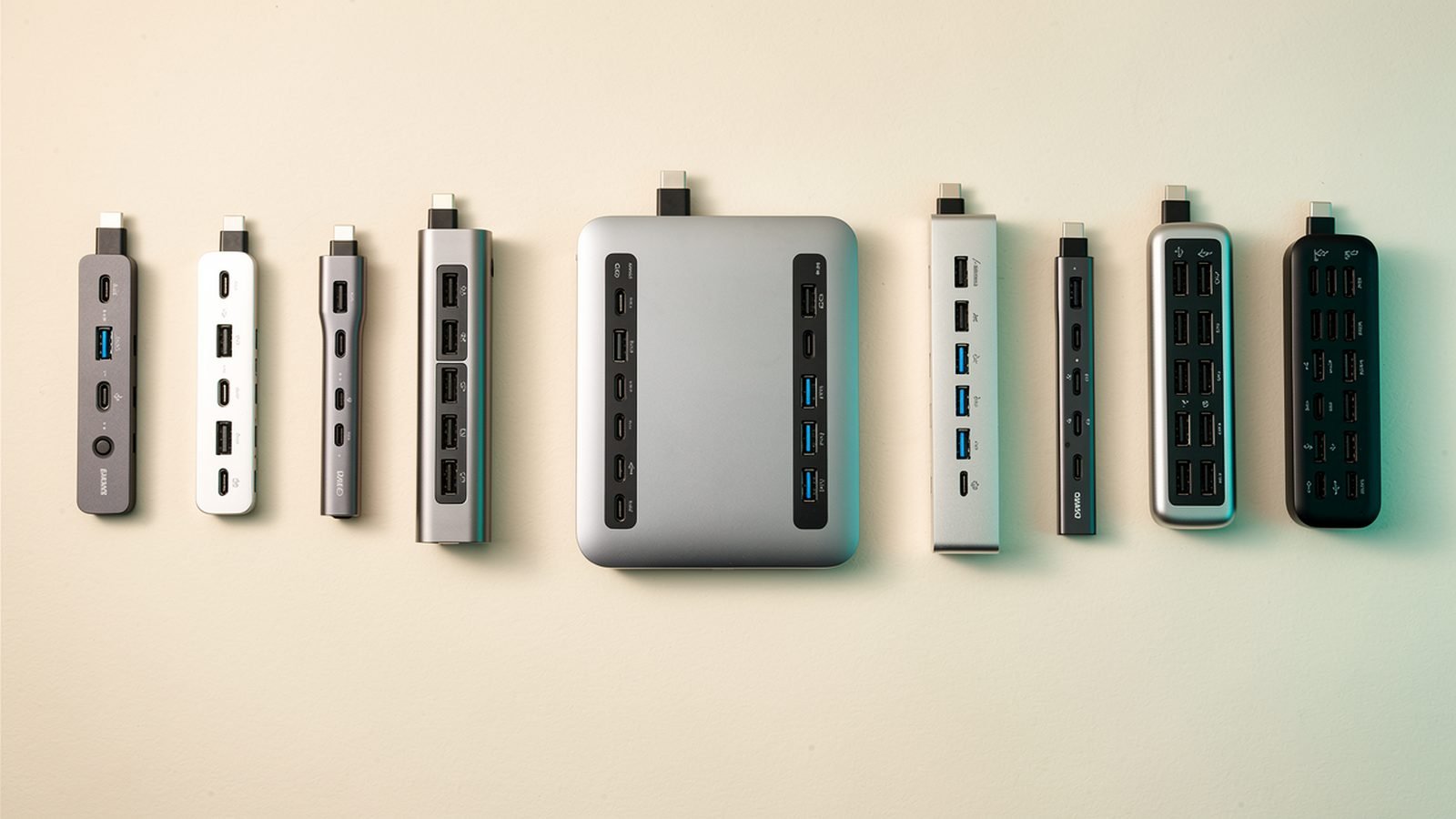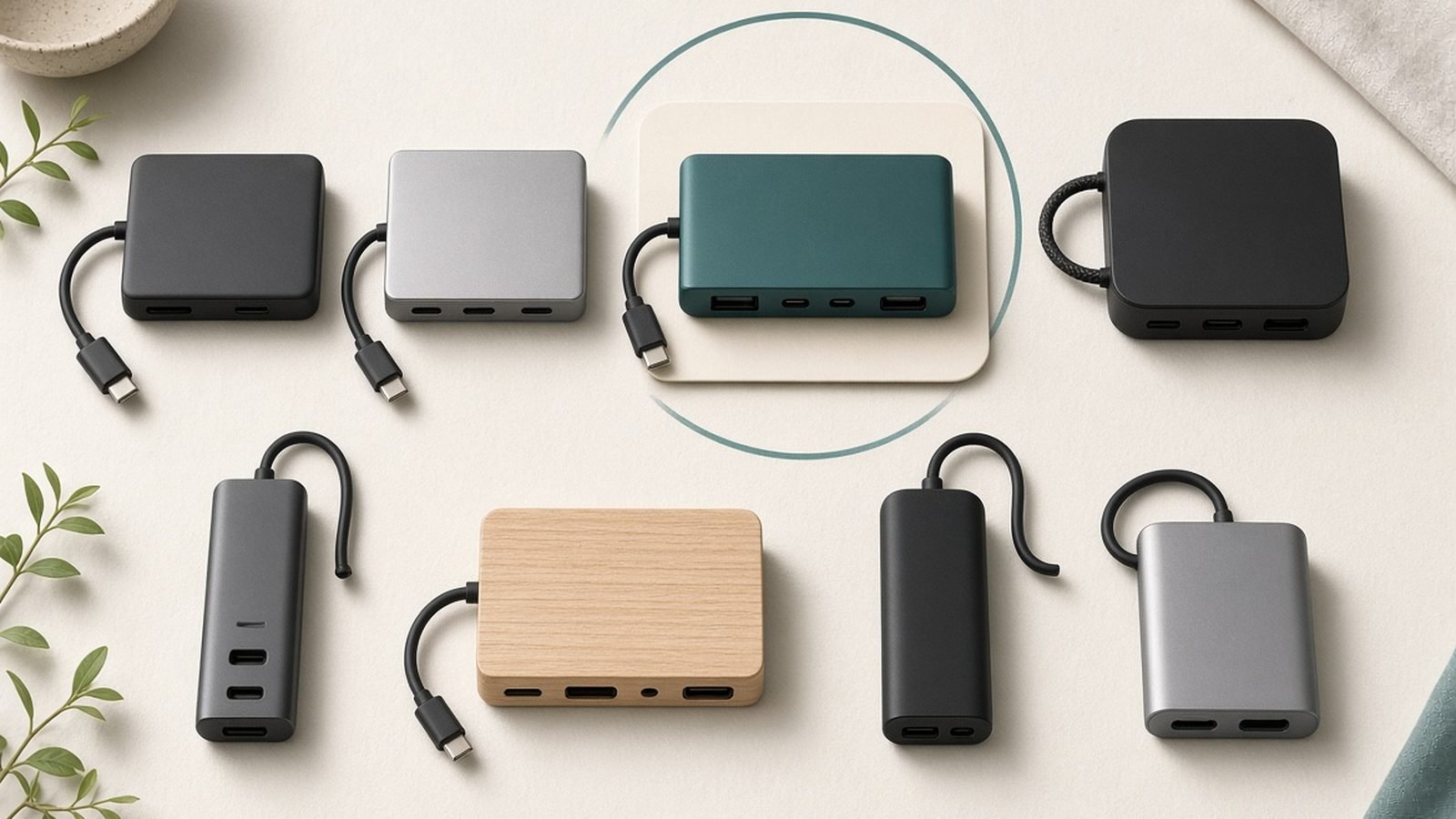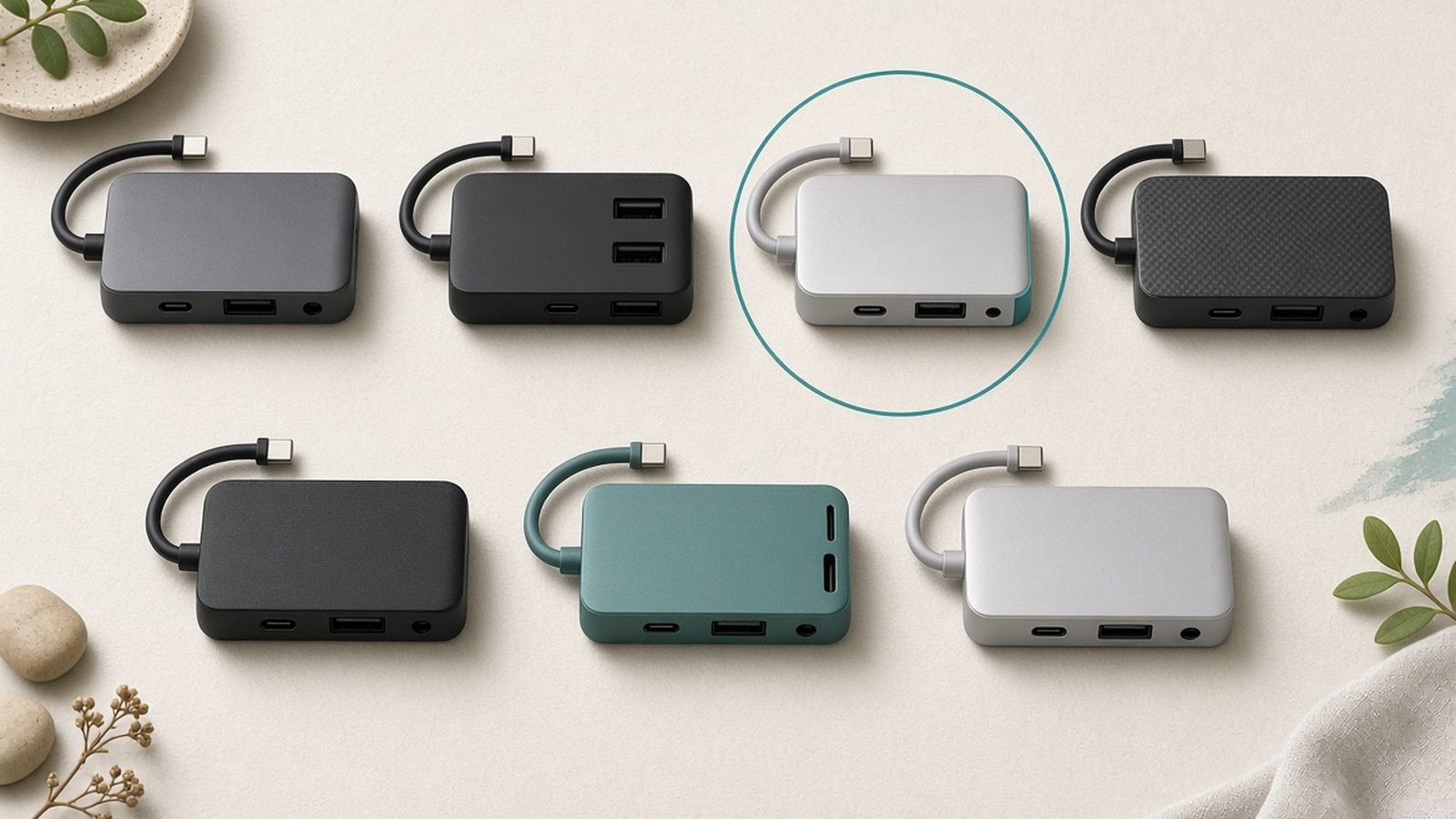
Apple gives the MacBook Pro three Thunderbolt ports and an HDMI out, and the MacBook Air just two USB-C ports — and neither has USB-A, Ethernet, or (on the Air) a card reader. Finding the best USB C hub for MacBook Pro or Air owners is really about picking the right tier: a $20 travel dongle, a $50-70 do-it-all hub, or a desk-permanent Thunderbolt dock.
We researched over 30 hubs and docks, cross-referenced spec sheets against Apple’s display-output limits, and read hundreds of owner reports to find where each one actually breaks. These six picks cover every budget from around $17 / £16 to around $400 / £400, for both US and UK buyers.
Top Picks at a Glance
| Hub | Best For | Ports | Max Display Output | PD Pass-Through | Price |
|---|---|---|---|---|---|
| Anker 555 8-in-1 | Best overall | 8 | 1× 4K/60Hz | 85W | ~$50 / £46 |
| UGREEN Revodok Pro 210 | Best value | 10 | 1× 4K/60Hz | 100W | ~$60 / £55 |
| Satechi Multiport Pro | Mac aesthetics | 6 | 1× 4K/60Hz | 100W | ~$70 / £65 |
| UGREEN Revodok CM615 | Dual monitors | 9 | 2× 4K/60Hz (DisplayLink) | 100W | ~$119 / £110 |
| CalDigit TS5 | Thunderbolt dock upgrade | 20 | Up to 3 displays (TB5) | 98W | ~$400 / £400 |
| Hiearcool 7-in-1 | Ultra-budget | 7 | 1× 4K/30Hz | 100W | ~$17 / £16 |
Quick guidance: most people should buy the Anker 555. If you need two external monitors on a base M-series chip, skip straight to the UGREEN CM615. If your MacBook lives on a desk and earns you money, the CalDigit TS5 pays for itself.
Best Overall: Anker 555 8-in-1 USB-C Hub
Around $50 / £46 — the port mix almost everyone actually needs, in a housing that won’t embarrass your MacBook.
The Anker 555 gets the fundamentals right where cheaper hubs cut corners. You get HDMI at a true 4K/60Hz (not the 30Hz bait-and-switch common under $30), gigabit Ethernet, two 10Gbps USB-A ports, a 10Gbps USB-C data port, SD and microSD slots, and 85W power delivery pass-through — enough to charge a 14-inch MacBook Pro at close to full speed while everything else runs.
In our research, the 555 is one of the most consistently praised hubs in its class for thermal behavior. Owner reports of overheating or dropped Ethernet — a chronic complaint with budget hubs — are notably rare here. The aluminum shell matches Apple’s space grey closely enough that it doesn’t look like an afterthought on your desk.
The trade-offs are honest ones. There’s no second HDMI port, so it drives exactly one external display (which is all a base M-series MacBook Air natively supports anyway — see the display table below). And 85W pass-through means a 16-inch MacBook Pro under heavy load will charge slower than with Apple’s 140W brick; fine for desk work, not ideal for sustained video exports.
Pros:
- Genuine 4K/60Hz HDMI output
- Gigabit Ethernet plus SD/microSD in one hub
- 85W pass-through charges a 14-inch MacBook Pro properly
- Strong reliability record across owner reviews
- Aluminum build that suits a Mac
Cons:
- Single display output only
- 85W is short of the 16-inch MacBook Pro’s max charge rate
- Attached cable is on the short side for desk setups
Who it’s for: Anyone who wants one hub for the office bag and the desk, and needs Ethernet, USB-A, and a card reader without spending dock money. This is our default answer to “which Anker USB C hub should I get?”
Check price: Anker 555 8-in-1 USB-C Hub
Best Value: UGREEN Revodok Pro 210
Around $60 / £55 — ten ports, 100W pass-through, and the best spec-per-pound ratio in this guide.
UGREEN has spent the last few years eating Anker’s lunch on price, and the Revodok Pro 210 is the clearest example. For roughly ten dollars more than the Anker 555 you get two extra ports and a bump to 100W power delivery — enough to keep even a 16-inch MacBook Pro fed during normal work. The lineup covers 4K/60Hz HDMI, gigabit Ethernet, multiple USB-A and USB-C data ports, and SD/microSD card readers.
The catch, based on aggregated owner feedback, is heat. Under sustained load — think offloading a 200GB SSD over the 10Gbps port while driving a 4K display — the 210 runs noticeably warm, and a minority of owners report brief USB disconnects during very long transfers. For typical daily use (display, keyboard, Ethernet, occasional card offload) it’s a non-issue.
Build quality is a small step below Anker and Satechi: the aluminum is thinner and the port tolerances slightly looser. It’s the difference between “very good” and “premium,” and at this price it’s a fair trade. We compare the two brands head-to-head in Anker vs UGREEN in 2026: Which Charging Brand Wins?.
Pros:
- 10 ports for the price of most 8-port hubs
- 100W PD pass-through suits the 16-inch MacBook Pro
- 4K/60Hz HDMI and gigabit Ethernet included
- Frequently discounted below list price
Cons:
- Runs warm during sustained SSD transfers
- Build feels a tier below Anker/Satechi
- Occasional disconnect reports under heavy multi-port load
Who it’s for: Spec-maximizers and anyone with a 16-inch MacBook Pro who wants full-speed pass-through charging without buying a dock.
Check price: UGREEN Revodok Pro 210 (10-in-1)
Best for Mac Aesthetics: Satechi USB-C Multiport Pro Adapter
Around $70 / £65 — the Satechi USB C hub for people who notice when accessories don’t match.
Satechi has always designed for the Mac crowd first, and the Multiport Pro is the slimmest hub here that still covers the essentials: 4K HDMI, USB-A, USB-C data, 100W pass-through charging, and SD/microSD card readers in a space grey aluminum chassis that could pass for an Apple product. For a MacBook Air USB C hub that disappears into a sleeve pocket, this is the one.
The honest math: you’re paying more per port than with UGREEN, and there’s no Ethernet jack. Satechi is charging a design premium, and whether that’s worth it depends entirely on how much you care that your desk looks coherent. Functionally, the ports perform as specced, and owner reports consistently praise the fit and finish — Satechi’s quality control is among the best in this category.
Photographers gravitate to this hub for good reason: the card readers are fast and flush-mounted, and the slim profile works well on location shoots where a chunky hub dangling off a cafe table is asking for trouble.
Pros:
- Slimmest, best-looking hub in this guide
- 100W pass-through charging
- Fast, reliable SD/microSD readers
- Excellent build quality and QC record
Cons:
- No Ethernet port
- Fewer ports per dollar than UGREEN
- 4K/60Hz support depends on your Mac’s port spec — check before buying
Who it’s for: MacBook Air owners and photographers who prioritize portability and design over raw port count.
Check price: Satechi USB-C Multiport Pro Adapter
Best for Dual Monitors: UGREEN Revodok CM615 DisplayLink Dock
Around $119 / £110 — the answer to the single most-asked MacBook accessory question: “why won’t my second monitor work?”
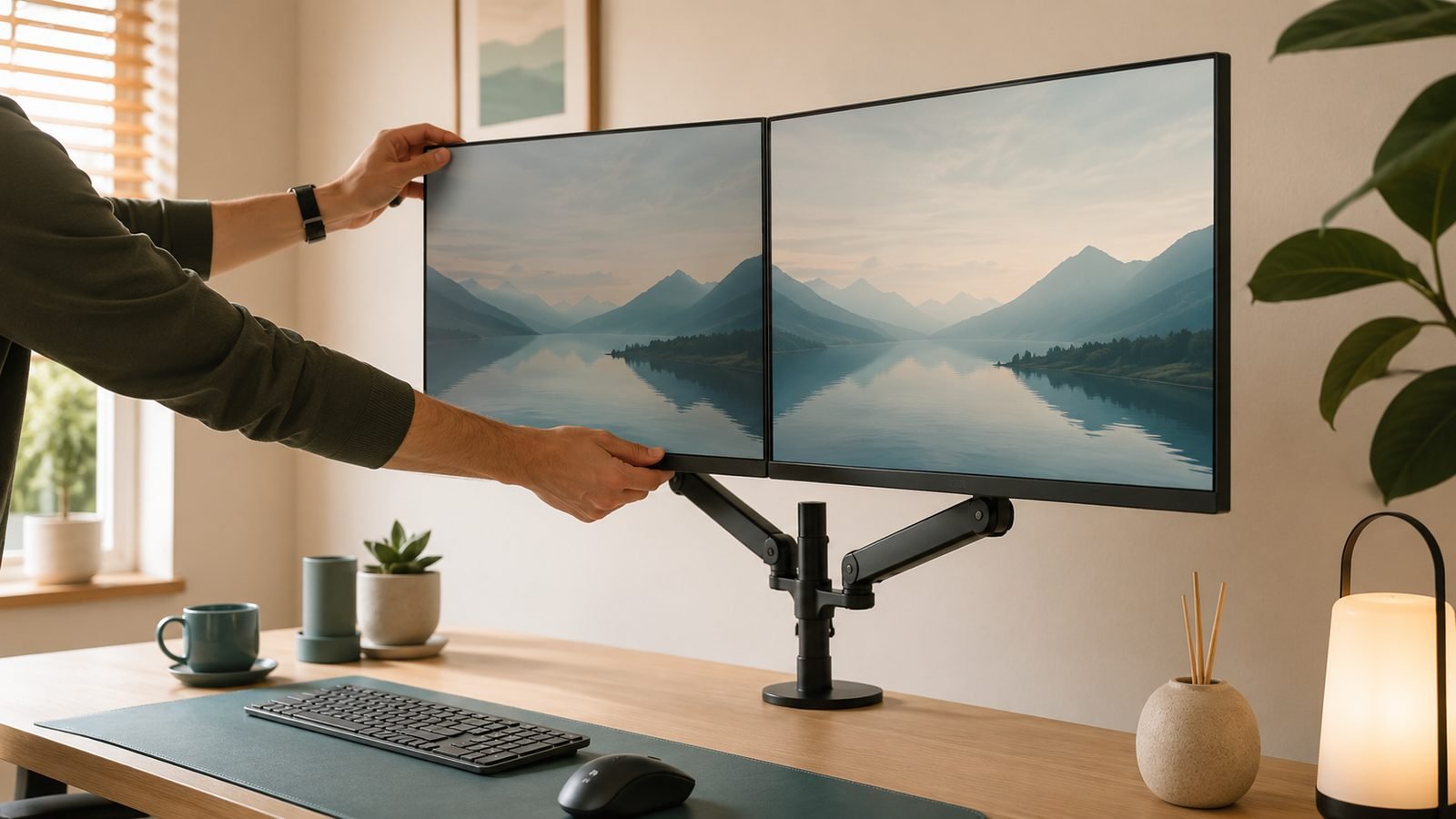
Here’s the problem the CM615 solves. Base M-series chips (M1 through M4 in the standard, non-Pro configuration) natively support only one external display over USB-C. Plug a normal dual-HDMI hub into a base MacBook Air and the second screen simply mirrors or stays black. It’s not the hub’s fault — it’s the silicon.
DisplayLink sidesteps this by compressing the second video stream in software and decoding it in the dock’s chip. The CM615 uses this to drive two external 4K/60Hz displays even on a base M-series MacBook, alongside gigabit Ethernet, USB-A/USB-C data ports, and 100W pass-through. In our research it’s the most reliable sub-£120 DisplayLink dock for macOS, with UGREEN keeping drivers current through recent macOS releases.
Know the limits before you buy. DisplayLink requires installing Synaptics’ driver, uses some CPU, and adds a frame of latency with occasional compression artifacts on fast motion. For spreadsheets, code, browsers, and video calls, you will likely never notice. For gaming or color-critical video grading on the DisplayLink-driven screen, you will — use the native output for that display instead. Full setup walkthrough in How to Connect Two Monitors to a Laptop (USB-C Guide).
Pros:
- Two 4K/60Hz displays on base M-series MacBooks
- Gigabit Ethernet and 100W PD included
- Far cheaper than a Thunderbolt dock with the same display count
- Actively maintained macOS drivers
Cons:
- Requires DisplayLink driver installation
- Not suited to gaming or color-accurate grading
- Occasional driver hiccups after major macOS updates
Who it’s for: Base-chip MacBook Air and Pro owners who need a genuine USB C hub dual monitor setup without upgrading to a Pro/Max chip.
Check price: UGREEN Revodok CM615 9-in-1 DisplayLink Dock
Best Thunderbolt Dock Upgrade: CalDigit TS5
Around $400 / £400 — the desk-permanent endgame. Twenty ports, Thunderbolt 5, and the best reliability reputation in docking.
A USB-C hub shares one 10Gbps pipe between everything you plug in. A Thunderbolt dock for MacBook use gets 40Gb/s — or with the TS5’s Thunderbolt 5 connection to an M4 Pro/Max or newer machine, up to 120Gb/s of display bandwidth. That’s the difference between “my SSD slows down when the display is connected” and never thinking about bandwidth again.
The TS5 carries CalDigit’s usual overkill: 20 ports including multiple 10Gbps USB-A and USB-C, Thunderbolt 5 downstream ports, DisplayPort, 2.5Gb Ethernet, an SD card slot, audio jacks, and 98W laptop charging from an internal power supply. It can drive multi-monitor setups natively — no DisplayLink drivers, no compression — with the exact count depending on your chip (see table below).
CalDigit’s TS3 Plus and TS4 built a near-legendary reliability record over years of owner reports, and early feedback on the TS5 tracks the same way. The trade-offs: it’s the price of eight Anker 555s, it needs its own substantial power brick, and Thunderbolt 5 speeds only materialize on TB5-equipped Macs — on an M2 Air it gracefully falls back to Thunderbolt 3/USB4 speeds, which is still excellent but not why you’d pay this much.
Pros:
- 20 ports; genuinely replaces every dongle you own
- 120Gb/s Thunderbolt 5 with compatible Macs
- 98W charging, single-cable desk setup
- CalDigit’s class-leading reliability record
Cons:
- Around $400 / £400 is dock-shaped sticker shock
- Overkill for MacBook Air owners
- TB5 benefits require an M4 Pro/Max or newer Mac
Who it’s for: Professionals with a permanent desk setup, external drives, and multiple monitors who want one cable to rule them all. Pair it with a good riser — see Best Laptop Stands 2026: Top Desk & Travel Picks.
Check price: CalDigit TS5 Thunderbolt 5 Dock
Best Ultra-Budget: Hiearcool 7-in-1 USB-C Hub
Around $17 / £16 — the glovebox hub. Cheap enough to buy two and forget one in a hotel room.
The Hiearcool 7-in-1 is a perennial Amazon best-seller for a simple reason: HDMI, two USB-A ports, USB-C data, SD/microSD readers, and 100W pass-through charging for less than the cost of two coffees and a sandwich. For presentations, hotel TVs, and emergency USB-A access, it does the job.
Understand what $17 doesn’t buy. HDMI tops out at 4K/30Hz — noticeably choppy cursor movement if you use it as a daily monitor connection, though fine for slides and movies. There’s no Ethernet. The USB-A ports run at 5Gbps, and based on owner reports, longevity is a coin flip past the two-year mark. That’s the deal at this price, and Hiearcool is at least upfront about the specs.
Pros:
- Absurdly cheap for 7 functional ports
- 100W pass-through charging
- Light enough to permanently live in a travel pouch
Cons:
- 4K limited to 30Hz — not for daily monitor duty
- No Ethernet
- Long-term durability is hit-or-miss
Who it’s for: Occasional presenters, travelers, and anyone who needs a backup hub that costs less than lunch.
Check price: Hiearcool 7-in-1 USB-C Hub
Hub vs Dock: Which Do You Actually Need?
The industry blurs these terms, but the distinction matters for your wallet.
A USB-C hub ($17-$70) is bus-powered or lightly powered, shares a single 10Gbps USB connection, and is built to travel. It’s the right call if you mostly need a display out, some USB-A ports, and card readers — which covers the majority of MacBook owners.
A Thunderbolt dock ($250-$450) has its own power supply, gets 40-120Gb/s of bandwidth, charges your MacBook at or near full speed, and stays bolted to your desk. Buy one when you regularly hit a hub’s limits: multiple fast external SSDs, two or three high-refresh monitors, or 2.5Gb networking.
The DisplayLink dock (like the CM615) sits between the two: dock-like display counts at hub-adjacent prices, with software doing the heavy lifting.
One more variable people miss: the cable. A bargain USB-C cable can silently cap your video output or charging speed. If your shiny new hub underperforms, check the cable first — our guide at USB-C Cable Types Explained: Speeds, Watts and Labels breaks down the markings.
Port Checklist: HDMI 2.1, Ethernet, SD, and PD Pass-Through
Before buying any hub, run through this list:
- HDMI refresh rate. “4K HDMI” alone is a red flag — insist on a stated 4K/60Hz. A USB C hub with HDMI 4K 60Hz support will say so explicitly; 30Hz hubs hide it in the fine print. For 4K/120 or ultrawide high-refresh displays, you need HDMI 2.1 or DisplayPort via a Thunderbolt dock.
- PD pass-through wattage. MacBook Air needs 30-35W minimum, 14-inch Pro wants 70W+, 16-inch Pro wants 96W+. Hubs also skim 7-15W for themselves, so an “85W” hub delivers less to the laptop.
- Ethernet. Gigabit is standard; 2.5Gb only appears on docks. If your video calls stutter on Wi-Fi, this is the cheapest fix in tech.
- Card readers. Check for UHS-II support if you shoot high-bitrate video; most cheap hubs are UHS-I (~100MB/s).
How Many External Displays Does Your MacBook Support?
This is where most buyers get burned, so here’s the current Apple silicon situation:
| Chip | Native External Displays | Dual-Monitor Route |
|---|---|---|
| M1 / M2 / M3 (base) | 1 | DisplayLink dock required |
| M3 MacBook Air | 1 (2 with lid closed) | Lid-closed mode or DisplayLink |
| M4 (base) | 2 (lid open) | Any dual-output hub or dock works |
| M4 Pro / M4 Max | 2-4 | Native via Thunderbolt/HDMI |
| M5 generation (base) | 2 | Native dual-display supported |
| M5 Pro / Max class | Up to 4 | Native, plus TB5 bandwidth headroom |
The practical takeaway: M4 and later base chips finally do two external displays natively, so if you have a 2025-or-newer MacBook, a standard hub or dock is enough. On M1-M3 base chips, DisplayLink (the CM615) remains the only way to get two extended displays with the lid open.
How We Research and Rank
Zen Tech Hub’s recommendations in this guide are based on structured spec analysis and aggregated owner evidence, not paid placements. For each hub we verified manufacturer claims against chipset capabilities, cross-checked display output limits against Apple’s official silicon documentation, and analyzed hundreds of verified owner reviews across US and UK retailers — weighting long-term reports (6+ months) most heavily, since hub failures cluster after the honeymoon period. Where owner consensus contradicts a spec sheet, we say so.
FAQ
What is the best USB C hub for MacBook Pro overall?
The Anker 555 8-in-1 is our top pick for most MacBook Pro owners at around $50 / £46. It combines 4K/60Hz HDMI, gigabit Ethernet, SD/microSD readers, and 85W pass-through charging with the strongest reliability record in its price class. 16-inch Pro owners who want faster charging should step up to the UGREEN Revodok Pro 210’s 100W pass-through.
Can a USB-C hub run two monitors on a MacBook Air?
On base M1, M2, and M3 chips, no ordinary hub can — the silicon supports one external display. You need a DisplayLink dock like the UGREEN Revodok CM615, which drives two 4K/60Hz screens via software. M4 and M5 base chips support two external displays natively, so any dual-output dock works on 2025-and-newer machines.
Do USB-C hubs work the same in the UK as the US?
Yes. Every hub in this guide is electrically identical worldwide — power comes from your MacBook or a standard USB-C PD charger, so there’s no plug or voltage issue. For UK buyers, all six picks are stocked by Amazon UK and major retailers at the sterling prices listed, and warranties from Anker, UGREEN, Satechi, and CalDigit are honored in both regions.
Will a hub slow down charging my MacBook?
Slightly, yes. Hubs consume 7-15W for their own electronics, so an 85W pass-through hub delivers roughly 70-78W to the laptop. That fully covers a MacBook Air or 14-inch Pro in normal use. A 16-inch MacBook Pro under sustained heavy load may drain slowly on 85W, which is why we recommend 100W hubs or a powered dock for that machine.
Is a Thunderbolt dock worth it over a USB-C hub?
Only if you’ll use the bandwidth. A $50 hub shares 10Gbps across all ports; a Thunderbolt dock like the CalDigit TS5 provides 40-120Gb/s, near-full-speed charging, and more simultaneous displays. If you run external SSDs, multiple monitors, and wired networking daily from a fixed desk, yes. If you mainly need HDMI and USB-A occasionally, save the $350 difference.
Why is my hub’s HDMI output stuck at 30Hz?
Three usual suspects: the hub itself only supports 4K/30Hz (common under $25, including the Hiearcool), the HDMI cable is an older high-speed spec rather than Premium/Ultra High Speed, or macOS defaulted to the wrong refresh rate — check System Settings > Displays and manually select 60Hz. If the hub’s spec sheet says 30Hz at 4K, no cable or setting will fix it.
Verdict: Which USB-C Hub Should You Buy?
For most MacBook Pro and Air owners, the Anker 555 8-in-1 is the best USB C hub for MacBook Pro money can sensibly buy in 2026 — the right ports, honest 4K/60Hz output, and the fewest owner complaints, at around $50 / £46.
Buy the UGREEN Revodok Pro 210 if you want maximum ports and 100W charging for the least money, the Satechi Multiport Pro if design and portability top your list, and the Hiearcool 7-in-1 as a sub-$20 travel backup. If you’re fighting Apple’s single-display limit on a base M1-M3 chip, the UGREEN CM615 is the proven fix. And if your MacBook is the center of a professional desk, stop buying hubs — the CalDigit TS5 is the last dock you’ll need for a decade.
Browse more charging and connectivity guides at Accessories & Charging.
Zen Tech Hub may earn a commission from links on this page, at no extra cost to you.