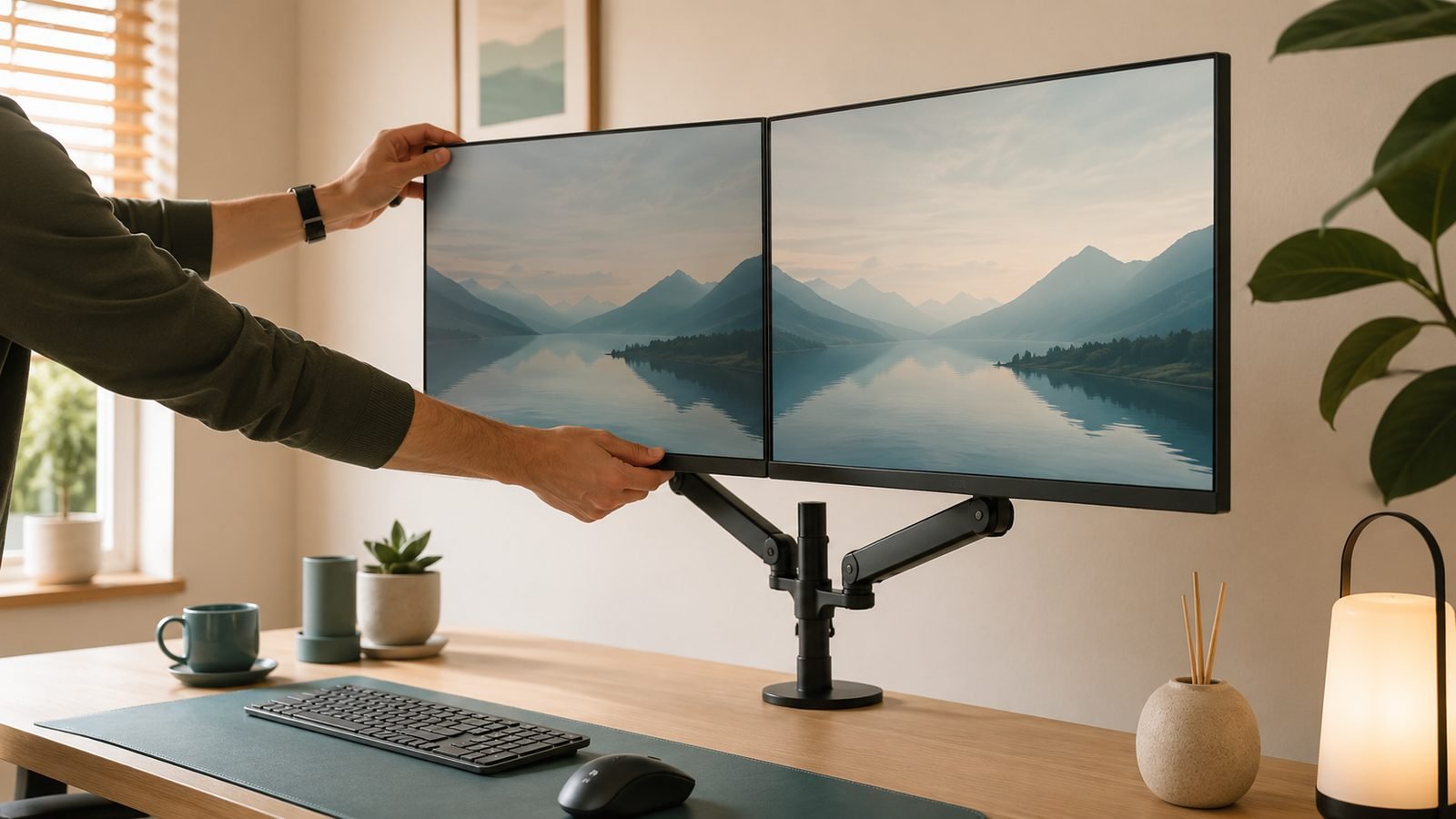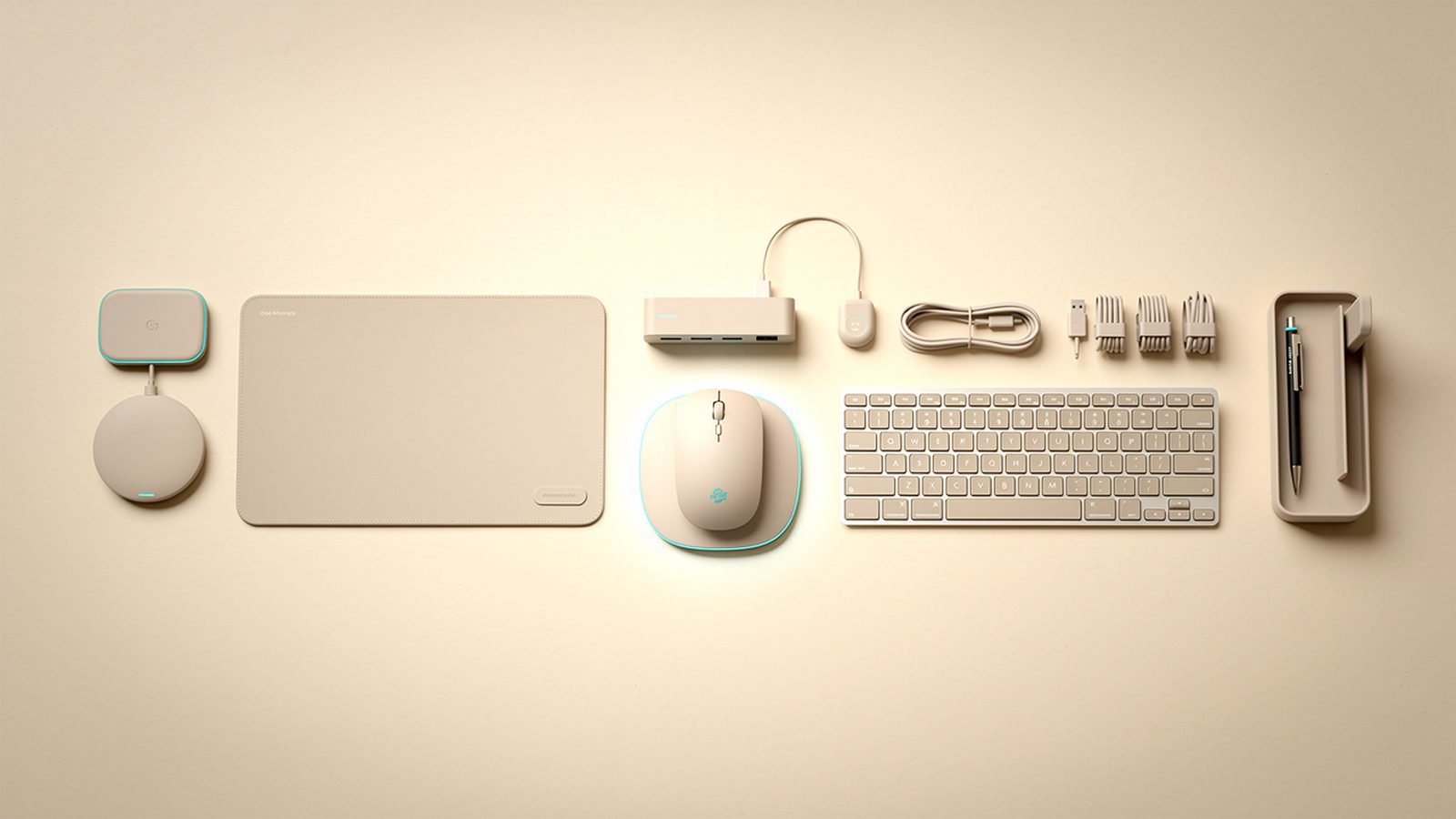
The single best desk setup accessory to buy first is a monitor arm — it clears the space under your screen, lets you set the display at the correct height for your neck, and instantly makes any desk look and feel more intentional. After that, the upgrades that transform a workspace most are a single-cable dock, a large desk mat, a monitor light bar, proper cable management, and a laptop stand.
This isn’t a list of gadgets for their own sake. Each accessory here fixes a specific daily annoyance — a cluttered desk, a hunched neck, glare, a cable rat’s nest, a laptop that cooks itself. We’ve picked one strong recommendation per category, based on published specs, ergonomic principles and aggregated owner feedback, with the trade-offs stated honestly. Build the setup in this order and each addition earns its place.
Best desk setup accessories at a glance
| Category | Our pick | Fixes | Price (US / UK) |
|---|---|---|---|
| Monitor arm | Ergotron LX | Neck height, desk clutter | around $179 / £169 |
| Dock | CalDigit TS5 Plus | Cable chaos, single-cable desk | around $399 / £389 |
| Desk mat | Grovemade / Oakywood large | Wrist comfort, tidy surface | around $75 / £69 |
| Monitor light | BenQ ScreenBar Halo | Eye strain, glare | around $189 / £169 |
| Cable management | Under-desk tray + sleeves | Cable rat’s nest | around $35 / £32 |
| Laptop stand | Rain Design mStand / Ugreen | Neck strain, cooling | around $45 / £42 |
How we picked
Zen Tech Hub recommendations come from spec analysis, ergonomic principles and aggregated real-world evidence — not lab tests or hands-on claims we didn’t make. For this guide we compared build quality, adjustment range, materials and mounting specs, then read hundreds of verified owner reviews across US and UK retailers. We weighted durability (desk accessories should last a decade), genuine ergonomic benefit over cosmetic appeal, and value at the price. Where a cheaper option does 90% of the job, we say so.
We also sequenced the list by impact. If you can only buy one thing, buy the monitor arm; if you can buy two, add the dock. The rest are refinements that compound.
Best monitor arm: Ergotron LX
Aluminium · up to 34” or ~25 lb · full tilt/swivel/height · around $179 / £169
A monitor arm is the highest-impact desk upgrade because it fixes two problems at once: it lifts your screen to eye level (ending the neck-forward hunch) and frees the desk space a stand’s foot wastes. The Ergotron LX is the long-standing benchmark — a smooth, all-aluminium arm with a genuine 10-year warranty and enough range to reposition a heavy 27–34-inch monitor with one finger. It’s the arm that still feels solid a decade in.
The honest catch is price and setup. Cheaper arms cost half as much and hold a light monitor fine; the Ergotron earns its premium on heavier displays and long-term durability, not on doing something a $60 arm can’t. Check your monitor’s weight and VESA pattern before buying, and make sure your desk edge suits the clamp. For a full ranking of arms at every price, including budget alternatives, see our dedicated guide. Best Monitor Arms 2026: Single, Dual & Ultrawide Ranked
Pros:
- Effortless, smooth repositioning even with heavy monitors
- All-aluminium build with a 10-year warranty
- Clears the desk and fixes screen height for your neck
- Widely regarded as the durability benchmark
Cons:
- Pricier than adequate budget arms
- Overkill for a small, light monitor
- Requires a desk edge or grommet for mounting
Who it’s for: Anyone with a mid-to-large monitor who wants the last arm they’ll buy. Budget users can spend less; this is the buy-once option.
Check price: Ergotron LX Desk Monitor Arm
Best dock: CalDigit TS5 Plus
Thunderbolt 5 · 20 ports · 140W+ charging · around $399 / £389
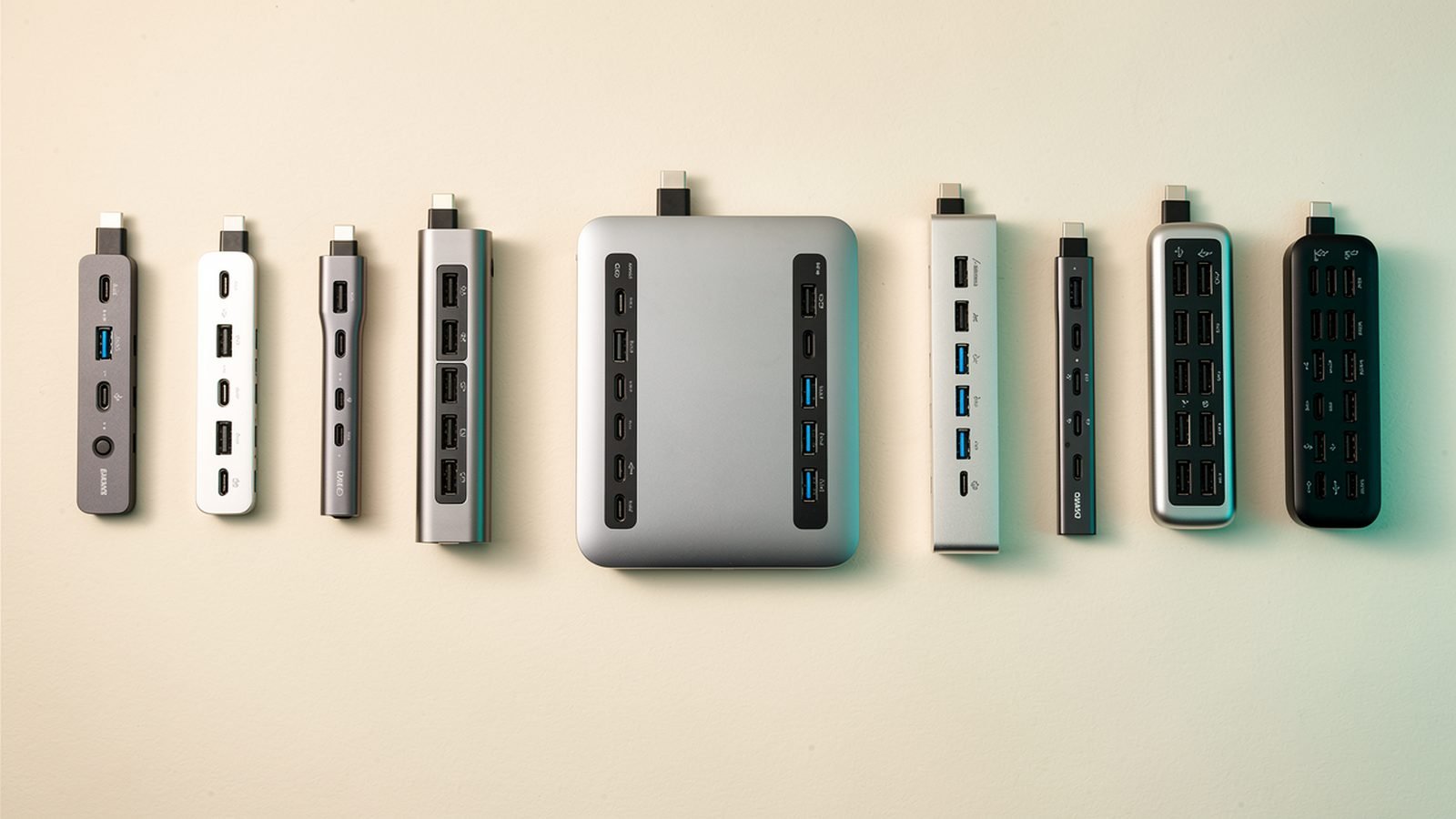
Once your monitor’s up, the next transformation is a single cable. A Thunderbolt dock lets you plug one cable into your laptop and have every display, peripheral and charger connect at once — no more fishing behind the desk each morning. The CalDigit TS5 Plus is the reference dock: 20 ports, dual-display support, 10-gigabit Ethernet, and enough power to charge a 16-inch laptop at full speed.
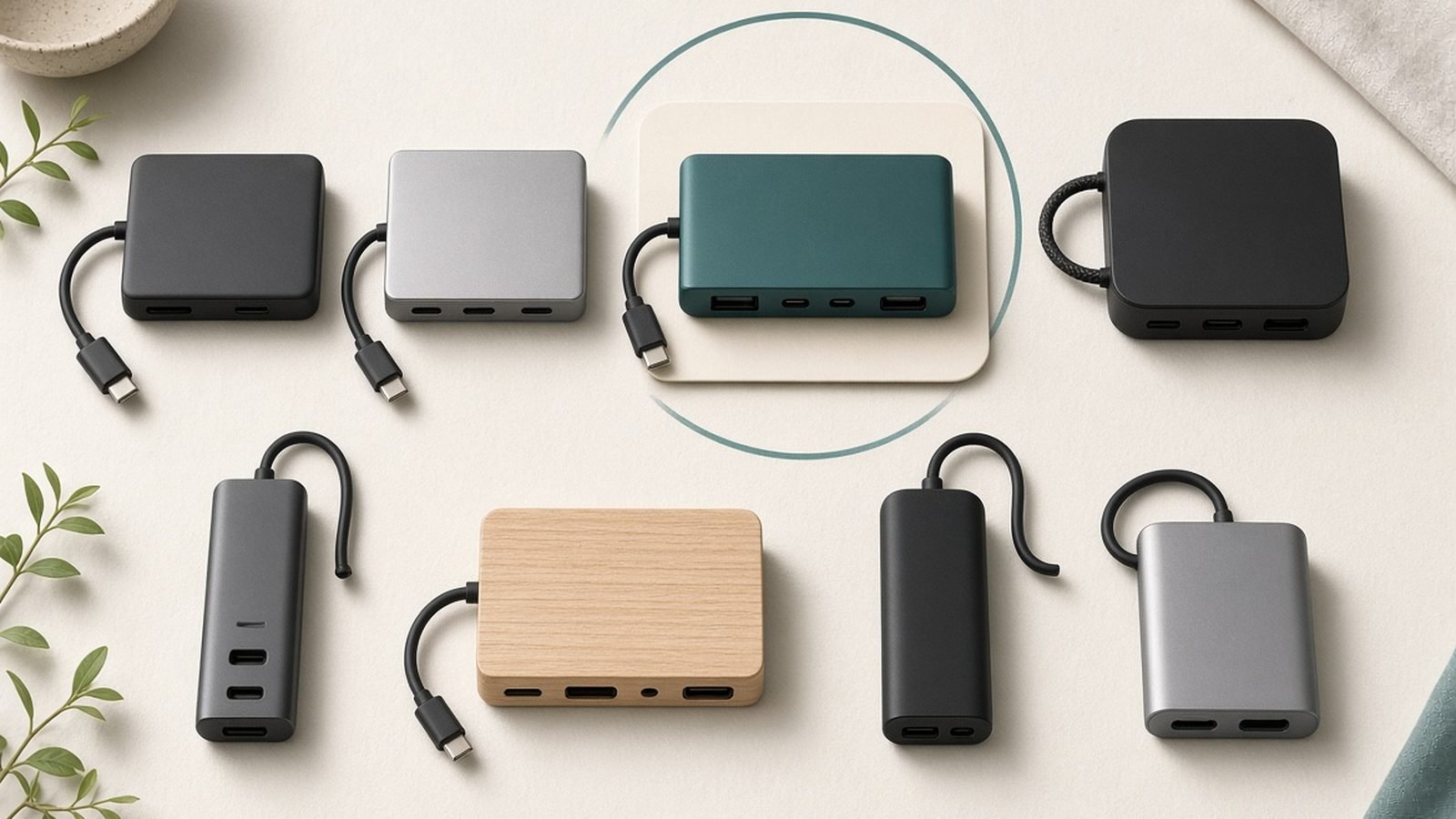
It is, admittedly, expensive and more dock than a single-monitor user needs. If you only run one screen, a good USB-C hub does the connectivity job for a fraction of the price. But for a proper multi-monitor, multi-peripheral desk, nothing else delivers this clean a single-cable experience. We break down who genuinely needs it — and the cheaper alternatives — in our full review and hub guide. CalDigit TS5 / TS5 Plus Review 2026: The Ultimate Dock?
Pros:
- True single-cable docking for a whole desk
- Thunderbolt 5 bandwidth for dual displays plus SSDs
- 140W+ charging feeds any laptop
- CalDigit’s strong reliability record
Cons:
- Expensive; overkill for single-monitor setups
- Needs a Thunderbolt laptop for full benefit
- A heavy, permanent desk fixture
Who it’s for: Multi-monitor and multi-peripheral users who want to plug in one cable and have everything wake up. Single-screen users should look at a hub instead. Best USB-C Hubs & Docks 2026: For Laptops & Desks
Check price: CalDigit TS5 Plus Thunderbolt 5 Dock
Best desk mat: large felt or leather (Grovemade / Oakywood)
~36” x 17” · felt or leather · around $75 / £69
A large desk mat is the cheapest upgrade that makes a desk feel finished. Beyond looking good, a full-width mat gives your mouse a consistent surface, cushions your wrists on the front edge, and dampens the clatter of a mechanical keyboard. Premium felt (Grovemade) or leather (Oakywood) options are durable and age well; the felt versions are softer underarm, the leather ones wipe clean more easily.
The trade-off is simply that this is a comfort-and-aesthetics buy, not an essential one — a $15 mat performs the core mousing job nearly as well. Felt can also attract lint and show wear at the wrist line over years. But for the money, few things improve the daily feel of a desk more, and it pairs naturally with a mechanical keyboard’s sound profile. Best Wireless Keyboards 2026: Top Boards for Work
Pros:
- Instantly tidier, more finished-looking desk
- Cushions wrists and dampens keyboard noise
- Consistent full-width mousing surface
- Durable premium materials that age well
Cons:
- Largely a comfort/aesthetic upgrade, not essential
- Felt attracts lint and shows wrist wear over time
- Cheap mats do most of the functional job
Who it’s for: Anyone who wants a more comfortable, tidier and quieter desk surface and is happy to pay a little for materials that last.
Check price: Grovemade / Oakywood Large Desk Mat
Best monitor light: BenQ ScreenBar Halo
Auto-dimming · asymmetric optics · wireless control · around $189 / £169
A monitor light bar is the accessory people don’t know they need until they try one. It clips to the top of your screen and lights your desk and keyboard without casting glare onto the display — solving the eye strain that comes from working in a dim room with a bright monitor. The BenQ ScreenBar Halo is the premium pick, with an auto-dimming ambient sensor, a rear backlight that softens contrast behind the screen, and a wireless puck controller.
It’s pricey for a light, and cheaper bars (including BenQ’s own base ScreenBar) deliver most of the front-lighting benefit without the backlight or wireless puck. It also only fits monitors within a certain thickness, so verify your screen’s top edge. But for anyone working long evenings, the reduction in eye fatigue is the kind of upgrade that justifies itself within a week.
Pros:
- Lights the desk without glare on the screen
- Auto-dimming sensor and rear backlight reduce eye strain
- Frees the desk space a traditional lamp takes
- Convenient wireless puck control
Cons:
- Expensive; base models cover the essentials for less
- Fits only monitors within a thickness range
- The backlight is a nice-to-have, not essential
Who it’s for: People who work long or evening hours and feel eye strain from a bright screen in a dim room. Budget buyers can drop to the base ScreenBar.
Check price: BenQ ScreenBar Halo Monitor Light
Best cable management: under-desk tray + sleeves
Steel tray · Velcro sleeves · adhesive clips · around $35 / £32
Nothing undoes a nice desk faster than a tangle of cables hanging off the back. A proper cable-management kit — an under-desk tray to hold the power strip and dock, plus Velcro sleeves and adhesive clips to route the rest — hides the mess and makes the desk feel deliberate. It also makes cleaning easier and stops cables getting yanked or trodden on.
There’s no real downside beyond the twenty minutes of setup, though a screw-in steel tray is worth the small effort over adhesive-only versions, which can sag under weight over time. This is the least glamorous purchase on the list and one of the most satisfying once done. Pair it with a dock so a single cable reaches your laptop and everything else stays permanently routed out of sight.
Pros:
- Hides the cable rat’s nest for a clean look
- Keeps the power strip and dock off the floor
- Easier cleaning; cables can’t be trodden on
- Cheap and high-impact on desk appearance
Cons:
- Twenty minutes of fiddly setup
- Adhesive-only trays can sag; screw-in is sturdier
- Purely functional — no ergonomic benefit
Who it’s for: Anyone whose desk cables are visible or tangled — which is almost everyone. The finishing touch on a tidy setup.
Check price: Under-Desk Cable Management Tray Kit
Best laptop stand: Rain Design mStand / Ugreen alternative
Aluminium · raises screen to eye level · around $45 / £42
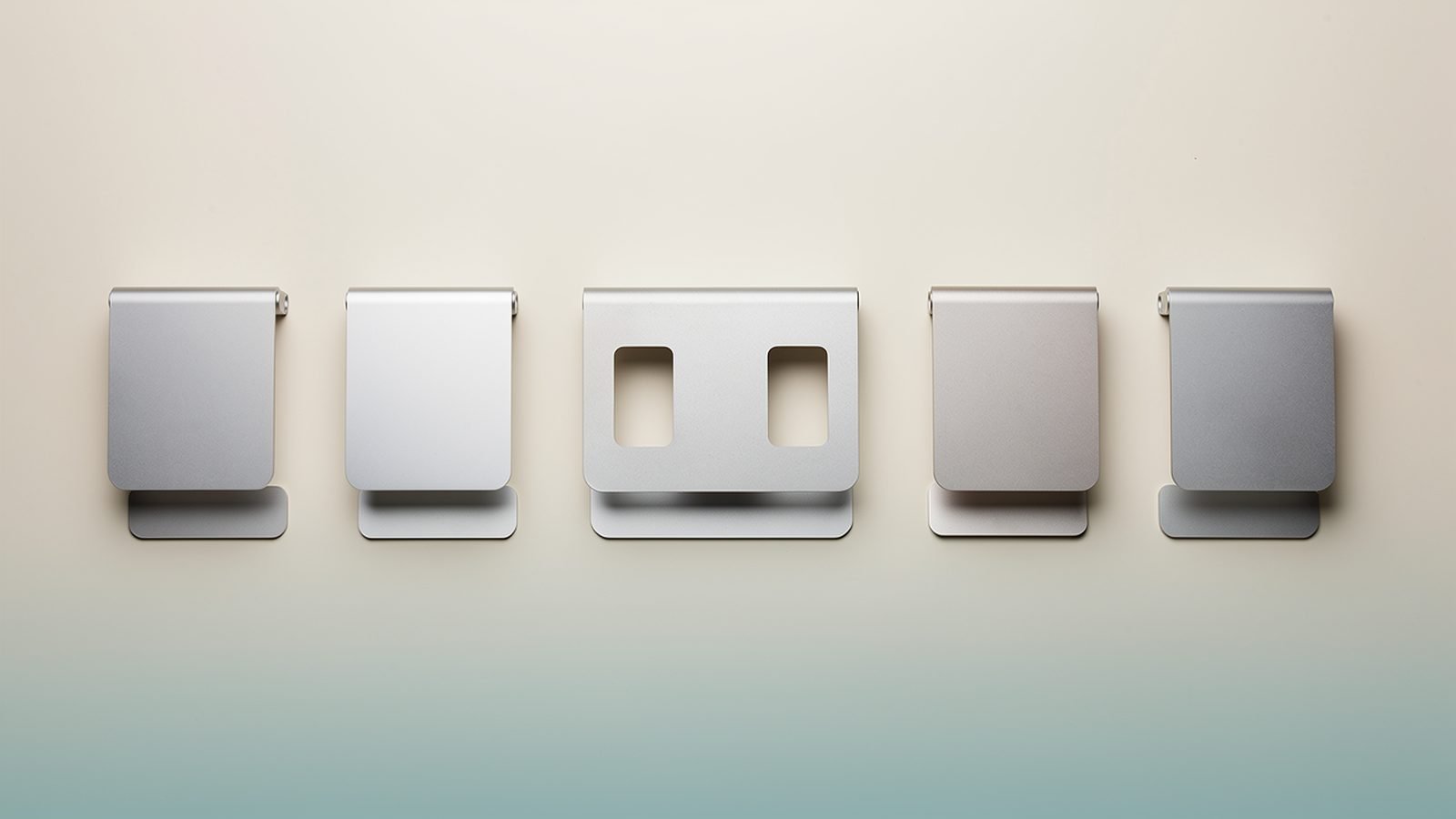
If you work on a laptop — docked or standalone — a stand fixes the posture problem the laptop’s design creates: screen and keyboard attached at the wrong height for your neck. Raising the screen to eye level (and adding an external keyboard and mouse below) turns a hunched laptop into a proper workstation. The Rain Design mStand is the classic solid-aluminium pick; Ugreen and others offer near-identical function for less.
The one requirement is an external keyboard and mouse, since the stand lifts the laptop’s built-in ones out of comfortable reach — that’s the point. Foldable travel stands are a cheaper, more portable alternative if you move between locations. For the full ranking of fixed and portable stands, see our dedicated guide. Best Laptop Stands 2026: Top Desk & Travel Picks
Pros:
- Raises the screen to eye level, ending the laptop hunch
- Sturdy aluminium doubles as extra airflow for cooling
- Turns a laptop into a real docked workstation
- Cheap alternatives do the same job
Cons:
- Requires an external keyboard and mouse
- Fixed stands aren’t travel-friendly
- Premium versions cost more than function requires
Who it’s for: Laptop-first workers who want proper neck posture at a desk. Pair with an external keyboard, mouse and dock for a full setup. Best Ergonomic Mice 2026: Comfort Without RSI
Check price: Rain Design mStand Laptop Stand
How to choose
Build a desk in order of impact, not impulse.
- Start with posture. A monitor arm (or laptop stand, if you’re laptop-first) fixes screen height, which is the single biggest ergonomic factor. Do this first.
- Then solve cables. A dock or hub plus a cable tray turns a messy desk into a single-cable one. This is where “tidy” really happens.
- Add comfort and light. A desk mat and a monitor light bar are the refinements — genuinely nice, not essential. Add them once the fundamentals are sorted.
- Match everything to your gear. Check monitor weight and VESA for arms, laptop wattage for docks, and screen thickness for light bars before buying.
- Budget where it counts. Spend on the arm and dock (you keep them a decade); economise on the mat and cable kit if money’s tight.
A full ergonomic setup is more than accessories — desk height and chair matter too. Our wider ergonomics guide ties it together. Ergonomic Desk Setup Guide: Fix Your Posture in a Day
FAQ
What desk accessory should I buy first?
A monitor arm (or a laptop stand if you work on a laptop). Getting your screen to eye level fixes the neck-forward hunch that causes the most common desk-work pain, and clearing the desk beneath makes everything else easier. It’s the highest-impact single purchase.
Do I need a monitor light bar, or is a desk lamp fine?
A lamp works, but a monitor light bar clips to the screen, takes zero desk space, and lights your keyboard without casting glare onto the display — which a poorly placed lamp often does. If you work long or evening hours and feel eye strain, a light bar is the better-designed solution.
Is an expensive dock worth it for a desk setup?
Only if you run multiple monitors and peripherals. For a single-monitor desk, a much cheaper USB-C hub does the connectivity job. A Thunderbolt dock earns its price when you want one cable to drive two displays, fast storage and full laptop charging simultaneously.
How do I manage cables without drilling into my desk?
Use an under-desk tray to hold the power strip and dock, Velcro sleeves to bundle runs, and adhesive clips to route cables along the desk edge. Screw-in trays are sturdier than adhesive-only ones, but plenty of no-drill kits work well if you don’t want to make holes.
What makes a desk setup ergonomic?
Screen at eye level (arm or stand), keyboard and mouse at a height that keeps your elbows around 90 degrees, wrists neutral, and a chair that supports your lower back. Accessories help, but positioning is what matters — the best gear in the wrong position still causes strain.
Are premium desk accessories worth it over budget ones?
For items you keep a decade and use constantly — a monitor arm, a dock — quality pays off in durability and daily feel. For a desk mat or cable kit, budget options do most of the job. Spend where longevity and everyday contact matter most.
Verdict: how to build the best desk setup
Start with the Ergotron LX monitor arm to fix your screen height, then add the CalDigit TS5 Plus dock (or a cheaper hub for a single monitor) to make it a single-cable desk. Those two do most of the transformation.
From there, a large desk mat and the BenQ ScreenBar Halo add real daily comfort, a cable tray kit hides the mess for the price of lunch, and a laptop stand turns any laptop into a proper workstation. Buy them in that order, match each to your specific gear, and you’ll build a workspace that’s comfortable, tidy and genuinely nicer to sit at for years. Best Monitor Arms 2026: Single, Dual & Ultrawide Ranked
Zen Tech Hub may earn a commission from links on this page, at no extra cost to you.