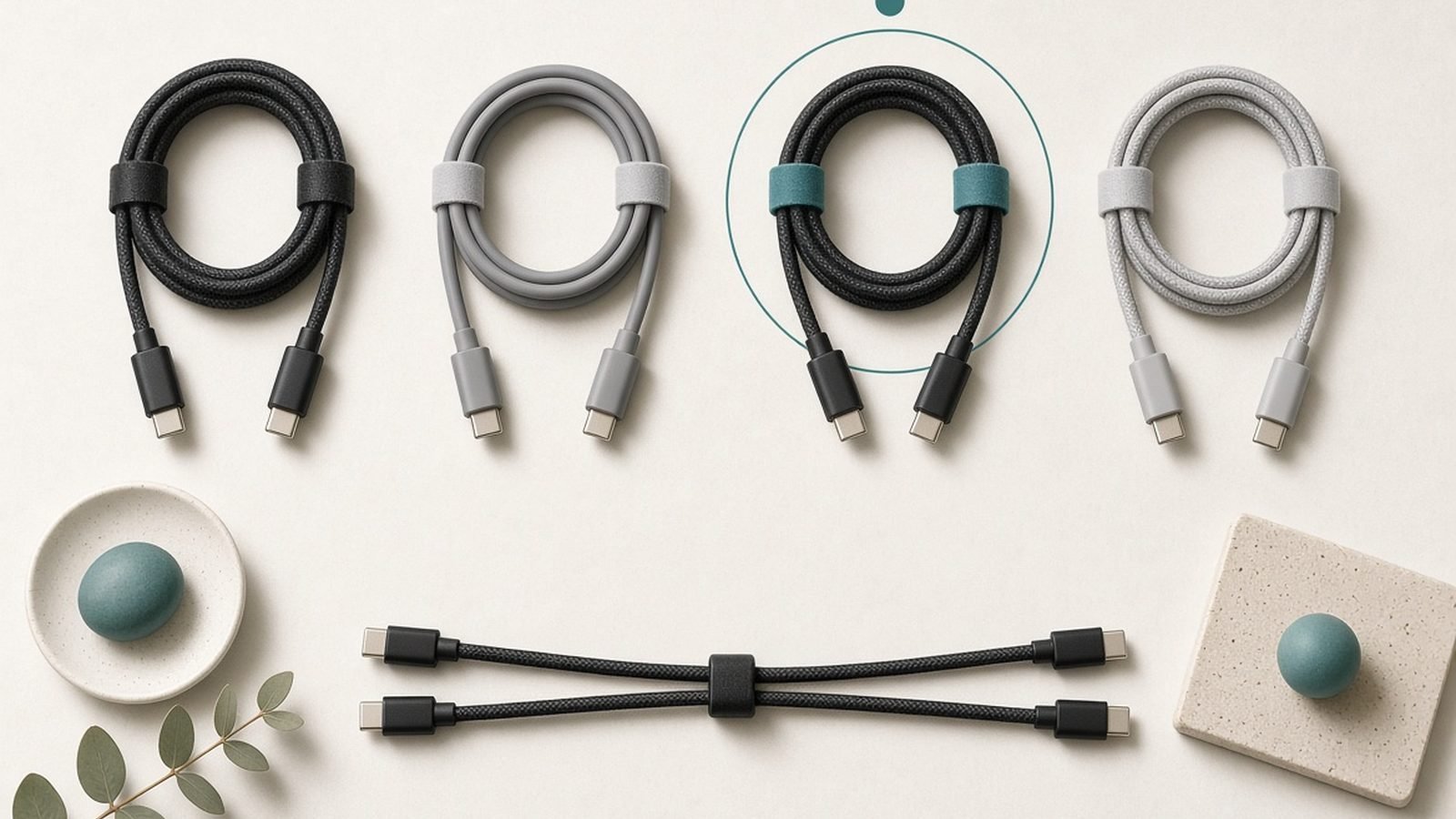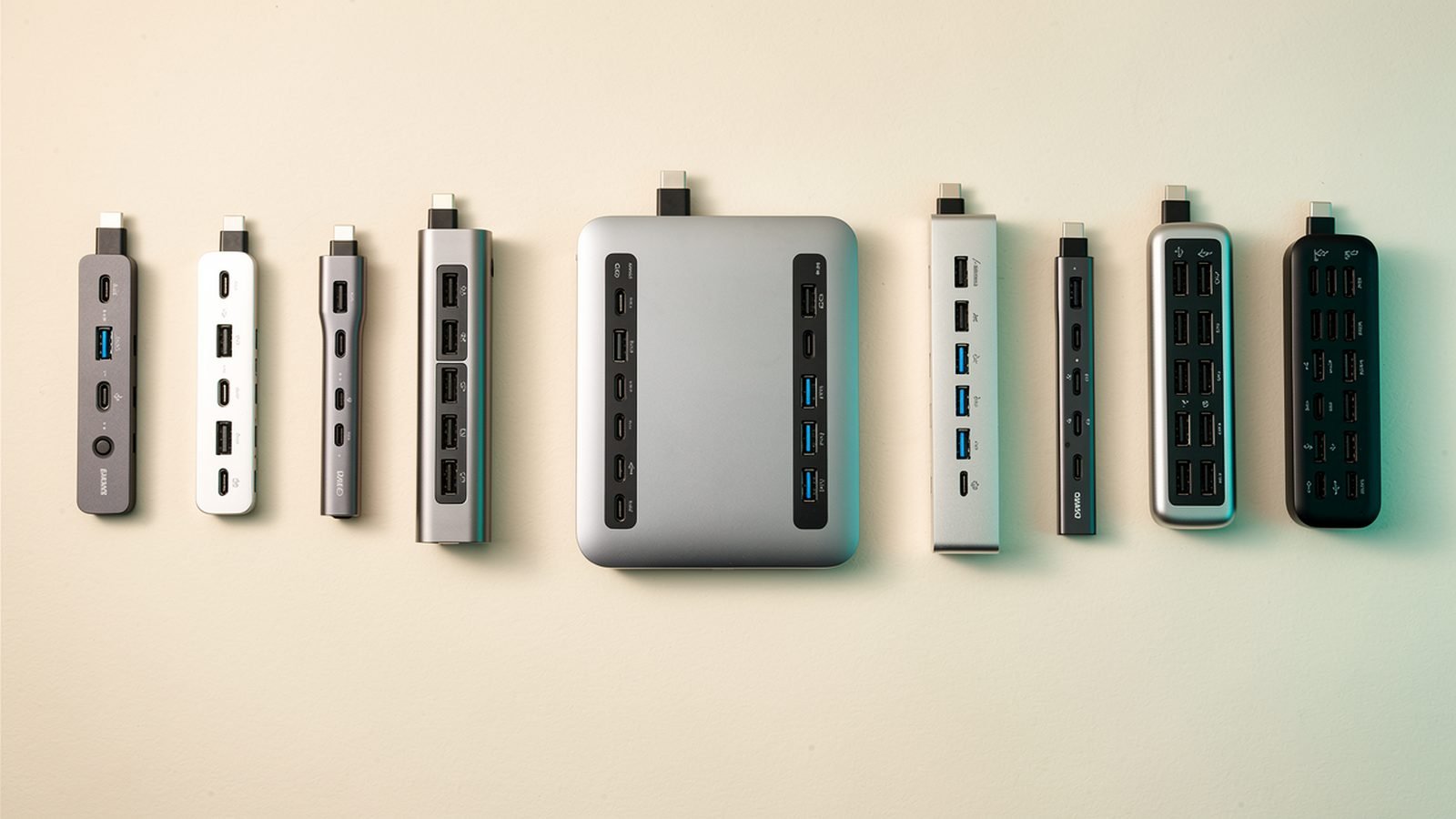
Two USB-C cables can look identical and behave completely differently. One charges your laptop at 140W and drives an 8K monitor; the other trickle-charges your phone and moves files at 2013 speeds. This guide is USB-C cable types explained properly: what the wattage ratings mean, what the data tiers actually do, how to read the new logos, and which handful of cables cover 99% of real life.
If you only remember one thing, make it this: the port shape tells you nothing. The electronics inside the cable — and a tiny chip called an e-marker — decide everything.
Here’s the whole landscape in one table. Screenshot it, print it, tape it to the cable drawer.
| Cable type | Max data speed | Max charging | Video output? | Typical price (1m) | Best for |
|---|---|---|---|---|---|
| USB 2.0 USB-C | 480Mbps | 60W (240W with e-marker) | No | $6–20 / £5–18 | Charging phones, laptops, everything |
| USB 3.2 Gen 1 (“5Gbps”) | 5Gbps | Usually 60W | Sometimes (DP Alt Mode) | $10–15 / £9–14 | External HDDs, older docks |
| USB 3.2 Gen 2 / 2x2 | 10–20Gbps | 60–240W | Usually | $15–25 / £13–22 | Fast SSDs, monitors |
| USB4 (40Gbps) | 40Gbps | 240W | Yes, up to 8K | $30–45 / £28–40 | Docks, eGPUs, everything |
| USB4 v2 / Thunderbolt 5 | 80Gbps (120Gbps burst) | 240W | Yes, multiple 8K | $40–70 / £38–65 | Pro workstations |
No, All USB-C Cables Are Not the Same
“Are all USB-C cables the same?” is one of the most-searched cable questions on the internet, and the answer is an emphatic no. USB-C is a connector shape, not a standard. What runs through the wire varies wildly.
Every USB-C cable has two independent ratings:
- Power — how many watts it can safely carry (60W, 100W, or 240W).
- Data — how fast it moves bits (USB 2.0’s 480Mbps up to Thunderbolt 5’s 80Gbps).
These are separate axes. The classic gotcha in the usb c charging cable vs data cable debate: a 240W cable can be USB 2.0-only (most are — including the excellent Anker cable we recommend below), and a 40Gbps data monster might have shipped rated for just 100W. The cable that fast-charges your MacBook may take 40 minutes to move a video library that a proper data cable shifts in two.
This isn’t a scam. High-speed data needs more wire pairs, tighter shielding, and shorter lengths — costs most buyers don’t need for a cable that lives behind a nightstand.
Charging Ratings Explained: 60W, 100W, 240W and the E-Marker Chip
USB-C charging runs on USB Power Delivery (USB PD). The wattage tiers are simple:
- 60W (3A): the baseline. Every compliant USB-C cable must handle 20V/3A. Enough for phones, tablets, and thin-and-light laptops.
- 100W (5A, PD 3.0): the older “high power” tier. Covers most laptops up to 16-inch machines.
- 240W (5A at 48V, PD 3.1 EPR): the current ceiling. Needed for 140W MacBook Pro bricks, gaming laptops, and future-proofing.
Here’s where the e-marker chip comes in. Any cable carrying more than 3A (anything above 60W) must contain a tiny identification chip in the connector. On plug-in, the charger interrogates the e-marker: “What are you rated for?” If the cable answers “5A, 240W”, the charger opens the taps. No e-marker — or a lying one — and the charger falls back to 60W or refuses entirely.
This is the single most common answer to “why is my usb c cable not fast charging”: the cable lacks an e-marker, so your 100W charger silently delivers 60W or less. The charger, cable, and device negotiate as a chain, and the weakest link sets the limit. Pair a 240W cable with a good GaN brick and the problem disappears — see our guide to the Best GaN Chargers 2026: 30W to 160W Compared & Ranked for the wall side of the equation.
One practical note: 240W cables cost barely more than 100W ones in 2026. There is no reason to buy a new 100W cable today.
Data Speeds Explained: USB 2.0 to USB4 v2 and Thunderbolt 5
Data tiers are where USB naming has historically been a war crime. Here’s the clean version, oldest to newest:
- USB 2.0 (480Mbps): yes, the 2000-era speed lives on inside most modern charging cables. Fine for CarPlay/Android Auto and keyboards. Painful for file transfers. No video.
- USB 3.2 Gen 1 (5Gbps) and Gen 2 (10Gbps): the workhorse tiers for external drives. Gen 2x2 (20Gbps) exists but was a dead end — skip it.
- USB4 (40Gbps): the modern unifying standard. A usb4 cable explained in one sentence: it carries 40Gbps data, DisplayPort video, PCIe tunneling, and up to 240W in a single certified cable. This is the “one cable to rule them all” tier.
- USB4 v2 (80Gbps) and Thunderbolt 5 (80Gbps, 120Gbps burst): the 2024+ pro tier for multiple high-refresh 4K/8K monitors and external GPUs.
Thunderbolt vs USB-C cable confusion, resolved: Thunderbolt is Intel’s certified superset that uses the USB-C connector. Every Thunderbolt 4/5 cable is also a fully-featured USB4 cable — guaranteed 40Gbps+ speed, 100W+ charging, and video, at every advertised length. A generic “USB-C cable” guarantees almost nothing. If a cable has a lightning-bolt logo with a number, it’s the safest blind buy in the entire category.
Video deserves its own line: video over USB-C uses DisplayPort Alt Mode, which requires the high-speed wire pairs that USB 2.0 cables physically don’t have. That’s why your charging cable won’t drive a monitor — more on multi-display setups in How to Connect Two Monitors to a Laptop (USB-C Guide).
How to Read the New USB-IF Logos on Cables
The USB Implementers Forum finally admitted its naming was hopeless and switched to plain-number logos. Certified cables made since late 2022 print the rating on the connector overmold:
- A number alone (40Gbps, 20Gbps, 10Gbps, 5Gbps) = data speed.
- A number in a battery-shaped outline (240W or 60W) = power rating.
- Combined badges like “40Gbps + 240W” mean the cable does both.
If a cable shows only “240W” with no speed number, assume USB 2.0 data. If it shows only a speed, assume 60W charging. No logos at all? It’s either old, uncertified, or both — treat it as a 60W/USB 2.0 mystery cable until proven otherwise.
The lightning-bolt-plus-number marks (⚡4, ⚡5) are Thunderbolt certifications and outrank everything: they guarantee the full feature set.
The Cheap Cable Traps: Slow Charging, No Video, Fake Ratings
Based on hundreds of owner reports we’ve reviewed across Amazon, Reddit’s r/UsbCHardware, and independent teardowns, cheap cables fail in four predictable ways:
Trap 1 — the 60W ceiling. No e-marker chip means a hard 60W cap regardless of what the listing claims. Your laptop charges overnight instead of over lunch.
Trap 2 — “charging cable” surprise. The cable charges beautifully but can’t drive your monitor or move files faster than 480Mbps, because it’s USB 2.0 inside. Not defective — just not what you assumed.
Trap 3 — fake ratings. Marketplace listings claiming “100W” or “10Gbps” with no certification and a lying (or absent) e-marker. Independent testers with USB analyzers routinely catch these. Symptoms: intermittent charging, devices renegotiating power mid-session, warm connectors.
Trap 4 — length physics. Passive 40Gbps cables top out around 1m (about 3.3ft). That tempting “2m 40Gbps” cable for $12 is either lying or dropping to 20Gbps. Long and fast requires expensive active cables — expect $60+ / £55+.
The fix for all four traps is boring: buy certified cables from brands with reputations to lose. The premium over no-name cables is now $5–10.
How to Test What a Cable Can Actually Do
You don’t need lab gear to audit your cable drawer:
- Read the overmold. Newer certified cables print wattage and speed right on the plug.
- Check charging wattage in software. On a MacBook: System Information → Power → shows negotiated wattage. On Windows laptops, apps like BatteryInfoView report input watts. Swap cables and compare — a 100W-capable setup showing 60W means the cable lacks a working e-marker.
- Run a file-transfer sniff test. Copy a large file to a fast SSD. Roughly 40MB/s means USB 2.0; 400MB/s+ means USB 3.x or better.
- Try the monitor test. If a USB-C monitor gets no signal through a cable that charges fine, you’re holding a USB 2.0 charging cable.
- Use a cheap USB-C tester. A $20 / £18 inline power meter (from brands like AVHzY or FNIRSI) shows live volts and amps, and many read the e-marker chip directly. Genuinely worth owning if you troubleshoot chargers often — it pairs well with the diagnostics in Power Bank Not Charging? 9 Fixes That Actually Work.
The Only 4 Cables Most People Need
Forget collecting cables. In our research, four cover essentially every scenario:
- A 240W USB 2.0 charging cable (1.8–2m) — the everyday workhorse for phones, laptops, power banks. Long, cheap, durable.
- A second or third of the same — for the bag and the bedside. Charging cables die of fatigue; buy multipacks.
- One USB4 40Gbps + 240W cable (1m) — the do-everything cable for docks, monitors, SSDs, and fast charging. Keep it at the desk.
- A short 100W+ cable for the power bank — pocketable, and 100W is plenty for on-the-go top-ups. Pair it with a pick from our Best Power Banks for Laptops in 2026: 100W+ Picks Compared guide.
That’s it. A $75 / £70 total outlay ends cable roulette permanently.
Recommended Cables by Use Case (US and UK)
These picks come from spec verification, certification checks, and aggregated owner feedback — the best USB-C cable 2026 shortlist for each job.
Best everyday charging cable: Anker 240W USB-C to USB-C Cable (Bio-Braided, 6ft)
Around $19.99 / £17.99. A proper e-marked 240W cable with one of the toughest braids in the category — owner reports consistently praise how it survives daily bag duty.
Pros
- Full 240W rating future-proofs every charger you’ll buy this decade
- Excellent strain relief; very low failure rate in owner feedback
- 6ft length is right for sofas and desks
Cons
- USB 2.0 data only — not for monitors or SSDs
- Costs more than basic multipacks
Who it’s for: anyone who wants one charging cable they never have to think about again.
Check price: Anker 240W USB-C to USB-C Cable (Bio-Braided, 6ft)
Best value multipack: UGREEN 240W USB-C Cable (2-Pack)
Around $18.99 / £15.99 for two. The smart way to stock a household: full 240W e-marked rating at roughly half the per-cable price of the big names.
Pros
- Two 240W cables for the price of one branded cable
- Solid connectors and respectable braiding for the money
Cons
- USB 2.0 data only
- Braid is a step below Anker’s and Belkin’s in owner durability reports
Who it’s for: the kitchen drawer, the car, the guest room — everywhere a cable disappears to.
Check price: UGREEN 240W USB-C Cable (2-Pack)
Best widely-stocked UK pick: Belkin BoostCharge 240W Braided Cable
Around $19.99 / £19.99. Belkin’s 240W braided cable matches the Anker on paper and is the easiest of our picks to find on the UK high street (Argos, Currys) when you need a cable today.
Pros
- 240W e-marked, strong strain relief, tidy braid
- Excellent UK retail availability and warranty support
Cons
- USB 2.0 data only
- Slightly pricier per cable in the US than equivalent Anker deals
Who it’s for: UK buyers, and anyone who prefers buying from a shop with a returns desk.
Check price: Belkin BoostCharge 240W Braided Cable
Best do-everything cable: Cable Matters USB4 40Gbps Cable (1m)
Around $39.99 / £34.99. The one-cable-to-rule-them-all pick: 40Gbps data, 240W charging, and 8K video in a single certified metre of cable. In our research it’s the most reliable sub-$50 USB4 cable for docks and portable SSDs.
Pros
- Does literally everything USB-C can do short of Thunderbolt 5
- 240W charging and 8K-capable video in one cable
- Strong compatibility record with Thunderbolt 3/4 hosts and docks
Cons
- 1m only — passive 40Gbps physics, not stinginess
- Overkill (and overpriced) as a pure phone-charging cable
Who it’s for: anyone with a dock, USB-C monitor, or fast external SSD. Keep it at the desk, guard it jealously.
Check price: Cable Matters USB4 40Gbps Cable (1m)
Best budget spare: Amazon Basics USB-C 100W Cable
Around $12.99 / £10.99. A properly e-marked 100W cable at a genuinely low price. Fine for phones and the vast majority of laptops; skip it if you own a 140W+ brick or need video.
Pros
- Cheap, e-marked, and honest about its ratings
- 100W covers most laptops made before the 140W era
Cons
- Not rated for 140W+ chargers
- USB 2.0 data, plain rubber jacket
Who it’s for: budget buyers and “I just need a spare” purchases.
Check price: Amazon Basics USB-C 100W Cable
Which should you buy? Most people: the Anker 240W (or the UGREEN 2-pack if you need several) for charging, plus one Cable Matters USB4 for the desk. That combination handles every phone, laptop, monitor, and SSD you’re likely to plug in before 2030. For more charging gear guides, browse our Accessories & Charging.
FAQ
Are all USB-C cables the same?
No. USB-C describes only the connector shape. Cables vary independently in charging capacity (60W, 100W, or 240W) and data speed (480Mbps USB 2.0 up to 80Gbps Thunderbolt 5), and only some support video output. Two identical-looking cables can differ by a factor of 160 in data speed, so always check the printed rating or product spec before buying.
Why is my USB-C cable not fast charging?
Usually the cable lacks an e-marker chip, capping it at 60W no matter how powerful your charger is. Charging speed is negotiated across the whole chain — charger, cable, and device — and the weakest link wins. Swap in a certified 100W or 240W e-marked cable; if speeds don’t improve, test a different charger or port.
Do I need a 240W USB-C cable?
You need one only if your device charges above 100W — think 14/16-inch MacBook Pros with 140W bricks or gaming laptops. But since 240W cables now cost barely more than 100W ones, they’re the sensible default purchase: fully backward compatible with every lower-wattage device and future-proof for years.
What’s the difference between a Thunderbolt and a USB-C cable?
Thunderbolt is a certified standard that uses the USB-C connector. A Thunderbolt 4 or 5 cable guarantees full data speed (40–80Gbps), at least 100W charging, and video support at its rated length. A generic USB-C cable guarantees almost nothing beyond 60W charging and USB 2.0 data — capabilities vary by individual cable.
Can a USB-C charging cable carry video?
Usually not. Most charging cables are USB 2.0 inside, and video over USB-C (DisplayPort Alt Mode) needs the high-speed wire pairs those cables omit. If your monitor shows no signal through a cable that charges fine, that’s why. Use a cable rated 10Gbps or higher — ideally USB4 or Thunderbolt — for displays.
How long can a fast USB-C cable be?
Passive 40Gbps cables max out around 1m (3.3ft); 20Gbps around 2m; USB 2.0 charging cables run happily to 4m. Listings promising cheap 2m+ 40Gbps cables are either downgrading speed silently or lying. For long, fast runs you need active (chip-boosted) cables, which start around $60 / £55.
Zen Tech Hub may earn a commission from links on this page, at no extra cost to you.