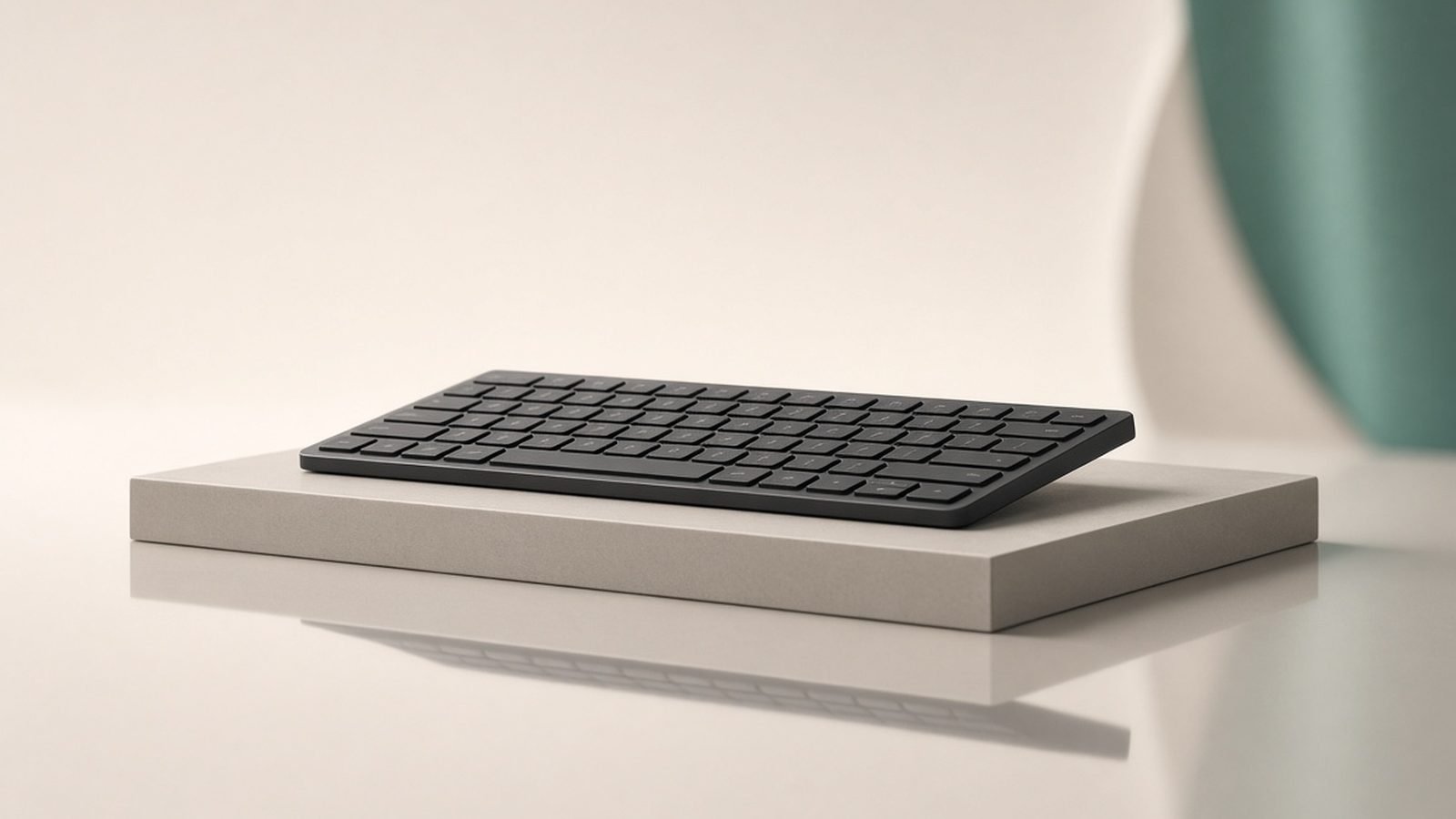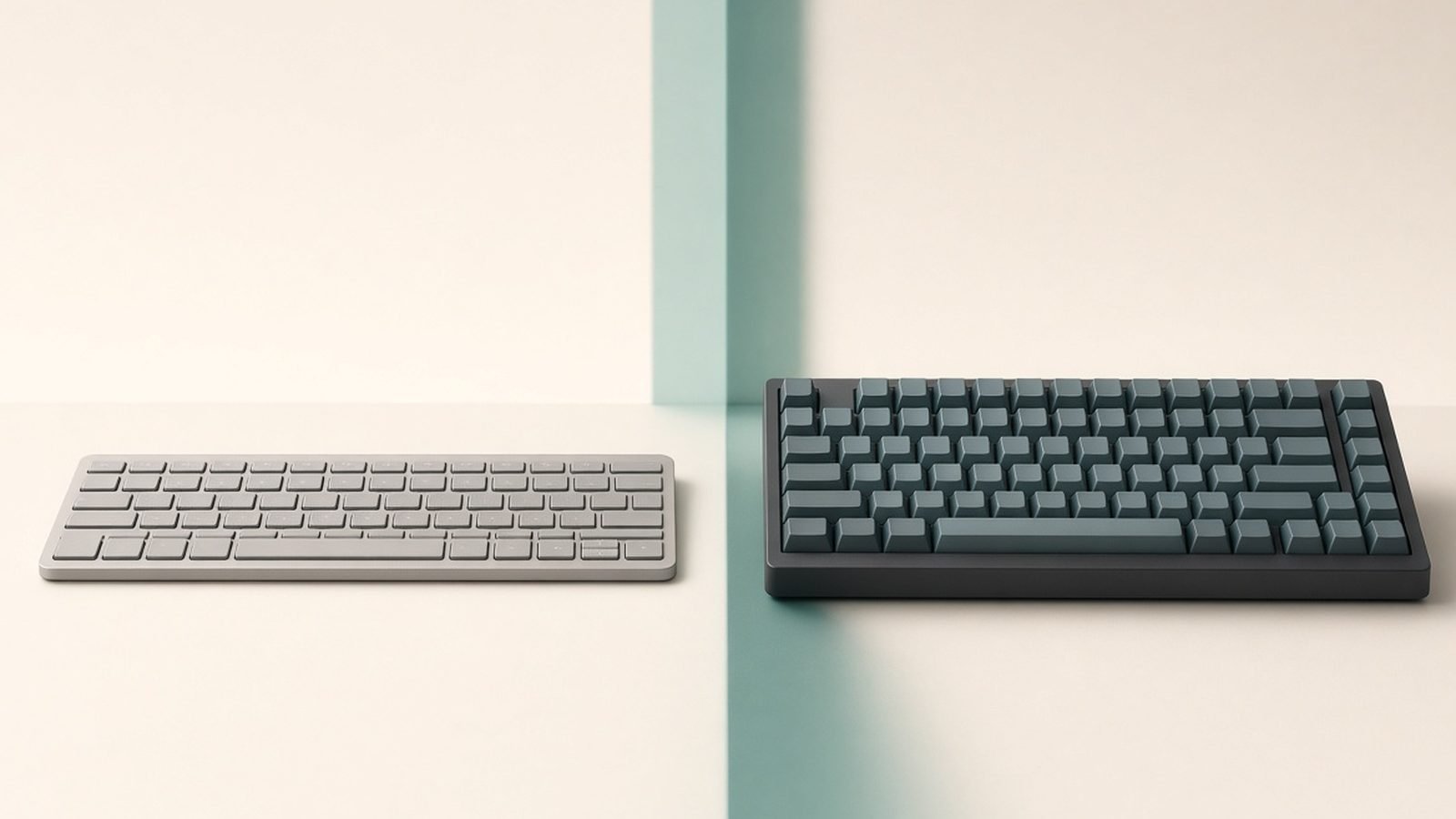
The MX Keys vs MX Mechanical decision comes down to one question: do you want your keyboard to disappear, or do you want to feel every keystroke? Both sit at the top of Logitech’s productivity range, both pair with three devices, and both work brilliantly alongside an MX Master mouse. But they type nothing alike, and in our research — spec sheets, published sound measurements and hundreds of owner reports — the right pick is obvious once you know your typist profile.
Here’s the short version, then the detail.
Quick Answer: Your Typist Profile Decides It
Buy the MX Keys S if you type on a laptop most of the day and want the same low, quiet, scissor-key feel at your desk — or if you share an office, take calls, or record audio. It’s the better quiet keyboard for an office, it’s cheaper, and its smart backlighting is the best in class.
Buy the MX Mechanical if you type for hours and miss real key travel. The low-profile mechanical switches give genuine tactile feedback that scissor keys can’t match, and the Tactile Quiet switch keeps noise office-acceptable. You pay roughly $60 / £60 more and accept shorter backlit battery life.
| Logitech MX Keys S | Logitech MX Mechanical | |
|---|---|---|
| Price (typical) | around $109.99 / £109.99 | around $169.99 / £169.99 |
| Switch type | Scissor, ~1.8mm travel | Low-profile mechanical (Kailh Choc V2), ~3.2mm travel |
| Switch options | One (fixed) | Tactile Quiet, Linear, Clicky |
| Noise | Very quiet — laptop-like | Moderate to loud, depending on switch |
| Battery (backlight on) | Up to 10 days | Up to 15 days |
| Battery (backlight off) | Up to 5 months | Up to 10 months |
| Backlighting | Smart, ambient-adjusting, per-zone brightness | White, six effects, proximity-activated |
| Sizes | Full-size; MX Keys Mini | Full-size; MX Mechanical Mini |
| Connectivity | Bluetooth LE + Logi Bolt, 3 devices | Bluetooth LE + Logi Bolt, 3 devices |
| Weight (full-size) | ~810g | ~828g |
| Best for | Laptop typists, shared offices, calls | Heavy typists who want feedback |
Price and Versions (Full-Size vs Mini, US and UK)
Logitech launched the MX Keys S at $109.99 / £109.99 and the MX Mechanical at $169.99 / £169.99, and both frequently dip below list. In our research, US street prices regularly hit $90–100 for the Keys S and $135–150 for the Mechanical during sales events; the MX Keys S UK price commonly drops to £85–95 at Amazon UK. If you’re not in a hurry, waiting for Prime Day or Black Friday reliably saves 15–25% on either board.
Both come in compact versions. The MX Keys Mini (around $99.99 / £99.99) drops the number pad and the Logi Bolt receiver from the box — it’s Bluetooth-first. The MX Mechanical Mini (around $149.99 / £149.99) keeps the Bolt receiver and simply chops the numpad and nav cluster. If you’re weighing the MX Keys S vs MX Mechanical Mini specifically, note you’d be trading the numpad for mechanical switches at a similar street price — a sensible swap for programmers, a bad one for anyone who lives in spreadsheets.
One version wrinkle worth knowing: the MX Keys S replaced the original MX Keys in 2023 with quieter keys, longer quoted battery life and Smart Actions support in Logi Options+. The MX Mechanical dates from 2022 and hasn’t been refreshed, but the hardware has aged well and firmware updates have kept coming.
Check price: Logitech MX Keys S Check price: Logitech MX Mechanical
Typing Feel: Scissor vs Low-Profile Mechanical
This is where the two keyboards genuinely diverge, and it’s the heart of any honest Logitech keyboard comparison.
The MX Keys S uses scissor switches with roughly 1.8mm of travel and dished, “spherically” sculpted keycaps that guide your fingertips to centre. If you love a MacBook or ThinkPad keyboard, this is that feel executed about as well as it can be — crisp, shallow, fast and consistent across the deck. Owner feedback is remarkably aligned here: laptop typists adapt in minutes and often type faster than on deeper boards.
The MX Mechanical uses low-profile Kailh Choc V2 switches with around 3.2mm of travel and a proper tactile event mid-press. You can choose Tactile Quiet (brown-style — the default most retailers stock), Linear (red-style, smooth with no bump) or Clicky (blue-style, audible click). The result is more feedback, more rhythm and, for many long-form writers and developers, less finger fatigue over a full day, because you don’t bottom out every stroke.
The trade-offs are real, though. The Mechanical’s keycaps are flatter and the ABS plastic develops shine faster than we’d like at this price — a recurring gripe in owner reviews. And typists coming straight from laptop keys report a one-to-two-week adjustment period with more early typos. Meanwhile the Keys S offers zero customisation: one switch feel, take it or leave it.
If you’re leaning mechanical and want to go deeper than Logitech’s ecosystem — hot-swappable switches, custom keycaps, higher-profile boards — our guide to the best mechanical keyboards for programming covers the field, and the Keychron K8 Pro is the obvious value rival. Best Mechanical Keyboards for Programming in 2026 Keychron K8 Pro Review: The Default Work Keyboard, Still?
Noise Levels: Office Suitability
Nobody buying in this range should guess about noise, so here’s what the evidence says. Logitech doesn’t publish decibel figures, but aggregated sound-level measurements from independent reviewers and owner recordings paint a consistent picture. Treat these as indicative ranges, not lab-grade numbers:
- MX Keys S: roughly 38–45 dBA at a normal typing pace measured near the board — barely above a quiet room’s noise floor. It reads as a soft patter, quieter than most laptop keyboards.
- MX Mechanical (Tactile Quiet): roughly 48–55 dBA — noticeably present but conversational-volume; comparable to a typical office membrane keyboard.
- MX Mechanical (Linear): similar to Tactile Quiet on the press, but heavy typists who bottom out push it toward the top of that range.
- MX Mechanical (Clicky): 60 dBA-plus with a sharp, high-frequency click that microphones love and colleagues hate.
The practical translation: the MX Keys S is the safest quiet keyboard for office use, open-plan desks, and anyone on daily video calls — mics simply don’t pick it up. The Tactile Quiet Mechanical passes in most offices, but it will register on a hot mic. The Clicky version is a work-from-home-only purchase; based on hundreds of owner reports, buying it for a shared space is the single most regretted configuration choice in this lineup.
Battery Life and Backlighting
On paper the MX Mechanical wins: Logitech quotes up to 15 days with backlighting on and up to 10 months with it off, against the MX Keys S’s 10 days and 5 months. Both charge over USB-C and keep working while plugged in.
In practice the gap narrows, because the two boards manage their backlights differently. The MX Keys S has the smarter system — proximity sensors wake the lights as your hands approach, and an ambient sensor adjusts brightness to the room, so it rarely burns power unnecessarily. The MX Mechanical’s white backlight also wakes on approach and offers six lighting effects, but it’s dimmer relative to its keycap legends, and a common owner complaint is that the legends are harder to read in ordinary daylight with the backlight off, since the lettering is optimised for shine-through.
Real-world owner consensus: with backlighting at moderate brightness and a 40-hour week, expect one to two weeks per charge on either board, or months if you switch lighting off. Neither will annoy you; neither matches the year-plus endurance of non-backlit boards.
Software, Multi-Device Pairing and Mac/Windows Support
Here the two are effectively identical, which is a compliment to both. Each pairs with three devices over Bluetooth Low Energy or the bundled Logi Bolt USB receiver, with Easy-Switch keys to hop between them instantly. Each carries dual-labelled keycaps for Windows and macOS and remaps its modifiers automatically — genuinely useful if you run a Mac and a Windows PC side by side.
Logi Options+ handles customisation on both: F-key remapping, app-specific profiles, and Smart Actions macros. Both also support Logi Flow, which moves your cursor and keyboard input across two computers as one, provided you use a compatible Logitech mouse such as the MX Master 4. Logitech MX Master 4 Review: Still the Best Work Mouse?
The only software difference worth noting: the Mechanical exposes its lighting effects through Options+, while the Keys S automates lighting so completely you’ll rarely open the app at all.
Build, Size and Travel Considerations
Both boards are built around a rigid metal top plate and feel dense and planted — no flex, no rattle in either case, and owner reliability reports over multi-year ownership are strong for both. The Keys S is a single fixed-angle slab; the Mechanical adds flip-out feet for a second tilt angle, which the Keys S conspicuously lacks. Neither offers negative tilt or a bundled palm rest (Logitech sells one separately).
At roughly 810g and 828g respectively, neither full-size board is a commuter item. If portability matters, the Mini versions earn their keep: both cut enough width to slide into a laptop bag alongside a 14-inch machine, and the missing numpad lets your mouse hand sit closer to centre — better for shoulder ergonomics too.
Which Should You Buy?
Logitech MX Keys S — best Logitech keyboard for most people
Pros
- Near-silent typing; ideal for calls, recording and shared offices
- Excellent smart backlighting with ambient and proximity sensors
- Cheaper at list and on sale
- Superb consistency for laptop-style typists
Cons
- Shallow 1.8mm travel won’t satisfy typists who want feedback
- No switch choice, no tilt adjustment
- Shorter quoted battery life than the Mechanical
The MX Keys S is the default recommendation for laptop-first workers, open-plan offices and anyone whose keyboard shares a desk with a microphone. It’s not exciting, and that’s the point.
Check price: Logitech MX Keys S
Logitech MX Mechanical — best Logitech keyboard for typing feel
Pros
- Real mechanical feedback with three switch options
- Longer battery life, backlight on or off
- Adjustable tilt via flip-out feet
- Same excellent multi-device and cross-platform features
Cons
- Around $60 / £60 more than the Keys S
- Louder in every configuration; Clicky is unsuitable for offices
- ABS keycaps shine with heavy use; legends can be hard to read unlit
If typing is your job — writing, coding, long email days — the Mechanical in Tactile Quiet trim is the best Logitech keyboard for typing, full stop. The extra travel is worth the extra money for heavy typists, and only heavy typists.
Check price: Logitech MX Mechanical
FAQ
Is the MX Mechanical worth $60 more than the MX Keys S? Only if you type heavily and value tactile feedback. The Mechanical’s low-profile switches give real travel and rhythm that the Keys S’s scissor keys can’t replicate. But if you’re a laptop-style typist, work in a shared office, or spend your day on calls, the cheaper, quieter MX Keys S is the better buy — the extra $60 / £60 buys feel, not features.
Is the MX Mechanical too loud for an office? The Tactile Quiet version is acceptable in most offices — roughly membrane-keyboard volume based on aggregated measurements. The Linear version is similar unless you bottom out hard. The Clicky version is genuinely loud, with a sharp click that carries across rooms and cuts through call microphones; owner reports overwhelmingly recommend against it for shared spaces.
MX Keys S vs MX Mechanical Mini — which for a small desk? They cost roughly the same on sale, so it’s travel versus numpad. Pick the MX Mechanical Mini if you want mechanical feedback and never touch a number pad — it’s popular with programmers. Pick the full-size MX Keys S if you work with numbers or want the quietest possible board. Both keep three-device pairing and Logi Bolt support.
Do both keyboards work with Mac and Windows? Yes, fully. Both carry dual-labelled keycaps, auto-detect your OS, and remap modifiers accordingly. Both also work with iPadOS, ChromeOS, Linux and Android over Bluetooth. You can pair a Mac, a Windows PC and a tablet simultaneously and switch between them with the Easy-Switch keys — this is one of the strongest reasons to buy either board.
How long does the battery actually last? With backlighting on at moderate brightness, owners typically report one to two weeks between charges on both boards — Logitech quotes up to 10 days for the Keys S and 15 for the Mechanical. Turn the backlight off and the Keys S stretches to around 5 months, the Mechanical to around 10. Both charge over USB-C and work while charging.
Can you replace the switches or keycaps on the MX Mechanical? No. The switches are soldered, not hot-swappable, and the low-profile Choc V2 stems limit keycap options. If customisation matters to you, a board like the Keychron K8 Pro offers hot-swap sockets and standard keycaps for less money — at the cost of Logitech’s multi-device polish.
Verdict
In the MX Keys vs MX Mechanical fight, there’s no single winner — but there is a right answer for you. The MX Keys S wins on price, silence and lighting; it’s our pick for roughly 70% of buyers, especially anyone in a shared or call-heavy workspace. The MX Mechanical wins on typing feel and battery, and in Tactile Quiet form it’s the one serious typists should own. Whichever you choose, you’re getting the same excellent three-device pairing, cross-platform support and build quality — you’re really just choosing how you want your keystrokes to feel.
Zen Tech Hub may earn a commission from links on this page, at no extra cost to you.