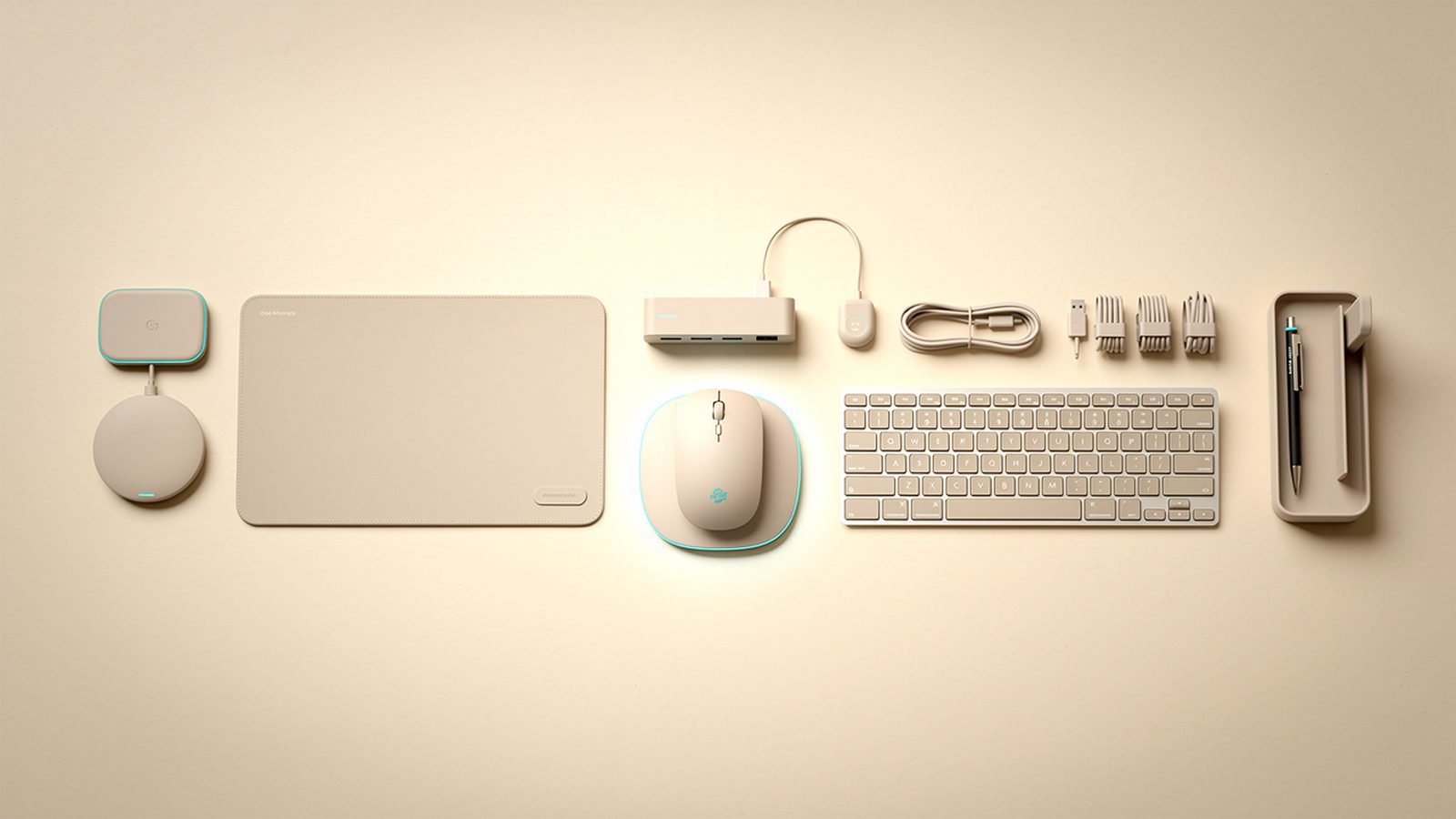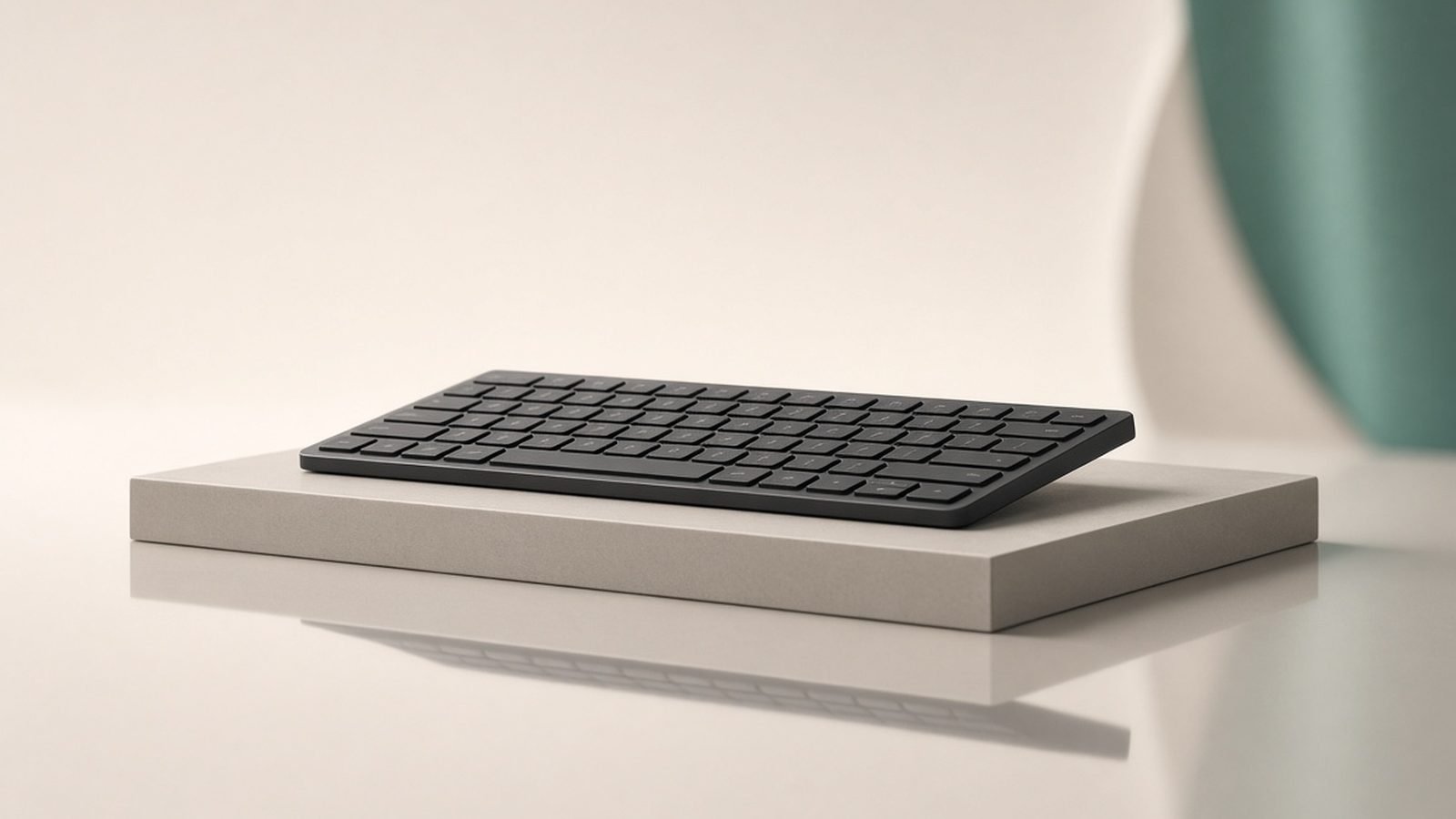
For quiet, comfortable typing across a laptop, desktop and tablet without ever swapping a keyboard, the Logitech MX Keys S is the productivity board to beat in 2026. This Logitech MX Keys S review covers Logitech’s flagship low-profile membrane keyboard — the one you see on more professional desks than any mechanical rival — and explains where it excels, where it doesn’t, and who should buy a mechanical board instead.
The short verdict: the MX Keys S is the best all-round productivity keyboard around $110 / £100 for people who value comfort, silence and seamless multi-device switching over the tactile feedback of mechanical switches. Its smart backlight, three-device Logi Bolt switching and long battery life make it a genuine daily-driver upgrade. The trade-offs: it’s a scissor-switch membrane board, not mechanical, so it won’t satisfy typing enthusiasts, and there’s no dedicated numpad on the standard model.
Who should buy it: office and hybrid workers, Mac and Windows users juggling multiple machines, and anyone who wants a quiet, low-fatigue board. Who shouldn’t: typing enthusiasts who want mechanical feel, and gamers.
Around $110 / £100 · low-profile scissor switches · 3-device Logi Bolt + Bluetooth · smart backlight · USB-C rechargeable
Check price: Logitech MX Keys S
MX Keys S at a glance
| Detail | |
|---|---|
| Switch type | Low-profile scissor (membrane) |
| Layout | Full-size, no separate numpad (numpad built into main block) |
| Wireless | Logi Bolt USB receiver + Bluetooth (3 devices) |
| Backlight | Smart, proximity-activated, auto-brightness |
| Battery | Up to ~10 days with backlight, months without; USB-C |
| Software | Logi Options+ (Smart Actions, remaps) |
| Price | around $110 / £100 |
| Best for | Multi-device productivity typing |
Pros
- Genuinely comfortable, quiet low-profile typing with sculpted “Perfect Stroke” keys
- Seamless switching across three devices via Logi Bolt or Bluetooth
- Smart backlight lights up as your hands approach, then dims to save power
- Excellent Mac and Windows support with correct legends in the box
- USB-C rechargeable; works wired while charging
Cons
- Membrane, not mechanical — no tactile bump or hot-swap
- No separate numpad on the standard model (MX Keys S is full-size but compact)
- Not flat-adjustable — fixed low incline, no negative tilt
- Logi Options+ is required for the best features and can feel heavy
- Premium price for a non-mechanical board
Design and build
The MX Keys S looks and feels like a professional tool: a matte aluminium top plate, a low profile that keeps your wrists relaxed, and just enough weight to stay planted. The standout are the keys themselves — Logitech’s spherically dished “Perfect Stroke” caps that cradle the fingertip. If you’ve only used flat laptop-style keys, the subtle concave shaping is the thing you notice first and miss most on other boards.
It’s quiet. That’s part of the point. In open-plan offices and shared home spaces, the muted scissor-switch sound is a real advantage over any mechanical board, however well-dampened. The trade-off, addressed below, is that quiet membrane feel is exactly what enthusiasts don’t want.
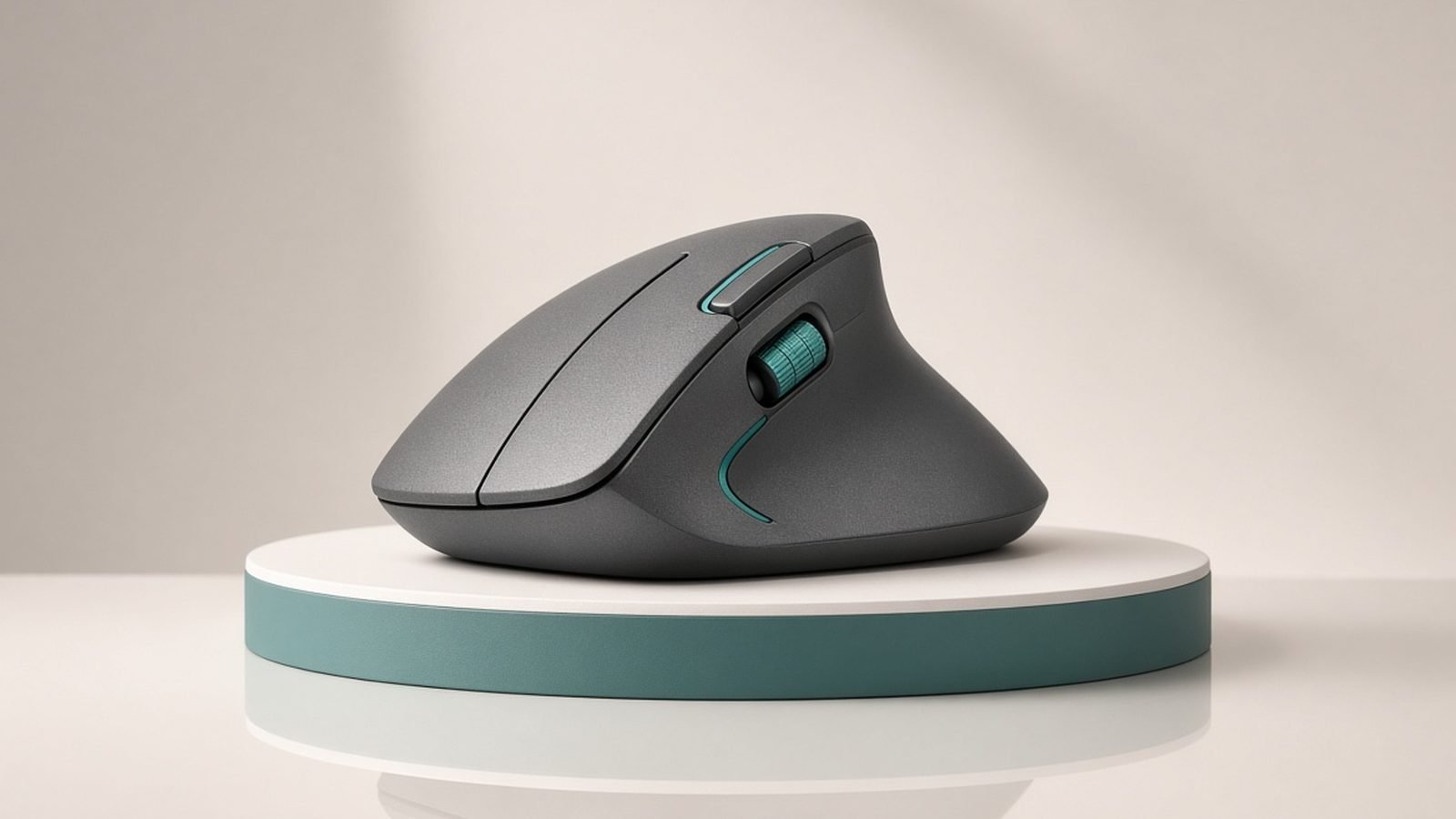
Two ergonomic caveats worth knowing. First, there’s no separate numpad on the standard MX Keys S — the layout is a compact full-size, so heavy spreadsheet users may prefer a board with a dedicated number block. Second, the incline is fixed; there’s a small built-in tilt but no adjustable feet and no negative-tilt option, so people with specific wrist-angle needs should check the geometry. Pairing it with a good mouse from our Best Ergonomic Mice 2026: Comfort Without RSI guide completes the low-fatigue desk setup Logitech is clearly aiming at.
Features: smart backlight and multi-device switching
Two features define the MX Keys S day to day. The first is the smart backlight: proximity sensors light the keys as your hands approach and dim them when you leave, and auto-brightness matches the backlight to room lighting. It’s the sort of feature you stop noticing, which is the highest praise — it just works, and it saves meaningful battery versus an always-on backlight.
The second is multi-device switching. Three dedicated keys (or Logitech’s Flow feature) let you jump between a work laptop, a personal desktop and a tablet instantly, over either the bundled Logi Bolt USB receiver or Bluetooth. Based on aggregated owner reports, this is the single most-loved feature and the main reason people stay in Logitech’s ecosystem — pairing the MX Keys S with an MX-series mouse means one receiver and one Flow setup drives keyboard and mouse across every machine.
The new-for-S addition is Smart Actions in Logi Options+: programmable macro sequences triggered from a key, so a single press can, say, open your standup apps, set a status and mute notifications. It’s genuinely useful for repetitive workflows, though it does mean installing Options+, which some owners find heavier than they’d like. The core typing and switching all work without it; Smart Actions is the reason to install it.
Typing experience and who it’s not for
For its category, the MX Keys S types beautifully: stable, quiet, low-fatigue, with enough key travel to feel deliberate rather than mushy. For long days of writing, email and code, plenty of professionals prefer it to a mechanical board precisely because it’s calmer and quieter.
But be clear-eyed about what it is. This is a membrane scissor-switch keyboard. There’s no tactile bump, no satisfying “thock”, no hot-swappable switches, and no deep customisation of feel. If you want that, you want a mechanical board — and Logitech even sells one (the MX Mechanical) in the same ecosystem. Enthusiasts weighing the two should read our Best Mechanical Keyboards 2026: Typing & Gaming roundup, or for the tinkerer’s end of the spectrum, the Keychron Q Series Review 2026: Custom Mechanical Keyboards. The MX Keys S is the right pick when comfort, silence and multi-device convenience matter more than switch feel.
Battery, software and value
Battery life is a strength. With the smart backlight on, the MX Keys S runs around 10 days per charge in typical use; switch the backlight off and it stretches to several months. It recharges over USB-C and works fully while plugged in, so a flat battery never stops you. That’s the pattern you want from a productivity keyboard — you essentially never think about it.
At around $110 / £100, it’s a premium price for a non-mechanical board, and that’s the honest sticking point. You’re paying for the ecosystem, the smart backlight, the switching and the build — not for switch feel. For someone living across multiple machines, that package is worth it; for someone who just wants a keyboard for one PC, cheaper options do the basic job. The value case rests entirely on whether the multi-device and comfort features match how you work. For a broader look at wireless options at other prices, see our Best Wireless Keyboards 2026: Top Boards for Work guide.
Verdict
The Logitech MX Keys S is the productivity keyboard most professionals should buy — provided they know they’re buying comfort and convenience, not mechanical feel. The Perfect Stroke keys, smart backlight, three-device switching and long battery life add up to a board that quietly makes multi-machine work easier every day, and the new Smart Actions add real automation for those who’ll use them.
It’s not for enthusiasts and it’s not for numpad-dependent spreadsheet warriors. For everyone else who types for a living and juggles more than one device, it’s the best in its class and an easy recommendation.
FAQ
What’s the difference between the MX Keys S and the original MX Keys?
The MX Keys S is an incremental refresh. The biggest addition is Smart Actions in Logi Options+ — programmable macro sequences from a single key — plus a refined smart backlight and updated function-row shortcuts. Core typing feel, layout and build are essentially unchanged. If you own the original MX Keys, the S isn’t a must-upgrade; if you’re buying new, get the S for the added automation at the same price.
Is the MX Keys S mechanical?
No. It uses low-profile scissor switches (a membrane design), not mechanical switches. That makes it quieter and lower-profile than a mechanical board, with a comfortable, calm typing feel — but no tactile bump, no “thock” and no hot-swap. If you specifically want mechanical feel, Logitech’s own MX Mechanical or a Keychron board is the better choice.
How long does the MX Keys S battery last?
With the smart backlight on, expect around 10 days per charge in typical use; with the backlight off, it lasts several months. It recharges over USB-C in a couple of hours and works fully while plugged in, so you can keep typing during a charge. The proximity-activated backlight helps by lighting only when your hands are near.
Does the MX Keys S work with Mac?
Yes, very well. It supports macOS natively with correct legends in the box, and Logi Options+ lets you remap keys and set Mac-specific behaviour. It also switches seamlessly between a Mac, a Windows PC and a tablet using Logi Bolt or Bluetooth, which is one of its main selling points for people who work across both platforms.
Does it have a numpad?
The standard MX Keys S is a compact full-size layout without a separate numpad block. If you do heavy numeric entry, look at a full-size board with a dedicated numpad, or add a standalone Logitech numpad. For most typing, email and coding, the compact layout keeps your mouse closer and reduces reach.
Do I need Logi Options+ software?
Not for basic use — typing, multi-device switching and the smart backlight all work without it. You need Options+ to use Smart Actions (macro automations), custom key remaps and Flow (cursor movement across computers). Some owners find the software heavier than they’d like, but it’s optional and only required for the advanced features.
Zen Tech Hub may earn a commission from links on this page, at no extra cost to you.