Nine months after launch, this Logitech MX Master 4 review can answer the questions the day-one coverage couldn’t. Is the new haptic Actions Ring a genuine productivity tool or a party trick you disable by week three? Does the battery hold up? And with the MX Master 3S still on sale for noticeably less, is the MX Master 4 worth it in 2026?
Short version: yes, it’s still the best productivity mouse of 2026 for most desk workers — but the case is more nuanced than Logitech’s marketing suggests, and a meaningful group of buyers should save their money.
Verdict Up Front: Who Should Buy the MX Master 4
Buy the MX Master 4 if you spend six-plus hours a day at a desk, juggle multiple apps or machines, and you’re upgrading from anything older than the MX Master 3. The sculpted right-hand shape, MagSpeed scroll wheel, 8,000 DPI sensor that tracks on glass, and roughly 70-day battery remain the category benchmark. The haptic Actions Ring — a pressure-sensitive thumb panel that opens a radial menu of shortcuts with a subtle vibration confirming each pick — is genuinely useful once you customise it, based on the long-term owner feedback we’ve aggregated.
Skip it if you’re a lefty (there’s no left-handed version), you want one mouse for work and competitive gaming (polling rate tops out well below gaming-grade), or you already own a 3S and mainly want “more of the same”. The 3S delivers about 90% of this experience for significantly less money.
| Spec | Logitech MX Master 4 |
|---|---|
| Price (RRP) | Around $119.99 / £119.99 (UK street price often ~£107) |
| Sensor | 8,000 DPI Darkfield, tracks on glass (4 mm+) |
| Buttons | 8, incl. haptic Actions Ring thumb panel |
| Scroll | MagSpeed electromagnetic wheel + thumb wheel |
| Battery | Up to ~70 days; ~3 hrs use from a 1-min charge (USB-C) |
| Connectivity | Bluetooth LE + Logi Bolt USB-C receiver, 3 devices |
| Weight | ~150 g |
| Compatibility | Windows, macOS, Linux, iPadOS, ChromeOS |
| Left-handed option | No |
Score: 9/10 — the best work mouse you can buy, with a price premium that not everyone needs to pay.
Score basis: research analysis of official specs, independent testing and owner feedback — not first-party measurement.
Check price: Logitech MX Master 4
MX Master 4 Price and Availability (US and UK)
The MX Master 4 launched in late 2025 at $119.99 in the US and £119.99 in the UK — a $20/£15 step up from the MX Master 3S’s launch price. That made it the most expensive MX Master yet, and the price has held firm at most US retailers in our research.
The MX Master 4 UK picture is slightly kinder. British street pricing has drifted to around £107 at major retailers between promotions, and we’ve seen it dip near £100 during seasonal sales events. If you’re patient, Prime Day and Black Friday windows have historically been the moments to strike.
It’s available in graphite and pale grey finishes, plus a “for Business” variant with the Logi Bolt receiver aimed at IT deployments. Stock has been consistent in both markets since early 2026 — no scalper premiums, no shortages.
For context, the MX Master 3S now sits at around $99.99 / £89.99 RRP but regularly drops to roughly $79 / £75. That gap is the single biggest argument against the newer mouse, and we’ll come back to it.
Check price: Logitech MX Master 4
Design, Ergonomics and the New Haptic Actions Ring
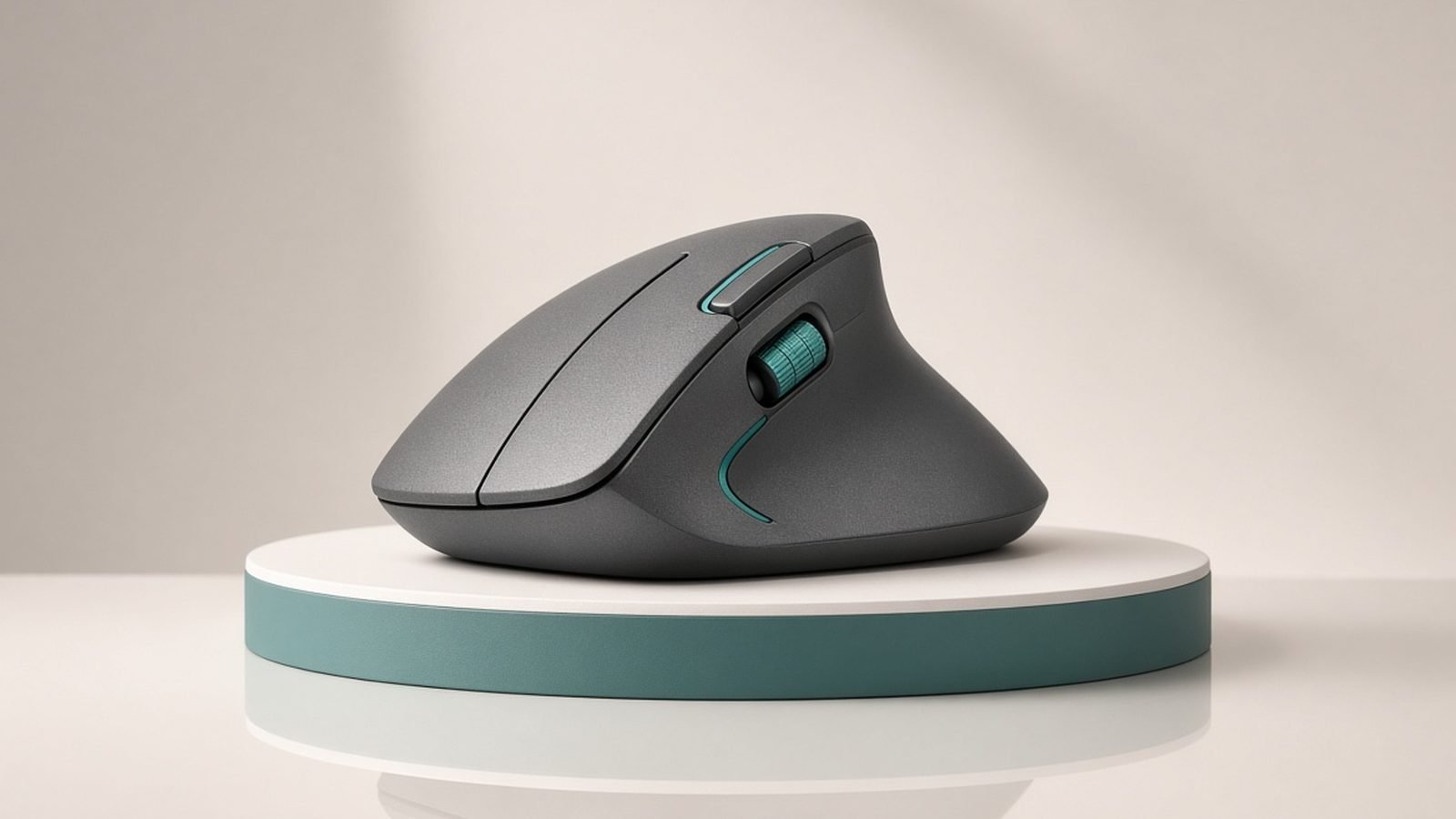
Logitech didn’t reinvent the silhouette, and that’s the right call. The MX Master 4 keeps the tall, right-leaning sculpt with a pronounced thumb rest that has made this line the default recommendation for long-session comfort. The palm sits at a slight tilt, the fingers fall naturally onto the two main buttons, and wrist pronation is reduced compared with flat ambidextrous mice. If you’re building out a healthier workstation, it pairs well with the advice in our guide to an ergonomic desk setup Ergonomic Desk Setup Guide: Fix Your Posture in a Day.
The soft-touch coating from the 3S is gone, replaced by a grippier textured finish. Long-term owners consistently report this as an upgrade: the old coating famously got shiny and tacky after a year or two, while the new texture appears to be wearing better nine months in. Logitech also leaned into recycled plastics, and the build feels dense rather than hollow.
At around 150 g, though, this is a heavy mouse. That mass aids stability for precise cursor work, but if you flick your mouse around a lot or travel light, you’ll feel it. The compact MX Anywhere 3S exists for exactly that user — more on it below.
The Actions Ring: gimmick or genuine upgrade?
The headline change is MX Master 4 haptic feedback, delivered through a redesigned thumb area. Press the thumb panel and a radial on-screen menu — the Actions Ring — appears under your cursor with up to eight customisable shortcuts: paste-without-formatting, mute your mic, launch an app, trigger an AI prompt, whatever you assign in Logi Options+. A small haptic motor taps your thumb to confirm selections and can also signal app events.
Launch reviews split on whether this was a gimmick. Nine months on, the owner consensus we’ve aggregated is clearer and more interesting:
- The Actions Ring sticks for people who customise it. Owners who spent ten minutes mapping per-app shortcuts (one set for Excel, another for Photoshop, another for their browser) describe it as the feature they’d miss most. Those who left the defaults largely stopped using it.
- Haptics fatigue is real but solvable. A recurring theme in long-term reports is turning the vibration intensity down — or off for notifications — after the novelty fades. Crucially, the Ring itself remains useful with haptics minimised; the buzz is seasoning, not the meal.
- It’s not for everyone’s thumb. A minority of owners with smaller hands find the panel placement awkward and simply remap it to a standard gesture button, which works fine.
Our take: the Actions Ring is the most substantial new input idea in a productivity mouse since the MagSpeed wheel, but its value is proportional to the setup effort you invest.
Scrolling and Everyday Performance
The MagSpeed electromagnetic scroll wheel remains the best in the business. It shifts automatically between precise ratchet clicks and a frictionless free-spin that tears through 1,000-line spreadsheets or long code files in a second, and it does so almost silently. The machined-metal wheel on the 4 feels marginally more damped than the 3S’s, per owner comparisons, though the difference is subtle.
The thumb wheel handles horizontal scrolling — timelines, wide spreadsheets, video editing scrubbing — and remains something rivals still haven’t matched properly. Combined with the gesture button under the thumb rest, you get an enormous amount of navigation without touching the keyboard.
The 8,000 DPI Darkfield sensor tracks on essentially anything, including glass desks over 4 mm thick. Clicks are the quiet-click switches Logitech introduced on the 3S — a blessing in shared offices and on calls. For programmers and writers, the whole package plays beautifully alongside a good board; see our pick of the best mechanical keyboards for programming Best Mechanical Keyboards for Programming in 2026.
Two caveats. First, polling rate: this is a productivity mouse, not a gaming mouse, and fast-twitch shooter players will notice the difference immediately. Second, the weight means it rewards a palm-grip, low-movement style; claw-grip flickers should look elsewhere.
MX Master 4 Battery Life and Charging
Logitech quotes up to 70 days on a full charge, and long-term MX Master 4 battery life reports broadly support that — with an asterisk. Heavy haptics use and constant Actions Ring interaction pull real-world figures down; owners who keep vibration at full strength commonly report five to seven weeks rather than ten. With haptics dialled back, six-to-ten-week stretches between charges appear typical in the ownership reports we’ve reviewed.
Either way, this is a charge-it-and-forget-it device. USB-C quick charging gives you roughly three hours of use from one minute plugged in, and a full charge takes well under two hours. You can keep using the mouse while it charges over cable.
The one omission that still stings at this price: no Qi wireless charging, and no charging dock in the box. Logitech’s own Powerplay ecosystem remains reserved for its gaming line. A £110 flagship in 2026 arguably should charge on the same pad as your phone.
Software: Logi Options+ and Actions Ring Customisation
Logi Options+ is where the MX Master 4 earns its premium — or doesn’t, if you refuse to install it. The app handles per-app button profiles, pointer and scroll tuning, Actions Ring layouts, haptic intensity, and Smart Actions (multi-step macros like “open my standup doc, launch Zoom, mute mic” from one press).
Flow, Logitech’s cross-computer feature, lets the mouse glide between two or three machines — Mac and PC included — moving the cursor across screens and even copying files between them. For anyone running a work laptop next to a personal desktop, it borders on magic and remains a genuine differentiator.
The complaints are the usual ones: Options+ is a chunky Electron app, it prompts for an account (optional), and corporate machines that block it reduce the mouse to its excellent-but-basic hardware defaults. Linux users get solid plug-and-play basics plus the community Solaar tool, but no official Actions Ring support — worth knowing before you buy primarily for that feature.
If you’re pairing the mouse with a Logitech board, our comparison of the MX Keys S and MX Mechanical Logitech MX Keys S vs MX Mechanical: Which to Buy? covers which keyboard completes the setup.
How It Compares to the MX Master 3S
This is the question most upgraders actually care about, so let’s be direct. The MX Master 4 gives you: the haptic Actions Ring, the grippier and more durable shell, a Bolt receiver that’s now USB-C, marginally refined scrolling, and better quiet-click feel. The core experience — shape, MagSpeed wheel, 8K sensor, battery class, Flow — is shared with the 3S.
Coming from an MX Master 2S or older? Upgrade to the 4 without hesitation. Everything is better: quieter clicks, USB-C, faster sensor, dramatically better software.
Coming from a 3 or 3S? Only upgrade if the Actions Ring workflow genuinely appeals or your coating has degraded. Otherwise the 3S at its regular ~$79 / £75 street price is the smarter buy — around 90% of the experience for roughly two-thirds of the money. We break the two down feature-by-feature in our MX Master 4 vs MX Master 3S comparison MX Master 4 vs MX Master 3S: Should You Upgrade?.
Check price: Logitech MX Master 3S
Weaknesses and Who Should Skip It
No 9/10 score should hide the flaws, so here they are plainly.
Pros
- Best-in-class ergonomics for long right-handed sessions
- MagSpeed wheel and thumb wheel remain unmatched for navigation
- Actions Ring is a real productivity gain once customised
- Excellent ~70-day battery with fast USB-C top-ups
- Tracks on glass; connects to three devices; Flow works across OSes
- More durable finish than previous generations
Cons
- No left-handed version at all
- Heavy (~150 g) and desk-bound by design
- Low polling rate makes it a poor dual-purpose gaming mouse
- No Qi/wireless charging at a premium price
- Best features gated behind Logi Options+ software
- MX Master 3S offers most of this for much less
Skip the MX Master 4 if any single one of those cons is a dealbreaker for you — particularly left-handed users and gamers, for whom this simply isn’t the right product regardless of how good it is at its actual job.
Alternatives to Consider
Logitech MX Master 3S — the value pick
Still officially sold, still regularly discounted to around $79 / £75, the 3S has the same sculpted comfort, MagSpeed wheel, quiet clicks and 8K sensor. You lose the haptic Actions Ring and the tougher new coating. For anyone on a budget — or any company buying in bulk — it remains an easy recommendation and arguably the best productivity value in 2026.
Check price: Logitech MX Master 3S
Logitech MX Anywhere 3S — the travel pick
At around $79.99 / £84.99, the Anywhere 3S shrinks the same sensor family and MagSpeed-style scrolling into a compact, flat, bag-friendly body. The trade-off is comfort: it lacks the sculpted palm support, so it’s a companion mouse for laptops and hot desks rather than an all-day driver.
Check price: Logitech MX Anywhere 3S
For more chargers, hubs and desk gear we recommend, browse the full accessories hub Accessories & Charging.
FAQ
Is the MX Master 4 worth it over the MX Master 3S?
For new buyers and anyone upgrading from a pre-2020 mouse, yes — the improved coating, USB-C Bolt receiver and Actions Ring justify the gap. For existing 3S owners, generally no: the core shape, scrolling and sensor are shared, and the 3S’s ~$79 / £75 street price makes it exceptional value. Upgrade only if the Actions Ring workflow specifically appeals to you.
How long does the MX Master 4 battery last?
Logitech rates it at up to 70 days per charge. Long-term owner reports we’ve reviewed suggest six to ten weeks is realistic with haptics turned down, and five to seven weeks with heavy haptic and Actions Ring use. A one-minute USB-C charge delivers about three hours of use, and you can use the mouse while it charges.
Can you turn off the MX Master 4 haptic feedback?
Yes. Logi Options+ lets you reduce haptic intensity or disable vibration entirely, and many long-term owners do exactly that once the novelty wears off. The Actions Ring shortcut menu keeps working with haptics off, so you lose nothing functionally — the vibration is confirmation, not a requirement.
Is the MX Master 4 good for gaming?
Casual gaming, fine. Competitive gaming, no. Its polling rate is far below the 1,000 Hz-plus standard of dedicated gaming mice, and at roughly 150 g it’s twice the weight of a modern esports mouse. It’s engineered for spreadsheets, code and creative apps — buy a dedicated gaming mouse for shooters.
Does the MX Master 4 work with Mac and Linux?
Yes. It supports Windows, macOS, Linux, iPadOS and ChromeOS over Bluetooth or the included Logi Bolt USB-C receiver, and stores three device pairings you can switch between. Full customisation via Logi Options+ covers Windows and macOS; Linux users rely on the community Solaar tool, which handles basics but not the Actions Ring.
How much does the MX Master 4 cost in the UK?
The UK RRP is £119.99, but street pricing has settled around £107 at major retailers since early 2026, with dips near £100 during Prime Day and Black Friday promotions. In the US it has held closer to its $119.99 list price. The MX Master 3S remains the budget route at roughly £75 on discount.
Final Score and Verdict
Nine months in, the MX Master 4 has done what launch hype rarely survives: it’s held up. The Actions Ring matured from talking point to daily tool for owners who configure it, the new finish is aging better than any MX Master before it, and the fundamentals — comfort, scrolling, battery, multi-device flow — remain the standard everyone else chases.
Logitech MX Master 4: 9/10. The best productivity mouse of 2026 for right-handed desk workers, and an easy recommendation at around $119.99 / £107 — unless you own a 3S, in which case keep your money or buy one for the office bag instead.
Check price: Logitech MX Master 4
Zen Tech Hub may earn a commission from links on this page, at no extra cost to you.