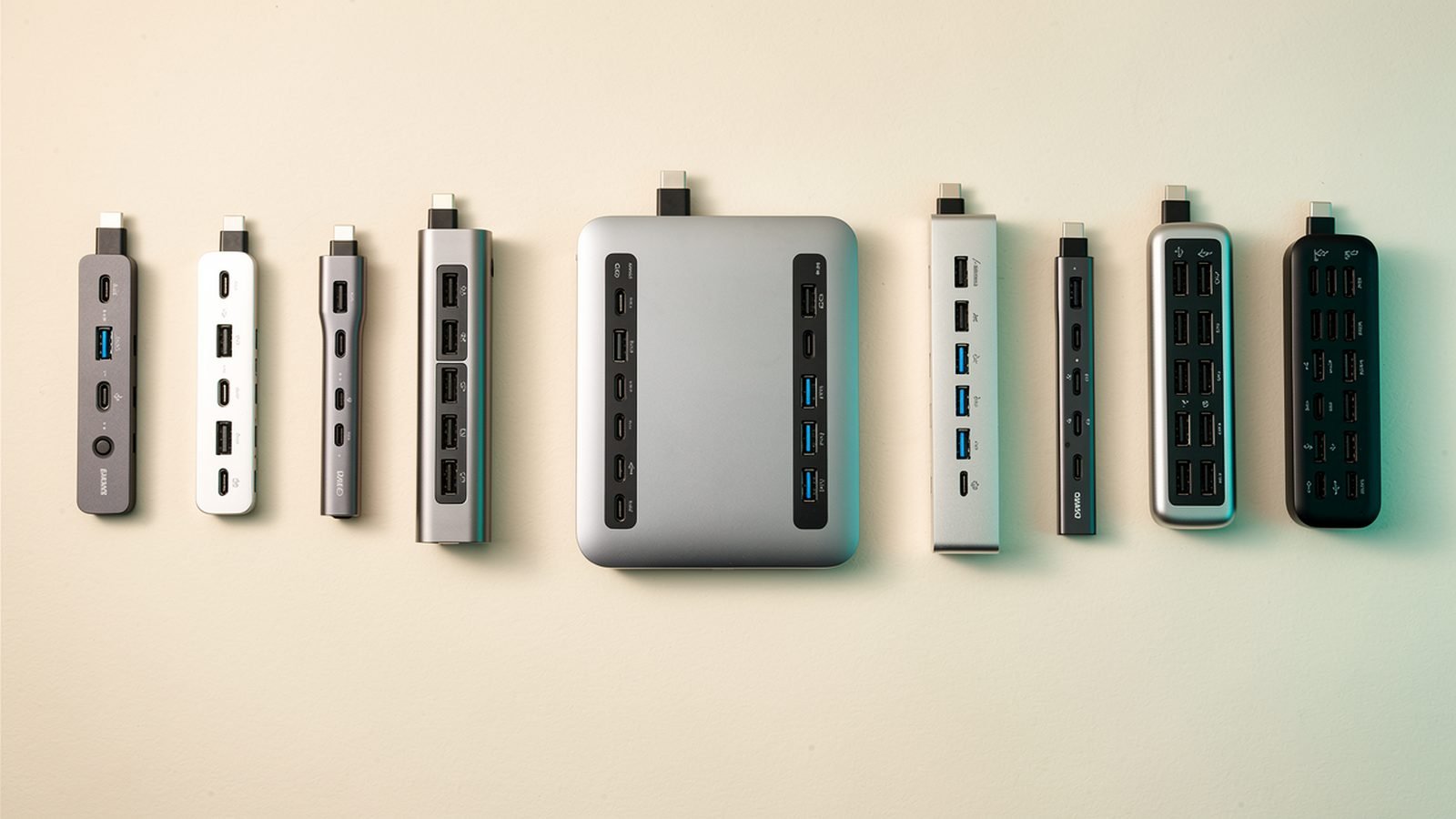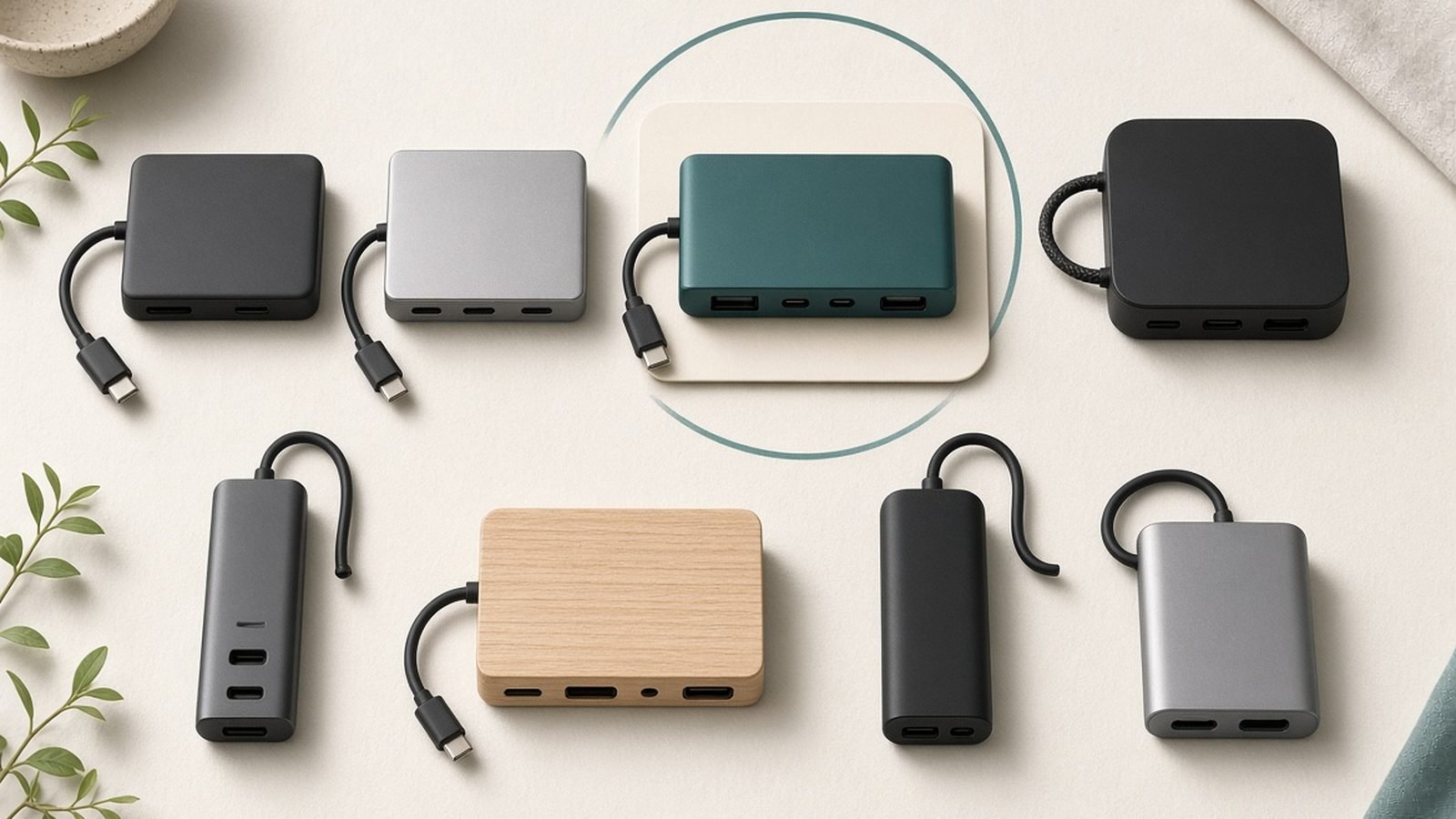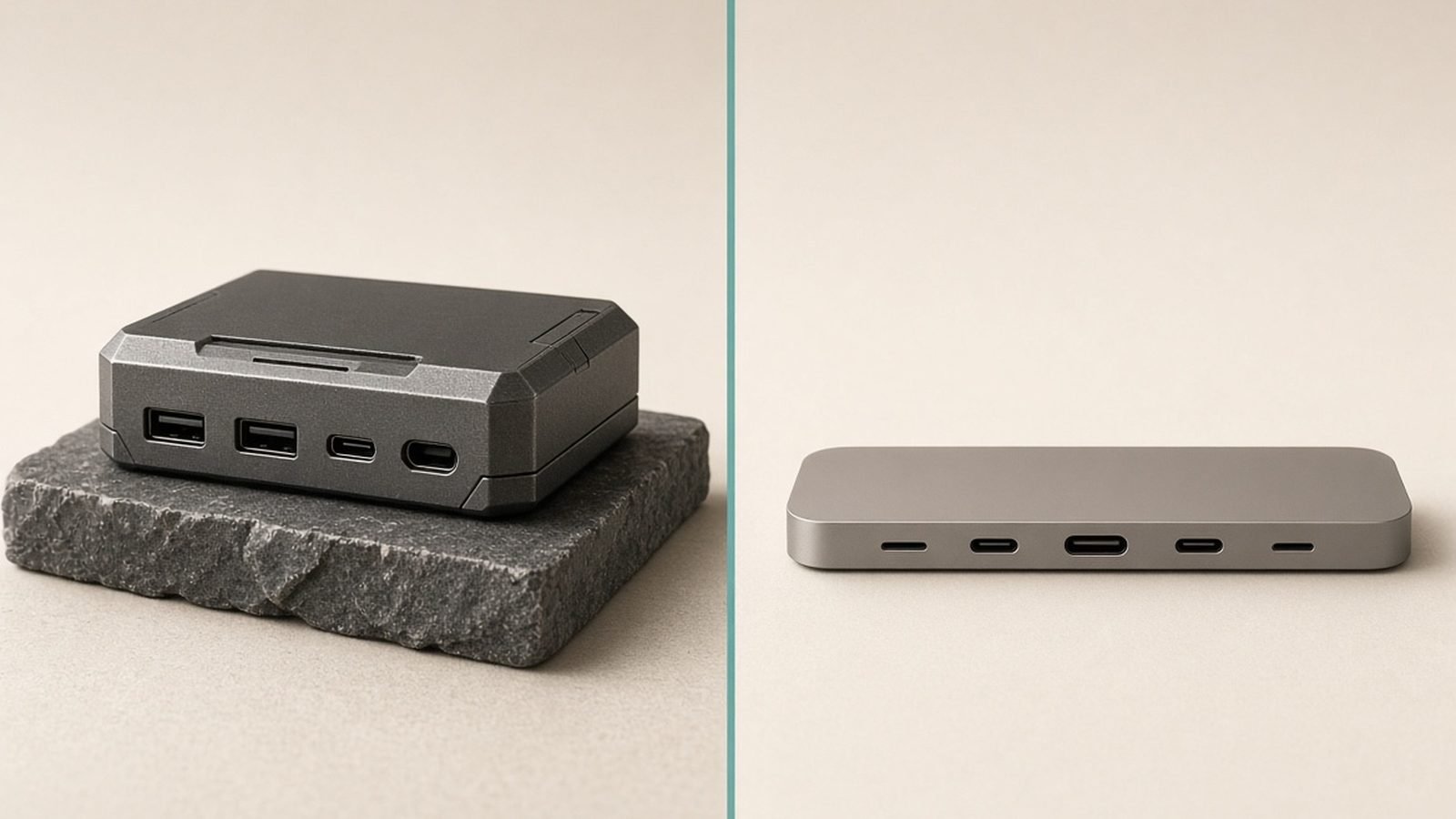
The Thunderbolt dock vs USB-C hub decision comes down to bandwidth and budget: a USB-C hub (around $30–70 / £30–65) is enough if you want to add a few ports, charge your laptop, and drive a single external monitor. A Thunderbolt dock (around $200–400 / £190–380) is what you need for two or more high-resolution displays, fast external SSDs, and a genuine one-cable desk on a Thunderbolt or USB4 laptop. If you don’t have a Thunderbolt/USB4 port, or you only run one screen, save the money and buy a hub.
Based on published specs from Intel, Apple and major dock makers plus aggregated owner feedback, here’s how to match the right device to your laptop and workflow without overpaying.
Thunderbolt dock vs USB-C hub at a glance
| USB-C Hub | Thunderbolt Dock | |
|---|---|---|
| Typical price | ~$30–70 / £30–65 | ~$200–400 / £190–380 |
| Bandwidth | 5–10Gbps (USB 3.x) | 40Gbps (Thunderbolt 4 / USB4) |
| Displays | Usually one (two via MST/DisplayLink) | Two 4K, or one 6K/8K, natively |
| Power to laptop | ~60–100W passthrough | ~85–140W dedicated |
| External SSD speed | Up to ~1,000MB/s | Up to ~3,000MB/s+ |
| Needs Thunderbolt/USB4 laptop? | No — works on any USB-C | Yes, for full performance |
| Form factor | Compact, portable | Larger, desk-anchored |
| Best for | Travel, single-monitor desks | Multi-monitor, pro workflows |
The key difference: bandwidth
Everything else flows from one number. A USB-C hub rides on a standard USB 3.x connection with roughly 5 to 10Gbps of bandwidth shared across all its ports. That’s plenty for a keyboard, mouse, an SD card reader, ethernet, and one external display. Ask it to do more — two 4K monitors plus a fast SSD plus gigabit ethernet all at once — and it runs out of pipe.
A Thunderbolt 4 (or USB4) dock has 40Gbps to work with — roughly four to eight times the headroom. That surplus is exactly what dual 4K monitors, a 3,000MB/s external SSD, and a 2.5GbE network connection need to run simultaneously without stepping on each other.
So the honest framing of “do I need a Thunderbolt dock?” is: only if your demands exceed what 10Gbps can carry. Many people’s don’t.
Monitors: the most common reason to upgrade
Displays are where the gap becomes real, and it’s the deciding factor for most buyers.
A basic USB-C hub typically drives one external monitor cleanly via DisplayPort Alt Mode. To push a second screen, a hub has to use one of two workarounds: MST (which Windows supports but macOS does not) or DisplayLink (which needs a driver and compresses the video, using CPU). Both work, but with caveats.
A Thunderbolt dock drives two 4K displays at 60Hz — or a single 6K/8K panel — natively, with no drivers and no compression, on a Thunderbolt or USB4 host. On a MacBook, this matters even more: because macOS doesn’t support MST, a Thunderbolt dock (or a DisplayLink one) is often the only clean route to dual external monitors. Our Best USB-C Hubs & Docks 2026: For Laptops & Desks roundup separates the single-display hubs from the true multi-monitor docks, and if you’re wiring up two screens, the Best Portable Monitors 2026: For Laptops & Travel guide pairs well for a mobile second display.
One catch worth knowing: base Apple silicon MacBooks (non-Pro M-series) natively support only one external display, so even a Thunderbolt dock won’t give them two screens without DisplayLink. Check your chip before you buy.
Power delivery and one-cable desks
Both device types can charge your laptop over the same cable that carries data — the “one cable to the desk” appeal. The difference is how much and how reliably.
USB-C hubs commonly offer 60–100W passthrough charging, though some skim power for their own ports, so a hub rated “100W” might deliver closer to 85W to the laptop. Fine for ultrabooks and MacBook Airs; sometimes marginal for a 16-inch MacBook Pro under load.
Thunderbolt docks typically dedicate 85–140W to the host and have their own power brick, so they charge a demanding laptop at full speed while simultaneously running every port. For a permanent desk setup where you dock once and everything just works, that headroom is the point. A good dock replaces your laptop charger entirely.
If you travel and want charging without the dock, a separate wall adapter is still worth carrying — see our Best GaN Chargers 2026: 30W to 160W Compared & Ranked guide.
Storage, ethernet and pro peripherals
For most office work, a hub’s ports are more than enough: USB-A for peripherals, an SD reader, gigabit ethernet, HDMI. Where Thunderbolt earns its price is high-throughput gear.
An external SSD on a Thunderbolt dock can hit 3,000MB/s and beyond, versus roughly 1,000MB/s (10Gbps) on a good USB-C hub. For video editors scrubbing 4K timelines off external drives, or anyone moving huge files daily, that’s a meaningful time saving. Thunderbolt also supports daisy-chaining (connecting a second Thunderbolt device through the first) and higher-end audio interfaces and eGPUs that a hub can’t drive.
If none of that describes your work, you’re paying for capability you’ll never use. That’s the single most common overspend in this category.
Which should you buy?
USB-C Hub — best for travel and single-monitor desks
Around $30–70 / £30–65
Pros:
- Cheap, compact, and works on any USB-C laptop (no Thunderbolt needed)
- Adds the essential ports — USB-A, HDMI, SD, ethernet
- Charges most ultrabooks and MacBook Airs over the same cable
- Great for travel and hot-desking
Cons:
- Shared 5–10Gbps bandwidth limits heavy multitasking
- Usually one external display without MST/DisplayLink workarounds
- Passthrough power may be marginal for high-wattage laptops
Who it’s for: Anyone on one external monitor, ultrabook and MacBook Air owners, and people who need portable expansion more than raw throughput.
Thunderbolt Dock — best for multi-monitor and pro workflows
Around $200–400 / £190–380
Pros:
- 40Gbps handles dual 4K displays, fast SSDs and ethernet at once
- Native dual-monitor support on Thunderbolt/USB4 hosts (no drivers)
- 85–140W dedicated charging replaces your laptop brick
- Fast external storage up to 3,000MB/s+ and daisy-chaining
Cons:
- Several times the price of a hub
- Needs a Thunderbolt or USB4 laptop for full benefit
- Larger, with its own power supply — a desk fixture, not a travel gadget
Who it’s for: Multi-monitor setups, video editors and creators, and anyone building a permanent one-cable desk on a Thunderbolt/USB4 machine.
FAQ
Do I really need a Thunderbolt dock?
Only if your needs exceed a hub’s 10Gbps ceiling — mainly two or more high-res monitors, fast external SSDs, or heavy simultaneous use of many ports. If you run a single external display and a few peripherals, a USB-C hub does the job for a fraction of the price.
Can a USB-C hub run dual monitors?
Sometimes, with caveats. On Windows it can via MST, and on any OS via a DisplayLink hub (which needs a driver and uses some CPU). macOS does not support MST, so on a Mac you generally need a Thunderbolt or DisplayLink dock for a clean dual-monitor setup. Native, driver-free dual 4K is a Thunderbolt-dock feature.
Will a Thunderbolt dock work on a regular USB-C laptop?
Partly. A Thunderbolt 4 dock is usually backward-compatible with plain USB-C, but you lose the 40Gbps bandwidth and native dual-4K support — it behaves more like an expensive USB-C hub. You only get the dock’s full capability on a Thunderbolt 4 or USB4 host, so don’t buy one unless your laptop has that port.
How do I know if my laptop has Thunderbolt or USB4?
Look for a lightning-bolt icon beside the USB-C port, or check the spec sheet for “Thunderbolt 3/4” or “USB4.” All Apple silicon MacBooks have Thunderbolt. Many Windows ultrabooks do too, but budget models often have USB-C that’s data-and-video only, not Thunderbolt.
Can either one charge my laptop?
Yes — both can pass power to the laptop over the single connecting cable. Hubs typically deliver 60–100W (sometimes less in practice), which suits ultrabooks; Thunderbolt docks dedicate 85–140W with their own power brick, enough to fully charge demanding laptops while running every port.
Is a Thunderbolt dock worth it for a MacBook Air?
Usually not, unless you already own one or need very fast external storage. Base M-series MacBook Airs support only one native external display, so a dock’s dual-monitor advantage is wasted without DisplayLink. A quality USB-C hub is the better-value match for a MacBook Air’s single-display limit.
Verdict
The Thunderbolt dock vs USB-C hub choice is really a bandwidth-and-budget question. Buy a USB-C hub if you run one monitor, want portability, and just need more ports — it’s cheaper, works on any laptop, and covers most people. Buy a Thunderbolt dock if you drive two or more high-res displays, use fast external SSDs, or want a true one-cable pro desk on a Thunderbolt/USB4 machine. Match the device to your actual workload, check your laptop’s port and display limits first, and you won’t overspend or come up short.
Zen Tech Hub may earn a commission from links on this page, at no extra cost to you.