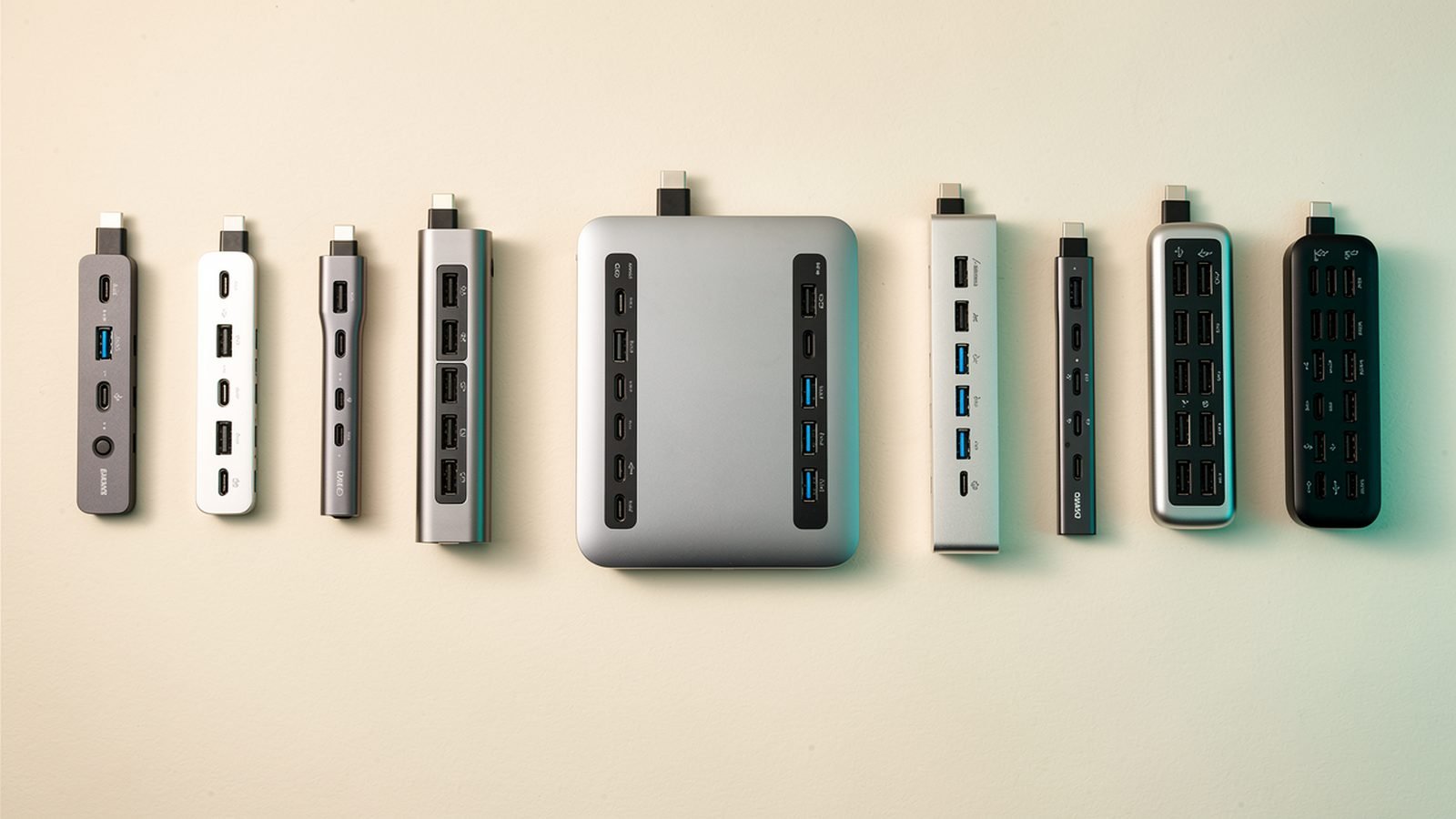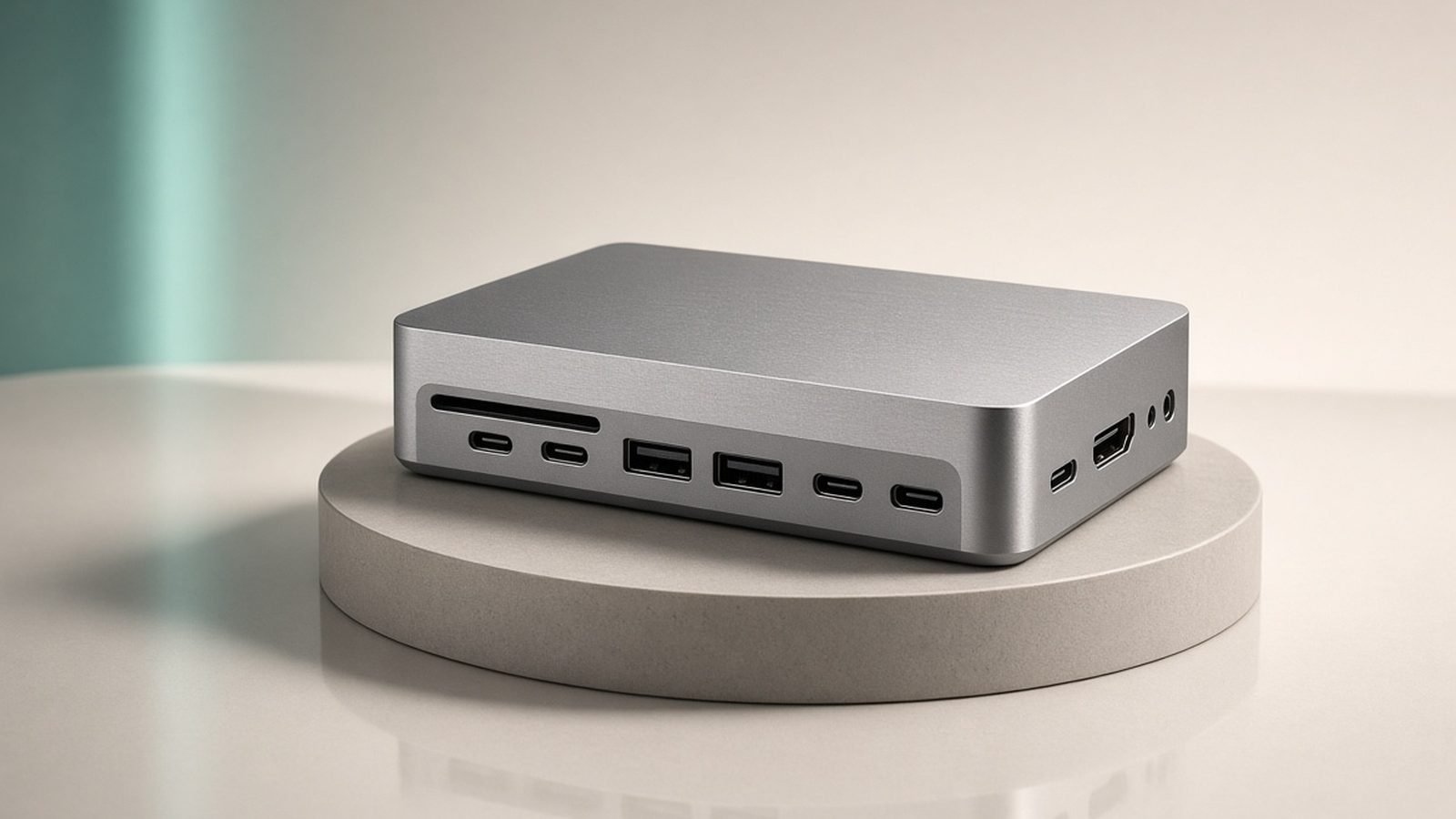
The best USB-C hub for most people is the Anker 655 (8-in-1) — enough ports for a real desk, HDMI that drives a 4K display, and a price that doesn’t sting. But “hub” and “dock” are not the same purchase, and buying the wrong one is the most common mistake here. A hub is a bus-powered travel accessory; a dock is a powered desk anchor that charges your laptop and runs multiple monitors over one cable.
This guide splits the field cleanly. If you want to close your laptop, plug in a single cable, and have two monitors plus everything on your desk wake up, you want a Thunderbolt dock like the CalDigit TS5 Plus. If you want three extra ports in a bag, you want a hub. Below we rank six picks across both categories, based on published specs, documentation and aggregated owner feedback — never invented benchmarks.
Best USB-C hub at a glance
| Pick | Product | Best for | Price (US / UK) |
|---|---|---|---|
| Best overall hub | Anker 655 (8-in-1) | Everyday desk & travel | around $79 / £69 |
| Best travel hub | Satechi Slim 6-in-1 | Ultralight MacBook kit | around $69 / £64 |
| Best value hub | Ugreen Revodok Pro 109 | Budget 4K + Ethernet | around $59 / £54 |
| Best budget dock | Ugreen Revodok Max 313 | Affordable dual-monitor | around $199 / £189 |
| Best Thunderbolt dock | CalDigit TS5 Plus | Single-cable pro desk | around $399 / £389 |
| Best compact dock | Anker Prime Thunderbolt 5 | Small desk, big bandwidth | around $329 / £319 |
How we picked
Zen Tech Hub rankings come from spec analysis and aggregated real-world evidence, not marketing copy or hands-on lab claims we didn’t make. For this guide we cross-referenced manufacturer datasheets against the USB-IF and Thunderbolt certification listings, checked host-compatibility notes (Apple Silicon behaves differently from Windows on displays), and read hundreds of verified owner reviews across US and UK retailers. We weighted three things buyers underrate: whether the second monitor actually works on a MacBook, how much power reaches the laptop under full load, and long-term reliability of the controller chip.
We also separated hubs (bus-powered, portable, no laptop charging worth the name) from docks (wall-powered, high port count, real single-cable docking). Mixing them up is why so many one-star reviews exist.
Best overall hub: Anker 655 (8-in-1)
8 ports · 4K/30Hz HDMI · 100W USB-C pass-through · around $79 / £69
The Anker 655 is the hub most people should buy because it covers the jobs a hub is actually for: a couple of USB-A devices, an SD and microSD card, Gigabit Ethernet, a single external display, and enough pass-through power to keep a mid-size laptop topped up. The braided captive cable and aluminium shell feel a tier above the price, and Anker’s warranty support is the best in the category.
The honest limits are the display spec and the power math. HDMI is capped at 4K/30Hz — fine for a productivity monitor, visibly choppy for cursor movement if you’re used to 60Hz. And while the USB-C input accepts 100W, the hub siphons roughly 15–20W for itself, so a power-hungry 16-inch laptop under load may hold rather than gain charge. Neither is a flaw so much as the nature of a bus-powered hub.
Pros:
- Eight genuinely useful ports in a pocketable body
- 100W pass-through keeps most laptops charged
- Excellent build and Anker’s warranty backing
- Reliable card reader (UHS-I speeds)
Cons:
- HDMI limited to 4K/30Hz, no 60Hz option
- ~15–20W lost to the hub under charging load
- Single display only — not a dual-monitor solution
Who it’s for: Anyone who wants one dependable hub for a desk and a bag, and only ever drives one external screen. If you need 4K/60Hz or two monitors, size up to a dock.
Check price: Anker 655 USB-C Hub (8-in-1)
Best travel hub: Satechi Slim 6-in-1
6 ports · 4K/60Hz HDMI · 100W PD · around $69 / £64
If your priority is throwing a hub in a laptop sleeve and forgetting it’s there, the Satechi Slim wins. It’s genuinely thin, colour-matched to MacBook finishes, and — unlike the Anker 655 — its HDMI runs 4K at 60Hz, which makes a real difference to how smooth a desktop feels. Ports cover HDMI, two USB-A, USB-C data, USB-C PD input and a card reader.
The trade-off is fewer ports and no Ethernet, so this is a mobile companion rather than a desk hub. Owner reports also note it can run warm during sustained 4K output plus charging — normal for a slim aluminium body, but worth knowing if you work in a hot room. For a travel kit it pairs naturally with a compact GaN brick so one bag charges and connects everything. Best GaN Chargers 2026: 30W to 160W Compared & Ranked
Pros:
- Truly slim and light; the best-looking hub here
- 4K/60Hz HDMI, unlike most hubs at this price
- 100W PD input for laptop charging
- MacBook-matched finishes
Cons:
- No Ethernet port
- Runs warm under 4K + charging load
- Six ports is on the lean side for a desk
Who it’s for: MacBook and Windows ultrabook owners who want the lightest possible hub with proper 60Hz output for hotel and café work.
Check price: Satechi Slim 6-in-1 USB-C Hub
Best value hub: Ugreen Revodok Pro 109
9 ports · 4K/60Hz HDMI · Gigabit Ethernet · 100W PD · around $59 / £54
The ugreen usb c hub line has become the value benchmark, and the Revodok Pro 109 is why. For under sixty dollars or pounds you get nine ports including 4K/60Hz HDMI, Gigabit Ethernet, a fast card reader and 100W pass-through — a spec sheet that reads like hubs costing twenty more. Build quality is solid aluminium, and reliability in owner reviews is strong for the price.
Where you feel the cost saving is polish rather than function: the captive cable is a touch short, and the card reader is UHS-I rather than the faster UHS-II photographers want. But for a work-from-home desk that needs Ethernet and a 60Hz monitor without paying dock money, nothing beats it on value.
Pros:
- 4K/60Hz HDMI and Gigabit Ethernet at a budget price
- Nine ports, including a decent card reader
- 100W pass-through
- Reliable in aggregated owner feedback
Cons:
- Short captive cable
- UHS-I card reader, not UHS-II
- Single display, like all hubs here
Who it’s for: Budget-conscious home workers who want a 60Hz monitor plus wired Ethernet without stepping up to a dock.
Check price: Ugreen Revodok Pro 109 (9-in-1)
Best budget dock: Ugreen Revodok Max 313
13 ports · dual 4K/60Hz (Windows) · 100W laptop charging · around $199 / £189
Here the guide crosses from hub to dock. The Revodok Max 313 is wall-powered, charges your laptop at a full 100W with none of the hub’s self-tax, and drives two 4K/60Hz monitors on Windows machines — all for roughly half the price of a Thunderbolt dock. For a single-cable desk on a budget, it’s the smart pick.
The critical caveat is Apple Silicon. Because this is a USB-C (DisplayLink-free) dock, MacBooks with M-series chips mirror rather than extend across two displays unless the dock uses DisplayLink drivers — check the exact model variant before buying if you’re on a Mac and need two independent screens. On Windows it just works. This is the classic single cable docking experience for PC laptops at a price that undercuts Thunderbolt hardware substantially.
Pros:
- True dual 4K/60Hz on Windows
- 100W laptop charging with no hub tax
- Thirteen ports — genuinely replaces a desk of dongles
- Around half the cost of a Thunderbolt dock
Cons:
- Dual-display limits on Apple Silicon (mirrors without DisplayLink)
- Not Thunderbolt — lower total bandwidth for storage
- Larger footprint than a hub
Who it’s for: Windows laptop owners who want a proper single-cable dual-monitor desk without paying Thunderbolt prices.
Check price: Ugreen Revodok Max 313 Docking Station
Best Thunderbolt dock: CalDigit TS5 Plus
Thunderbolt 5 · 20 ports · 140W+ charging · around $399 / £389
For a professional desk, the caldigit thunderbolt dock is the reference standard, and the TS5 Plus is its 2026 flagship. Thunderbolt 5 delivers the bandwidth to run dual high-refresh 4K (or a single 8K/6K) display while simultaneously moving data to fast external SSDs — the thing cheaper docks can’t do at once. It charges even a 16-inch MacBook Pro at full speed, and the port selection, including 10Gb Ethernet and front-facing SD and USB-C, is the most complete here.
The catch is simply price and necessity. At around $399 / £389 it costs more than some laptops’ worth of accessories, and if you only run one monitor and charge a phone, you are buying bandwidth you’ll never touch. It’s also a heavy, deliberately desk-bound block. We cover exactly who needs one — and who’s overspending — in our full review. CalDigit TS5 / TS5 Plus Review 2026: The Ultimate Dock?
Pros:
- Thunderbolt 5 bandwidth for dual displays plus fast storage
- 140W+ charging feeds any laptop at full speed
- 20 ports including 10GbE and front SD/USB-C
- CalDigit’s reputation for long-term reliability
Cons:
- Expensive; overkill for single-monitor users
- Heavy, firmly a desk fixture
- Full benefit needs a Thunderbolt 5 host laptop
Who it’s for: Creators, developers and anyone running dual displays plus external SSDs from one cable who wants the most future-proof dock available.
Check price: CalDigit TS5 Plus Thunderbolt 5 Dock
Best compact dock: Anker Prime Thunderbolt 5
Thunderbolt 5 · 11 ports · 140W charging · around $329 / £319
Not every pro desk has room for a TS5-sized block. The Anker Prime Thunderbolt 5 dock delivers most of the same headline capability — TB5 bandwidth, dual-monitor support, 140W laptop charging — in a notably smaller, upright body that saves desk space. Anker’s warranty and support network also make it the easier dock to live with if something goes wrong.
You give up port count and the TS5’s 10GbE (Anker uses 2.5GbE) and front-panel generosity. For most people that’s an easy trade for the smaller footprint and lower price, but photographers moving huge files over 10-gigabit networks will miss it. It’s the sensible middle path between a USB-C dock and CalDigit’s flagship.
Pros:
- Thunderbolt 5 speed in a compact upright chassis
- 140W laptop charging
- Cheaper than the TS5 Plus with Anker’s support
- Space-saving on smaller desks
Cons:
- Fewer ports; 2.5GbE rather than 10GbE
- Still needs a TB5 host for full speed
- Front-port selection is leaner than CalDigit’s
Who it’s for: Pros who want Thunderbolt 5 and dual displays but have a small desk and don’t need 10-gigabit Ethernet.
Check price: Anker Prime Thunderbolt 5 Docking Station
How to choose
Four questions settle almost every purchase in this category.
- Hub or dock? If you want to charge your laptop at full speed and run two monitors from one cable, you need a wall-powered dock. If you want three or four ports in a bag, a hub is cheaper and lighter.
- How many monitors, and are you on a Mac? Apple Silicon MacBooks only drive one external display over standard USB-C DisplayPort. For dual external monitors you need Thunderbolt (native) or a DisplayLink dock. Windows laptops are far more flexible.
- What refresh rate? Cheap hubs cap HDMI at 4K/30Hz, which feels laggy. Insist on 4K/60Hz — every pick above except the Anker 655 delivers it.
- How much charging do you need? A hub loses 15–20W to itself; a dock doesn’t. A 16-inch laptop under load really wants 140W, which only the Thunderbolt docks here supply. Pair any of these with a correctly rated cable so it isn’t the bottleneck. Best USB-C Cables 2026: Fast Charging & Data Ranked
A dock is also the anchor of a wider desk. Once you’ve solved connectivity, a monitor arm and cable tray finish the job. Best Desk Setup Accessories 2026: Upgrade Your Workspace
FAQ
What’s the difference between a USB-C hub and a dock?
A hub is bus-powered and portable: it borrows power from your laptop, adds a handful of ports, and can’t charge your laptop meaningfully. A dock plugs into the wall, charges your laptop at full wattage, and drives more ports and multiple monitors. Rule of thumb: travel accessory versus desk anchor.
Can a USB-C hub run dual monitors?
Rarely, and it depends on your laptop. Most single-cable hubs offer one video output. Windows laptops with MST support, or docks using DisplayLink drivers, can extend two displays. Apple Silicon MacBooks are limited to one external display over standard USB-C — you need Thunderbolt or a DisplayLink dock for two.
Do I need Thunderbolt, or is USB-C enough?
If you only run one monitor and charge a phone and laptop, USB-C is plenty and much cheaper. You need Thunderbolt when you want dual high-resolution displays plus fast external SSDs working simultaneously from one cable — that combination is where USB-C bandwidth runs out.
Why won’t my hub charge my laptop fully?
Two usual causes. First, the hub keeps 15–20W for itself, so a 100W input becomes ~80W to the laptop — fine for an ultrabook, tight for a 16-inch machine under load. Second, the cable: many USB-C cables carry only 60W. Use a 100W or 240W e-marked cable. Best USB-C Cables 2026: Fast Charging & Data Ranked
Are USB-C hubs safe for my MacBook?
Reputable ones from Anker, Ugreen, Satechi and CalDigit are safe — USB Power Delivery negotiates voltage so your Mac only draws what it accepts. The risk is cheap uncertified hubs with poor power regulation. Stick to established brands and check for the USB-IF or Thunderbolt certification mark.
Is a Thunderbolt 5 dock worth it in 2026?
If you have a Thunderbolt 5 laptop and run dual displays plus external storage, yes — the extra bandwidth is real and future-proofs the desk. If your laptop is Thunderbolt 4 or USB-C only, a TB5 dock still works but you’re paying for headroom you can’t use; a good USB-C dock is the better buy.
Verdict: which USB-C hub or dock should you buy?
For most people the Anker 655 hub at around $79 / £69 does everything a hub should, and the Satechi Slim is the one to carry if weight matters. Need Ethernet and 60Hz on a budget? The Ugreen Revodok Pro 109 is unbeatable value.
Step up to a dock when you want single-cable docking with dual monitors. Windows users on a budget should grab the Ugreen Revodok Max 313; anyone wanting the best, most future-proof desk should buy the CalDigit TS5 Plus, with the Anker Prime Thunderbolt 5 as the compact alternative. Match your dock to a proper monitor arm and you’ve built a desk that lasts years. Best Monitor Arms 2026: Single, Dual & Ultrawide Ranked
Zen Tech Hub may earn a commission from links on this page, at no extra cost to you.