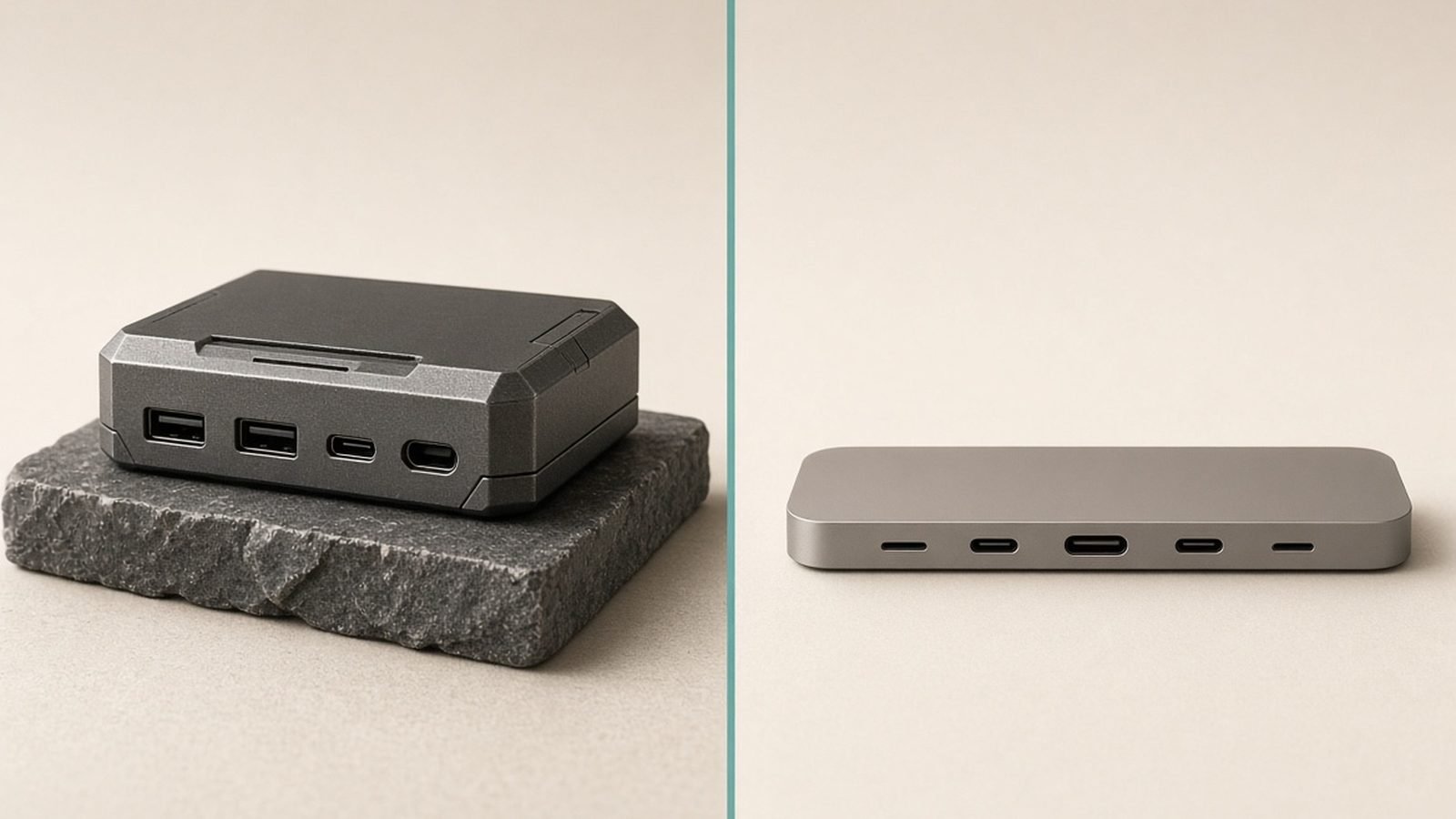
Thunderbolt and USB4 are close cousins that share the same USB-C connector and much of the same underlying technology — in fact USB4 was built directly on Thunderbolt 3. The short answer: Thunderbolt is the stricter, guaranteed-performance version, while USB4 is the flexible open standard whose real-world capabilities vary by device. For most people the two are interchangeable; for demanding docks and drives, Thunderbolt’s guarantees matter.
This guide explains where they overlap, where they genuinely differ, and how to decide which one you need — without the marketing fog that surrounds both.
The Shared Origin Story
In 2019, Intel donated the Thunderbolt 3 protocol to the USB standards body, which used it as the foundation for USB4. That’s why the two feel so similar: they share the same physical USB-C port, the same tunnelling approach (carrying data, video and power over one cable), and much of the same silicon.
The difference is philosophy. Thunderbolt is a certified Intel specification with strict mandatory minimums — if a port wears the Thunderbolt logo, certain capabilities are guaranteed. USB4 is an open standard with optional features, so two USB4 ports can legally differ in speed and video support. This single distinction explains nearly every practical difference below.
Speed: Where the Numbers Diverge
Both standards top out at 40Gbps in their mainstream versions, but the guarantees differ.
| Standard | Max data speed | Guaranteed minimum |
|---|---|---|
| USB4 (base) | 40Gbps | Only 20Gbps required |
| Thunderbolt 4 | 40Gbps | 40Gbps guaranteed |
| USB4 v2 | 80Gbps | Varies by implementation |
| Thunderbolt 5 | 80Gbps (120Gbps burst) | 80Gbps guaranteed |
The catch with USB4 is that “USB4” on a spec sheet can mean a port that only does 20Gbps — half of what many buyers assume. Thunderbolt 4 always delivers the full 40Gbps. At the high end, Thunderbolt 5 and USB4 v2 both reach 80Gbps, with Thunderbolt 5 adding a 120Gbps burst mode for driving multiple high-refresh displays.
Video and Display Support
This is where Thunderbolt’s guarantees earn their keep.
- Thunderbolt 4 guarantees support for two 4K displays (or one 8K) from a single port.
- USB4 can do the same but isn’t required to — a cheaper USB4 laptop might drive only one external display.
- Thunderbolt 5 steps up to multiple 8K or high-refresh 4K displays, aimed at creators and gamers.
If a multi-monitor setup is central to your work, Thunderbolt removes the guesswork. With USB4, you have to read the specific device’s fine print. Either way, the dock and cable have to keep up — see Best Laptop Docking Stations 2026: Single-Cable Desks and Best USB-C Hubs & Docks 2026: For Laptops & Desks.
Data Devices: eGPUs and PCIe
Both standards can “tunnel” PCIe, the interface used by internal expansion cards, which is what allows external SSDs and external GPUs (eGPUs) to run at near-internal speeds.
- Thunderbolt 4 guarantees PCIe at 32Gbps, ensuring fast eGPUs and external SSDs work well.
- USB4 supports PCIe tunnelling too, but it’s optional — some USB4 ports omit it, meaning an eGPU may not work at all.
For external GPUs specifically, Thunderbolt (or a USB4 port that explicitly lists PCIe support) is the safer bet.
Charging: Both Use USB Power Delivery
Here the two are essentially identical. Both Thunderbolt and USB4 run charging over USB Power Delivery, supporting up to 100W as standard and up to 240W with the newer PD 3.1 spec. Neither has a charging advantage — a Thunderbolt port and a USB4 port with the same PD rating charge a laptop identically. For how that power negotiation works, see USB Power Delivery (USB-PD) Explained.
Cables: A Real Practical Difference
Cables trip people up. Both standards use USB-C plugs, but:
- Thunderbolt cables are certified and clearly labelled with the lightning-bolt logo and a number (4 or 5). A certified cable guarantees full speed.
- USB4 cables exist but are less consistently labelled, and a generic USB-C cable often can’t sustain 40Gbps.
- At 80Gbps (Thunderbolt 5 / USB4 v2), you generally need a specific passive short cable or an active cable — length limits tighten as speed rises.
The rule: for anything above basic charging, buy a properly rated cable and don’t assume the one in the drawer will do. Why cables vary so much is covered in USB-C Cables Explained: Why They're Not All the Same.
Compatibility: Do They Work Together?
Mostly yes, and this is the reassuring part. Because USB4 is built on Thunderbolt 3:
- Thunderbolt 4 ports are backward-compatible with Thunderbolt 3, USB4, and older USB.
- USB4 devices generally work in Thunderbolt 4/5 ports and vice versa, falling back to whatever speed both sides support.
- Older USB-C accessories plug into both and work at their own (slower) rate.
You won’t damage anything by mixing them; the connection simply negotiates down to the lowest common capability. The connector’s universal design is why — for the full primer, see What Is USB-C? Cables, Speeds & Power Explained.
Which One Do You Actually Need?
- You just charge and occasionally plug in a display or drive: either works. Don’t pay a premium for Thunderbolt.
- You run a dock, multiple monitors, or an external SSD: Thunderbolt 4 (or a USB4 port that explicitly lists 40Gbps + PCIe + dual-display) removes the uncertainty.
- You use an eGPU or move huge video files: Thunderbolt 5 or USB4 v2 at 80Gbps is worth it.
- You’re buying a laptop: a Thunderbolt-badged port is a reliable shorthand for “full-featured.” A bare “USB4” claim deserves a closer look at the exact specs.
The honest summary: Thunderbolt is USB4 with the good features made mandatory. You pay a little more for certainty. For casual use that certainty is overkill; for a serious desk setup it’s worth it.
FAQ
Is USB4 the same as Thunderbolt?
Not quite. USB4 was built on Thunderbolt 3, so they share the connector and core technology, but they differ in guarantees. Thunderbolt requires full 40Gbps, dual-display and PCIe support; USB4 makes those optional, so a USB4 port might deliver only 20Gbps and fewer features. Thunderbolt is essentially USB4 with the best features made mandatory.
Which is faster, Thunderbolt or USB4?
At the mainstream level both peak at 40Gbps, but USB4 only guarantees 20Gbps while Thunderbolt 4 guarantees the full 40Gbps. At the high end, Thunderbolt 5 and USB4 v2 both reach 80Gbps, with Thunderbolt 5 adding a 120Gbps burst mode. So Thunderbolt is more consistently fast, even when the headline numbers match.
Can I use a USB4 device in a Thunderbolt port?
Yes. The two are cross-compatible because USB4 is based on Thunderbolt 3. A USB4 device works in a Thunderbolt 4 or 5 port, and Thunderbolt accessories work in USB4 ports, each negotiating down to the highest speed both sides support. You won’t damage anything by mixing them.
Do I need a special cable for Thunderbolt or USB4?
For full speed, yes. A certified Thunderbolt cable (marked with the lightning-bolt logo and a number) guarantees performance. Generic USB-C cables often can’t sustain 40Gbps, and 80Gbps needs a specific short passive or active cable. For basic charging any decent USB-C cable is fine, but for docks and drives buy a properly rated one.
Is Thunderbolt worth paying extra for?
It depends on your use. If you only charge and occasionally connect a single display or drive, USB4 or even plain USB-C is enough — don’t pay the premium. If you run a dock, multiple monitors, an external SSD or an eGPU, Thunderbolt’s guaranteed speed, dual-display and PCIe support remove the guesswork and are worth the cost.
Does Thunderbolt or USB4 charge faster?
Neither has a charging advantage. Both use USB Power Delivery and support up to 100W as standard, or 240W with PD 3.1. A Thunderbolt port and a USB4 port with the same PD rating charge a laptop at exactly the same speed — charging performance depends on the PD spec and cable, not the data standard.
Zen Tech Hub may earn a commission from links on this page, at no extra cost to you.