If you want to stream or record console gameplay, learning how to set up a capture card is the single most important step, and it is easier than the tangle of cables suggests. A capture card sits between your console and your PC, grabbing the HDMI signal so software like OBS can broadcast it. Get the cabling and one PS5 setting right, and you are live in minutes.
This guide covers the exact process for the PS5, Xbox Series X|S and Nintendo Switch 2, then fixes the three problems that trip up almost everyone: no signal, lag and audio desync. We use the Elgato Game Capture 4K X as the reference device, but the steps apply to nearly any modern USB card.
What you need before you start
Gather these before you touch a single cable:
A capture card with USB output (we use the ).
Two HDMI 2.1 cables — one console-to-card, one card-to-TV.
A USB 3.0+ cable from the card to your PC (usually included).
A capture PC with a recent CPU/GPU; a mid-range machine handles 1080p60 capture easily.
OBS Studio (free) installed and updated.
Check price: Elgato Game Capture 4K X
Still deciding whether a card is worth it? Read Do You Need a Capture Card to Stream in 2026? It Depends first.
Step 1: Cable routing (console to card to TV)
The signal path is a straight line, and getting it wrong is the most common cause of a black screen.
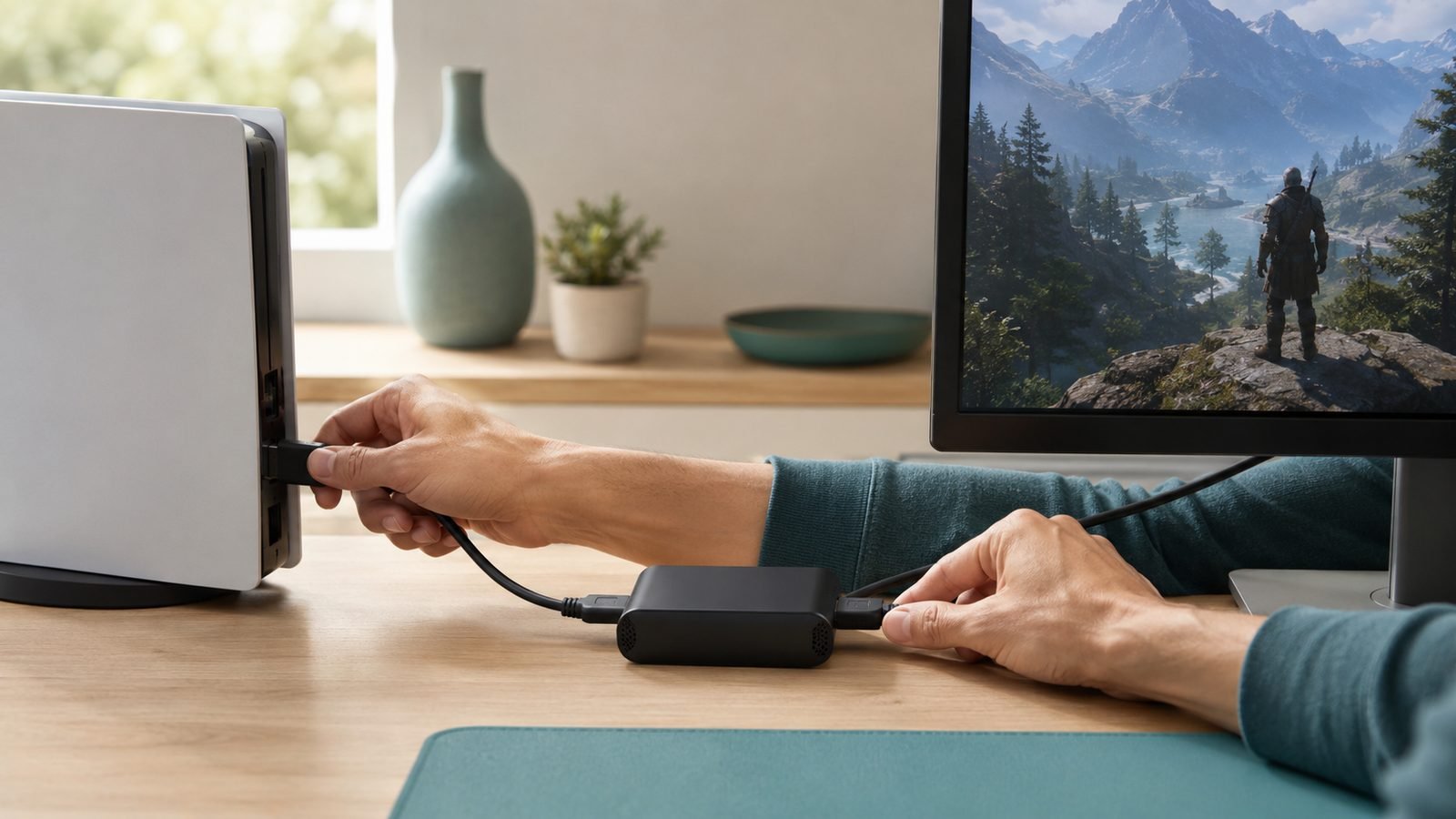
Run an HDMI cable from your console’s HDMI OUT to the capture card’s HDMI IN.
Run a second HDMI cable from the card’s HDMI OUT (passthrough) to your TV or monitor.
Connect the card to your PC via USB.
That middle stage — console into IN, TV out of OUT — is where people cross the cables. The passthrough port lets you keep playing on your TV with effectively zero delay; never play off the laggy software preview. This same routing is how to connect a capture card to Xbox Series X and how to wire the Switch 2 dock, since all three consoles output standard HDMI.
Step 2: Disable HDCP on PS5 (the classic gotcha)
Here is the one that ends most streams before they start. Sony ships the PS5 with HDCP (a copy-protection handshake) enabled, and it will hand your capture card a blank or “no signal” screen the moment you open a protected app.
To fix the HDCP PS5 capture card conflict:
On the PS5, go to Settings > System > HDMI.
Toggle Enable HDCP to off.
That is it. The PS5 is the only one of the three that needs this — the Xbox Series X|S and Switch 2 do not gate gameplay behind HDCP the same way. Note that apps like Netflix will refuse to play with HDCP off, by design; you are only meant to capture your own gameplay.
Step 3: OBS setup — scene, source, audio
With the hardware live, the capture card setup in OBS is three quick actions.
Create a scene. In the Scenes box, click + and name it (e.g. “Console”).
Add the video source. In Sources, click + > Video Capture Device > Create new > pick your capture card. Set resolution to match your capture (1080p60 is the sweet spot for streaming).
Add the audio. In the same source properties, set Audio Output Mode to “Output desktop audio (WaveOut)” so game sound flows through OBS.
This capture card OBS setup is identical whether you are learning how to stream PS5 with a capture card or recording Switch 2 footage. Add a Mic/Auxiliary Audio source for your microphone, then check the audio meters move when the game plays.
Optional upgrade: if you run multiple scenes, a physical lets you switch them with one tap instead of hunting for windows mid-broadcast. Not essential, but it turns a fiddly stream into a smooth one.
Check price: Elgato Stream Deck MK.2
Step 4: Passthrough settings for 120Hz, VRR and HDR
Modern consoles push 4K120, VRR and HDR, and a mismatched passthrough is why your TV can look worse after adding a card.
Match the card to your display. The 4K X supports 4K144 and VRR passthrough, passing a high-refresh signal to a compatible TV untouched.
Enable VRR on the console. On PS5: Settings > Screen and Video > Video Output > VRR. On Xbox: Settings > General > TV & display options > Video modes.
HDR is trickier. Because most streaming platforms are SDR, capturing an HDR signal can wash out your broadcast. Based on owner reports, many streamers leave HDR off on the console while streaming, then re-enable it for solo play.
If your goal is a portable rig, our Best Handheld Gaming PCs 2026: Picks for Every Budget roundup covers machines that can double as capture PCs on the move.
Fixing common problems: no signal, lag and audio desync
Three issues cause the vast majority of support threads. Here is the fast capture card no-signal fix and its cousins.
No signal / black screen. In order: confirm IN and OUT cables are not swapped (Step 1); disable HDCP on PS5 (Step 2); reseat the USB cable into a rear motherboard port, not a hub; try a different HDMI cable. In our research, swapped cables and HDCP account for most “no signal” reports.
Lag or stutter. You should be playing off the TV passthrough, never the OBS preview, which has inherent delay. If the passthrough itself stutters, your HDMI cable likely cannot carry the refresh rate — swap in a certified 48Gbps HDMI 2.1 cable.
Audio desync. Usually a sample-rate mismatch. In OBS, open Settings > Audio and set the sample rate to 48kHz to match console output. If drift builds over a long stream, add a small Sync Offset in Advanced Audio Properties.
Recommended cards by console
Two Elgato cards cover almost every use case, and both are plug-and-play across PS5, Xbox and Switch 2.
Elgato Game Capture 4K X — the do-everything pick
Around $199.99 / £179.99. The 4K X is our reference device for good reason: HDMI 2.1, 4K144 and VRR passthrough, and up to 1080p240 capture. Buy it if you own a 120Hz TV or want future-proofing across all three consoles.
Pros: VRR passthrough; high capture ceiling; works with OBS and Elgato’s own software. Cons: Overkill if you only ever stream 1080p; needs a capable PC to hit its higher capture modes.
Best for: serious streamers and anyone with a high-refresh display.
Check price: Elgato Game Capture 4K X
Elgato Game Capture Neo — the budget 1080p pick
Around $119.99 / £104.99. The Neo does 4K60 HDR passthrough with 1080p60 capture, and it is explicitly marketed for the Switch 2. For most Twitch and YouTube streamers who broadcast at 1080p60 anyway, it is all the card you need for a Switch 2 capture card setup or a first PS5 rig.
Pros: great value; compact; onboard capture without a PC in a pinch. Cons: no VRR passthrough; caps at 1080p60 capture.
Best for: first-time streamers and 1080p creators watching their budget.
Check price: Elgato Game Capture Neo
Verdict
For a rig that will not need replacing when your next TV arrives, the Game Capture 4K X is the safe call. If you stream at 1080p and want to spend less, the Game Capture Neo does the same job for the platforms most people actually broadcast on. Whichever you pick, the setup is the same: route cables correctly, kill HDCP on PS5, and match your OBS audio to 48kHz. For the full comparison, see Best Capture Cards for Streaming 2026: Console and PC Picks and our Gaming.
FAQ
Do I need a capture card to stream PS5? Not always — the PS5 has a built-in Broadcast feature for Twitch and YouTube. But it is limited in resolution, overlays and audio control. A capture card routed through OBS gives you full production control, custom scenes and higher quality, which is why most serious streamers use one.
Why does my capture card say “no signal” on PS5? The most common cause is HDCP. Go to Settings > System > HDMI and turn off Enable HDCP. The second most common cause is swapped HDMI cables — the console must go into the card’s IN port and the TV into the OUT port. Reseating the USB cable into a rear port fixes many remaining cases.
Can one capture card work with PS5, Xbox and Switch 2? Yes. Both the Elgato 4K X and Neo output standard HDMI and are plug-and-play across all three consoles. You simply move the HDMI cable to whichever console you are using. Only the PS5 needs its HDCP setting disabled; the Xbox Series X and Switch 2 work without that step.
Will a capture card add lag to my gameplay? No, as long as you play off the HDMI passthrough to your TV rather than the OBS preview window. Passthrough delay on modern cards is effectively zero. The software preview always has some delay, so it is for monitoring your stream, not for playing.
Zen Tech Hub may earn a commission from links on this page, at no extra cost to you.