If your “Switch 2 system storage full” warning keeps popping up, you are not alone. The console ships with 256GB, but modern games are huge and it fills fast. The good news: learning how to move games to SD card on Switch 2 takes about five minutes once you have the right card. This guide covers formatting, transferring, and the gotchas nobody warns you about.
Which card you need (Express only — the gotcha)
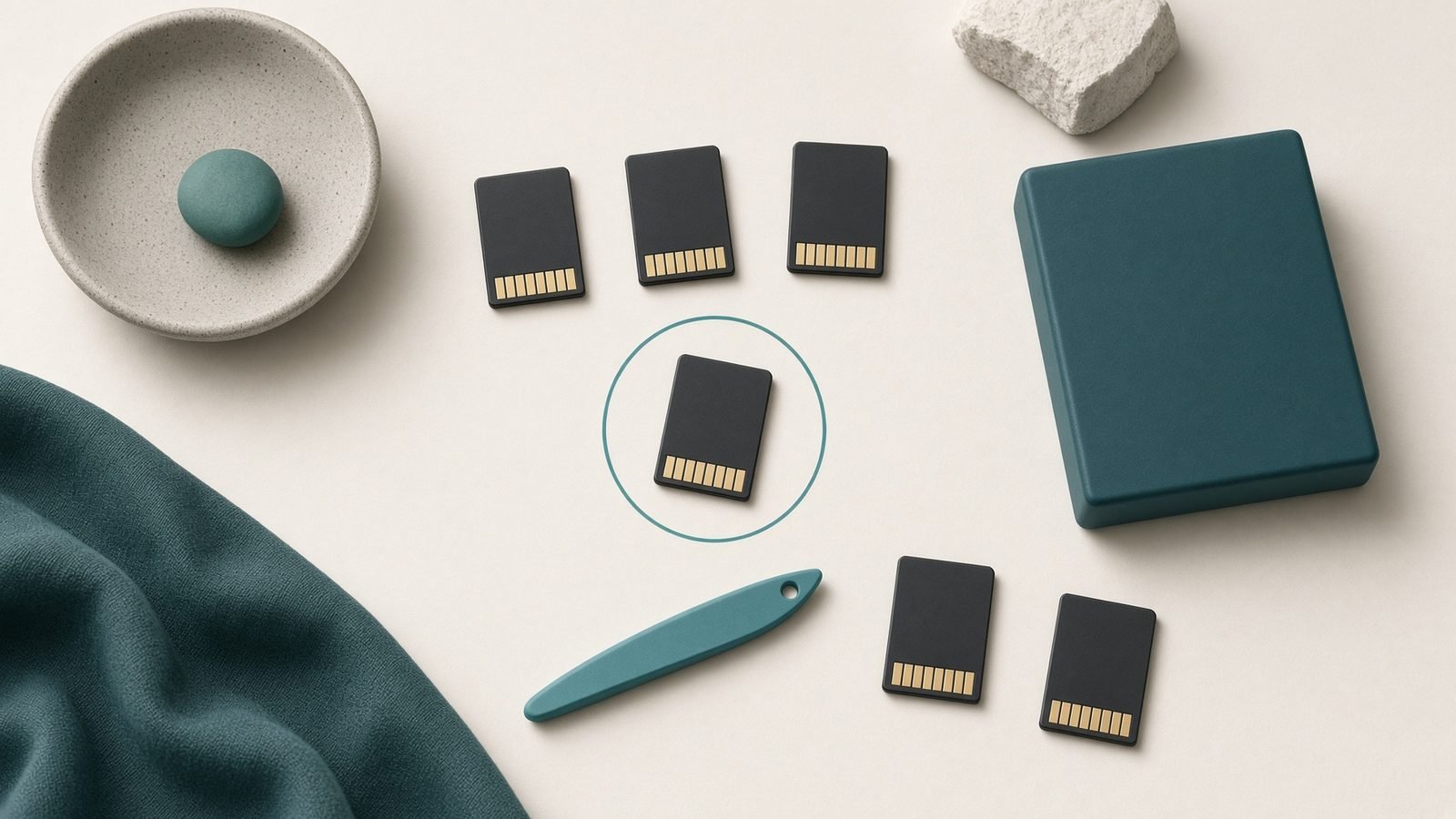
Here is the trap that catches most people: the Switch 2 only runs games from a microSD Express card. Your old UHS-I microSD from the original Switch fits the slot, but the console refuses to store games on it. It is not a preference — it is a hard requirement, because games load directly off the card during play.
Look for the “EX” logo. If it says UHS-I, U3, or V30 without “Express,” it will not work. Skip to our recommendations below if you have not bought one yet.
| Card | Capacity | Speed (read) | Approx. price |
|---|---|---|---|
| Samsung microSD Express | 256GB | Up to 800 MB/s | $59.99 / from £41.99 |
| Lexar Play Pro Express | 512GB | Up to 900 MB/s | $126.80 / from £82.99 |
Prices checked 2 October 2026: the Samsung dollar price is Nintendo’s US store, the Lexar dollar price is the Amazon listing in Tom’s Hardware’s microSD Express tracker, and the pound prices are the lowest listed on PriceSpy UK. Both capacities cost more than the figures this guide carried in July.
Step 1: Insert and format the card
Power the console fully off before inserting the card. The slot sits under the kickstand on the back — push the card in until it clicks, then power back on.
The Switch 2 detects the card and prompts you to format the microSD Express card. Formatting erases everything on it, so back up any files first. Confirm, wait a few seconds, and it is ready. If no prompt appears, go to System Settings > System > Formatting Options > Format microSD Card.
Step 2: Move software between storage
Now for the main event — the actual Switch 2 transfer games to microSD process.
Open System Settings.
Scroll to Data Management.
Select Move Data Between System / microSD Card.
Choose Move to microSD Card.
Tick the games you want to shift, then confirm.
The console copies each title across. Large games take several minutes, so leave it plugged in. You can move software back to system storage the same way whenever you like.
Step 3: Set the default download location
To stop the problem returning, tell the console to install new purchases straight to the card. Go to System Settings > Data Management > Software Install Location and switch it to microSD Card. Now every eShop download and update lands on the Express card, keeping internal storage clear. This one setting is the heart of good Switch 2 storage management.
What can’t move: saves and game-key cards
Two things stay put. Save data always lives on internal system storage — it never moves to the card, so a lost or corrupted card can’t wipe your progress. Back saves up with Nintendo Switch Online cloud saves instead.
Game-key cards (physical cards that store a license, not the full game) also differ: the data downloads to your chosen storage, but the physical card must stay inserted to play.
This is where the Switch 2 archive vs delete games choice matters. Archiving frees space but keeps your save and icon, so you can redownload in a tap. Deleting removes everything including the local save cache. When in doubt, archive.
Fixes: card not detected or slow
If you hit Switch 2 microSD Express not detected, work through these in order:
Confirm it’s Express. The most common cause is simply a UHS-I card. Check for the EX logo.
Reseat it. Power off, remove, blow out dust, and click it back in firmly.
Update the system. System Settings > System > System Update — early firmware had detection quirks that patches resolved.
Test another card to rule out a dead card versus a dead slot.
For slow installs or stutter, based on owner reports the usual culprit is a counterfeit card from a third-party marketplace seller. Buy from the brand’s official store or a major retailer to avoid fakes.
Best microSD Express cards right now
Samsung microSD Express 256GB — best for most people
Nintendo-licensed, widely stocked, and frequently discounted (it has dropped to about $39 in past sales; $59.99 at Nintendo’s US store on 2 October 2026). For most players 256GB doubles your storage at a fair price, with Samsung’s strong reliability track record.
Pros: Officially licensed, great value, easy to find. Cons: 256GB fills again eventually if you install everything.
Who it’s for: anyone topping up a near-full console for the first time.
Check price: Samsung microSD Express 256GB
Lexar Play Pro microSD Express 512GB — best step-up capacity
If you keep a big library installed at once, 512GB is the sweet spot, and the Play Pro posts some of the fastest read speeds in this class (up to 900 MB/s in our spec research). On 2 October 2026 it was $126.80 at Amazon and from £82.99 in UK listings.
Pros: Big capacity, top-tier speed, regular discounts. Cons: Costs more up front than a 256GB card.
Who it’s for: heavy downloaders who hate managing storage.
Check price: Lexar Play Pro microSD Express 512GB
For deeper comparisons, see our Best microSD Express Cards for Switch 2 in 2026 roundup and our Best Nintendo Switch 2 Accessories 2026: What’s Worth Buying guide.
Verdict
Moving games is genuinely simple — the only real decision is the card. Buy the Samsung 256GB for the cheapest fix that works, or the Lexar 512GB to stop juggling storage entirely. Whatever you pick, set the default install location in Step 3 and you may never see that “full” warning again.
FAQ
Do I have to use a microSD Express card? Yes, for storing games. A standard UHS-I microSD fits the slot but the Switch 2 won’t install or run games from it. Only Express cards have the bandwidth the console needs. Look for the “EX” logo before buying anything.
Will moving games delete my save data? No. Saves live on internal system storage and stay there regardless of what you do with games. Moving, archiving, or even deleting a game does not touch cloud-synced saves. Enable Nintendo Switch Online cloud backups for extra safety.
Why isn’t my microSD Express card being detected? Usually because it is not actually an Express card, or it is not fully seated. Power off, reseat it, check for the EX logo, and update your system firmware. If a known-good card still fails, the slot may be faulty.
Can I move game-key card titles to microSD? The downloaded data can sit on your card, but the physical game-key card must stay inserted to play. You cannot make those titles fully card-free the way you can with eShop purchases.
Need more Switch 2 help? Visit our Gaming or fix stick problems with our Switch 2 Joy-Con 2 Drift: How to Fix It (and Prevent It) walkthrough.
Zen Tech Hub may earn a commission from links on this page, at no extra cost to you.