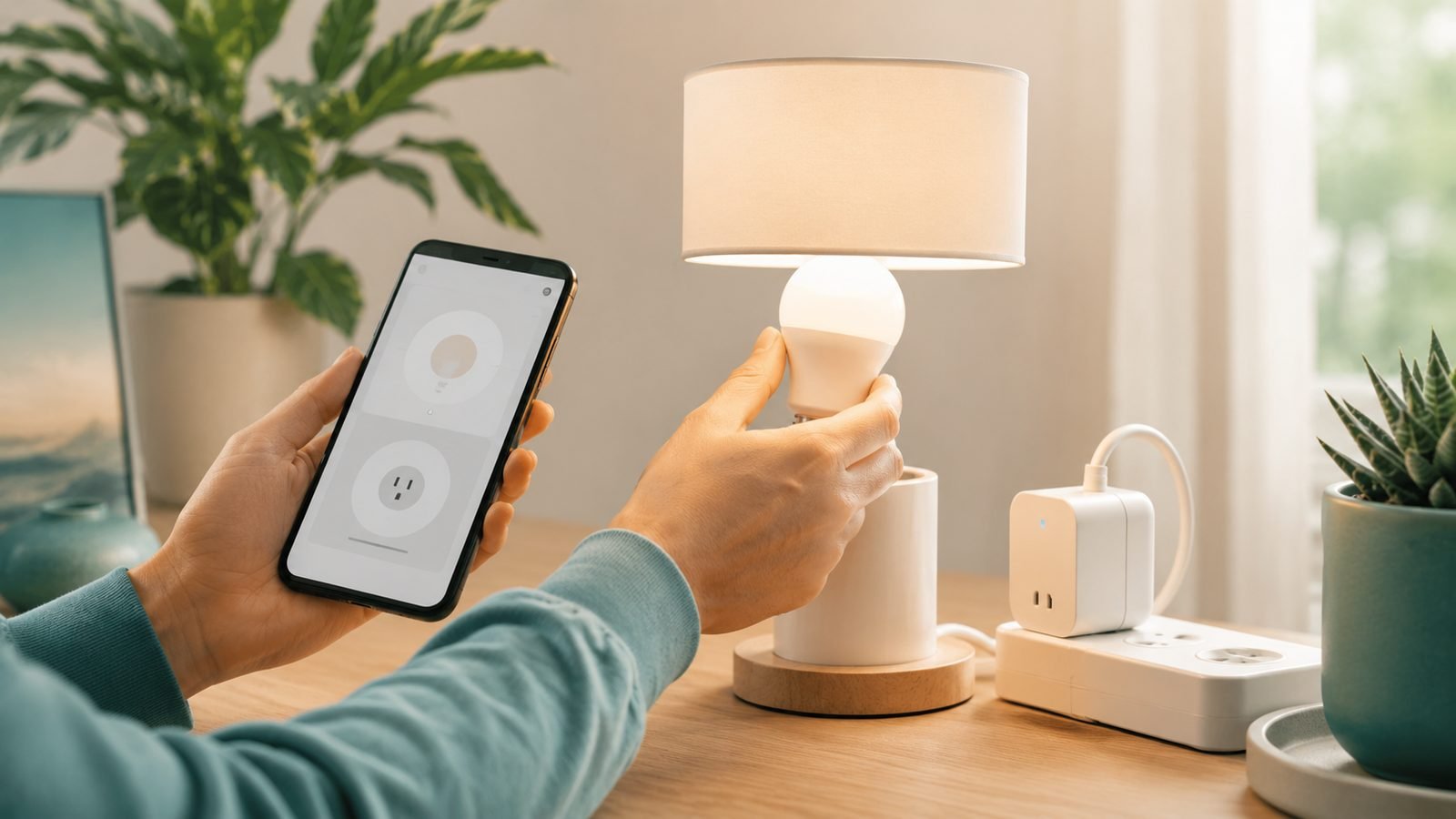
Setting up a Matter device is usually as simple as scanning a QR code in your smart home app — but when it goes wrong, it goes wrong in confusing ways. This guide gets you from box to working device the easy way, explains the two pieces of jargon that actually matter (controllers and Thread border routers), and fixes the pairing problems that cause most of the frustration. The quick version: open your preferred app (Apple Home, Google Home, Alexa, or SmartThings), tap add device, scan the Matter QR code, and let it join. The steps below cover what to do when it isn’t that smooth.
If you’re new to the standard itself, our What Is Matter? The Smart Home Standard Explained (2026) explainer covers what Matter is and why it exists. This guide assumes you just want to get a device paired and working.
Before you start: what you actually need
Two things make Matter setup work, and knowing them upfront prevents most problems.
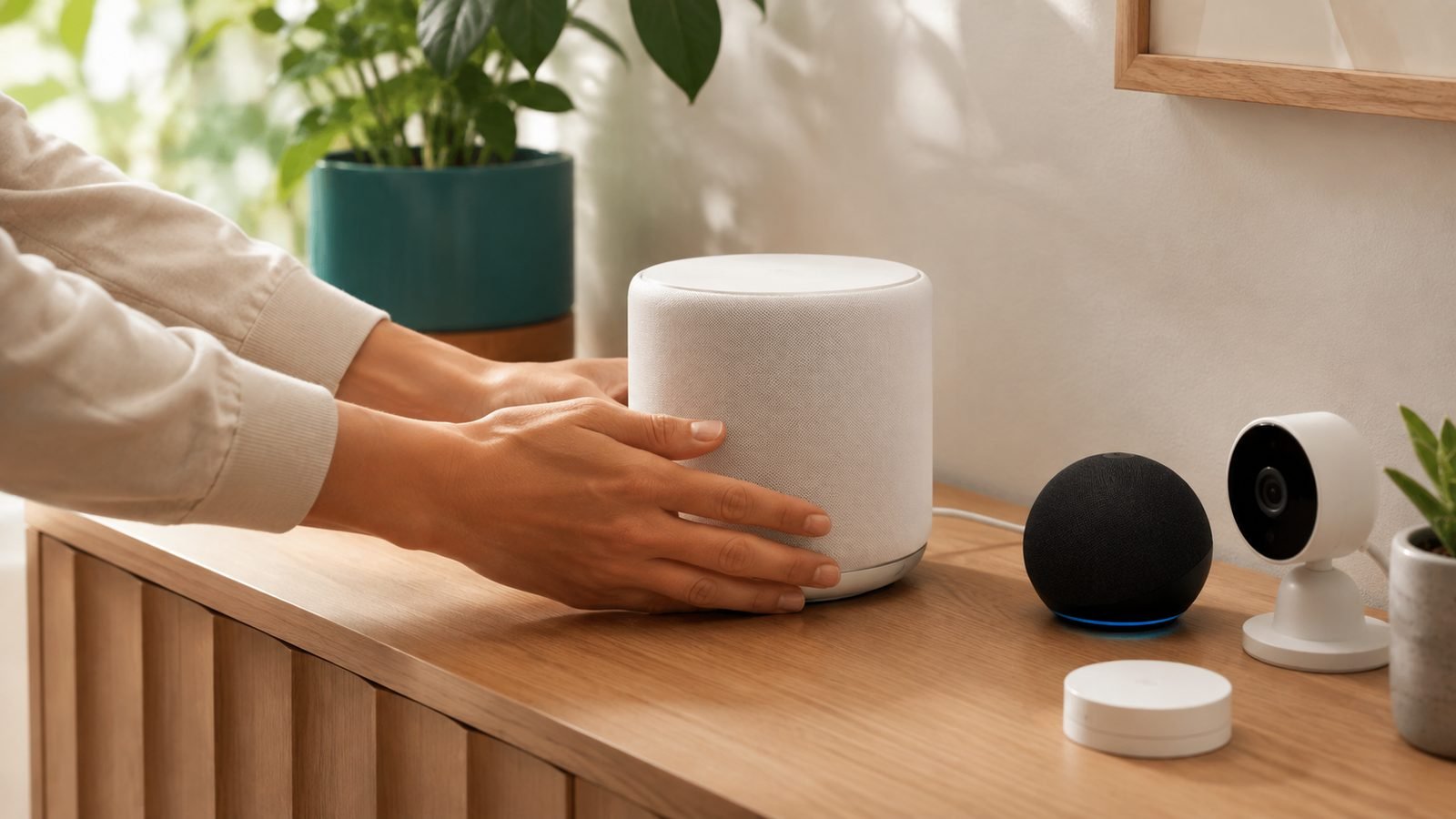
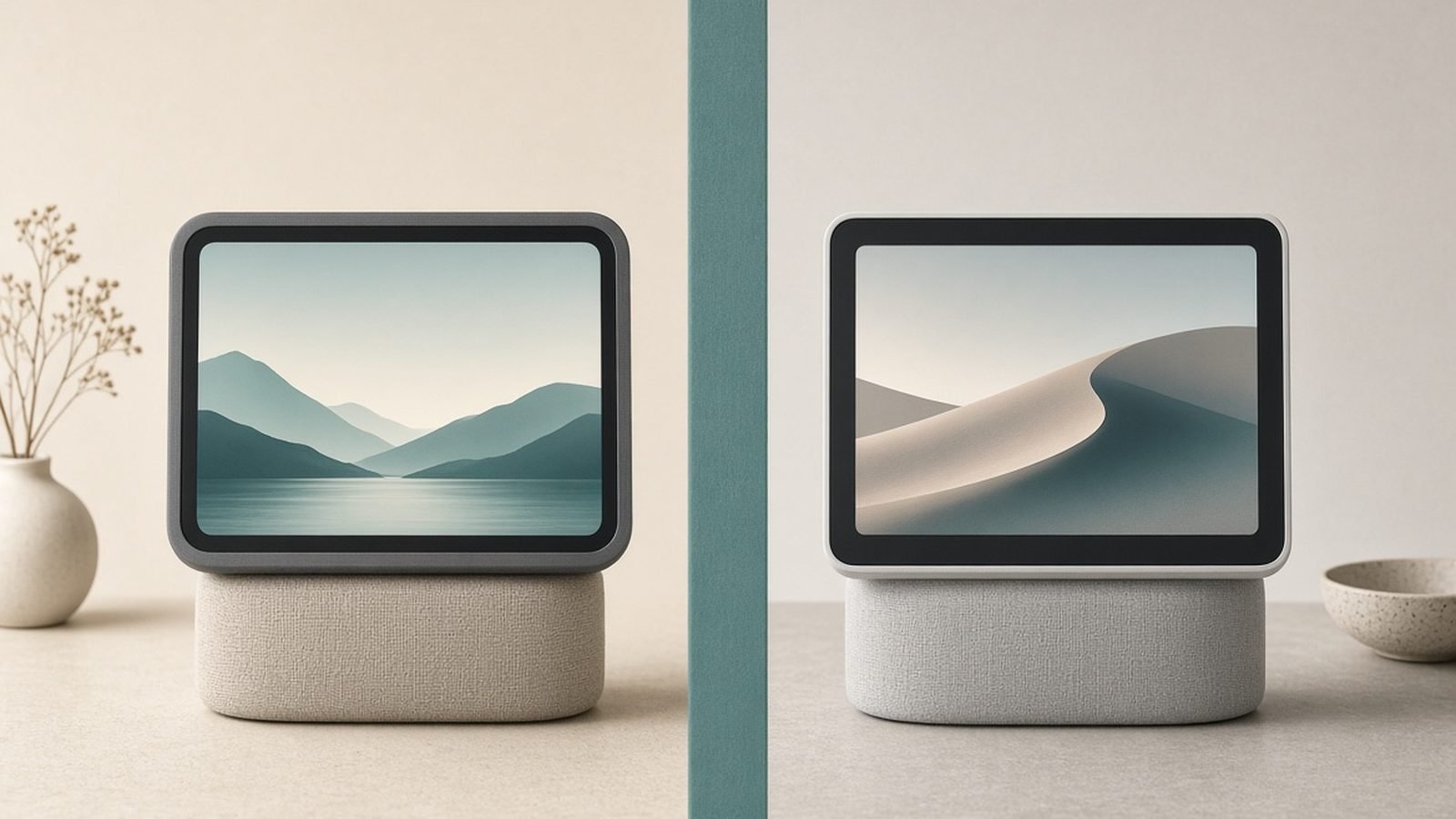
A controller (also called a hub or “home”). This is the app and device ecosystem that manages your Matter devices — Apple Home (via a HomePod or Apple TV), Google Home (via a Nest speaker/display), Amazon Alexa (via a compatible Echo), or Samsung SmartThings. You pick one as your main controller; you can add more later. Without a controller, a Matter device is just a gadget with no brain to talk to.
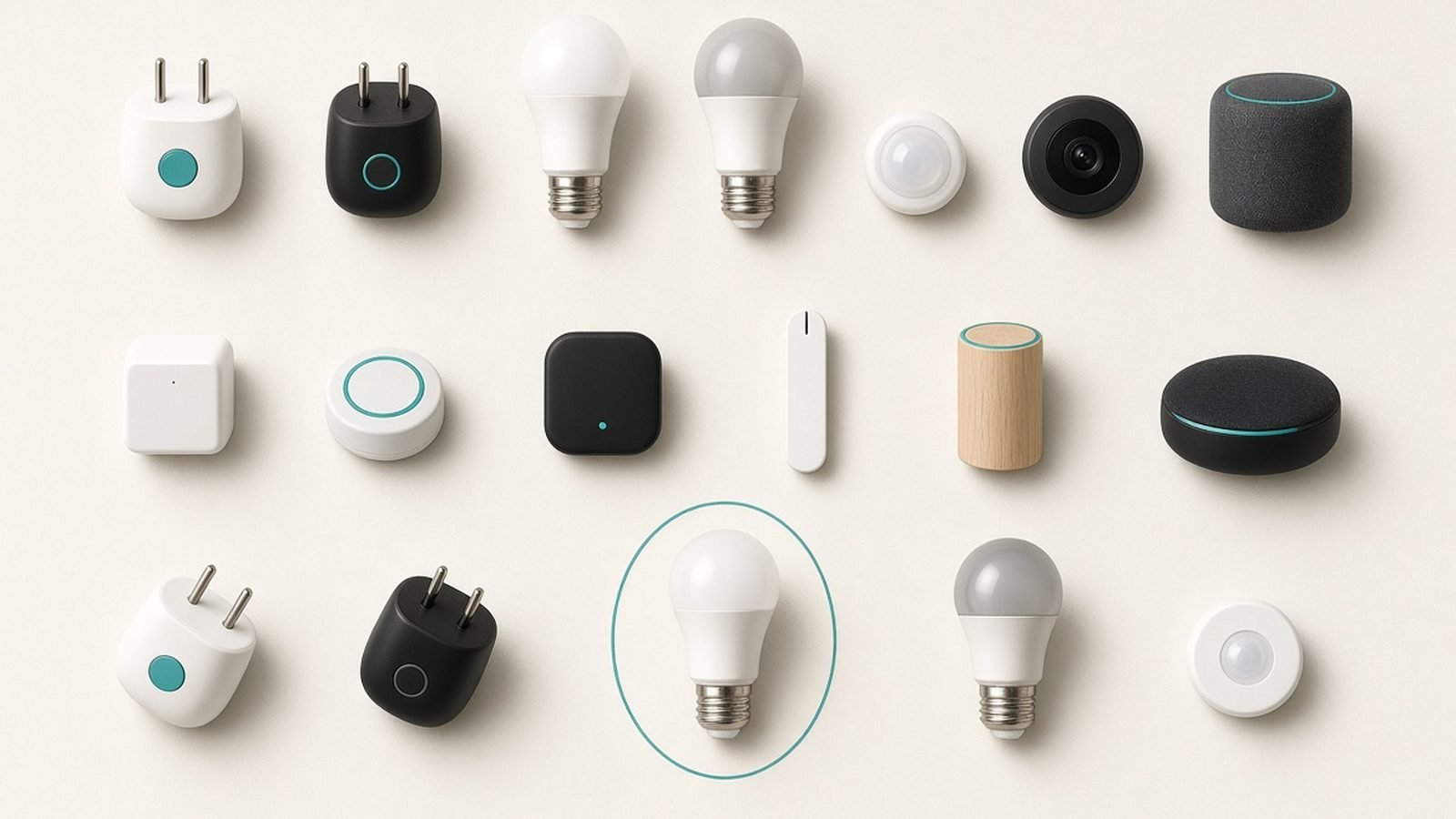
A Thread border router — but only for Thread devices. Matter devices connect one of two ways: over Wi-Fi or over Thread. Wi-Fi devices (many plugs, some bulbs) need nothing extra. Thread devices (many bulbs, sensors, locks) need a Thread border router on your network to reach them — a device that bridges Thread and your main network. Good news: many hubs already are one. A HomePod (2nd gen or mini), an Apple TV 4K (later models), newer Echo devices, and Nest/SmartThings hubs commonly include a Thread border router. If you have one of those, you’re set.
Check these before buying or unboxing:
- Do I have a controller (Apple/Google/Alexa/SmartThings)?
- Is the device Wi-Fi or Thread? (The box says.)
- If Thread, do I own a Thread border router?
Get those three right and setup is almost always painless.
Step 1: Find the Matter QR code (or setup code)
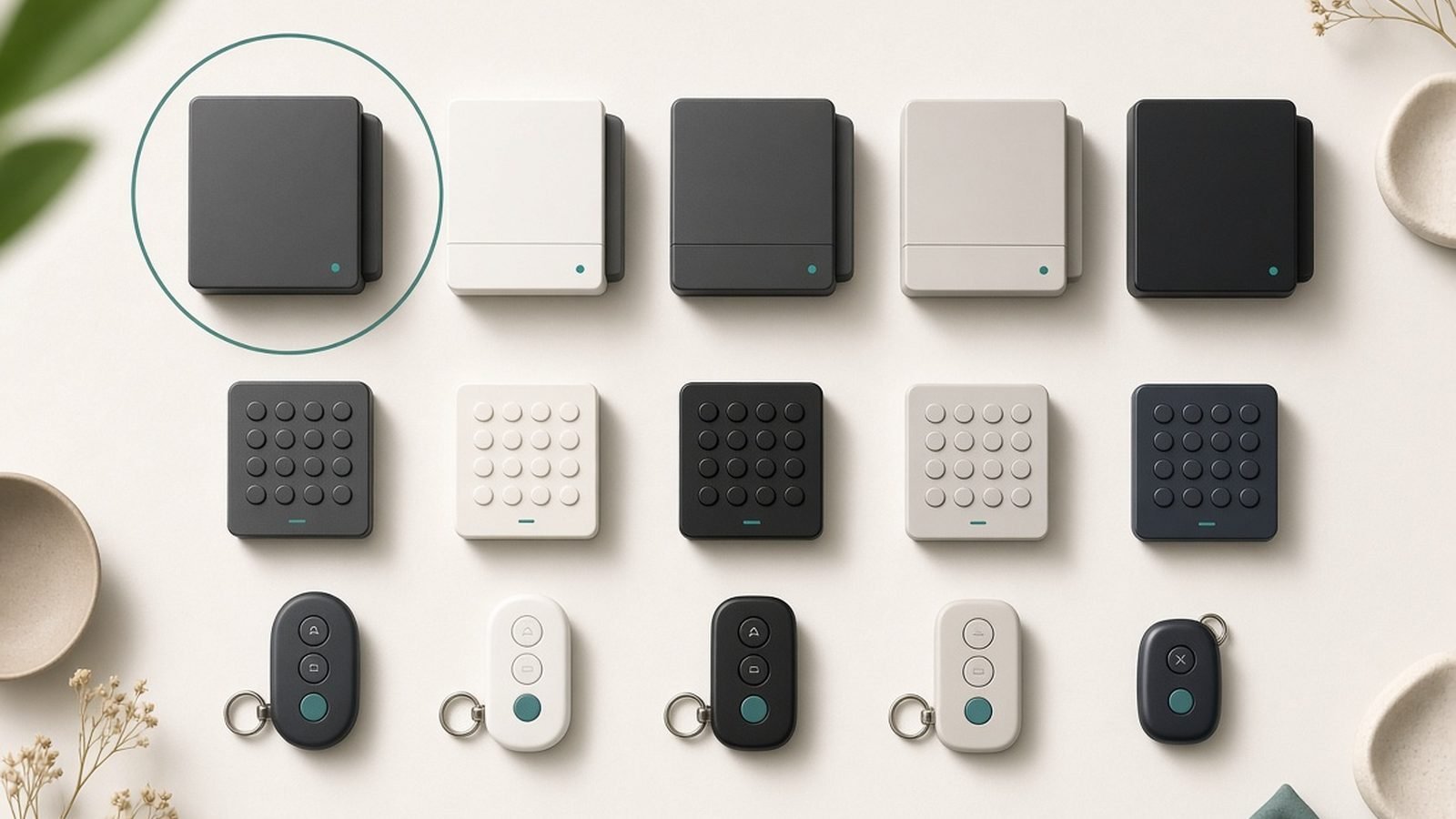
Every Matter device ships with a Matter setup code — an 11-digit number and a matching QR code. Look for it:
- On a sticker on the device itself
- On the packaging or a pull-out card
- In the paper manual
The QR code often sits next to a small Matter logo (a series of dots forming an arrow-like flower). Photograph it or keep the card handy — if you ever factory-reset the device, you’ll need this code again, so many people snap a photo and store it before mounting the device out of reach.
Step 2: Open your controller app and choose “Add device”
Open your preferred smart home app and start adding a device:
- Apple Home: tap the + in the top corner → Add Accessory.
- Google Home: tap + → Set up device → New device.
- Amazon Alexa: Devices tab → + → Add Device → choose Matter (or Other).
- SmartThings: + → Add device → Scan QR code / Partner devices.
Most apps now detect Matter automatically. If asked what kind of device, choose Matter or “Works with Matter / has a Matter logo.”
Step 3: Scan the QR code and let it pair
Point your phone camera at the Matter QR code when prompted. The app will:
- Recognize the Matter device.
- Ask permission to add it to your home (and, for Thread devices, quietly route it through your border router).
- Commission the device — a short process where it joins your network securely.
- Ask you to name it and assign a room.
This usually takes 30-90 seconds. For Thread devices, keep the new device reasonably close to a border router or a mains-powered Thread device during setup; Thread is a mesh, and pairing is easiest with a strong initial link.
If you only have the 11-digit code and no camera scan option, choose “enter code manually” and type it in.
Step 4: Test it, then place it
Once paired, immediately test control from the app and by voice (“Hey Google, turn on the office lamp”). Confirm it responds before you mount or hide it. For Thread devices especially, checking response before you tuck a sensor behind furniture saves a lot of grief.
If the device is a bulb or plug you’ll build automations around, this is also the moment to add it to scenes or routines while the setup is fresh.
Step 5 (optional): Share it with other ecosystems — multi-admin
One of Matter’s best tricks is multi-admin: the same device can be controlled by more than one platform at once — say, Apple Home and Alexa. To share a device you’ve already added:
- In the app where the device lives, find its settings and look for Turn on Pairing Mode, Add to another network / Matter, or Share.
- The app generates a new, temporary setup code.
- In the second ecosystem’s app, choose add device → Matter → and enter or scan that new code.
Now both platforms control the device. This is genuinely useful in mixed households — one person on iPhone, another on Android — and it’s a headline reason Matter exists.
Troubleshooting: the common Matter setup problems
Most Matter frustration comes from a handful of causes. Work through these.
“No Matter device found” / QR won’t scan. Make sure the device is powered and in pairing mode (many need a reset to re-enter it — see below). Clean the QR sticker and improve lighting. If scanning fails, enter the 11-digit code manually.
Thread device won’t pair or drops off. This almost always means no Thread border router, or the device is too far from one during setup. Confirm you own a border router (HomePod, Apple TV 4K, newer Echo, Nest/SmartThings hub), and pair the device in the same room as it. Once joined, mains-powered Thread devices extend the mesh for battery ones.
Phone can’t reach the device. Matter commissioning uses Bluetooth on your phone for the initial handshake, then hands off to Wi-Fi or Thread. Turn Bluetooth on, and make sure your phone is on the same Wi-Fi network (2.4GHz-capable) as your hub. Many failures are just Bluetooth being off or the phone sitting on a guest/5GHz-only network.
Device paired to the wrong ecosystem and won’t move. A Matter device can be commissioned fresh into one controller. To move it, either use multi-admin sharing (Step 5) or factory-reset it and start over.
How to factory-reset a Matter device. The method varies — commonly holding a button for 5-10 seconds, or a power-cycle sequence (off-on repeated several times for bulbs). Check the manual. After a reset, the device re-enters pairing mode and you scan the QR code again. Keep that saved photo of the code handy.
Router settings blocking it. Matter and Thread rely on IPv6 and local network discovery (mDNS). If pairing repeatedly fails on an otherwise fine setup, check that your router has IPv6 enabled and isn’t running strict “AP isolation” or client-isolation modes that stop devices seeing each other.
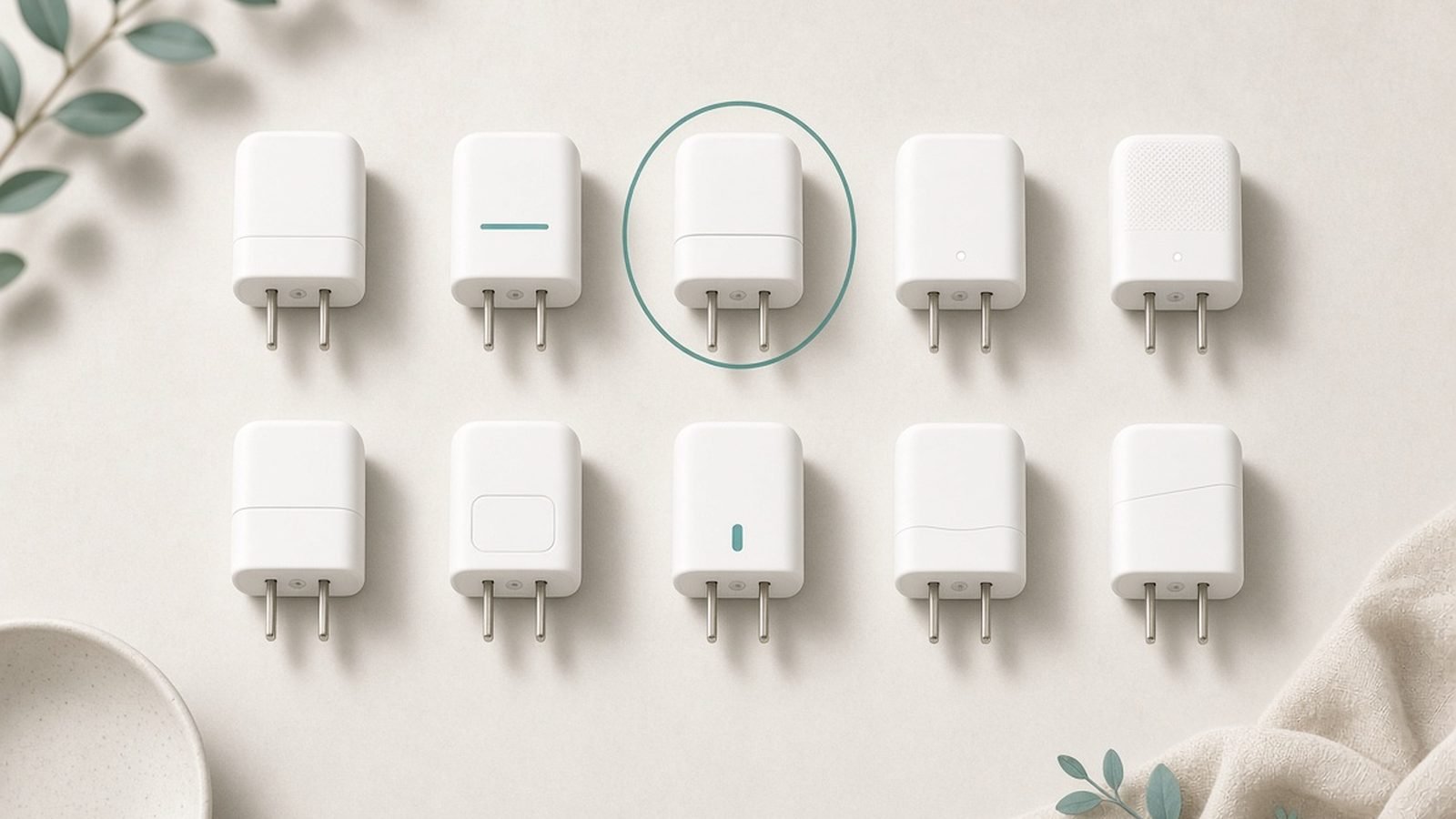
Buying into Matter for the first time? A cheap, well-supported device makes a smooth first setup far more likely — the Matter plugs and bulbs in our Best Smart Plugs 2026: Cheapest Way Into Home Automation and Best Smart Light Bulbs 2026: Philips Hue & Alternatives guides are reliable places to start.
FAQ: setting up Matter devices
Do I need a hub to set up Matter devices?
Yes — you need a controller (Apple Home, Google Home, Alexa, or SmartThings), which usually means owning a compatible hub device like a HomePod, Nest speaker, or Echo. Wi-Fi Matter devices need only that controller; Thread-based Matter devices also need a Thread border router, which many of those same hubs already include.
What is a Thread border router and do I need one?
A Thread border router bridges the low-power Thread mesh network to your main Wi-Fi/Ethernet network, letting Thread-based Matter devices communicate. You need one only if your device uses Thread (the box will say). Many popular hubs — HomePod mini/2nd gen, Apple TV 4K, newer Echo devices, Nest and SmartThings hubs — are already Thread border routers.
Can one Matter device work with Alexa and Apple Home at the same time?
Yes, via Matter’s multi-admin feature. Add the device to your first ecosystem, then generate a sharing/pairing code in that app and use it to add the same device to a second ecosystem. Both then control it independently — ideal for households mixing iPhone and Android.
Why won’t my Matter device scan or pair?
The usual causes are: Bluetooth is off on your phone (Matter needs it for the initial handshake), the device isn’t in pairing mode (reset it), you lack a Thread border router for a Thread device, or your phone is on a different/guest Wi-Fi network than your hub. Work through those and re-scan the QR code.
Where do I find the Matter QR code if I lost it?
Check the device body, the packaging, and the manual — the code is printed in all three places on most products. If it’s genuinely gone, some manufacturers let you retrieve the code via their own app or support. This is why it’s worth photographing the code before you install the device somewhere hard to reach.
Do Matter devices need internet to work?
Core local control (turning a Matter light on from your hub) generally works on your local network even if the internet drops, which is a real reliability advantage. However, remote access from outside your home, voice assistants, and cloud features do need internet. Thread and Wi-Fi handle the local link; your controller handles the rest.
Zen Tech Hub may earn a commission from links on this page, at no extra cost to you.