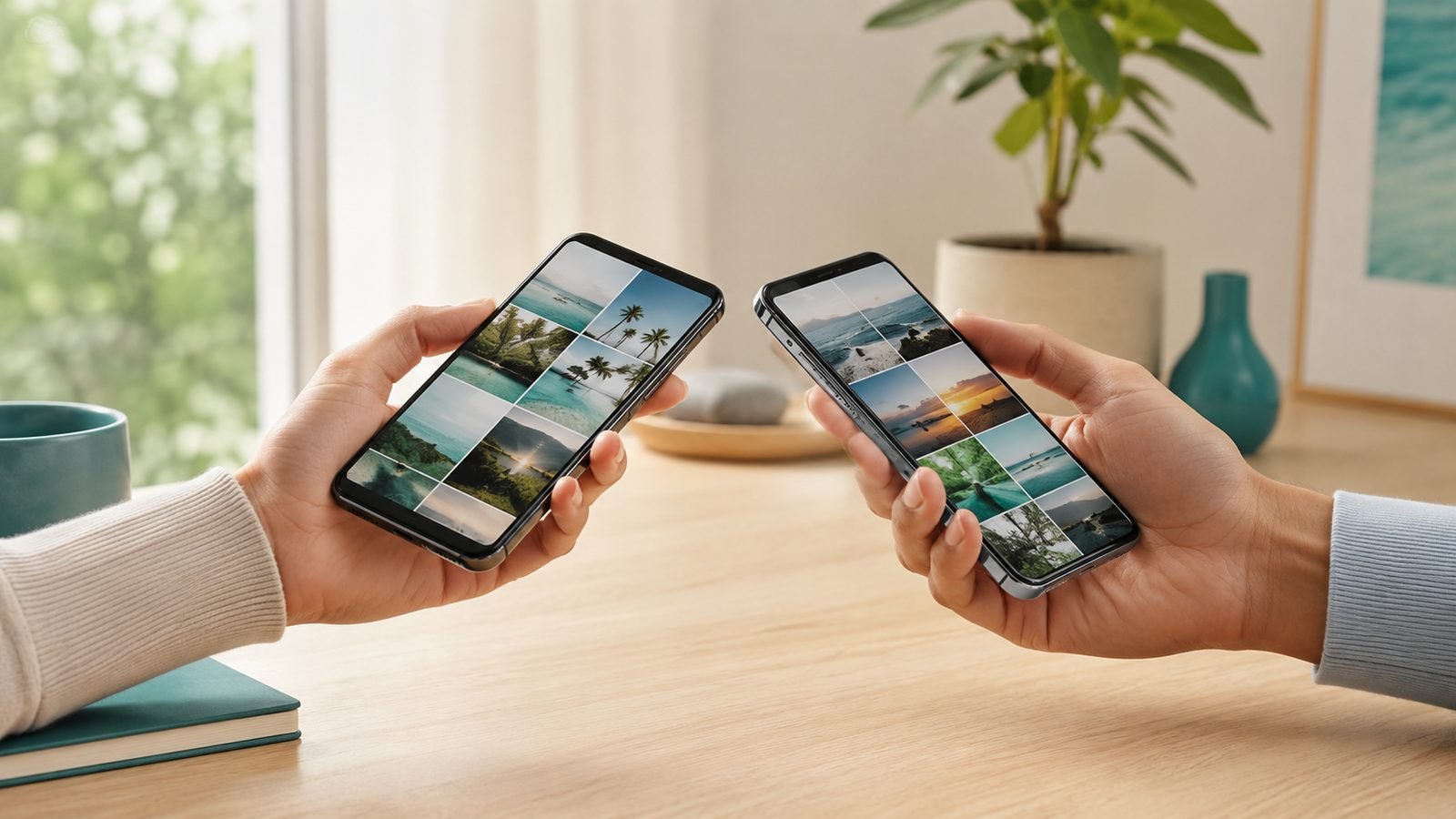
Moving to a new phone is mostly a matter of letting the setup screen do the copying — Quick Start on an iPhone, the copy step in Android’s setup wizard, Move to iOS when you change platform. Where transfers go wrong is around that copy rather than inside it: two phones running mismatched software, a battery that gives out part-way, logins nobody noted down, or an old handset wiped before anyone checked the new one. So the order here is preparation first, then the transfer that matches your move, then the few things that need handling on their own.
This guide walks through each scenario cleanly, including the parts that trip people up: WhatsApp chat history, two-factor authentication apps, and switching between iPhone and Android, where some data simply won’t come along. Read the section that matches your move, and follow the pre-flight checklist first — it prevents almost every common failure.
Before you start: a 5-minute checklist
Do these on your old phone before touching the new one. They prevent the most common transfer failures.
- Update both phones to the latest OS version. Transfer tools break most often when the two phones run mismatched software.
- Back up the old phone as a safety net: iPhone via iCloud or a computer; Android via Google One backup. If a live transfer fails, you can restore from this instead.
- Charge both phones above 50%, or keep them plugged in. A transfer that dies at 80% battery is a bad afternoon.
- Connect to reliable Wi-Fi. Many transfers move tens of gigabytes; mobile data is slow and can be capped.
- Note your logins. You’ll re-enter some passwords and 2FA codes on the new phone. Have your password manager and authenticator ready — this is the single most-forgotten step.
- Don’t wipe or sell the old phone yet. Keep it intact until you’ve confirmed everything arrived safely on the new one.
Transfer data iPhone to iPhone (Quick Start)
This is the smoothest transfer of all — Apple’s Quick Start copies almost everything.
Step 1: Start setup and bring the phones together
Turn on the new iPhone and place it next to your old one. A Quick Start card appears on the old phone offering to set up the new device with your Apple Account. Tap Continue, then use the old phone’s camera to scan the animation shown on the new phone’s screen.
Step 2: Choose Direct Transfer
When prompted, choose to transfer data directly from the old iPhone rather than downloading from iCloud — direct transfer is faster and brings across more. Keep both phones close together, awake, and on Wi-Fi. This moves photos, messages, app data, settings and your app layout.
Step 3: Let apps re-download and sign back in
After the core transfer, apps re-download in the background. You’ll need to sign back into some apps and re-enter 2FA. Photos and iMessage history come across automatically; some banking and streaming apps require a fresh login for security. Leave the phone on Wi-Fi and charging until the app downloads finish.
Transfer Android to Android
Android’s setup wizard includes a built-in copy tool that handles most of the work.
Step 1: Start setup and connect the phones
Power on the new phone and follow the setup wizard until it asks to copy apps and data. Choose to copy from another device, then connect the two phones — either with a USB-C-to-USB-C cable (fastest and most reliable) or wirelessly over Wi-Fi. A cable is worth having for large photo libraries.
Step 2: Select what to copy
Sign into your Google Account, then pick what to bring: apps, photos and videos, contacts, calendar, messages, call history, device settings and Wi-Fi passwords. Select everything unless you have a reason not to, and start the transfer. Keep both phones connected and awake.
Step 3: Confirm cloud-synced data arrives
Anything already synced to your Google Account — Gmail, Contacts, Google Photos, Calendar — will also appear automatically once you sign in, even without the direct copy. Give it time to sync fully over Wi-Fi. Check that your photo count matches before moving on.
Switch from iPhone to Android (or Android to iPhone)
Crossing platforms is the trickiest move, because the two systems store some data differently. Most things transfer; a few can’t.
Moving from iPhone to Android
Most current Android phones include a switch tool in setup that pulls data directly from an iPhone over a cable or Wi-Fi — it moves contacts, photos, videos, calendar events and messages. Alternatively, syncing your iPhone content to Google services (Google Photos, Google Contacts) before the switch, then signing into that Google Account on the Android phone, brings the same data across.
One essential step: turn off iMessage before you leave iPhone. Go to Messages settings on the old iPhone and disable iMessage, or texts from other iPhone users may keep routing to Apple’s service and never reach your Android. Do this while you still have the iPhone in hand.
Moving from Android to iPhone
Use Apple’s Move to iOS app. During iPhone setup, choose to move data from Android, install Move to iOS on the Android phone, and follow the pairing code. It transfers contacts, message history, photos, videos, mail accounts and some free apps’ data over a direct Wi-Fi link. Keep both phones on the same network and undisturbed until it finishes.
What doesn’t cross platforms
Be realistic: some things won’t survive an iPhone-Android switch. Paid apps must be re-purchased on the other store, iMessage/FaceTime don’t exist on Android (and vice versa for some Apple-only apps), DRM-protected content may not transfer, and some app-specific data stays behind. Your logins and cloud-synced data are safe; a handful of platform-locked items are not.
Handle WhatsApp, authenticator apps and passwords
These three trip people up more than photos ever do — handle them deliberately.
- Transfer WhatsApp to new phone: WhatsApp chat history does not always come with the main phone transfer. Same-platform (iPhone to iPhone, Android to Android) is easy: back up your chats to iCloud or Google Drive in WhatsApp’s settings first, then restore during WhatsApp’s setup on the new phone. Cross-platform (iPhone to Android or back) needs WhatsApp’s own dedicated “move chats” flow — start it from the old phone with a cable connected, and follow the in-app steps.
- Authenticator / 2FA apps: Codes from apps like Google Authenticator are tied to the device unless you export them. Before wiping the old phone, use your authenticator’s export or account-sync feature to move your 2FA seeds, or you may get locked out of accounts. This is the most dangerous thing to forget.
- Passwords: A password manager makes this painless — install it on the new phone, sign in, and every login is there. If you rely on the browser’s built-in passwords, make sure they’re synced to your Google or Apple Account first.
Troubleshooting: common transfer problems
- Transfer stalls or is very slow. Move the phones closer, confirm both are on the same 5GHz Wi-Fi, and switch to a cable if the tool supports one. Large video libraries are simply slow — give it time before restarting.
- Not enough storage on the new phone. If the new phone is smaller than the old one’s used space, the transfer can fail. Clear space, or transfer selectively and pull the rest from cloud backup afterward.
- Photos are missing. Confirm they finished syncing from the cloud (Google Photos or iCloud Photos) before you assume they’re lost. A partial sync looks like missing photos but usually just needs more time on Wi-Fi.
- Messages didn’t come across. Cross-platform message transfer is imperfect. If SMS/RCS history didn’t move, it may be unrecoverable — which is why the pre-flight backup matters. iMessage history only moves iPhone-to-iPhone.
- Apps won’t sign in. Expected — many apps log you out for security on a new device. Re-enter your credentials and 2FA. This isn’t a transfer failure.
If your new phone is a fresh purchase and you’re still deciding on the model, our Best Smartphones 2026: Top Picks for Every Budget and Best Android Phones 2026: Flagship to Budget guides can help, and Best Budget Smartphones 2026: Under $400 / £400 covers value picks. A phone loaded with a full data restore also drains battery hard for the first day, so a good charger or power bank is handy during setup — see Best Power Banks for Laptops in 2026: 100W+ Picks Compared. Check price: Anker USB-C to USB-C Cable is worth having for the fastest wired transfers.
FAQ
How long does it take to transfer data to a new phone?
Usually 15 to 60 minutes for the main transfer, plus background time for apps to re-download. It depends heavily on how much data you have — a large photo and video library is the main variable. Using a cable instead of Wi-Fi, and staying on a fast connection, speeds things up considerably.
Will I lose my photos when I switch phones?
Not if you’ve backed up first. Photos synced to iCloud Photos or Google Photos are safe in the cloud and reappear when you sign into the same account on the new phone. The built-in transfer tools also copy photos directly. Always confirm the photo count matches before wiping the old phone.
How do I move WhatsApp chats to a new phone?
For same-platform moves, back up your WhatsApp chats to iCloud or Google Drive on the old phone, then restore during WhatsApp setup on the new one. For iPhone-to-Android or Android-to-iPhone, use WhatsApp’s dedicated “move chats” feature with the phones connected by cable. Standard phone transfers don’t always include WhatsApp history.
Can I transfer everything from iPhone to Android?
Most of it — contacts, photos, videos, calendar and messages move via your new Android’s switch tool or through Google services. But paid apps must be re-bought, iMessage and FaceTime don’t exist on Android, and some DRM-protected content won’t transfer. Remember to turn off iMessage on the old iPhone so your texts route correctly.
Do I need to keep my old phone during the transfer?
Yes — keep it until you’ve confirmed everything arrived. The old phone is both the data source and your backup if something fails. Don’t factory-reset or trade it in until you’ve verified photos, messages, WhatsApp and your authenticator apps are working on the new phone.
What’s the single most-forgotten step when switching phones?
Moving your two-factor authentication (2FA) codes. Authenticator apps are tied to the old device, and wiping it before exporting your codes can lock you out of important accounts. Export or sync your authenticator, and have your password manager ready, before you retire the old phone.
Zen Tech Hub may earn a commission from links on this page, at no extra cost to you.