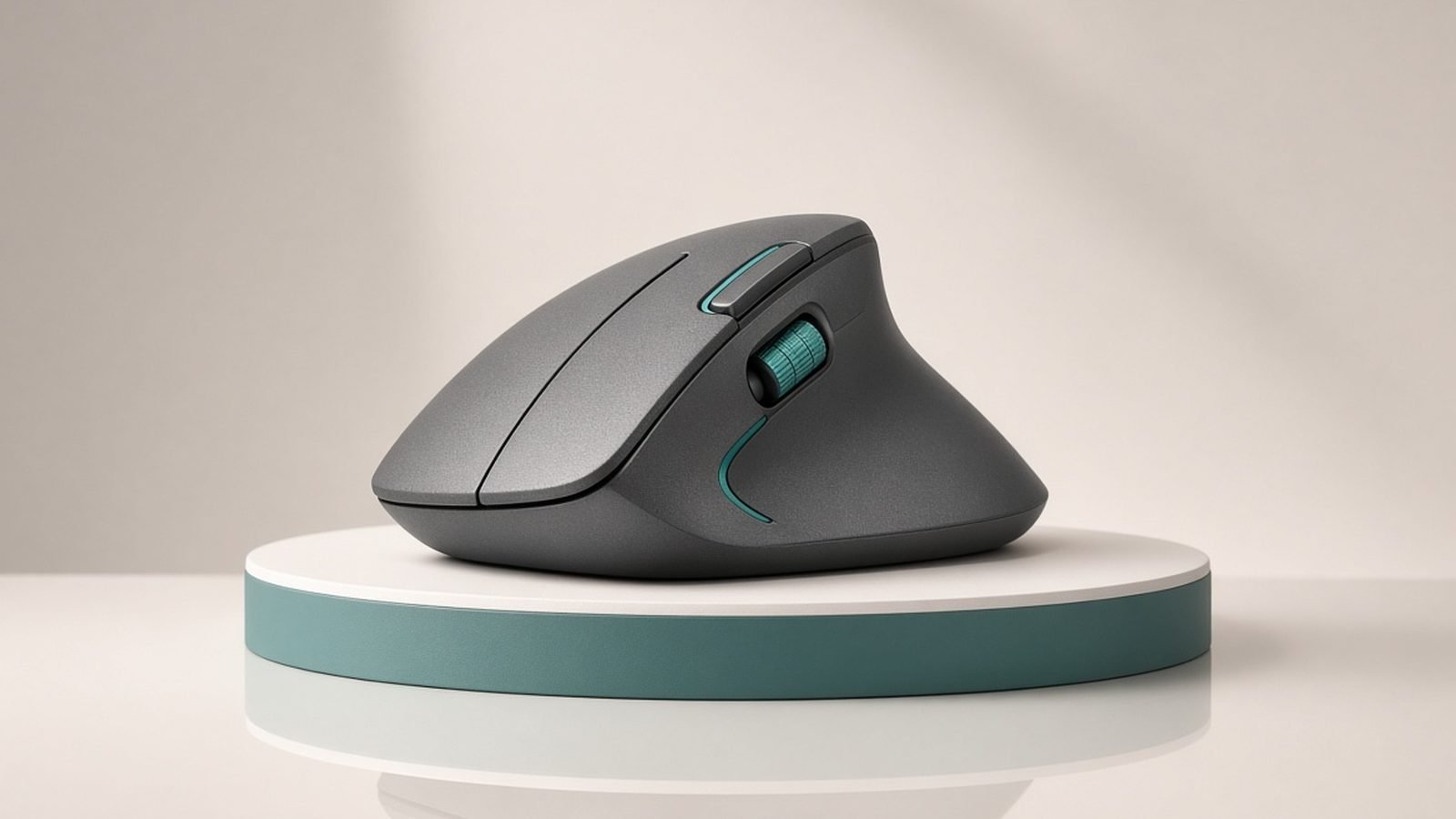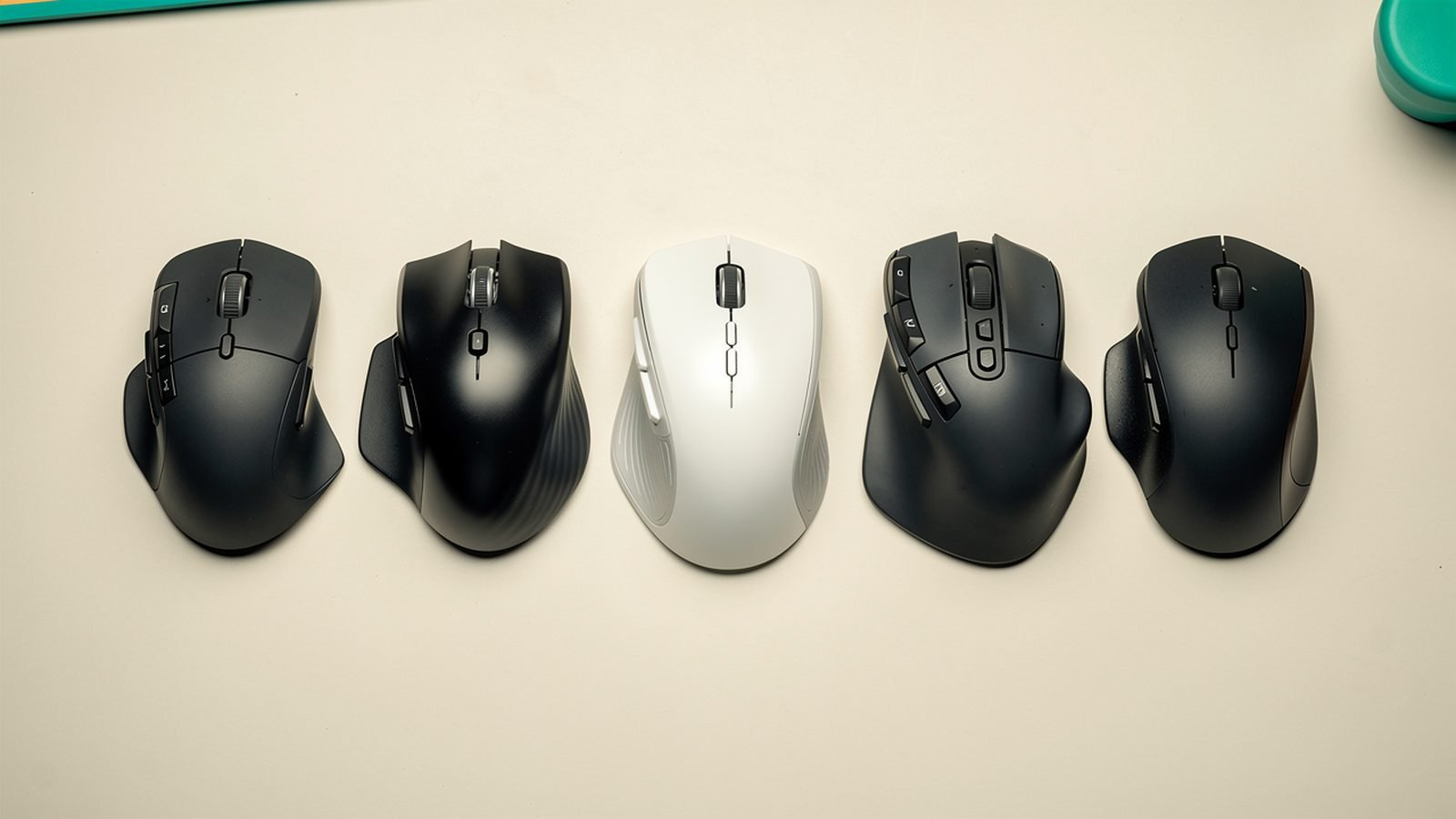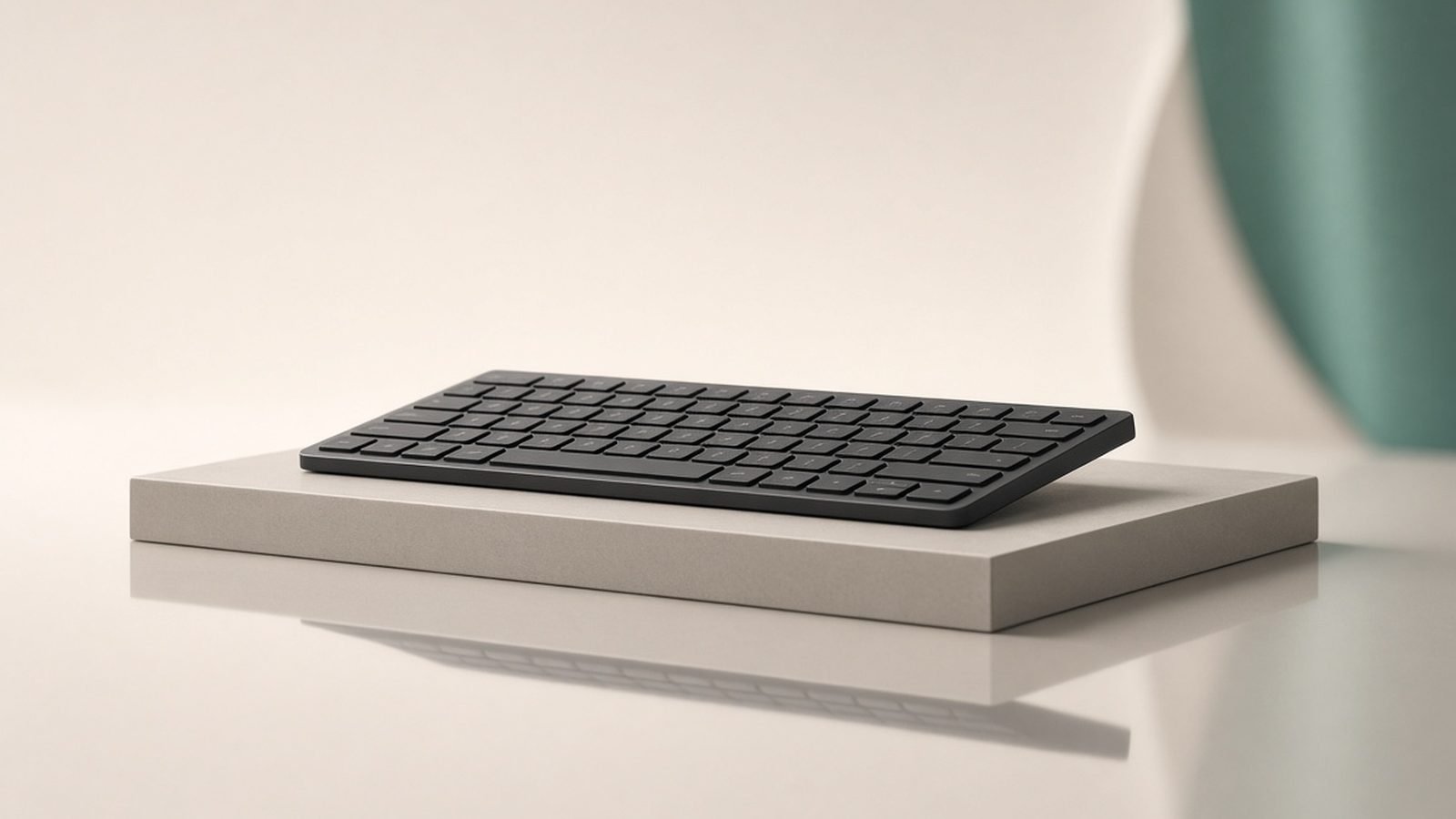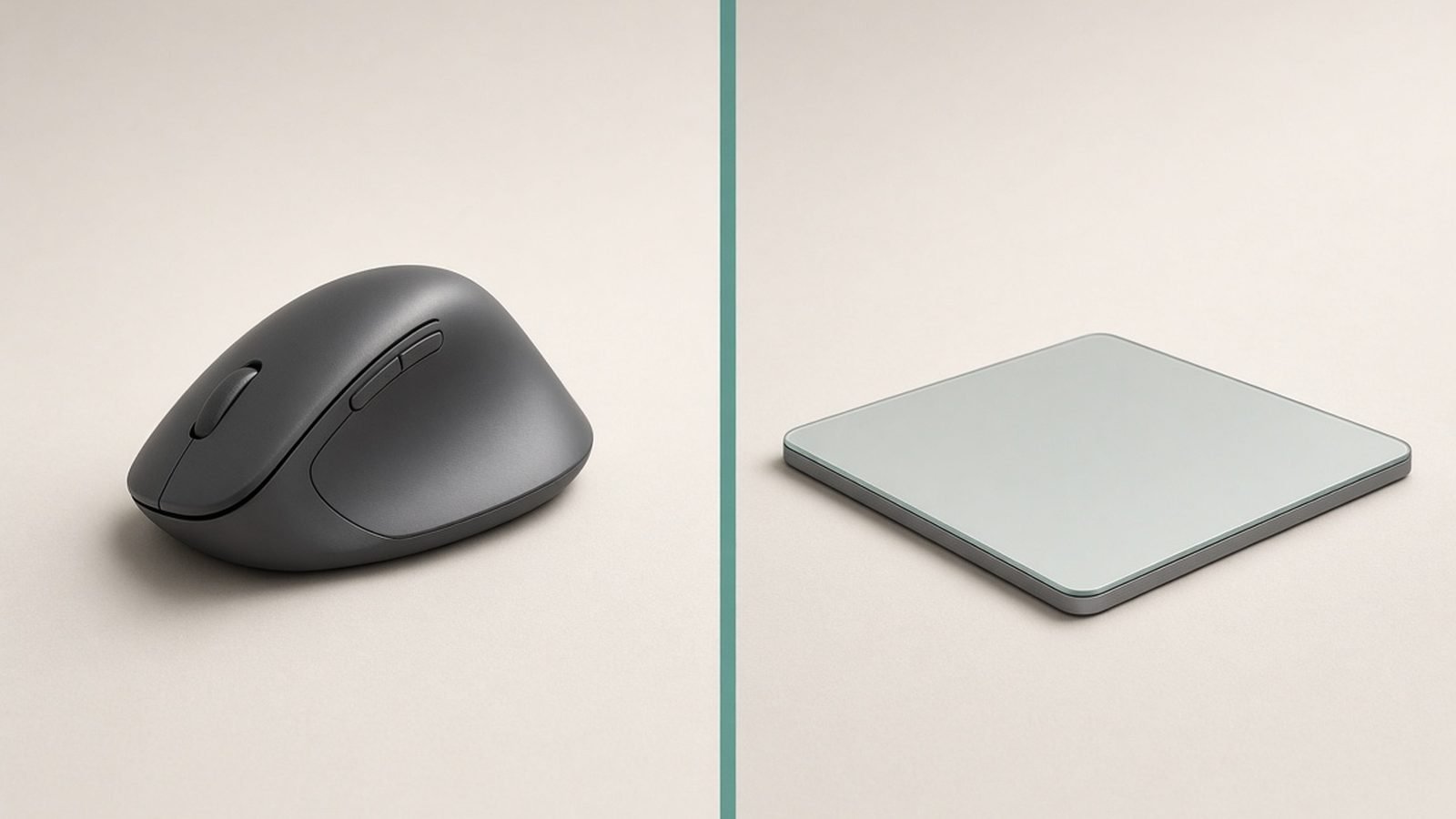
The MX Master vs trackpad question splits along one clean line: the Logitech MX Master (the 3S or the newer MX Master 4) is the better pick for long-form productivity, precision work, and comfort over an eight-hour day, while the Apple Magic Trackpad is the better pick if macOS gestures are central to how you work and desk space is tight. Most Mac users are happiest with the MX Master as a primary pointer and, if budget allows, a Magic Trackpad kept alongside it for swipes and Mission Control.
This isn’t really a fight — the two devices are good at different things. Based on published specs, Apple and Logitech documentation, and aggregated owner feedback from Mac-heavy communities, here’s how to decide which one earns the space on your desk, or whether you want both.
MX Master vs Magic Trackpad at a glance
| Logitech MX Master (3S / 4) | Apple Magic Trackpad | |
|---|---|---|
| Type | Ergonomic productivity mouse | Large multi-touch glass trackpad |
| Typical 2026 price | ~$79–110 / £75–107 (3S/4) | ~$129 / £119 |
| Precision cursor control | Excellent (8,000 DPI sensor) | Good, but relative to finger travel |
| macOS gestures | Via buttons/wheel + Logi Options+ | Native, full Force Touch gesture set |
| Comfort over long sessions | High (palm-grip, wrist neutral) | Moderate (flat hand, more finger work) |
| Scrolling | MagSpeed electromagnetic wheel | Two-finger inertial scroll |
| Battery | Up to 70 days (USB-C) | ~1 month (USB-C/Lightning) |
| Works with Windows too | Yes, fully | Limited/unofficial |
| Best for | Docs, spreadsheets, editing, precision | Gestures, browsing, tight desks |
The short version: who should pick which
Buy the MX Master if you spend your day in documents, spreadsheets, code, or any app where you point at small targets. The sculpted shape keeps your wrist neutral, the MagSpeed wheel flies through long files, and per-app button profiles in Logi Options+ recover most of what you’d miss from trackpad gestures. It’s our default recommendation for MacBook owners and features in our Best Ergonomic Mice 2026: Comfort Without RSI guide.
Buy the Magic Trackpad if your workflow lives in the gestures — swiping between full-screen Spaces, pinch-to-zoom in Preview and Maps, three-finger drag, Mission Control with a flick. Designers, browsers, and anyone who mirrors an iPad’s touch habits often prefer it. It also disappears into a minimal desk in a way no mouse can.
Get both if you can spend ~$210 / £195 total. Plenty of Mac power users keep the MX Master under the right hand for precision and the Magic Trackpad under the left for gestures. It sounds indulgent; in practice it’s the most complete setup macOS supports.
Precision and everyday control
For pointing accuracy, the MX Master wins clearly. Its 8,000 DPI Darkfield-class sensor tracks on almost any surface including glass, and moving a cursor to a 12-pixel checkbox is simply easier with a mouse than by dragging a fingertip across glass. If you edit photos, place elements in a layout, work in a DAW, or select cells in a dense spreadsheet, the mouse removes friction you may not even notice until it’s gone.
The Magic Trackpad is precise in absolute terms — Apple’s tracking is excellent — but it’s precision relative to finger movement, which means fine adjustments involve more small strokes and occasional clutching (lifting and repositioning your finger). That’s fine for browsing and light work and tiring for hours of pixel-level tasks.
Where the trackpad pulls ahead is gestures. macOS was co-designed with the trackpad, so swipe-between-desktops, App Exposé, Notification Center, and smart zoom feel native and instant. The MX Master can map several of these to buttons and gestures via Logi Options+, but it’s replicating the experience rather than owning it.
Comfort, ergonomics and RSI
This is the most important section for anyone working full days. The MX Master’s tall, palm-filling shape supports the hand in a mostly neutral posture and moves the whole arm rather than the fingers. For many people prone to wrist or forearm strain, that’s easier to sustain than a flat trackpad, which keeps the hand pronated (palm-down and flat) and does more work through the fingers and thumb.
That said, “trackpad causes RSI” and “mouse causes RSI” are both too simplistic. Strain comes from posture, desk height, and hours — not the device alone. A trackpad positioned well, used with a relaxed hand, suits some people better, especially those who found traditional mice aggravating. The honest guidance from aggregated user reports: if you already have discomfort, the MX Master’s neutral grip is the safer default, but the real fix is your whole workstation. Our Best Desk Setup Accessories 2026: Upgrade Your Workspace guide covers monitor height, chair, and wrist support that matter more than the pointer itself.
Neither device is a cure. Both benefit from taking your hand off the input device regularly.
Scrolling, gestures and software
The MX Master’s MagSpeed wheel is its signature advantage. It shifts automatically between a precise ratchet click and a frictionless free-spin that lets you fly through a 2,000-row spreadsheet or a long web page in one flick. There’s also a horizontal thumbwheel for timelines and wide sheets. No trackpad scroll matches it for long documents.
The Magic Trackpad’s two-finger inertial scroll is smooth and natural for reading and casual browsing, and its gesture vocabulary is far richer: three- and four-finger swipes, Force Touch (a firm press that triggers look-up, previews, and variable-speed controls), and pinch-zoom that feels effortless.
On software, the MX Master relies on Logi Options+ for per-app profiles, gesture buttons, and Flow (control two computers with one mouse). The Magic Trackpad needs no software at all on a Mac — everything lives in System Settings. If you value zero setup, the trackpad wins; if you value deep customization, the mouse does.
Price, battery and ecosystem
The Magic Trackpad sits around $129 / £119 — notably more than the MX Master 3S’s typical street price of around $79 / £75, and roughly level with the MX Master 4 at around $110 / £107. So the trackpad is not the budget option many assume.
Battery life favors the MX Master (rated up to 70 days versus roughly a month for the trackpad), and both now charge over USB-C on current models. The big ecosystem difference: the MX Master works fully on Windows, Linux, and ChromeOS, so it moves with you across machines, while the Magic Trackpad is effectively Mac-only in practice. If you switch between a MacBook and a Windows PC, that alone may decide it. Pair either with a good hub so a single cable handles your peripherals and displays — see our Best USB-C Hubs & Docks 2026: For Laptops & Desks roundup.
Which should you buy?
Logitech MX Master — best for precision, comfort and long days
Around $79–110 / £75–107 depending on 3S or 4
Pros:
- Best-in-class scroll wheel for long documents and code
- Neutral palm-grip shape is easier on the wrist over full days
- 8,000 DPI sensor tracks anywhere, including glass
- Per-app customization via Logi Options+
- Works across macOS, Windows, Linux and ChromeOS
Cons:
- Gesture replication never quite matches native trackpad swipes
- Needs Logi Options+ installed to unlock its best features
- Takes more desk depth than a flat trackpad
Who it’s for: MacBook users who work in documents, spreadsheets, code or creative apps and want comfort plus precision. It’s the safer everyday default for most people.
Apple Magic Trackpad — best for gestures and minimal desks
Around $129 / £119
Pros:
- Native, complete macOS gesture set with zero setup
- Force Touch adds pressure-sensitive controls
- Ultra-thin, minimalist footprint on the desk
- Excellent build and glass tracking surface
- Ideal companion to a mouse for a two-device setup
Cons:
- More finger effort; less comfortable for some over long sessions
- Fiddlier for pixel-precise selection work
- Pricier than the MX Master 3S and effectively Mac-only
Who it’s for: Mac users whose workflow is built on gestures — swiping Spaces, pinch-zoom, three-finger drag — or anyone who wants the cleanest possible desk.
FAQ
Is the MX Master or Magic Trackpad better for a MacBook?
For most people, the MX Master. It offers better precision for detailed work and a more neutral wrist posture over long days, and it works across every OS. The Magic Trackpad is better only if macOS gestures are central to how you work, or if you want the most minimal desk possible. Many Mac power users keep both.
Does the Logitech MX Master work fully on macOS?
Yes. The MX Master 3S and 4 pair over Bluetooth or the included receiver and work natively on macOS. Installing Logi Options+ unlocks per-app button profiles, gesture controls, and Logitech Flow for controlling two computers. All the core buttons and MagSpeed scrolling work even without the software.
Is the Magic Trackpad bad for RSI?
Not inherently. Some people find its flat, palm-down posture tiring over long sessions, while others who struggled with mice find it more comfortable. Strain depends far more on desk height, chair, and how long you go without a break than on the device. If you already have wrist discomfort, the MX Master’s neutral grip is the safer starting point, but fix your whole workstation first.
Can I use an Apple Magic Trackpad with Windows?
Not officially. Apple provides no Windows driver, and third-party workarounds are unreliable and incomplete. If you switch between a Mac and a Windows PC, the MX Master is the far more sensible choice because it works fully on both without fuss.
Should I buy both a mouse and a trackpad?
If your budget allows (around $210 / £195 for an MX Master 3S plus a Magic Trackpad), it’s a genuinely great setup. Use the mouse for precision and long-document scrolling, and the trackpad for gestures and Spaces navigation. macOS handles two pointing devices at once with no conflict.
Which is better value in 2026?
The MX Master 3S at around $79 / £75 is the value winner — it undercuts the Magic Trackpad by roughly $50 / £45 while offering superior scrolling and comfort. The Magic Trackpad only justifies its higher price if native gestures are essential to your workflow.
Verdict
The MX Master vs trackpad decision comes down to what your hours actually contain. If you point, select, scroll, and work in documents all day, buy the MX Master — it’s more comfortable, more precise, and works everywhere. If your macOS life runs on gestures and you want a minimal desk, buy the Magic Trackpad. And if you can stretch to both, that combination is the most capable pointing setup a Mac supports — precision in one hand, gestures in the other.
Zen Tech Hub may earn a commission from links on this page, at no extra cost to you.