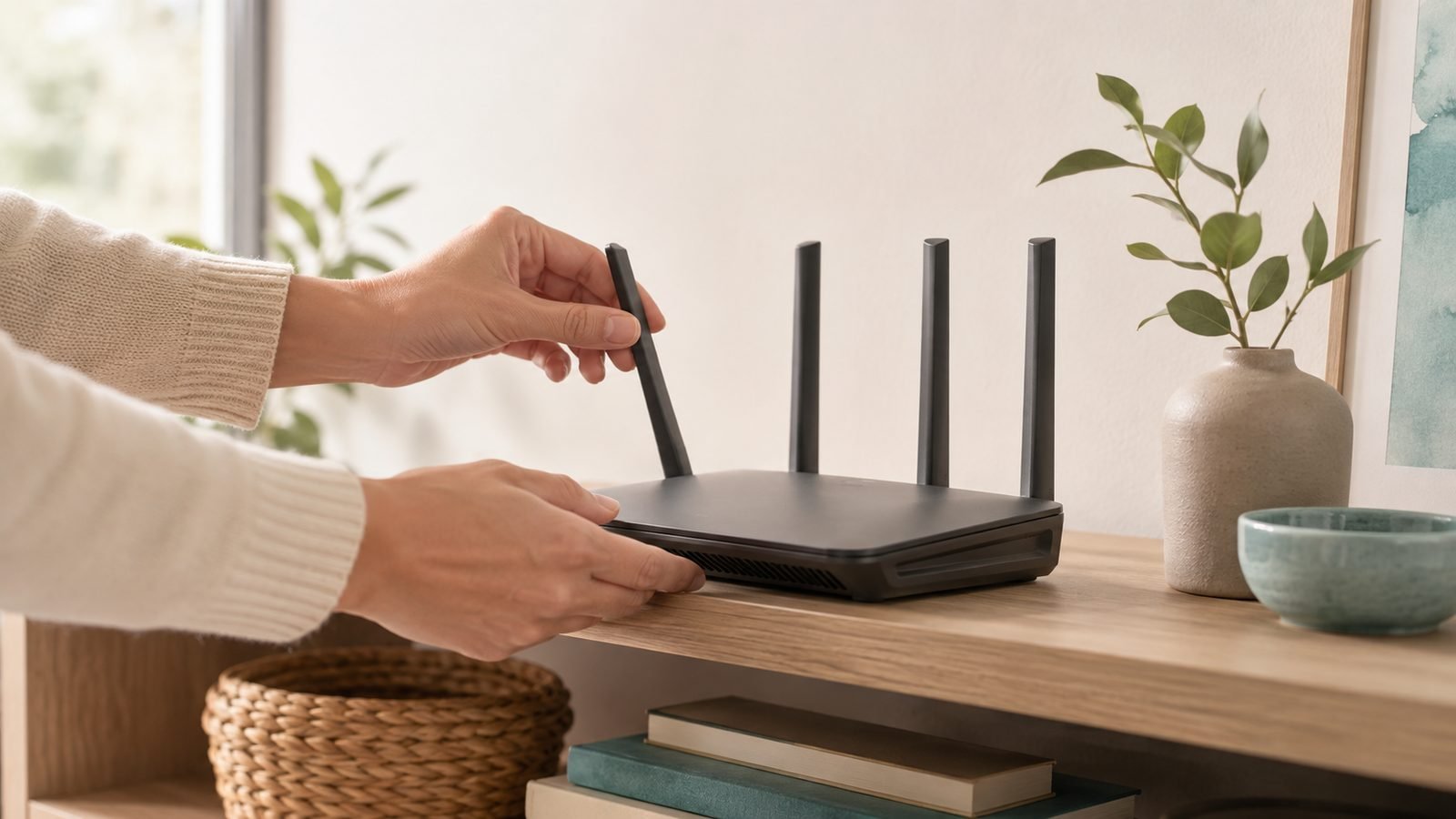
Slow Wi-Fi is usually fixable in a few minutes, and the cause is almost never mysterious. Start here: run a speed test next to your router, then run one where the problem is. If both are slow, the issue is your internet plan or router; if only the far spot is slow, it’s coverage. The single most effective first move is a proper restart — power off your modem and router for 30 seconds, then back on — which clears the majority of everyday slowdowns.
This guide diagnoses and fixes slow Wi-Fi in order, from the 30-second checks to the point where you should call your provider. Slow is different from unreachable — if your Wi-Fi simply doesn’t cover part of the house, read How to Extend Wi-Fi Range: 8 Fixes That Work instead. If a single room is the culprit, our How to Fix Wi-Fi Dead Zones: 9 Proven Ways (2026) guide targets that directly.
Step 1: Test your speed and pin down the problem
Before changing anything, measure. Use a speed-test site or app and note two numbers in two places:
- Right next to the router, on Wi-Fi.
- Where the problem happens.
Then check that first result against the download speed you actually pay for (it’s on your bill or your ISP’s app). This one test tells you which problem you have:
- Slow even next to the router → the bottleneck is your internet plan, modem, or router. Continue below.
- Fast at the router, slow farther away → this is a coverage problem, not a speed problem. Jump to How to Extend Wi-Fi Range: 8 Fixes That Work.
- Fast on a wired laptop but slow on Wi-Fi → the wired test isolates the fault to your Wi-Fi, not the internet line.
Run tests on more than one device too. If only one phone or laptop is slow, the fault is that device, not the network.
Step 2: Restart the modem and router properly
It’s a cliché because it works. Routers are small computers that accumulate memory leaks, overheating and congested channel assignments over weeks of uptime. Power both the modem and router fully off, wait 30 seconds so they clear state and renegotiate with your ISP, then power the modem back on first, let it settle for a minute, and then the router. Reconnect and re-test.
Make this a monthly habit. Many “my Wi-Fi is slow again” complaints are a router that hasn’t been rebooted since it was installed. If yours only behaves after a restart and then degrades over days, note that — it points to overheating or an ageing router you’ll want to replace.
Step 3: Connect to the right band (2.4GHz vs 5GHz)
Your router broadcasts two or three bands with very different characteristics, and being on the wrong one is a leading cause of “slow” Wi-Fi:
- 2.4GHz: long range, poor speed, very congested. If your device silently connected here, close-up speeds will feel terrible.
- 5GHz: much faster, shorter range. This is where you want to be within a room or two of the router.
- 6GHz (Wi-Fi 6E/7): fastest and cleanest, shortest range.
Most routers use one network name and steer devices automatically, but that steering sometimes strands a nearby device on 2.4GHz. If you’re close to the router but slow, check which band you’re on (your device’s Wi-Fi details show the connection), and if your router offers separate network names per band, connect a fast nearby device to the 5GHz or 6GHz one directly.
Step 4: Clear the congestion around you
Wi-Fi is a shared radio space, and two kinds of congestion drag it down.
Neighbouring networks. In flats and terraces, dozens of nearby routers fight over the same channels, especially on 2.4GHz. Use a free Wi-Fi analyser app to see which channels are crowded, then set your router to a quiet one — on 2.4GHz stick to non-overlapping channels 1, 6 or 11. Switching to a clear channel can visibly lift speeds in a busy building.
Your own devices. A dozen phones, TVs, cameras and smart-home gadgets all sharing one router compete for airtime, and one device doing a big cloud backup or 4K upload can hog the connection for everyone. Check what’s running: pause large uploads and downloads, and look in your router app for a device pulling heavy traffic. If your router has Quality of Service (QoS), prioritise video calls or gaming there.
Step 5: Update firmware and check for interference
Open your router’s app or admin page and install any firmware update. These fix bugs, improve radio performance and patch security flaws; an out-of-date router can be both slower and less safe. While you’re there, confirm the router isn’t running hot or tucked inside a cabinet — heat throttles performance.
Then rule out physical interference. Microwaves, cordless phones, baby monitors and even some Bluetooth gear disrupt 2.4GHz. If speeds tank at specific times (dinner, when the microwave runs), that’s your culprit. Move the router away from these sources and from large metal objects and mirrors, which reflect and absorb signal.
Step 6: Reduce the load and check your devices
Sometimes the network is fine and the device is the problem. On a slow phone or laptop: forget and rejoin the network, restart the device, and make sure its Wi-Fi drivers or OS are up to date. An old device with a weak Wi-Fi radio will be slow no matter how good your router is — a laptop from 2016 simply can’t hit modern speeds.
Also check how many devices are actually connected. Guest devices, a neighbour who guessed your password, or forgotten gadgets all consume capacity. If you suspect freeloaders, change your Wi-Fi password to a strong new one and reconnect only your devices. Turn on WPA3 (or at least WPA2) encryption if it isn’t already.
Step 7: Decide if it’s your router or your ISP
If you’ve done everything above and speeds are still poor right next to the router, the fault is one of two things.
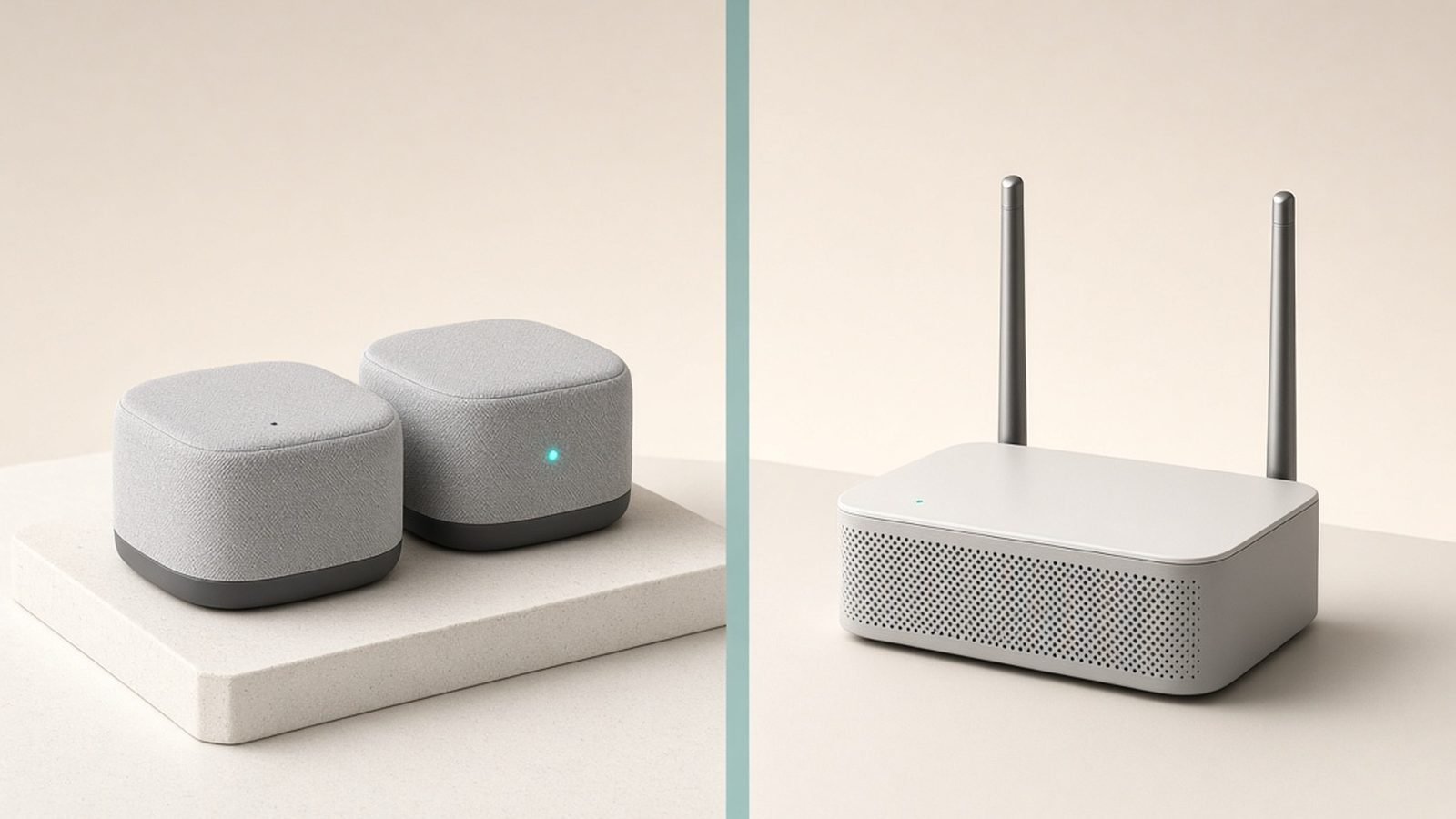
Your router. If it’s more than four or five years old (pre-Wi-Fi 6), it may simply be unable to deliver the speed your plan provides, or it may be failing. A modern router or mesh handles more devices at higher speed and is often the fix. See our Best Wi-Fi 7 Routers 2026: Top Picks for Every Budget and Best Mesh Wi-Fi Systems 2026: Wi-Fi 6 & Wi-Fi 7 Compared picks; if you rent your ISP’s box, its old router is a very common bottleneck.
Your ISP or plan. If a wired device plugged straight into the modem is also slower than your paid-for speed, the problem is upstream of your Wi-Fi. Restart the modem once more, check your ISP’s app or status page for outages, and if the wired shortfall persists, contact your provider — the issue is their line, not your home network. It may also simply be that your plan is too slow for your household; more devices and 4K streaming need more bandwidth than a basic package provides.
Troubleshooting common causes
- Buffering only on streaming: usually band or congestion (Steps 3–4), or a plan that’s too slow for 4K on multiple screens.
- Slow only in the evening: neighbourhood congestion or your ISP’s peak-time throttling — test at off-peak hours to confirm.
- Slow after it was fine for weeks: restart the router (Step 2); if it recurs quickly, suspect overheating or an ageing unit.
- One device slow, others fine: it’s that device — update it, rejoin the network, or check its Wi-Fi hardware.
- Everything slow even wired: it’s the modem, line or ISP, not your Wi-Fi (Step 7).
FAQ
Why is my Wi-Fi so slow all of a sudden?
A sudden slowdown is most often a router that needs restarting, new congestion from neighbours or your own devices, or an ISP issue. Power-cycle your modem and router first. If that doesn’t help, run a speed test next to the router — if it’s slow there too, check for an ISP outage or a device hogging bandwidth with a large upload or download.
How do I know if it’s my router or my internet provider?
Plug a laptop directly into your modem with an Ethernet cable and run a speed test. If the wired result matches your paid-for speed, your internet is fine and the problem is your Wi-Fi (router, placement or congestion). If the wired result is also slow, the fault is your modem, the line, or your ISP — contact your provider after restarting the modem.
Does restarting the router really fix slow Wi-Fi?
Often, yes. Routers accumulate memory issues, heat and congested channel assignments over weeks of continuous running, and a full power-cycle clears all of that and forces a fresh negotiation with your ISP. Power off both modem and router for 30 seconds, restart the modem first, then the router. Making this a monthly habit prevents many recurring slowdowns.
Should I use 2.4GHz or 5GHz for faster Wi-Fi?
Use 5GHz (or 6GHz on Wi-Fi 6E/7) when you’re within a room or two of the router — it’s much faster. Use 2.4GHz only for distant devices, where its longer range wins despite lower speed. Being wrongly stuck on 2.4GHz near the router is a common cause of slow Wi-Fi, so check which band your device is using.
How do I stop my Wi-Fi channel from being congested?
Use a free Wi-Fi analyser app to see which channels nearby networks are using, then set your router to a quiet one. On the crowded 2.4GHz band, choose non-overlapping channels 1, 6 or 11. In flats and terraced housing this can noticeably improve speeds. The 5GHz band has far more channels, so congestion there is much rarer.
Will a new router fix slow Wi-Fi?
It can, if your current router is old, overloaded, or the basic unit from your ISP. A modern Wi-Fi 6 or 7 router or mesh system handles more devices at higher speeds and reaches further. But if a wired speed test shows your internet line itself is slow, a new router won’t help — the bottleneck is your plan or provider, not your Wi-Fi hardware.
Zen Tech Hub may earn a commission from links on this page, at no extra cost to you.