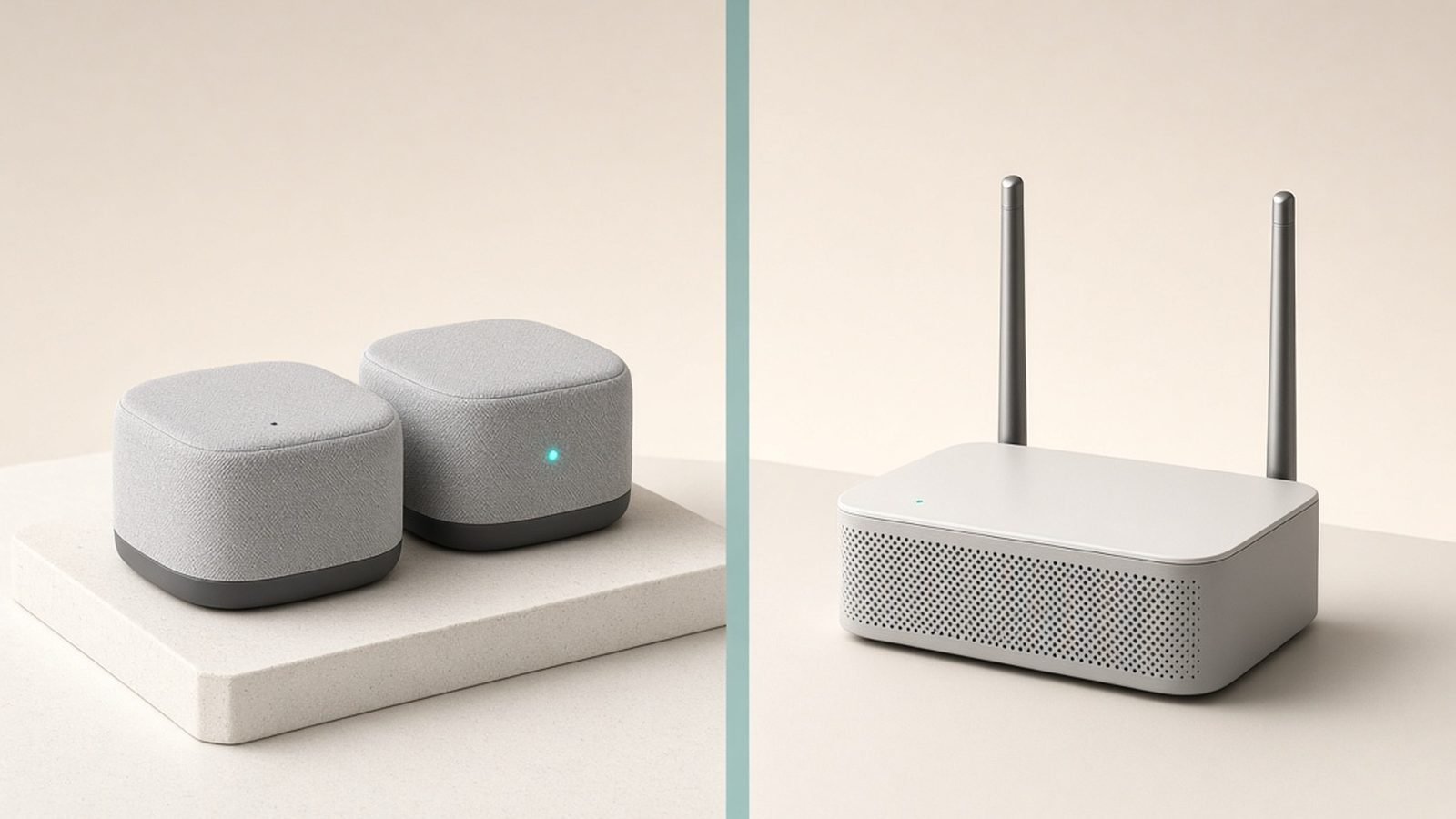
If your Wi-Fi fades to nothing in the back bedroom or the garden, you can almost always fix it — often for free. The fastest wins are physical: move the router to a central, open, elevated spot, away from thick walls and metal. If that isn’t enough, a mesh system is the best modern way to blanket a whole home in signal, while a powerline adapter or a wired access point can push coverage to a far room or outbuilding.
This guide runs through eight fixes, ordered from free tweaks to hardware you buy, so you can stop at the cheapest one that solves your problem. Extending range is not the same as fixing a slow connection — if your Wi-Fi reaches everywhere but crawls, read How to Fix Slow Wi-Fi: A Step-by-Step Guide instead. And if the problem is one stubborn room, our targeted How to Fix Wi-Fi Dead Zones: 9 Proven Ways (2026) guide drills into that.
Quick answer: try placement and band settings first (free), add a mesh system for whole-home coverage, and use powerline or a wired access point for a specific far room the wireless can’t reach.
Fix 1: Move the router (the free fix most people skip)
Your router broadcasts a roughly spherical signal, so where it sits changes everything. Put it as central to your home as the cabling allows, out in the open, and elevated — on a shelf, not on the floor or inside a TV cabinet. Every wall, floor and metal object between the router and you costs signal, and dense materials (brick, concrete, stone, mirrors, metal) cost the most.
Keep it away from other electronics, large metal appliances and especially the microwave and cordless-phone base, which throw interference on 2.4GHz. Point any external antennas partly vertical and partly horizontal to spread coverage across floors. Just relocating the router from a corner cupboard to a central hallway shelf can transform coverage at zero cost.
Fix 2: Aim the antennas and reduce obstructions
If your router has adjustable antennas, orientation matters. For a single-storey home, keep them vertical. For a two-storey home, angle some horizontally so the signal radiates up and down, not just outward. Internal-antenna routers can’t be aimed, but the placement rules above matter even more for them.
Then look at what’s in the way. A fish tank, a stack of books, a metal filing cabinet or a plasterboard wall lined with foil-backed insulation can each punch a hole in coverage. You can’t always move the wall, but you can often move the router a metre to give a clearer line toward the rooms that struggle.
Fix 3: Use the right band (and split them if needed)
Modern routers broadcast on 2.4GHz and 5GHz (and, on Wi-Fi 6E/7, 6GHz). They trade range for speed:
- 2.4GHz travels furthest and penetrates walls best, but is slower and more congested.
- 5GHz is much faster but fades faster through walls.
- 6GHz is fastest and cleanest but the shortest-range of all.
For distant rooms, 2.4GHz is your friend. Most routers use one network name and steer devices automatically, which usually works — but if a far device keeps clinging to a weak 5GHz signal, some routers let you create a separate 2.4GHz-only network name to force the longer-range band for that device. Check your router app for a “band steering” or “smart connect” toggle you can adjust.
Fix 4: Change the Wi-Fi channel to dodge congestion
In flats and terraced housing, your neighbours’ networks crowd the same airwaves, which shrinks your usable range. On the 2.4GHz band, stick to non-overlapping channels 1, 6 or 11. Many routers pick automatically, but the auto choice isn’t always best in a busy building. A free Wi-Fi analyser app on your phone shows which channels are least crowded near you; set your router to the quietest one. On 5GHz there are far more channels, so congestion is rarely the range-limiter there.
Fix 5: Update firmware and consider a newer router
An old or under-powered router is a common hidden cause of poor range. Open your router’s app or admin page and install any firmware update — these often improve stability and radio performance, and patch security holes. If your router is more than four or five years old (pre-Wi-Fi 6), a modern one with better radios and beamforming can extend usable range noticeably on its own.
Beamforming focuses signal toward your devices rather than radiating it evenly, and it’s standard on current routers. For a single-router upgrade that covers a small-to-medium home, our Best Wi-Fi 7 Routers 2026: Top Picks for Every Budget guide has current picks; a good new router is sometimes a cleaner fix than bolting extenders onto an old one.
Fix 6: Add a mesh system (the best whole-home fix)
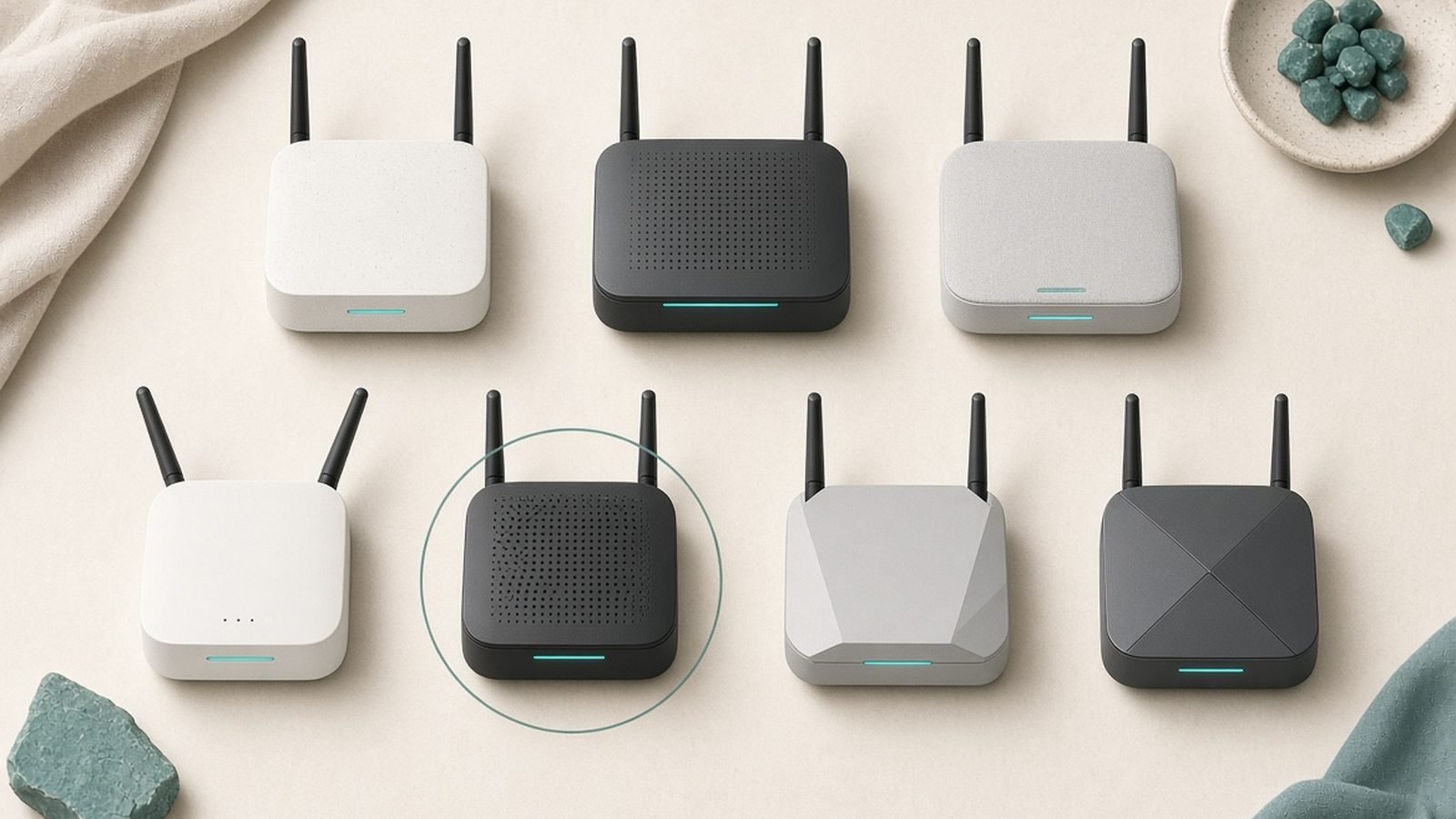
For extending Wi-Fi across a whole house — especially multiple floors or a sprawling layout — a mesh system is the best answer in 2026. Instead of one router straining to reach the edges, you place two or three nodes around the home that hand your devices off seamlessly as you move, all under one network name. There’s no manual reconnecting and no separate “extender” network to juggle.
Mesh beats a basic extender because the nodes cooperate intelligently and keep speeds higher at the edges, particularly tri-band models that reserve a radio for talking between nodes. It costs more than an extender, but the experience is dramatically better. Our full Best Mesh Wi-Fi Systems 2026: Wi-Fi 6 & Wi-Fi 7 Compared rankings cover options from budget to premium; if you want the flagship experience, see our Eero Max 7 Review 2026: Is Premium Wi-Fi 7 Mesh Worth It?.
Check price: TP-Link Deco Mesh Wi-Fi System
Fix 7: Use a Wi-Fi extender for one problem room
If you only need to rescue a single room and budget is tight, a plug-in Wi-Fi extender (repeater) is the cheap fix — often around $30–$60 / £30–£60. It picks up your existing signal and rebroadcasts it. The trade-offs are real: a basic single-band extender roughly halves throughput because it talks to your router and your device on the same radio, and it usually creates a second network name you have to switch to manually.
Place an extender halfway between the router and the dead spot, where it still gets a strong signal — putting it in the dead zone itself just rebroadcasts a weak signal. It’s a patch, not a cure; if you find yourself buying two extenders, buy a mesh instead.
Check price: TP-Link Wi-Fi Range Extender
Fix 8: Powerline or a wired access point for far rooms
When a room is too far or too walled-off for any wireless fix — a garden office, a basement, a converted loft — go wired. A powerline adapter kit sends your network over your home’s electrical wiring: plug one unit in near the router with an Ethernet cable, plug the partner unit in at the far room, and you get a network socket (or a small Wi-Fi hotspot) there. Performance depends on the age and wiring of your house, but it can cross barriers Wi-Fi never will.
The gold-standard version is a wired access point: run an Ethernet cable (or use powerline) to the far room and connect a small access point or a spare mesh node there. A wired backhaul gives full speed and rock-solid coverage exactly where you need it. This is the most reliable way to extend Wi-Fi to a detached space.
Check price: TP-Link Powerline Adapter Kit
Which fix should you use?
- Coverage is patchy everywhere: start with placement (Fixes 1–2), then a mesh system (Fix 6).
- One room is weak: try band and channel tweaks (Fixes 3–4), then an extender (Fix 7).
- A far room or outbuilding gets nothing: powerline or a wired access point (Fix 8).
- Old router: update firmware or upgrade (Fix 5) before buying add-ons.
Work top-down and stop at the first fix that solves it. Most homes never need to reach Fix 8.
FAQ
What’s the best way to extend Wi-Fi range?
For whole-home coverage, a mesh system is the best modern solution — seamless roaming under one network name with strong edge speeds. For a single weak room, a plug-in extender is cheaper. For a far room or outbuilding wireless can’t reach, powerline or a wired access point is most reliable. But always try repositioning the router first, since that fix is free and often enough.
Is a mesh system or a Wi-Fi extender better?
Mesh is better for covering a whole home: nodes cooperate, hand devices off automatically, and hold speeds at the edges. An extender is a cheaper patch for one problem room, but basic models roughly halve throughput and create a second network you switch to manually. If you’d need more than one extender, buy a mesh system instead — the experience is far smoother.
How can I extend Wi-Fi to my garden or garage?
Wireless struggles to reach detached spaces, so go wired. A powerline adapter sends your network over the mains wiring to a unit in the outbuilding, or you can run an Ethernet cable to a small access point or outdoor-rated unit there. Both give a strong, stable signal a plug-in extender usually can’t manage across that distance and those walls.
Does aluminium foil or a homemade booster really work?
Reflectors behind an antenna can nudge signal in one direction, but the effect is small and comes at the cost of coverage elsewhere. Don’t rely on DIY tricks for a real problem. Repositioning the router, choosing a clear channel, and adding a mesh node or wired access point deliver far bigger, more dependable gains than any homemade booster.
Will a new router extend my range?
It can. A modern Wi-Fi 6 or 7 router with beamforming and stronger radios often reaches further than a five-year-old model, so upgrading is sometimes a cleaner fix than adding extenders. That said, no single router covers a large or multi-storey home as well as a mesh system does. For big homes, mesh is the better spend.
Why does my Wi-Fi drop the further I get from the router?
Signal weakens with distance and every wall, floor or metal object in the way, so speeds fall and eventually the connection drops. Dense materials like brick, concrete and mirrors are the worst offenders. The fixes above — better placement, the longer-range 2.4GHz band, and mesh or wired coverage for the far reaches — all address exactly this fade.
Zen Tech Hub may earn a commission from links on this page, at no extra cost to you.