The three Wi-Fi bands are easier to understand as points on a single scale than as three separate technologies. At the low end, 2.4GHz reaches the whole house and the garden, but it has only three non-overlapping channels and shares its airspace with Bluetooth, microwave ovens, baby monitors and cheap smart-home gadgets. In the middle, 5GHz gives up some of that reach for much higher speed and far more channels, which is why most phones, laptops and TVs belong on it. At the top, 6GHz — which arrived with Wi-Fi 6E and is central to Wi-Fi 7 — is the fastest and still nearly empty, and it has the shortest range of the three. Each step up the scale buys speed and cleaner air at the cost of distance.
That trade-off — range versus speed versus congestion — is the whole story, and once you understand it, router settings, “dual-band vs tri-band” marketing, and slow-Wi-Fi troubleshooting all start to make sense. Below we explain each band, what to use it for, and how modern routers juggle all three for you.
The core trade-off: range vs speed
Every Wi-Fi band obeys the same physics. Lower frequencies travel further and pass through walls better but carry less data. Higher frequencies carry far more data but fade faster and are stopped more easily by walls, floors and furniture.
So there’s no “best” band — there’s the right band for a given distance and job:
- Lower frequency (2.4GHz): long range, slow speed, gets through walls.
- Higher frequency (5GHz / 6GHz): short range, high speed, blocked more by obstacles.
Keep that seesaw in mind and everything below follows from it.
2.4GHz: the long-range veteran
2.4GHz has been around since the earliest Wi-Fi. Its strength is reach: it penetrates walls and covers the whole house, plus the garden and garage, better than any other band. Its weakness is that it’s slow by modern standards and painfully congested.
Why congested? Two reasons. First, it’s a narrow slice of spectrum with only three non-overlapping channels, so neighbouring networks constantly step on each other in flats and terraces. Second, it’s a junk-drawer band shared with Bluetooth, microwave ovens, baby monitors, cordless phones and cheap smart-home gadgets — all adding interference.
Use 2.4GHz for: smart-home devices (bulbs, plugs, sensors, doorbells — many only support this band), anything far from the router, and IoT gear where reliability matters more than speed. It’s the right tool for a garden camera or a garage sensor, not for streaming 4K.
5GHz: the everyday workhorse
5GHz is where most of your important traffic should live. It’s dramatically faster than 2.4GHz, has far more channels (so much less congestion), and covers a typical room or two with ease. The trade-off is range: it fades faster and struggles more through thick walls and multiple floors.
For the vast majority of homes, 5GHz is the default for phones, laptops, tablets, smart TVs, games consoles and video calls. The speed is there for streaming and downloads, and the extra channels mean your neighbours’ networks interfere far less than on 2.4GHz.
Use 5GHz for: everyday devices in the same or an adjacent room to the router — streaming, gaming, video calls, general browsing. If a device is close enough to hold a solid 5GHz signal, it belongs here rather than on 2.4GHz.
6GHz: the fast, clean newcomer
6GHz arrived with Wi-Fi 6E and is central to Wi-Fi 7. It’s the fastest band, with huge chunks of new, wide spectrum — and, crucially, it’s nearly empty. Because only recent devices can use it, there’s little of the congestion that plagues 2.4GHz and, increasingly, 5GHz. That clean airspace is often the real-world benefit, not just the raw speed.
The catch is range: 6GHz has the shortest reach and is the most easily blocked by walls, so it shines in the same room as the router or node. It also only works with 6GHz-capable devices (recent flagship phones, laptops and Wi-Fi 6E/7 gear) — older kit can’t see the band at all.
Use 6GHz for: high-bandwidth devices close to the router — a gaming PC, a VR headset, a laptop moving large files — and as a dedicated backhaul band between mesh nodes, which is one of its most valuable jobs. To decide whether 6GHz-capable hardware is worth buying, see What Is Wi-Fi 7? The New Standard Explained.
Quick comparison
| Band | Speed | Range | Congestion | Best for |
|---|---|---|---|---|
| 2.4GHz | Slowest | Longest | High | Smart home, far rooms, IoT |
| 5GHz | Fast | Medium | Medium | Phones, laptops, streaming, gaming |
| 6GHz | Fastest | Shortest | Very low | Close-up high-bandwidth, mesh backhaul |
Dual-band vs tri-band routers
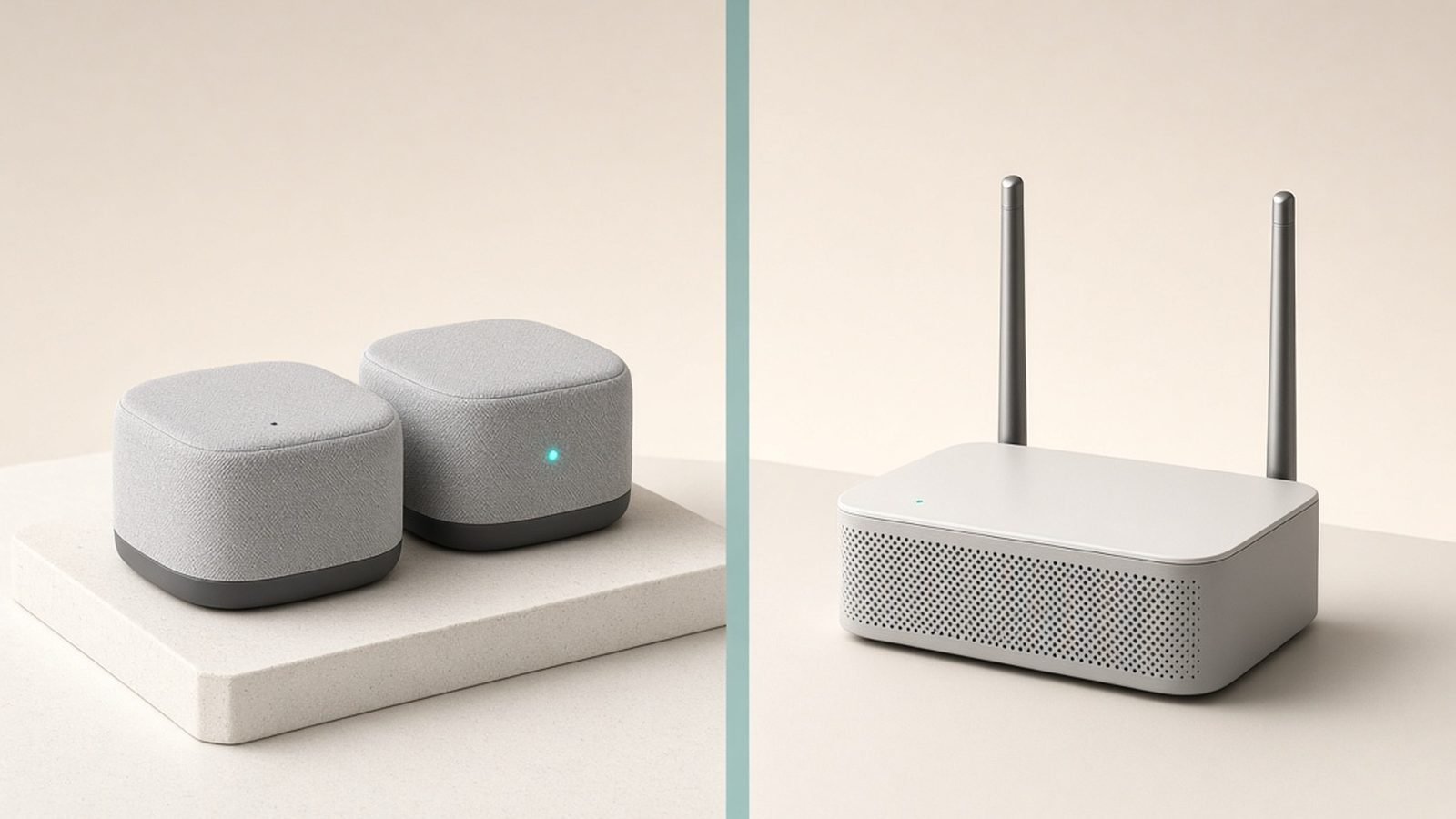
When a router is advertised as dual-band, it broadcasts 2.4GHz and 5GHz. Tri-band adds a third band — either a second 5GHz radio (common on older/gaming routers) or a 6GHz radio (on Wi-Fi 6E/7 models). Wi-Fi 7 flagships that carry all three (2.4 + 5 + 6GHz) are sometimes still called tri-band.
Why the extra band matters:
- On a router, a third band gives more total capacity, so more devices can be busy at once without slowing each other.
- On a mesh system, the third band is often reserved as dedicated backhaul — a private lane for node-to-node traffic so your devices aren’t sharing airtime with it. This is why tri-band mesh usually holds speed across a large home far better than dual-band mesh. We unpack backhaul in Mesh Wi-Fi Explained: How It Works and Who Needs It.
For most single-router homes, good dual-band is plenty. Tri-band earns its cost in busy, device-heavy homes and in mesh systems covering large properties — see Best Mesh Wi-Fi Systems 2026: Wi-Fi 6 & Wi-Fi 7 Compared for systems that use the third band well.
Band steering: how routers pick for you
Modern routers usually broadcast one network name and use band steering to move each device to the best band automatically — 5GHz when you’re close, nudging toward 2.4GHz as you move away. Most of the time this works well and you never think about bands at all.
When it misbehaves — a device stuck on a slow band, or a smart plug that refuses to connect — you have options: some routers let you split the bands into separate network names so you can force a device onto 2.4GHz (a common fix for smart-home gadgets that can’t handle a combined SSID). If you’re chasing dead zones or slow rooms, understanding which band a device is using is often the first clue.
Why this matters for real problems
Bands aren’t trivia — they explain the everyday Wi-Fi annoyances:
- A smart bulb won’t connect? It’s probably 2.4GHz-only, and your phone is on 5GHz during setup. Temporarily join the 2.4GHz network.
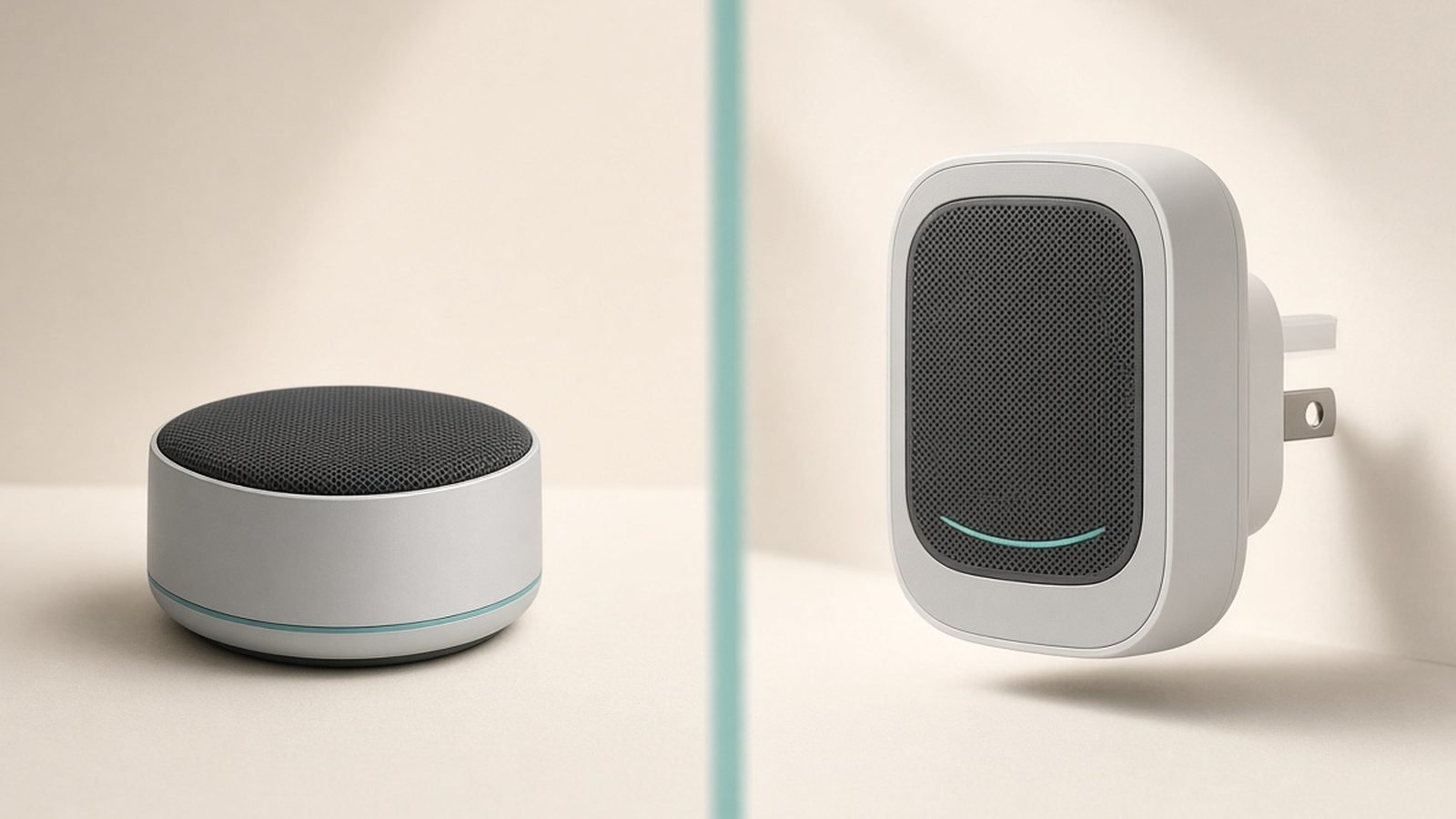
- Great speed by the router, poor in the back bedroom? You’re dropping off 5GHz/6GHz at range; 2.4GHz reaches but is slow — a classic sign you need better placement, an extender or mesh. Start with How to Extend Wi-Fi Range: 8 Fixes That Work.
- Congested, laggy Wi-Fi in a block of flats? 2.4GHz is saturated by neighbours; move devices to 5GHz or 6GHz where there’s room to breathe.
The limits
Understanding bands helps, but it won’t rewrite physics. No band gives you both maximum range and maximum speed — that’s the permanent trade-off. And no band setting fixes slow broadband; bands govern the link between router and device, not the speed your ISP delivers. If a wired speed test at the router is slow, the problem is upstream, not your bands.
FAQ
Which Wi-Fi band should I use?
Match the band to distance and job. Use 5GHz as your default for phones, laptops and streaming in the same or an adjacent room. Use 2.4GHz for far-away devices and smart-home gadgets that need range over speed. Use 6GHz for high-bandwidth devices right beside the router. If your router does band steering, it’ll usually choose well automatically.
Is 5GHz always better than 2.4GHz?
No — 5GHz is faster but has shorter range. Close to the router, 5GHz wins easily. Far away or through thick walls, 2.4GHz may be the only band that holds a usable connection. “Better” depends entirely on distance: speed near the router, reach at the edges of your home.
Do I need 6GHz Wi-Fi?
Only if you have 6GHz-capable devices and want the fastest, least congested band for close-up use or mesh backhaul. It’s great in busy flats where 2.4/5GHz are crowded, and for gaming PCs or VR headsets near the router. If your devices are older or your needs are modest, good 5GHz is still plenty. Weigh it up in What Is Wi-Fi 7? The New Standard Explained.
What’s the difference between dual-band and tri-band?
Dual-band broadcasts 2.4GHz and 5GHz. Tri-band adds a third radio — either a second 5GHz or a 6GHz band. The extra band adds capacity for busy homes and, on mesh systems, often serves as dedicated backhaul between nodes, which keeps whole-home speeds high. Dual-band suits most single-router homes; tri-band suits device-heavy homes and large mesh setups.
Why won’t my smart home device connect to Wi-Fi?
Most smart bulbs, plugs and sensors are 2.4GHz-only, and setup often fails because your phone is on a combined or 5GHz network. Fix it by connecting your phone to the 2.4GHz network during setup, or split your router’s bands into separate names temporarily so you can select 2.4GHz. Once paired, the device stays on 2.4GHz.
Does more bands mean faster internet?
Not directly. Extra bands add total capacity — more devices can be active at once without congestion — but they can’t exceed the speed your broadband plan provides. A tri-band router helps a busy home, but if your internet is slow at the router over a cable, more bands won’t fix it. Bands manage local traffic, not your ISP’s line speed.
Zen Tech Hub may earn a commission from links on this page, at no extra cost to you.