If a new Fire tablet just landed as a birthday or Christmas gift, the box does almost nothing to explain the part that matters: the controls. The good news is that Amazon Fire tablet parental controls are genuinely comprehensive once you know where they live. In ten minutes you can lock down screen time, block the browser, hide in-app purchases and set separate rules for each child — from the tablet or remotely from your phone.
This guide covers the full fire kids tablet setup, whether you bought a Kids Edition or you’re converting a standard Fire into a locked-down kids device.
Kids Edition vs a child profile: the same Amazon Fire tablet parental controls
There are two paths that end in the same place.
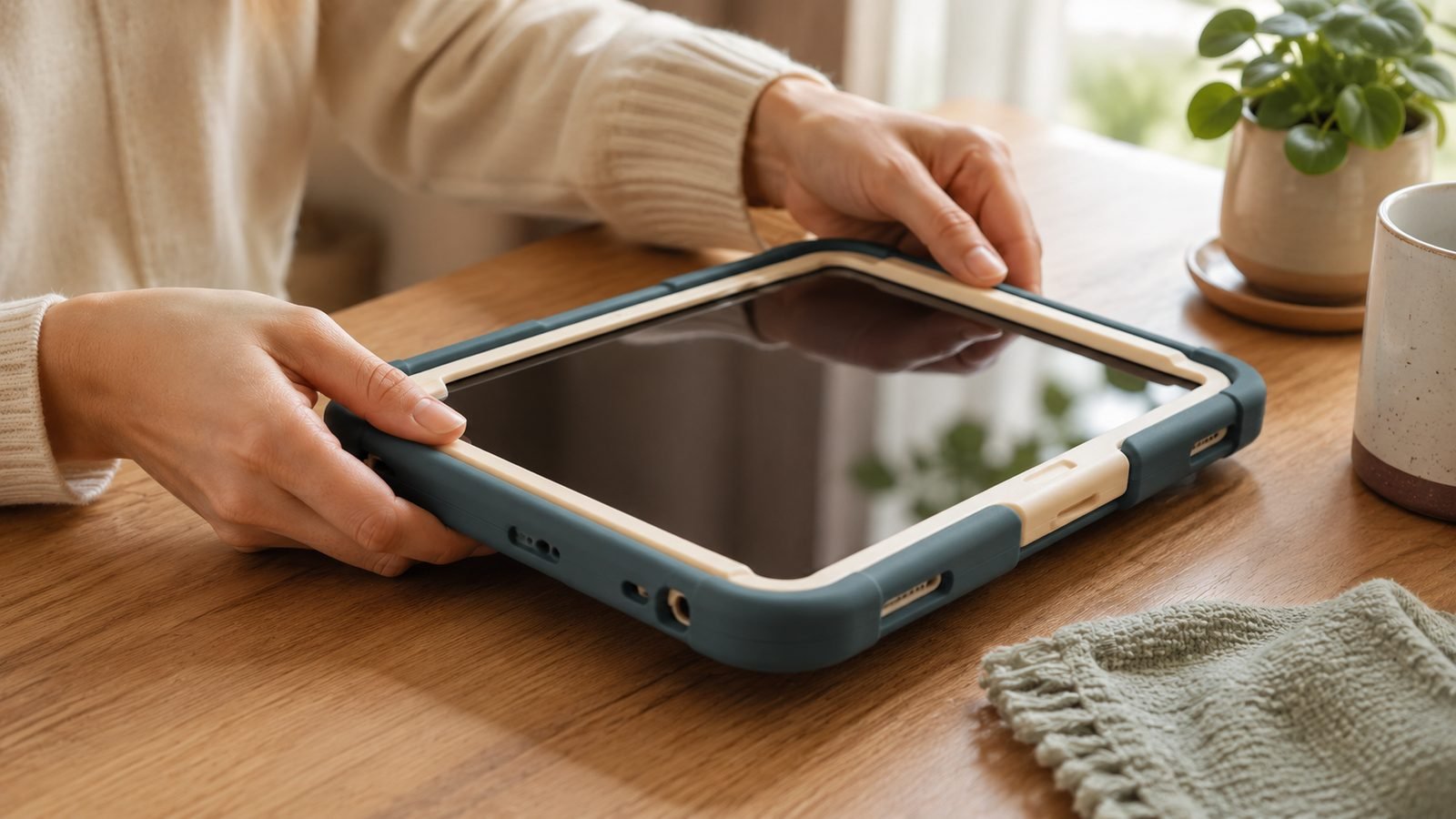
A Fire Kids tablet (like the Fire HD 10 Kids) is a normal Fire tablet with three extras baked in: a chunky bumper case, a two-year worry-free replacement guarantee, and one year of Amazon Kids+ included. Any standard Fire tablet can become a kids device for free — you just add a child profile, losing the case, guarantee and free Kids+ year. Crucially, the safety controls are identical either way.
| Fire Kids Edition | Standard Fire + child profile | |
|---|---|---|
| Bumper case | Included | Buy separately |
| 2-year replacement | Yes | No |
| Amazon Kids+ | 1 year free | Free trial only |
| Parental controls | Full | Full |
| Typical price (US/UK) | ~$189.99 / £169.99 | Hardware you own |
First-time setup: creating a child profile step by step
Complete the adult setup first. The device must be registered to your Amazon account — that becomes the parent controller, so never register a Fire tablet to a child’s login. Then, to add a child profile on a Fire tablet:
Swipe down from the top and open Settings > Profiles & Family Library.
Tap Add Child Profile.
Enter the child’s first name, birthdate and an avatar. The birthdate matters — it sets age-appropriate content filters automatically.
Repeat for each child. Each profile keeps its own apps, books, limits and progress.
Set a parental controls PIN that differs from your device unlock code, so a curious eight-year-old can’t guess both.
Tap the profile icon to switch in. The interface becomes the blue-and-orange Amazon Kids launcher, and the child can’t reach your apps, email, store or settings without the PIN.
Setting screen-time limits, bedtimes and educational goals
To set screen time limits on a Fire tablet, open the Amazon Kids launcher, tap the parent icon, enter your PIN and choose Set Daily Goals & Time Limits.
You get three layers of control:
Bedtime / curfew. Pick a start and end time (say 7:30pm to 7:00am) when the tablet locks completely — looser on weekends, tighter on school nights.
Total daily time limits. Cap overall usage, or split it by category: so much for video, so much for apps and games, unlimited for reading.
Educational goals. Require reading or “learn” activities before games and video unlock — turning “can I have the tablet?” into “have you done your reading?”.
Based on owner reports, the category split is the most-loved setting: books stay open all day while video is rationed.
Controlling apps, websites and in-app purchases
Inside a child profile, nothing appears unless you approve it. From the parent menu, tap Add Content to push specific apps, books and videos from your library onto the child’s home screen.
Blocking the web browser is one tap. Under Web & Video in the child profile, disable Amazon Silk entirely, or switch to a child-safe web experience with an allow-list of approved sites. This is also how you block YouTube on a Fire tablet: don’t add the app, and keep the browser locked so they can’t reach youtube.com. If an older child needs video, add YouTube Kids specifically.
In-app purchases are off by default in kids profiles, but confirm it: in your adult profile, require a PIN for all purchases under Settings > Profiles & Family Library. No child profile can buy anything from the store, full stop.
Amazon Kids+ explained: what’s free vs the subscription
This trips up a lot of parents, so let’s be precise about the Amazon Kids+ settings and cost.
Free forever: all the parental controls — child profiles, screen-time limits and web blocking. You never pay for the safety features.
The subscription: Amazon Kids+ is a separate content library — thousands of kid-safe books, games, videos and apps that refresh automatically. It runs around $5.99/month in the US or £4.99/month in the UK, cheaper annually and cheaper still for Prime members. Kids Edition tablets include the first year free.
Without a subscription the tablet still works perfectly — you just curate content manually from apps and books you own or buy individually. Kids+ mainly buys convenience and a bottomless, age-filtered content well.
Check price: Amazon Kids+ (subscription)
Using the Parent Dashboard remotely
You don’t need the tablet to change the rules. The Amazon Parent Dashboard lives at parents.amazon.com in any browser, or in the Amazon Kids companion app. From it you can:
Adjust time limits and bedtimes on the fly — extend screen time as a reward, or cut it off remotely.
See activity reports: which books were read, which apps were used and for how long.
Add or remove content without touching the device.
For separated households or grandparents, remote management is the standout: whoever holds the parent account controls the tablet from anywhere.
Converting a hand-me-down Fire into a kids tablet
Reusing an older Fire? To turn a Fire tablet into a kids tablet, do a clean handover first.
Deregister the old owner (Settings > My Account > Deregister), or factory reset if it belonged to someone else.
Register it to the parent’s Amazon account.
Update the software for the latest controls (Settings > Device Options > System Updates).
Add a microSD card. Kids fill storage fast with downloaded videos. A 128GB SanDisk card costs around $15 / £13 and spares you the daily “storage full” battle — Fire tablets support cards up to 1TB.
Add the child profile as above.
Older Fire models on current Fire OS support the same control suite, so a two- or three-year-old hand-me-down works fine as a kids tablet.
Check price: microSD card 128GB (SanDisk)
Verdict: which setup is right for you?
Buying new for a young child? The Fire HD 10 Kids is the easy call — the bumper case and two-year replacement guarantee pay for themselves the first time it hits a tiled floor, and the free Kids+ year removes any content-curation effort.
Already own a Fire tablet, or inheriting one? Skip the Kids Edition. Add a child profile, use a Kids+ free trial to decide if the library is worth it, and drop in a cheap microSD card. You get identical protection for the cost of a memory card.
Still choosing hardware? Our Best Kids Tablets 2026: Fire, Samsung & iPad Compared by Age roundup pits Fire against iPad and Samsung, while readers weighing an e-reader should see Which Kindle Should You Buy in 2026? All 6 Models Ranked for the Kindle Kids. Shopping a bigger budget? Best Tablets Under $500 in 2026: 7 Picks for US & UK Buyers covers the step up. More guides live on our Tablets & E-Readers.
FAQ
Are Amazon Fire tablet parental controls free? Yes. Every parental control — child profiles, screen-time limits, bedtimes, web blocking and the Parent Dashboard — is free on any Fire tablet. Only the Amazon Kids+ content library is a paid subscription, and the tablet works fully without it.
Can I set different screen-time limits for each child? Yes. Each child profile is independent, so a teenager can get two hours of video while a five-year-old gets 30 minutes plus a reading goal. Set them per profile in the Amazon Kids launcher, or remotely from the Parent Dashboard.
How do I block YouTube on a Fire tablet? Don’t add the YouTube app to the child’s profile, and disable Silk under Web & Video so they can’t reach the site. For safer video, add YouTube Kids instead of the standard app.
What happens when the Amazon Kids+ free year ends? You’ll be prompted to subscribe at around $5.99/£4.99 a month. If you decline, Kids+ content disappears but the tablet keeps working — your own books, apps and every parental control stay put.
Do parental controls work on an old, hand-me-down Fire tablet? Yes, as long as it runs current Fire OS. Factory reset it, register it to the parent’s Amazon account, update the software, then add a child profile. The control suite is identical to a new Kids Edition.
Zen Tech Hub may earn a commission from links on this page, at no extra cost to you.