Choosing the best drawing tablet for beginners is mostly about not overspending on your first one. The single biggest mistake new artists make is buying a $700 Wacom Cintiq before they know whether they even like drawing digitally. You don’t need it. In 2026 a great starter tablet costs between $40 and $250, and the skills you build transfer to any hardware you upgrade to later.
This guide ladders up by budget, from a $40 screenless pad to a standalone tablet that needs no computer at all. We’ve cross-referenced current specs with aggregated owner feedback so you can pick the right tier for how serious you are today, not two years from now.
Pen tablet vs pen display vs standalone: which type first?
Before any brand argument (huion vs xppen, xppen vs wacom for beginners), pick the type. There are three.
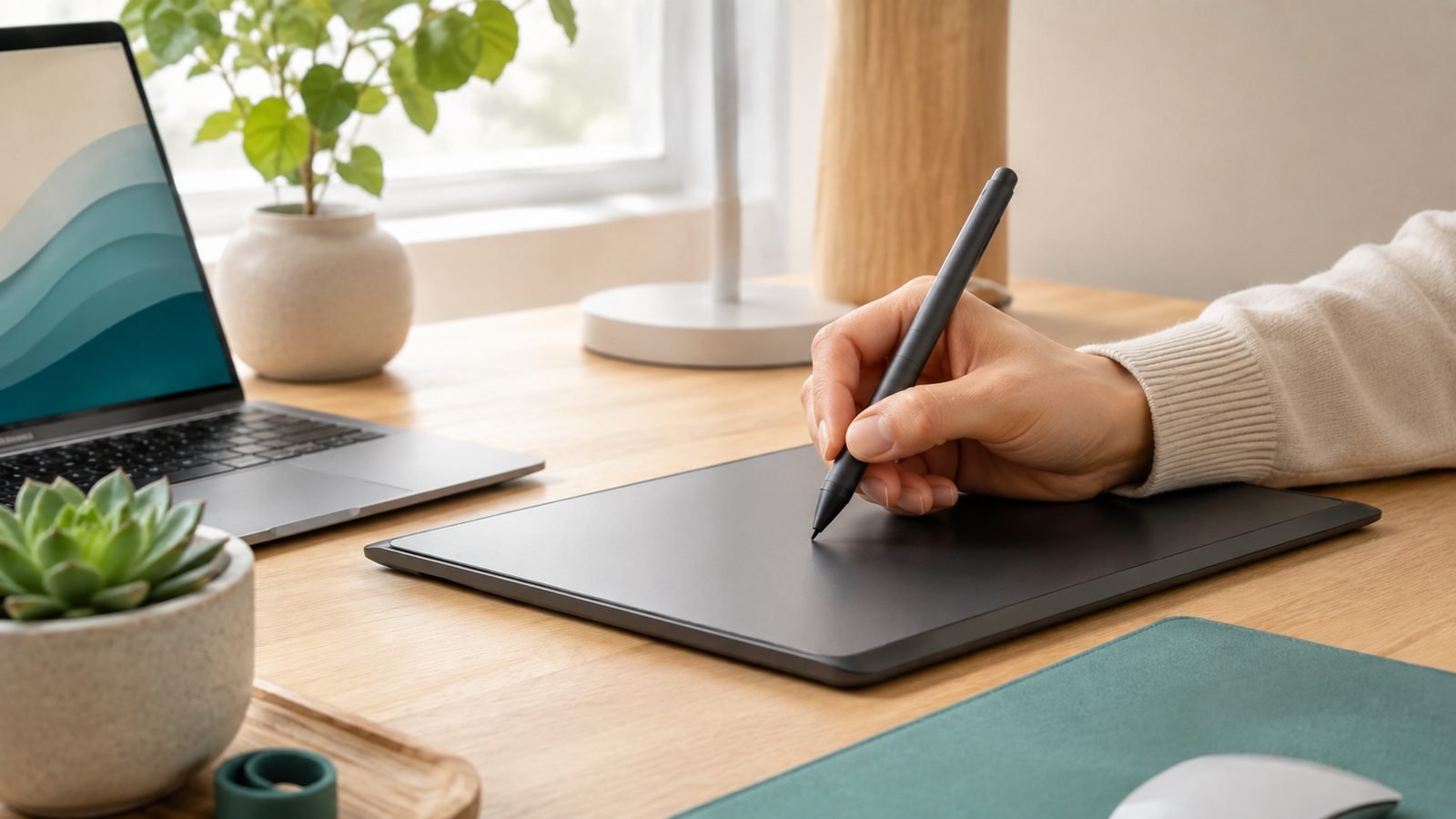
Pen tablet (screenless): You draw on a flat pad while looking at your monitor. Cheapest by far, and it forces good hand-eye coordination. The catch: a short adjustment period where your hand and eyes are in different places. Most people adapt in a week or two.
Pen display (screen): You draw directly on a screen that plugs into your PC. Far more intuitive, more expensive, and it still needs a computer plus cables. This is the “drawing tablet with screen for beginners” category.
Standalone: A self-contained tablet (Android or iPadOS) that runs drawing apps directly. No PC required, most portable, most expensive. This is your “drawing tablet without computer” option.
Our honest take: if money is tight, start screenless. If drawing on glass is the only thing that will keep you motivated, get a budget pen display. Only buy standalone if portability is genuinely non-negotiable.
Quick picks table
| Tablet | Type | Best for | Around (US / UK) |
|---|---|---|---|
| XPPen Deco 01 V3 | Pen tablet | Best overall value | $60 / £56 |
| Huion Inspiroy 2 S | Pen tablet | Best budget | $40 / £36 |
| One by Wacom / Intuos S | Pen tablet | Schools, Chromebooks | $50–80 / £40–70 |
| Huion Kamvas 13 (Gen 3) | Pen display | Best beginner screen | $240 / £220 |
| XPPen Artist 13 (2nd Gen) | Pen display | Display upgrade / deals | $200 / £180 |
| XPPen Magic Drawing Pad | Standalone (Android) | No-PC drawing | $500 / £460 |
| iPad 11-inch (A16) + Pencil | Standalone (iPadOS) | Easiest on-ramp | $349 + $79 / £329 + £79 |
Best overall for beginners: XPPen Deco 01 V3
If we had to hand one tablet to a total beginner, it’s this. The Deco 01 V3 gives you a big 10 x 6.25-inch active area, XPPen’s X3 chip stylus, and 16K pressure levels for around $60 / £56 — specs that cost three times as much a few years ago.
The large surface matters more than beginners expect: it lets you draw from the elbow and shoulder, which is how you build smooth linework. Based on owner reports, the battery-free pen tracks cleanly with no noticeable lag in Krita or Clip Studio, and the eight shortcut keys cut down on keyboard reaching.
It’s screenless, so budget a week to retrain your hand-eye link. That’s the only real downside, and it’s temporary.
Pros - Large active area for natural, full-arm strokes - Modern X3 stylus with 16K pressure, no charging - Works with Windows, macOS, Android, and ChromeOS
Cons - No screen — requires an adjustment period - Plain, utilitarian build
Best for: anyone who wants the best cheap drawing tablet without feeling like they compromised.
Best budget: Huion Inspiroy 2 S and One by Wacom
Two ways to spend as little as possible, aimed at different buyers.
Huion Inspiroy 2 S — cheapest credible tablet
At about $40 / £36, the Inspiroy 2 S is the least you can spend and still get a genuinely usable tablet. It’s the huion vs xppen budget matchup, and Huion’s answer includes something rivals skip at this price: programmable keys and a scroll wheel for zoom and brush sizing.
The trade-off is the pen. It’s a basic stylus without the tilt refinement of pricier models, and the active area is small, so you’ll work more from the wrist. For a curious teenager or a cautious first-timer, it’s a fantastic low-risk entry.
Pros - Rock-bottom price with a scroll wheel and press keys - Slim, portable, USB-C
Cons - Small active area - Basic pen, weaker tilt behaviour
Check price: Huion Inspiroy 2 S
One by Wacom / Wacom Intuos S — the safe school choice
Wacom charges more for less on paper — the One by Wacom (around $50 / £40) has just 4,096 pressure levels and a small area, and the Intuos S (around $80 / £70) isn’t far ahead. So why buy it? Drivers. In our research, Wacom’s software is the most trouble-free in the category, and the One by Wacom’s native Chromebook support makes it the default pick for schools and parents who don’t want a driver argument on a Tuesday night.
For the xppen vs wacom for beginners debate, it comes down to this: XPPen gives you more spec per pound; Wacom gives you fewer support headaches.
Pros - Bulletproof, low-fuss drivers - Excellent Chromebook / classroom support
Cons - Only 4,096 pressure levels - Small area, higher price for the specs
Best for: students, schools, and anyone who values reliability over headline numbers.
Check price: One by Wacom / Wacom Intuos S
Best beginner pen display: Huion Kamvas 13 (Gen 3)
Once you’re sure you want to draw on a screen, the Kamvas 13 (Gen 3) is the cheapest “draw on glass” experience we’d actually recommend, at around $240 / £220. You get a 13-inch laminated display — the pen tip sits right under the cursor with minimal parallax gap — plus strong colour coverage that’s genuinely usable for finished work, not just doodles.
This is our pick for the best budget pen display. Laminated screens usually start higher, and the colour accuracy here punches above the price based on owner feedback.
The reality check: it still needs a computer, and a 13-inch display means cable spaghetti — one connector splits into HDMI, USB, and power. Sort your desk before it arrives.
Pros - Laminated screen, small parallax gap - Strong, usable colour coverage - Genuinely affordable entry to drawing on-screen
Cons - Needs a PC plus a three-headed cable - 13 inches can feel cramped for detailed work
Best for: beginners certain they want a screen, on the tightest sensible budget.
Check price: Huion Kamvas 13 (Gen 3)
Best display upgrade: XPPen Artist 13 (2nd Gen)
The Artist 13 (2nd Gen) is the Kamvas 13’s direct rival and often the better deal thanks to XPPen’s near-constant coupon discounts, landing around $200 / £180. You get the same laminated 13-inch format and the excellent X3 stylus that also powers the Deco 01 V3.
The compromise is resolution: it’s 1080p only. On a 13-inch panel that’s perfectly sharp for learning, but it’s worth knowing if you plan to sit close for fine detail. If you want the full step-up story, see our XPPen Artist Pro 16 (Gen 2) Review: Wacom Quality, Half Price?.
Pros - Laminated 13in screen, great X3 pen - Frequently discounted below list
Cons - 1080p resolution only - Same PC-and-cables requirement as any display
Best for: bargain hunters who’ll wait for (or catch) an XPPen coupon.
Check price: XPPen Artist 13 (2nd Gen)
Best standalone (no PC needed): XPPen Magic Drawing Pad vs iPad
Want a drawing tablet without a computer? Two very different routes.
XPPen Magic Drawing Pad — Android standalone
Around $500 / £460, the Magic Drawing Pad is an Android tablet built for artists, and crucially it includes the 16K-pressure X3 Pro pen in the box. No separate stylus purchase, no PC, no cables. Run Android drawing apps and go.
Processing power is mid-range, so extremely heavy, many-layer files can slow it, but for sketching, inking and everyday illustration it’s more than enough. It’s the most artist-focused way to go fully portable without the Apple tax.
Pros - Truly standalone, pen included - 16K-pressure X3 Pro stylus in the box
Cons - Mid-range chip struggles with huge files - Smaller app ecosystem than iPadOS
Check price: XPPen Magic Drawing Pad
iPad 11-inch (A16) + Apple Pencil (USB-C) — the easiest on-ramp
The iPad route runs about $349 + $79 / £329 + £79 (tablet plus Apple Pencil USB-C). With Procreate — a one-time purchase — this is the smoothest first experience in the whole guide, and you also get a full, do-everything tablet.
One honest caveat: the USB-C Pencil lacks the pressure-adjacent extras of the Apple Pencil Pro (no squeeze, no barrel roll), though it does support tilt. For beginners that’s a non-issue. If you’re weighing models, our Which iPad Should You Buy in 2026? Every Model Compared guide breaks it down, and once you upgrade your setup you can even How to Use an iPad as a Second Monitor (Mac & Windows).
Pros - Procreate makes learning effortless - Doubles as a full-featured tablet
Cons - USB-C Pencil misses Pencil Pro features - Total cost climbs once you add the pen
Best for: people who want the least friction and a device that isn’t only for art.
Check price: iPad 11-inch (A16) + Apple Pencil (USB-C)
Free software to start with (Krita, Clip Studio, Procreate)
Don’t spend a penny on software until you’ve outgrown the free tools.
Krita — completely free, open-source, and genuinely professional. The best starting point for painting and illustration on Windows, macOS or Linux.
Clip Studio Paint — the industry favourite for comics and manga, with regular free trials before you commit. Watch for perpetual-licence sales rather than defaulting to a subscription.
Procreate — iPad only, a small one-time fee, and the reason many people pick the iPad route above.
Every screenless and pen-display tablet here works with Krita and Clip Studio out of the box, so your first paintings cost nothing beyond the hardware.
Beginner mistakes that waste money
Buying a Cintiq first. The classic trap. Learn on a $60 pad; buy the premium display once you know your style.
Chasing pressure-level numbers. The jump from 4,096 to 16K is real but tiny in practice. Active-area size and driver stability matter more.
Ignoring the pen. A battery-free, modern stylus (like XPPen’s X3) beats headline specs elsewhere.
Forgetting the cables. Budget pen displays need a PC and a multi-headed cable — plan desk space and ports.
Panicking over driver issues. Most “pen pressure not working” problems are a five-minute fix; see Pen Pressure Not Working? Fixes for XPPen, Wacom & Huion before returning anything.
Verdict: which should you buy?
For most beginners, the XPPen Deco 01 V3 is the best drawing tablet for beginners full stop — big surface, modern pen, tiny price. Spending the absolute minimum? The Huion Inspiroy 2 S. Buying for a student or school? The fuss-free One by Wacom. Set on drawing on a screen, the Huion Kamvas 13 (Gen 3) (or a discounted XPPen Artist 13) is the sweet spot. And if you must go PC-free, the XPPen Magic Drawing Pad or an iPad 11-inch with Procreate will get you there. Start cheap, draw a lot, upgrade only when the hardware — not your skill — is the limit.
For more picks and buying advice, browse our Tablets & E-Readers.
FAQ
Is a drawing tablet with a screen worth it for beginners? Only once you’re committed. Screenless tablets are cheaper and build hand-eye skills that transfer everywhere, and most people adapt within a week or two. If drawing on glass is the one thing that’ll keep you practising, a budget pen display like the Kamvas 13 is worth it — otherwise start screenless and save the money.
XPPen vs Wacom for beginners — which is better? XPPen gives you far more specification for the money: bigger active areas, modern 16K-pressure pens, frequent discounts. Wacom charges more but has the most reliable drivers and the best Chromebook and classroom support. Buy XPPen for value, Wacom for zero-fuss reliability, especially in schools.
Can I get a drawing tablet that doesn’t need a computer? Yes. Standalone tablets run drawing apps on their own. The XPPen Magic Drawing Pad is an Android option with the pen included for around $500 / £460, and an iPad with Procreate is the easiest to learn on. Both cost more than a screenless pad but need no PC or cables.
How much should a beginner spend on a graphics tablet in the UK? Around £36 to £56 gets you an excellent screenless graphics tablet in the UK, such as the Huion Inspiroy 2 S or XPPen Deco 01 V3. A beginner pen display runs roughly £180 to £220. There’s no reason to spend more until you’ve confirmed you enjoy digital art.
Do I need expensive software to start? No. Krita is free and fully professional, Clip Studio Paint offers trials before you buy, and Procreate is a small one-time cost on iPad. Every tablet in this guide works with free software, so your only real outlay is the hardware itself.
Zen Tech Hub may earn a commission from links on this page, at no extra cost to you.