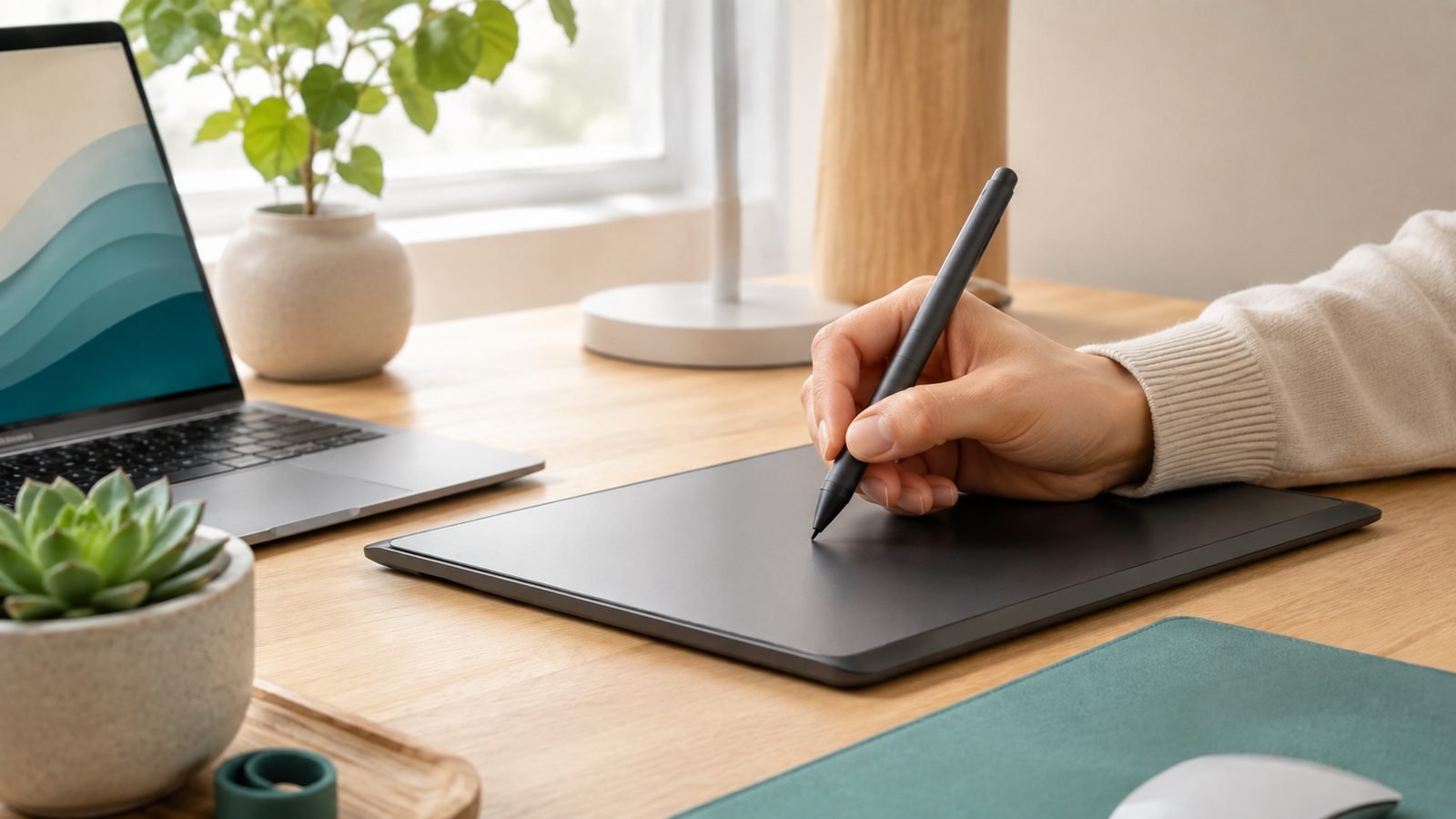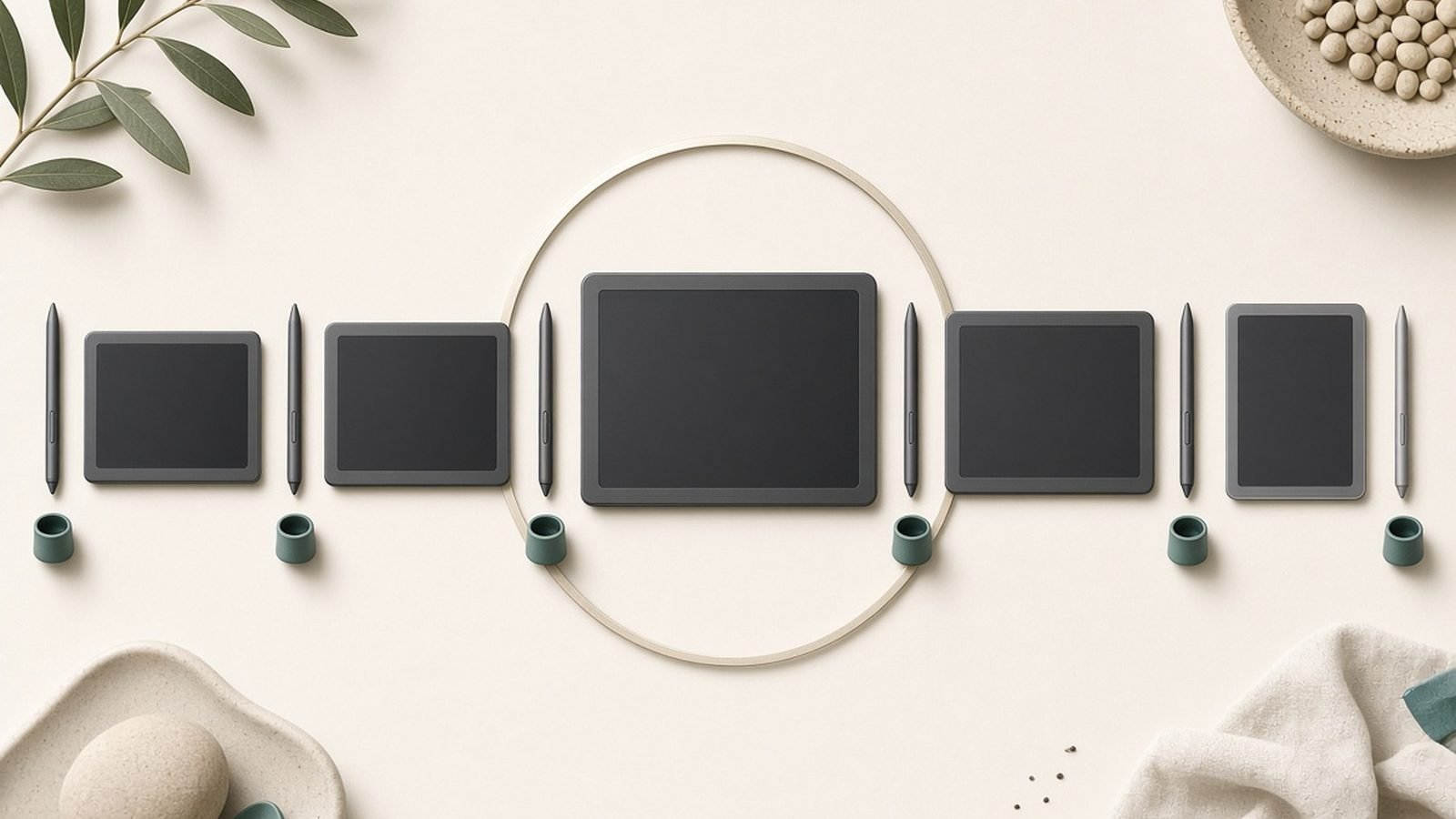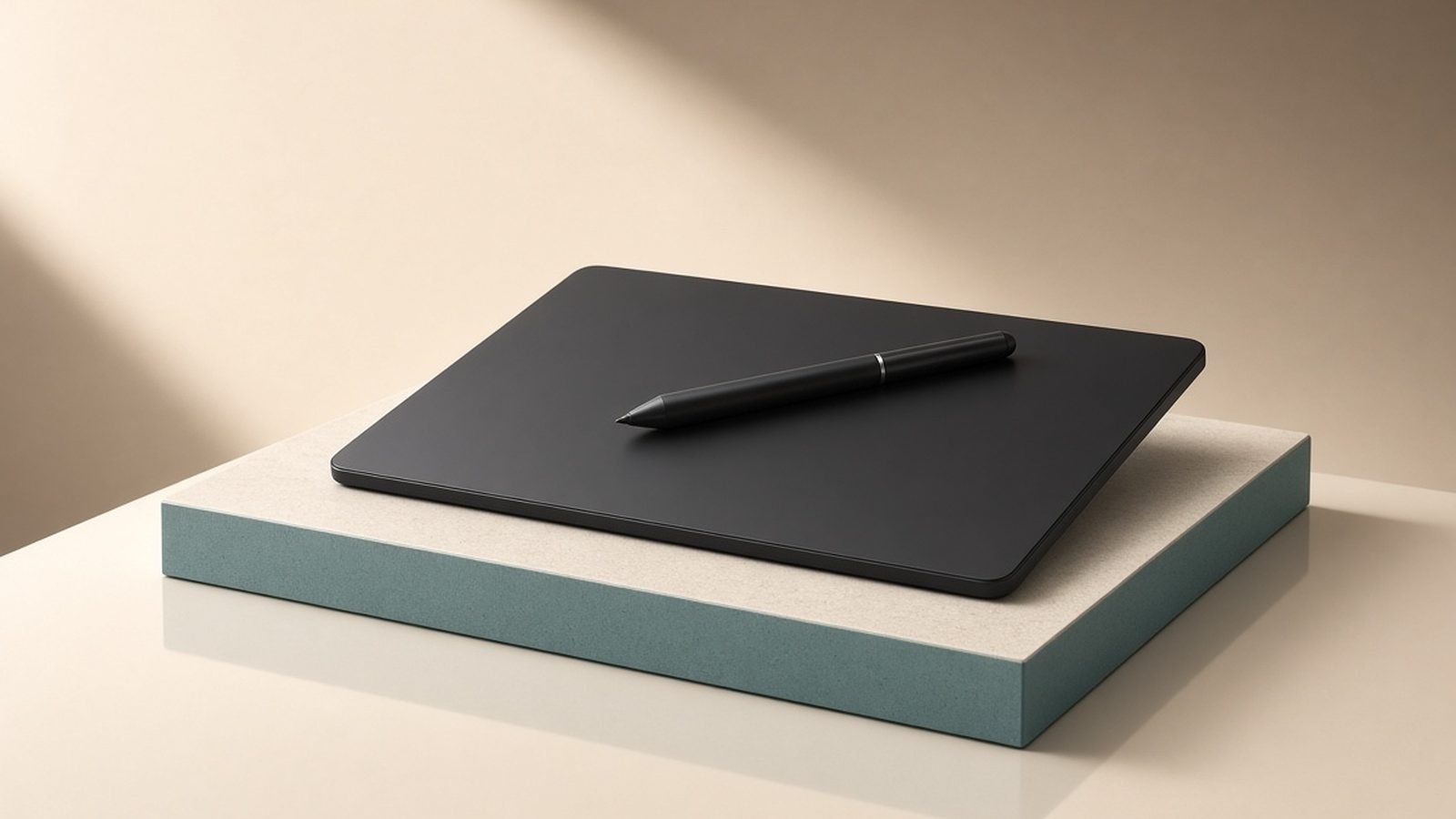
For a decade, “get a Wacom” was the only advice serious digital artists gave. This XPPen Artist Pro 16 Gen 2 review asks whether that reflex still holds up in 2026 — because XPPen is now selling a 16-inch, 2.5K, fully laminated pen display with a 16,384-pressure-level stylus for roughly what Wacom charges for a smaller, lower-pressure entry model. On paper it looks like a rout. The interesting question is what you actually give up to save the money.
Verdict up front
The Artist Pro 16 (Gen 2) is the value benchmark in mid-range pen displays, full stop. You get a big, colour-accurate, laminated screen, an excellent battery-free stylus, and a shortcut remote in the box — a package Wacom simply doesn’t match at this price. The trade-offs are real but modest: a fixed 19-degree stand, no touch input, and drivers that can get temperamental after a major Windows or macOS update. If you can live with those, this is the pen display most people should buy.
Rating: 4.5 / 5
Check price: XPPen Artist Pro 16 (Gen 2)
Price, specs and what’s in the box
The Artist Pro 16 (Gen 2) lands at around $449.99 / £429.99, and XPPen runs coupons often enough that you should never pay full sticker — check for a code before checkout.
For that you get a 15.4-inch display at 2.5K (2560 x 1440), full lamination, an anti-glare etched surface, and a quoted 159% sRGB / roughly 99% Adobe RGB colour gamut. The star is the X3 Pro stylus: battery-free, tilt-supported, and rated at 16,384 pressure levels with a very low ~3g initial activation force.
In the box you get the display, the X3 Pro pen, a stand, the ACK05 shortcut remote (a genuine extra — Wacom makes you buy the equivalent), replacement nibs, and the cabling. It’s a complete kit, not a stripped starter package.
Key specs
| Spec | XPPen Artist Pro 16 (Gen 2) |
|---|---|
| Screen | 15.4in, 2560 x 1440 (2.5K), fully laminated |
| Colour | ~159% sRGB / ~99% Adobe RGB, anti-glare |
| Stylus | X3 Pro, 16,384 pressure levels, tilt, battery-free |
| Extras | ACK05 shortcut remote included |
| Stand | Fixed ~19-degree angle |
| Touch | No |
| Price | ~$449.99 / £429.99 |
Setup and drivers on Windows and Mac
Physical setup is quick. Recent units ship with a 3-in-1 cable, and on the right hardware you can drive it from a single USB-C port; otherwise you split out to HDMI and USB-A. Plan about ten minutes.
The software is where XPPen’s reputation is more mixed. Install the latest PenTablet driver from XPPen’s site — not whatever ships in the box — before you do anything else. Based on owner reports, the driver is stable day-to-day but is the most common source of complaints, usually pen pressure dropping out or the tablet not being detected after a macOS or Windows feature update. The fix is almost always a clean driver reinstall. If you hit this, our guide to Pen Pressure Not Working? Fixes for XPPen, Wacom & Huion walks through the exact steps.
This is the core of the XPPen tax trade: Wacom’s drivers are more set-and-forget, and for some professionals that reliability alone justifies the premium.
The X3 Pro stylus: 16K pressure levels in practice
Here’s the honest take on the headline number: 16,384 pressure levels is marketing more than a felt difference. No human hand resolves that many steps, and the jump from Wacom’s 8,192 is imperceptible in a real drawing.
What matters is how the pen behaves, and the XPPen X3 Pro stylus is genuinely very good. The low ~3g activation force means fine hairlines and tapered strokes start reliably without you leaning in. In our research across owner feedback, the consistent praises are minimal activation lag and clean taper on line-weight tests. It’s battery-free and tilt-aware, and the nib wobble that plagued cheaper XPPen pens years ago is gone.
Is the X3 Pro as inert and “invisible” as a Wacom Pro Pen 2? A hair less so, but the gap is now small enough that most artists stop noticing within a session.
Display quality: colour accuracy and lamination
This is where the Artist Pro 16 earns its “Wacom quality” claim. The full lamination bonds the glass to the panel so the cursor sits directly under the nib with almost no parallax — the single biggest thing that makes a pen display feel accurate. The etched anti-glare surface gives a light paper-like tooth and tames reflections.
The 2.5K resolution beats the 1080p panels on comparably priced rivals, and the wide gamut is usable for colour-critical work — though print professionals will still want to run their own calibration. As a best 16 inch pen display candidate on screen quality alone, this is near the top of the class.
Drawing tests: Clip Studio, Photoshop and Krita
Across the big three apps, owner consensus is that the Artist Pro 16 just works. In Clip Studio Paint — where most illustrators and comic artists live — pressure mapping and taper are excellent, and the included remote makes brush-size and undo shortcuts fast. In Photoshop, it behaves like a standard Windows Ink / WinTab device; the usual advice is to match the driver’s pressure mode to Photoshop’s tablet settings to avoid double-processing. In Krita, which many painters prefer precisely because its tablet handling is robust, reports are strongly positive with minimal fuss.
The recurring theme: when the driver is happily installed, the drawing experience is not meaningfully worse than a Cintiq. When an OS update breaks the driver, everything stops until you reinstall. That’s the whole XPPen story in one line.
XPPen Artist Pro 16 vs Wacom One 13 Touch and Cintiq 16
The XPPen vs Wacom Cintiq question is really two comparisons.
Against the Wacom One 13 Touch (around $399.95 / £349.99), XPPen wins on almost every spec: bigger screen, 2.5K vs 1080p, 16K vs 4,096 pressure, wider gamut, and a bundled remote. What the Wacom One offers back is touch input, the friendlier brand and support experience, and drivers that rarely misbehave. It’s the safer, simpler pick — and a fair one for nervous beginners.
Check price: Wacom One 13 Touch
Against the Wacom Cintiq 16 (typically around $549.95 / £499.99), the Artist Pro 16 matches or beats it on screen sharpness and stylus specs while costing meaningfully less and including a remote the Cintiq lacks. The Cintiq counters with Wacom’s rock-solid drivers, longer warranty reputation, and resale value. For most people in 2026, that’s no longer worth roughly £70–£100 extra.
XPPen Artist Pro 16 (Gen 2) — pros and cons
Pros: - Big 2.5K fully laminated screen with wide colour gamut - Excellent battery-free X3 Pro stylus with low activation force - Shortcut remote included in the box - Clearly undercuts Wacom on price
Cons: - Drivers can break after major OS updates - Fixed 19-degree stand angle (no lie-flat) - No touch input
Wacom One 13 Touch — pros and cons
Pros: - Touch input and a genuinely simple setup - Wacom’s more reliable drivers and support - Cheaper up front
Cons: - Smaller 1080p screen and only 4,096 pressure levels - No shortcut remote included
Who should buy it
Buy the XPPen Artist Pro 16 (Gen 2) if you want the most screen and stylus quality per pound or dollar and you’re comfortable doing an occasional driver reinstall. It suits illustrators, comic and concept artists, students, and hobbyists stepping up from a screenless tablet who don’t want to pay the Wacom premium. UK buyers get the same strong value — the XPPen Artist Pro 16 UK price tracks the US closely once tax is factored in.
Skip it, and pay the Wacom tax, only if driver stability is mission-critical to a paid deadline workflow, or if you specifically need touch input. If you’re not sure a screen tablet is even right for you yet, start with our Best Drawing Tablets for Beginners 2026 (From $40) guide, or if you’re weighing a portable all-in-one instead, see Which iPad Should You Buy in 2026? Every Model Compared for the Procreate route. More options live in the Tablets & E-Readers.
Check price: XPPen Artist Pro 16 (Gen 2)
FAQ
Is XPPen good, or is it a cheap Wacom knock-off? XPPen is a legitimate, established brand, not a knock-off. The Artist Pro 16 (Gen 2) matches or beats Wacom on screen and stylus hardware. The one real weak spot is driver polish, which occasionally needs a reinstall after OS updates. For the price, most artists consider that a fair trade.
Does the 16K pressure of the X3 Pro stylus actually matter? Not in the way the marketing implies — no hand feels 16,384 discrete steps. What matters is the pen’s low ~3g activation force and clean taper, and on those the X3 Pro is excellent. Treat the pressure number as reassurance that you’re not being short-changed, not as a feature you’ll consciously use.
Why does my XPPen lose pen pressure after a Windows or Mac update? This is the most common XPPen complaint and it’s almost always the driver, not the hardware. A clean reinstall of the latest PenTablet driver from XPPen’s site fixes it in the large majority of cases. Our Pen Pressure Not Working? Fixes for XPPen, Wacom & Huion guide covers the full sequence.
Can I run the Artist Pro 16 from a single USB-C cable? On a laptop or desktop whose USB-C port supports DisplayPort Alt Mode and enough power, yes — one cable does video, data and power. On ports that don’t, you use the included 3-in-1 cable to split out to HDMI and USB-A. Check your port’s specs before assuming single-cable operation.
Is the Wacom tax still worth paying in 2026? For most people, no. The Artist Pro 16 delivers 90% of the Cintiq experience for meaningfully less and throws in a remote. Pay the Wacom premium only if flawless driver reliability under deadline, longer support, or touch input genuinely matter to you.
Zen Tech Hub may earn a commission from links on this page, at no extra cost to you.