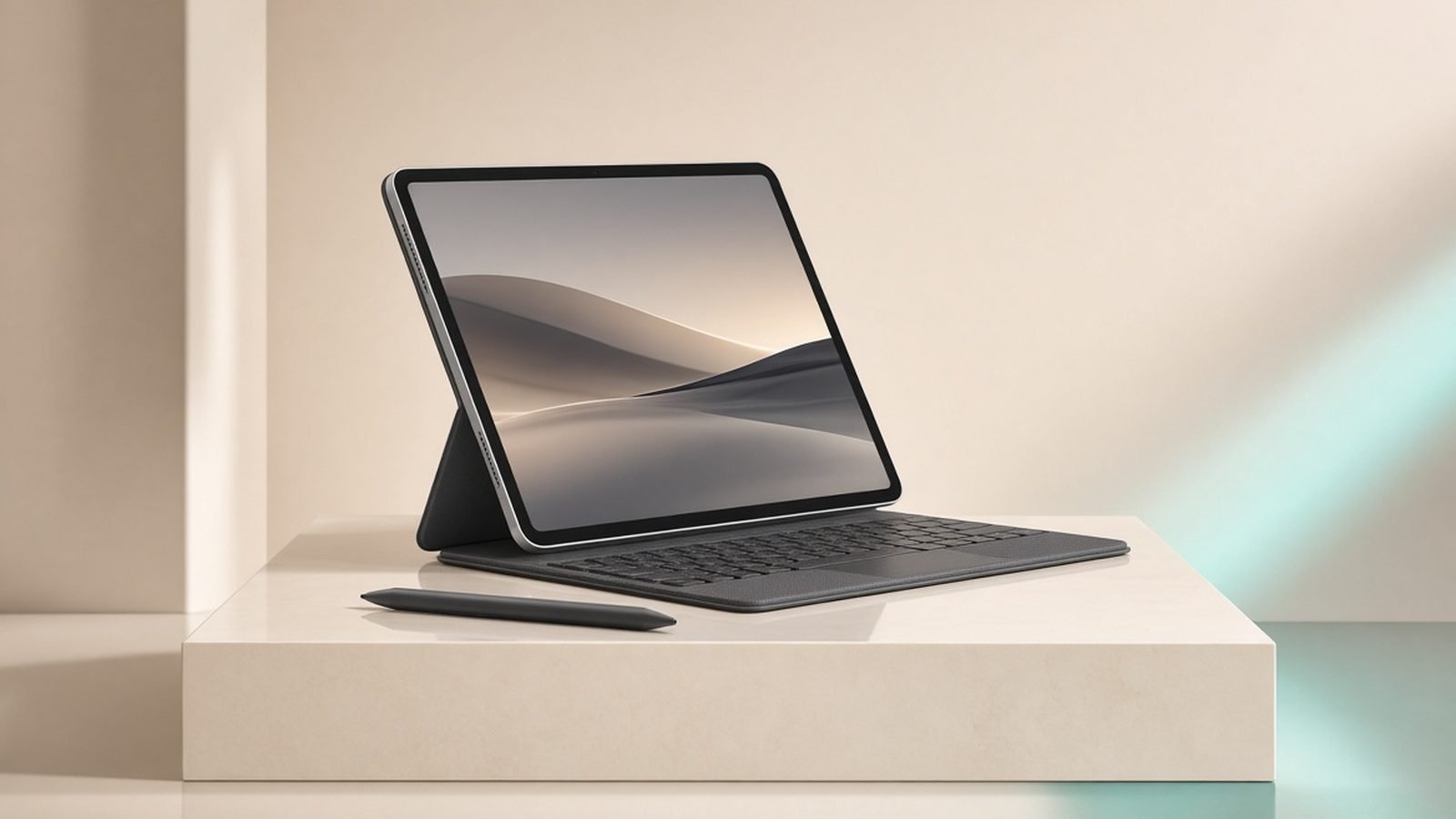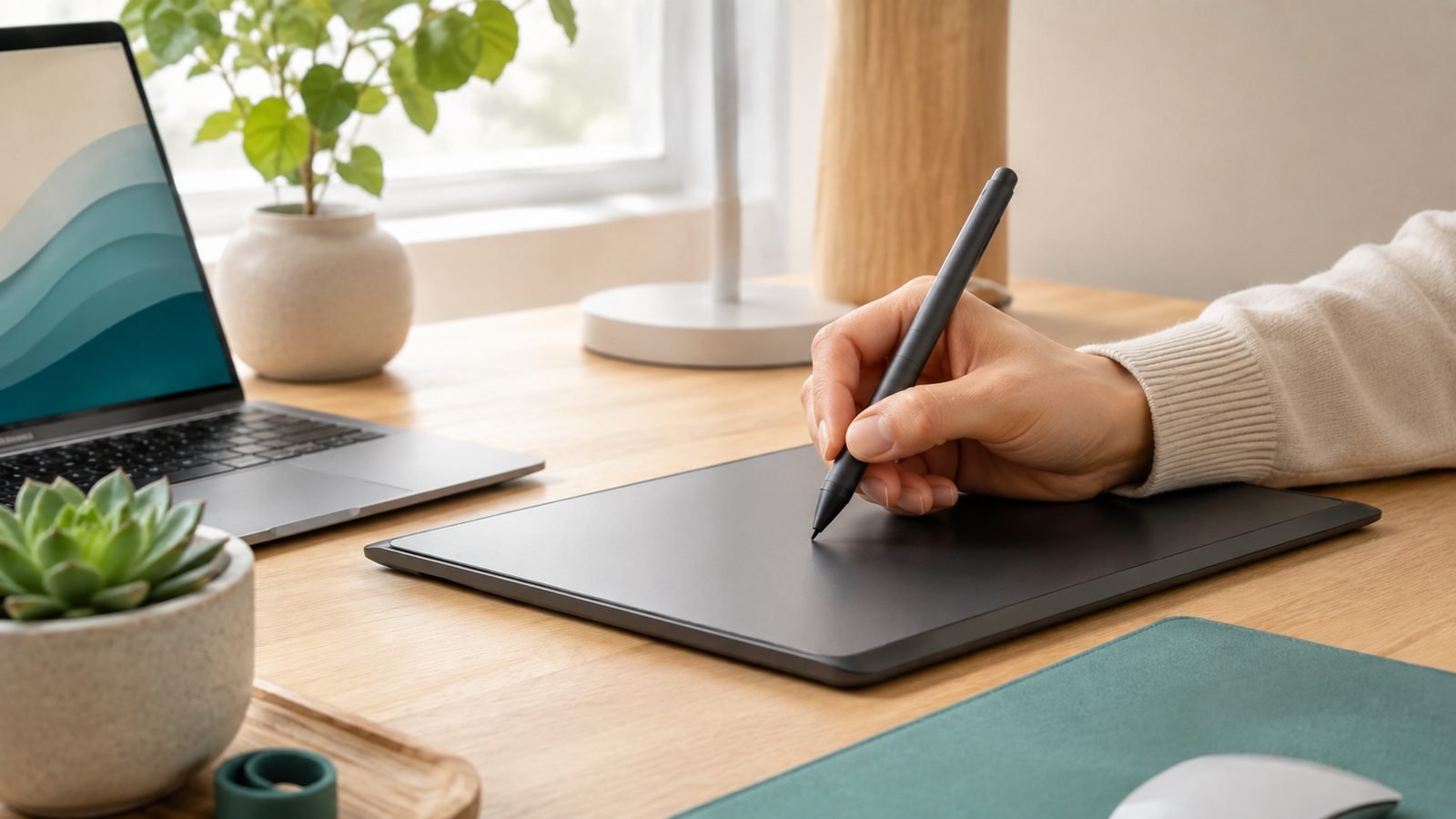
Few things kill creative momentum faster than a drawing tablet pen pressure not working the moment you start a sketch. Your lines come out flat and uniform — no thin-to-thick taper, no soft-to-hard shading. The good news: in the overwhelming majority of cases this is a software conflict, not a dead tablet. Below is the exact order we recommend working through, from a 2-minute checklist to brand-specific driver fixes for XPPen, Wacom and Huion, plus app settings for Photoshop, Clip Studio Paint and Krita. Work top to bottom — each step rules out a cause.
Drawing tablet pen pressure not working? Start with this 2-minute checklist
Before you uninstall a single thing, confirm the basics. In our research, these checks resolve a surprising share of “dead pressure” reports on their own.
Test in the driver first. Every XPPen, Wacom and Huion driver has a pressure test bar in its settings. If it responds here but not in your art app, the problem is the app — skip to the app section. If it’s flat even here, it’s a driver or hardware issue.
Only one tablet driver installed. Running two drivers together (Wacom and Huion, or two versions of one brand) is the single most common cause. Uninstall the ones you don’t use.
Close rival software. Other tablet utilities, screen recorders and some RGB/macro apps grab the pen input. Quit them and retest.
Reboot after any driver change, and wiggle the USB cable — a loose or charge-only cable gives you cursor movement but no pressure data.
If the driver’s test bar reacts to pressure, your tablet hardware is fine — which saves you buying parts you don’t need.
Reinstall drivers cleanly (XPPen, Wacom, Huion — one at a time)
A clean reinstall fixes most stubborn cases: uninstall, reboot, then install the latest driver from the manufacturer — never bundled Windows Update versions.
XPPen pen pressure fix
Remove PenTablet via Apps & Features (Windows) or the XPPenMac uninstaller (Mac). Reboot, download the newest driver from xp-pen.com for your exact model, install, reboot again, then open PenTablet Settings and confirm the pressure bar moves. In our research, the top XPPen pen pressure fix is simply removing a stale driver that survived a Windows update.
Wacom pen pressure not working
Wacom’s Tablet Preference File Utility (installed with the driver) deletes corrupted preferences without a full reinstall — try that first. If pressure is still dead, uninstall the driver, reboot, reinstall the latest, and confirm the Wacom Desktop Center shows your tablet. Persistent Wacom pen pressure not working after that usually points to a worn nib or failing pen, covered below.
Huion pen pressure (and Krita)
Remove HuionTablet, reboot, install the current driver, and open the driver’s pressure test. Huion pen pressure in Krita specifically depends on choosing the right tablet API — if the bar works in the driver but not the app, that’s an app setting, not a Huion fault.
Windows Ink: when to enable it and when to kill it
Windows Ink is the toggle everyone fights with, and there’s no universal answer — it depends on your app.
Enable Windows Ink for Photoshop, Clip Studio Paint and most modern Adobe apps. They read pressure through the Windows Ink API, and disabling it flattens your lines.
Disable Windows Ink for many Krita builds and older software that prefer the WinTab API. Leaving it on can cause lag, an offset cursor or dead pressure.
The Windows Ink drawing tablet toggle lives in your driver’s pen settings. Flip it, restart the art app and retest — if one setting kills pressure, the other almost always restores it.
App-specific fixes: Photoshop, Clip Studio Paint, Krita
If the driver test bar works but your app doesn’t, the fix is in the app.
Photoshop: Open the Brush Settings panel, click Shape Dynamics, and set Control to Pen Pressure. A warning triangle next to it means Photoshop isn’t receiving pressure — that’s your Windows Ink toggle. Also confirm you’re not on a “Basic” brush with dynamics stripped out.
Clip Studio Paint pen pressure settings: CSP has its own calibration. Go to File → Pen Pressure Settings and draw a few natural strokes to let it learn your hand. Pen pressure not working in CSP is frequently just an over-flattened curve — reset it and recalibrate, and on Windows try switching CSP between Wintab and Tablet PC (Windows Ink) modes.
Huion pen pressure in Krita: Open Settings → Configure Krita → Tablet Settings and switch between Windows Ink and WinTab, then restart Krita and test. This one setting resolves most Krita pressure complaints across every tablet brand.
macOS: security permissions that silently break pressure
On Mac, pressure can vanish with no error message at all — the culprit is privacy permissions. Go to System Settings → Privacy & Security and confirm your tablet driver is allowed under both Accessibility and Input Monitoring. If it isn’t listed, add it manually, then fully quit and relaunch your art app. On some macOS versions a system update silently revokes the permission, so you’ll need to remove and re-add the driver after updating.
Hardware checks: nibs, pen battery and USB ports
If the driver’s pressure bar is flat no matter what, look at the physical layer.
Worn nib. A nib ground to a stub or clogged with grit is a leading cause of erratic or dead pressure. Swap in a fresh one — the cheapest possible fix. Wacom, XPPen and Huion all ship spares in the pen stand.
Pen battery. Most modern pens are battery-free (EMR), but some older or specialist styluses hold a charge or a coin cell that can mimic a hardware failure when weak.
USB port and cable. Use a rear/direct port, not a hub or front-panel port, and confirm the cable carries data, not just power.
If you’re on an old, out-of-support tablet whose driver no longer gets updates, replacement is often cheaper than the hours you’ll spend fighting it. The XPPen Deco 01 V3 (around $60 / £56) is a reliable, battery-free budget board that’s well supported on current Windows and macOS.
Need a full buyer’s guide first? See our Best Drawing Tablets for Beginners 2026 (From $40), and if you want a screen tablet, our XPPen Artist Pro 16 (Gen 2) Review: Wacom Quality, Half Price? breaks one down.
When the pen (not the tablet) needs replacing
Here’s the diagnosis that saves the most grief: if pressure is dead in the driver test bar, you’ve swapped the nib, and a clean reinstall didn’t help — the pen itself has likely failed. Styluses take drops and desk-edge knocks, and the internal pressure sensor is the first thing to go. Test with a spare pen if you have one; if a second pen works on the same tablet, you’ve confirmed it.
For Wacom owners, a fresh nib pack costs a couple of pounds/dollars, while a replacement pen runs from around $30 to $80 / £30 to £75 depending on model — still far cheaper than a whole new tablet.
Check price: Wacom replacement nibs / pen
For more troubleshooting across the category, browse our Tablets & E-Readers.
FAQ
Why does my pen work but pressure doesn’t? Cursor movement and pressure travel on different data paths. If the pen moves the cursor and clicks but gives flat lines, the tablet hardware is fine — the fault is almost always a driver conflict, a disabled Windows Ink/WinTab setting, or an app that isn’t set to read pen pressure.
Does Windows Ink need to be on or off? It depends on the app. Turn Windows Ink on for Photoshop and Clip Studio Paint; turn it off (use WinTab) for many Krita builds and older software. If pressure is dead, flip the toggle in your driver, restart the app, and test — the opposite setting usually fixes it.
Why is my pen pressure not working in Photoshop only? Photoshop reads pressure through Windows Ink and needs Shape Dynamics set to Pen Pressure on the active brush. Enable Windows Ink in your driver, then set Control to Pen Pressure under Brush Settings → Shape Dynamics. A warning triangle there means the app isn’t receiving pressure data yet.
Could a worn nib really break pressure? Absolutely. A nib worn to a stub, or one clogged with grit, transfers force unevenly or not at all — producing jittery or completely flat pressure. It’s the cheapest fix on this list, so swap in a spare nib before assuming the pen or tablet has failed. Reinstalling a driver also resets custom hotkeys and pressure curves, so note them first.
Zen Tech Hub may earn a commission from links on this page, at no extra cost to you.