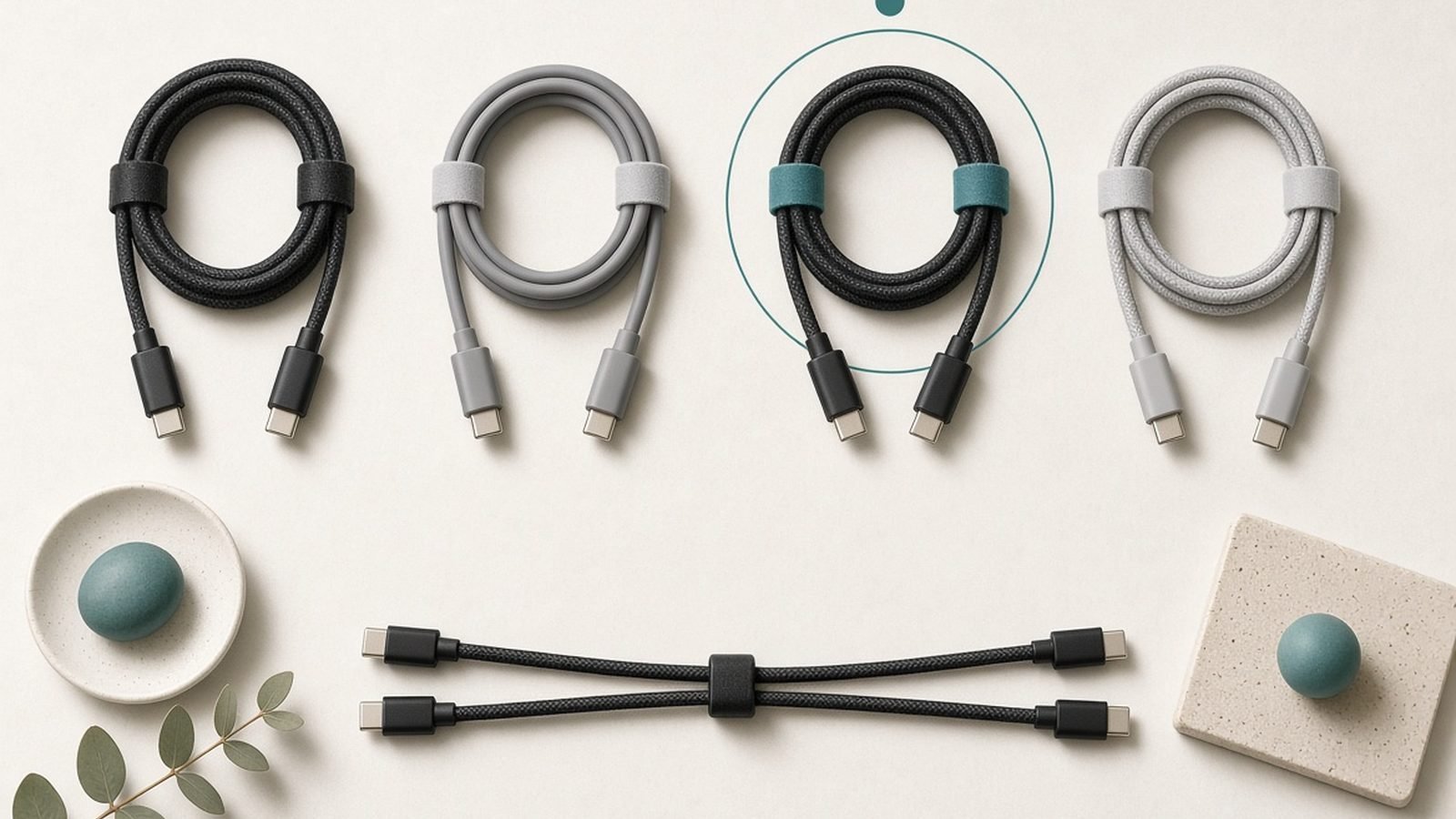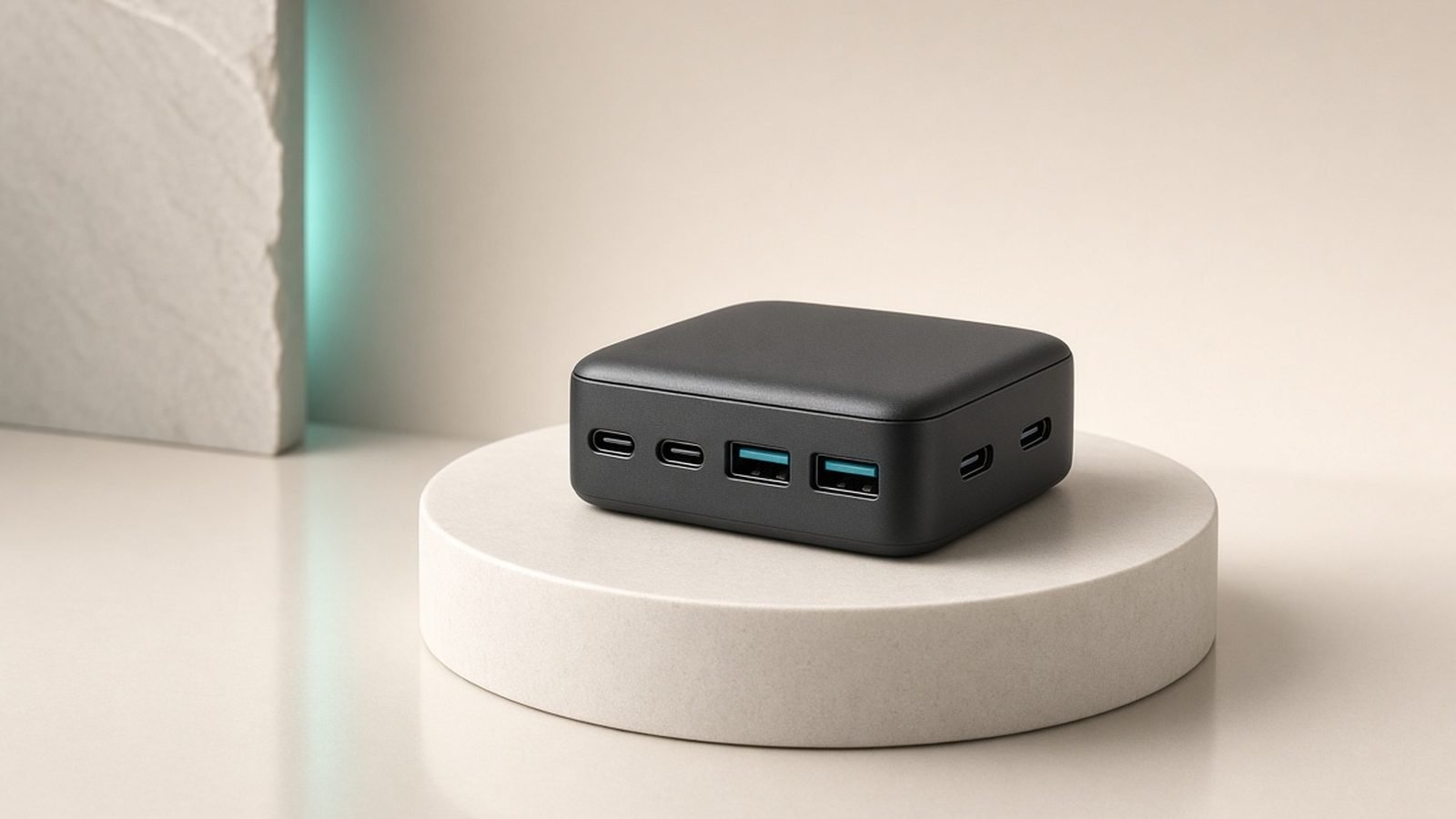
USB-C is a connector shape, not a standard — which is why two cables that look identical can behave completely differently. One charges a laptop at 240W and drives an 8K display; the other trickle-charges a phone and moves files at speeds from a decade ago. The plug tells you nothing; the electronics inside decide everything.
This guide explains what actually varies between USB-C cables — wattage, data speed, video support, and a tiny chip called an e-marker — and how to know which cable you’re holding. Once you understand the four things a USB-C cable can differ on, the whole confusing category makes sense.
The Core Problem: One Plug, Many Standards
When USB-C launched, the promise was “one cable for everything.” The connector delivered on that physically — the same reversible oval plugs into phones, laptops, monitors, docks and game consoles. But the industry kept the connector while layering dozens of different capabilities behind it. The result is a single shape hiding wildly different cables.
Every USB-C cable is defined by four independent properties, and they don’t move together:
- Charging power (how many watts it can carry)
- Data speed (how fast it moves files)
- Video output (whether it can drive a display)
- Cable length and build (which limits the top two)
A cable can be excellent at one and hopeless at another. Understanding each is the whole game.
Property 1: Charging Power (Watts)
Charging capacity is set by the cable’s wiring and, above a threshold, by a chip inside it.
- Up to 60W (3A): the baseline. Almost every USB-C cable handles this — enough for phones, tablets and many laptops.
- Up to 100W (5A): requires thicker conductors and an e-marker chip (more on that below) that tells devices the cable is safe for higher current.
- Up to 240W (5A at 48V): the newer Extended Power Range (EPR) spec, again requiring an e-marker, for powerful laptops and even some monitors.
This is why a slim, cheap cable might charge your phone perfectly but refuse to fast-charge your laptop — it physically can’t carry the current, and the laptop safely falls back to a slow rate. If your device charges slowly, the cable is the first thing to check; our step-by-step is How to Fix Slow USB-C Charging.
Property 2: Data Speed
Here’s the trap: charging power and data speed are unrelated. A cable can carry 240W and still move data at ancient USB 2.0 speed.
| Data tier | Speed | Typical use |
|---|---|---|
| USB 2.0 | 480 Mbps | Charging cables, keyboards, most “charge” cables |
| USB 3.2 Gen 1 | 5 Gbps | External hard drives, older docks |
| USB 3.2 Gen 2 | 10 Gbps | Fast SSDs |
| USB 3.2 Gen 2x2 | 20 Gbps | High-end SSDs |
| USB4 | 40 Gbps | Docks, eGPUs, everything |
| USB4 v2 | 80 Gbps | Pro workstations, latest hardware |
The vast majority of USB-C cables sold — including most bundled with phones and chargers — are USB 2.0 for data, even when they charge at high wattage. That’s fine for charging, useless for a fast SSD. If you plug a 2TB SSD into a USB 2.0 cable, it’ll crawl no matter how good the drive is.
Property 3: Video Output
Only some USB-C cables can carry a video signal to a monitor, using either DisplayPort Alt Mode or the full USB4/Thunderbolt signalling. A basic charge cable won’t drive a display at all; a proper USB4 or Thunderbolt cable can run 4K, 8K, or multiple monitors.
This matters most for docks and hubs. If you connect a laptop to a monitor through a hub and get no picture — or a low resolution — the cable between laptop and hub is often the limitation. For how docks handle video and power together, see Best USB-C Hubs & Docks 2026: For Laptops & Desks, and for full docking setups Best Laptop Docking Stations 2026: Single-Cable Desks.
The E-Marker Chip: The Cable’s ID Card
An e-marker is a tiny chip embedded in the cable that identifies its capabilities to connected devices — its maximum current, data speed and video support. Think of it as the cable’s ID card.
- Cables rated above 60W or above 20Gbps are required to have one.
- When you plug in, your laptop reads the e-marker and decides how much power and data to attempt. No e-marker (or a fake one) and the device plays safe, capping at 60W and slow data.
- This is why a cable’s true capability isn’t visible to the eye — the chip, not the plug, does the talking.
Cheap cables sometimes lie via incorrect e-markers, which is one reason to buy from reputable brands. A known-good cable such as the Check price: Anker 240W USB-C Cable carries a correct e-marker and covers charging up to 240W.
USB4, Thunderbolt and the Top Tier
At the high end, USB4 and Thunderbolt cables bundle everything — 40Gbps+ data, up to 240W charging, and multi-monitor video — into one cable. They’re more expensive and usually shorter, because higher speeds don’t travel as far over copper. If you’re weighing these two standards against each other, we break it down in Thunderbolt vs USB4 Explained: What's the Difference?. For the connector itself and its history, What Is USB-C? Cables, Speeds & Power Explained is the primer.
The practical takeaway: you only need a USB4/Thunderbolt cable for docks, external GPUs, or fast external SSDs. For everyday charging, a good 240W USB 2.0 cable is cheaper and just as effective.
How to Read the Logos
The USB-IF (the standards body) has tried to fix the confusion with on-cable logos:
- Watts printed on the connector (e.g. “240W”) tell you charging capacity directly.
- Speed logos (“10Gbps”, “40Gbps”) tell you data tier. No speed logo usually means USB 2.0.
- Thunderbolt lightning-bolt logo with a number (e.g. a “4” or “5”) indicates a certified Thunderbolt cable.
If a cable has no markings at all, assume it’s a basic 60W USB 2.0 charge cable and don’t expect more. Reputable brands increasingly print both numbers on the connector housing.
Which Cables You Actually Need
For most people, three cables cover everything:
- A good 100W or 240W charge cable (USB 2.0 data is fine) for phones and laptops.
- One 10Gbps or faster cable for external SSDs and quick file transfers.
- A USB4 or Thunderbolt cable only if you use a dock, eGPU or multi-monitor setup.
Buy those from a trusted brand, label them, and you’ll sidestep almost every USB-C cable headache.
FAQ
Are all USB-C cables the same?
No. USB-C is only the connector shape. Cables vary independently in charging power (60W to 240W), data speed (480Mbps to 80Gbps), and whether they carry video. A cable can be great at charging and terrible at data, or vice versa — which is why two identical-looking cables often behave completely differently.
How can I tell how fast a USB-C cable is?
Look for markings on the connector: a wattage number (“240W”) shows charging capacity, and a speed logo (“10Gbps”, “40Gbps”) shows data tier. No speed marking usually means slow USB 2.0 data. If there are no markings at all, assume it’s a basic 60W charge cable and don’t rely on it for fast data or video.
What is an e-marker chip in a USB-C cable?
An e-marker is a small chip inside the cable that tells connected devices its capabilities — maximum current, data speed and video support. Cables rated above 60W or 20Gbps must have one. Without a valid e-marker, devices play safe and cap the cable at 60W and slow data, even if the wiring could do more.
Can a USB-C cable charge fast but transfer data slowly?
Yes, and it’s extremely common. Charging power and data speed are unrelated properties. Most cables — including many that charge at 100W or 240W — use USB 2.0 wiring for data (480Mbps). They’ll charge a laptop quickly but move files from an SSD at a crawl. You need a cable rated for high data speed specifically.
Do I need a Thunderbolt cable for everyday use?
No. Thunderbolt and USB4 cables only matter for docks, external GPUs, and fast external SSDs, where you need 40Gbps+ data and multi-monitor video. For everyday phone and laptop charging, a good 100W or 240W USB 2.0 cable is cheaper, longer, and works perfectly.
Why does my USB-C cable charge slowly?
Usually because it’s rated for low wattage, lacks the e-marker chip needed above 60W, or has developed an internal break. Cheap and worn cables both cause this, and the damage is often invisible. Test with a cable you know is fast — if that fixes it, replace the slow one.
Zen Tech Hub may earn a commission from links on this page, at no extra cost to you.