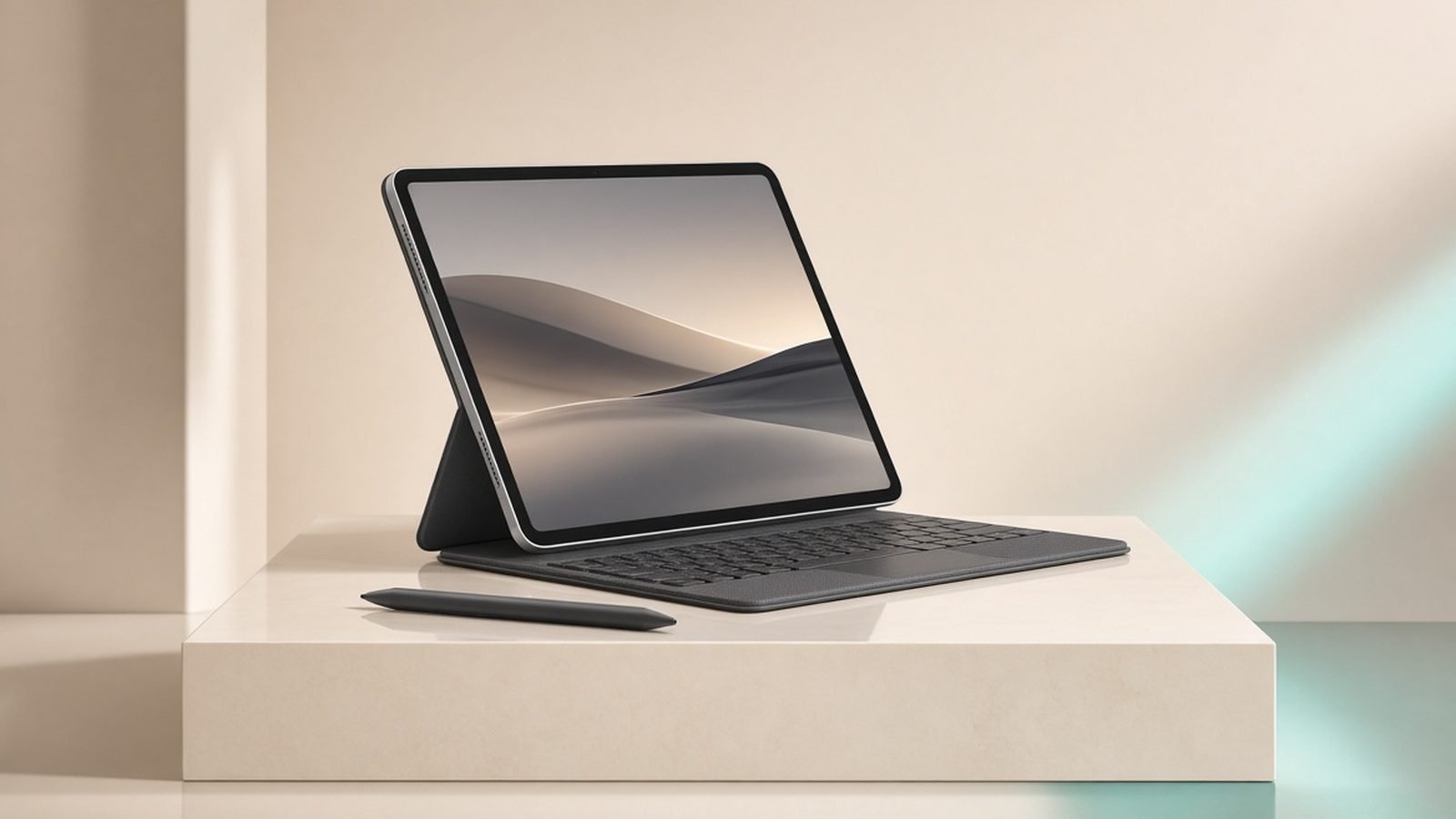
That iPad sitting in a drawer is a perfectly good display. If you want to know how to use an iPad as a second monitor, the honest answer is that it takes about two minutes on a Mac and one app on Windows. This guide walks through both, tells you which method actually feels usable, and flags the trade-offs (latency, battery, cables) nobody mentions in the app store screenshots.
We researched the current tools, aggregated owner feedback across forums and reviews, and cross-checked device compatibility so you don’t waste an afternoon on a combo that won’t connect.
Method comparison at a glance
| Method | Works with | Cost | Wired/Wireless | Best for |
|---|---|---|---|---|
| Sidecar | Mac only | Free (built in) | Both | Mac users, zero setup |
| Duet Display | Mac + Windows | From ~$3.99 / £3.99 per month | Both | Windows users who want reliability |
| Luna Display | Mac + Windows | ~$129 / £119 (hardware dongle) | Both | Lowest-latency wireless |
| spacedesk | Windows | Free | Wireless (Wi-Fi) | Casual, budget Windows use |
What you need: compatible iPads and computers
For Sidecar (the Mac route), you need a Mac from roughly 2016 onward running macOS Catalina or later, and an iPad running iPadOS 13 or later. Almost any iPad from the last several years qualifies, including the entry model, iPad Air and iPad Pro. Both devices must be signed into the same Apple Account with Wi-Fi and Bluetooth on.
For Windows, your iPad model barely matters — Duet, Luna and spacedesk run on nearly every iPad. What matters is a decent Wi-Fi network (for wireless) or a good USB-C cable (for wired).
If you’re buying an iPad partly for this job, the iPad Air 11 (M3) at around $599 / £599 is the sweet spot: laminated display, USB-C, and enough power to drive Sidecar and a drawing app at once. Read our full iPad Air M3 Review: The Only iPad Most People Should Buy before you commit, or the broader Which iPad Should You Buy in 2026? Every Model Compared guide.
Mac users: Sidecar setup in 2 minutes
Sidecar is Apple’s built-in tool and the reason Mac owners rarely pay for anything. To extend display to iPad on a Mac:
Wake both devices and confirm they share the same Apple Account.
On the Mac, open Control Center (menu bar) and click Screen Mirroring, or use System Settings > Displays.
Pick your iPad from the list. Within a couple of seconds the desktop extends onto it.
In Displays, choose Extend (a second workspace) or Mirror (same image on both).
That’s the whole sidecar Mac iPad process. A sidebar of shortcut keys and a Touch Bar appear on the iPad; you can hide both in Display settings if you’d rather have full screen real estate. Drag a window onto the iPad and it stays there.
Wired vs wireless: latency and battery truths
Wireless Sidecar is genuinely convenient, but based on owner reports it introduces occasional lag and cursor stutter, especially on busy Wi-Fi or older Macs. It also drains the iPad steadily — expect a noticeable dip over a work session.
Plugging in with USB-C fixes both problems. A wired connection is more stable, cuts latency to the point where it feels like a real monitor, and charges the iPad while you work. For anything precise — spreadsheets, timelines, drawing — go wired. Save wireless for the sofa and light browsing.
The same logic holds on Windows: Wi-Fi-only tools like spacedesk feel fine for a reference panel but lag under fast motion, while wired Duet stays crisp.
Windows users: Duet Display, Luna and spacedesk compared
There’s no Sidecar for Windows, so an iPad second monitor Windows setup means a third-party app. Three stand out.
Duet Display is the reliable paid pick. It supports wired and wireless, runs on Mac and Windows, and in our research is the option owners trust for daily work. It moved to a subscription (from roughly $3.99 / £3.99 per month), which frustrates buyers who remember the one-time purchase, but the wired performance remains the strongest of the software-only choices. This is our short Duet Display review verdict: pay for it if the iPad is part of your everyday desk.
Pros: Stable wired mode, cross-platform, active development, touch and Pencil support.
Cons: Subscription pricing, wireless still needs good Wi-Fi.
Check price: Duet Display (app)
Luna Display uses a small hardware dongle (around $129 / £119) that plugs into your computer. It delivers the lowest-latency wireless experience of the bunch, but the up-front hardware cost only makes sense for people who go wireless constantly.
spacedesk is free. A spacedesk iPad connection runs entirely over Wi-Fi, installs in minutes, and is perfect for a secondary panel holding Slack or a browser. The catch: it’s wireless-only, so motion lags and it can drop on congested networks. Great for casual use, not for anything time-sensitive.
Bonus: turning the iPad into a drawing tablet
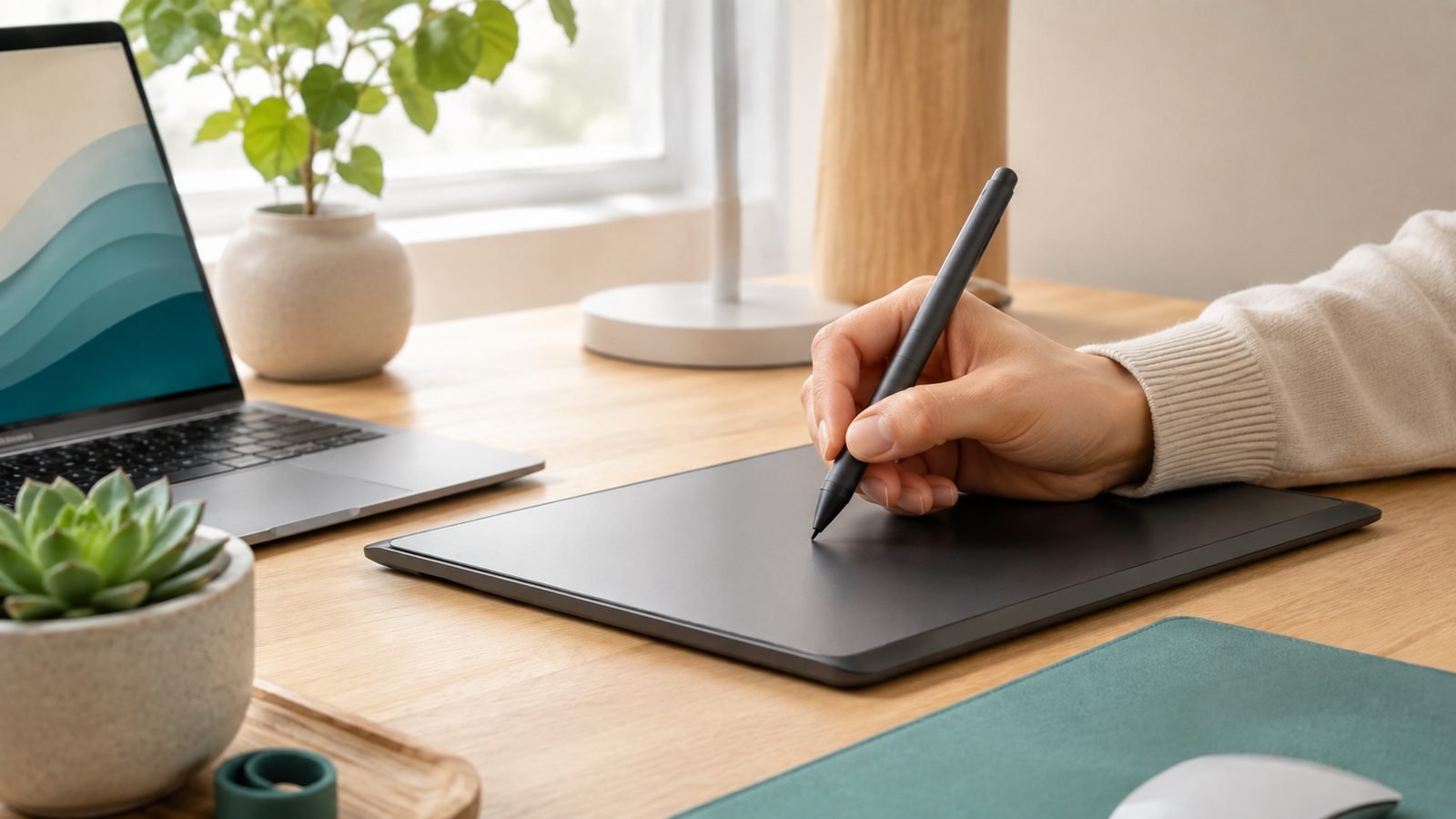
An iPad plus an Apple Pencil makes a surprisingly good pen display. On a Mac, Sidecar already supports Pencil input, so apps like Photoshop, Illustrator and Affinity accept pressure-sensitive strokes on the iPad screen — a free graphics tablet.
For a dedicated experience, Astropad Studio turns the iPad into a low-latency drawing surface for both Mac and Windows, which is the cleanest way to run an iPad as a drawing tablet for PC. Duet also offers a pen mode. If drawing is your main goal rather than a bonus, compare purpose-built pen displays in our Best Drawing Tablets for Beginners 2026 (From $40) guide first — a wired tablet can still beat an iPad on raw pen feel.
Best accessories: stands and cables that help
Two upgrades transform the setup. First, a proper stand. The Twelve South HoverBar Duo (around $79.99 / £79.99) clamps to your desk and floats the iPad at monitor height beside your laptop — the single accessory that makes this feel like a real dual-screen rig instead of a propped-up tablet.
Check price: Twelve South HoverBar Duo stand
Pros: Adjustable arm, weighted base, holds the iPad at eye level, frees desk space.
Cons: Premium price for a stand; overkill if you only connect occasionally.
Second, a quality USB-C cable. For wired Sidecar or Duet you want a cable rated for data, not a charge-only freebie. It’s the cheapest reliability upgrade you can make.
Troubleshooting: Sidecar or Duet not connecting
If Sidecar is not working, run through this list:
Confirm both devices use the same Apple Account and have Wi-Fi and Bluetooth on.
Keep the iPad within about 10 metres of the Mac.
Toggle Wi-Fi and Bluetooth off and on, or restart both devices.
Check your Mac and iPad meet the version and hardware requirements above — older models silently won’t appear.
If wireless keeps dropping, switch to a USB-C cable and select Trust on the iPad prompt.
For Duet not connecting, update the app on both the computer and iPad to matching versions, quit and relaunch the desktop app, and try a different USB port or cable. Wireless failures are almost always the network — get both devices on the same 5GHz band, or go wired.
Verdict
If you own a Mac, stop reading and use Sidecar — it’s free, built in, and good. On Windows, Duet Display is the dependable choice worth paying for, spacedesk is the fine free fallback, and Luna Display suits wireless die-hards. Either way, add a stand and a real cable, and buy an iPad Air M3 vs iPad Pro M5: Don’t Pay $400 More by Mistake level iPad only if you’ll lean on it hard. More tablet guides live on our Tablets & E-Readers.
FAQ
Does using an iPad as a second monitor slow it down? Not meaningfully for the iPad, but wireless mode drains its battery and can add lag. Plug in over USB-C and the iPad charges while it displays, and performance feels close to a real monitor. Modern iPads handle the workload comfortably even while running a drawing app alongside.
Can I use an iPad as a second monitor for a Windows laptop? Yes. Windows has no Sidecar equivalent, so you install a third-party app — Duet Display (paid, most reliable), spacedesk (free, Wi-Fi only) or Luna Display (hardware dongle). All work with nearly any iPad. For daily use, Duet wired is the setup most owners settle on.
Is Sidecar or Duet Display better? On a Mac, Sidecar wins because it’s free and built in. Duet’s advantage is cross-platform support, so it’s the answer for Windows users or anyone switching between a Mac and a PC. If you only ever use a Mac, there’s little reason to pay for Duet.
Do I need an Apple Pencil to use the iPad as a monitor? No. A Pencil is only needed if you want the iPad to double as a drawing tablet with pressure sensitivity. For a plain second screen — extra browser windows, chat, reference documents — touch and your existing keyboard and mouse are all you need.
Why won’t my iPad show up in Sidecar? Almost always an account or version mismatch: both devices must share one Apple Account and meet the macOS and iPadOS requirements. Keep them close, toggle Bluetooth and Wi-Fi, restart both, and if wireless still fails, connect a USB-C cable and tap Trust on the iPad.
Zen Tech Hub may earn a commission from links on this page, at no extra cost to you.