Slow USB-C charging almost always comes down to one of three things: the cable can’t carry enough power, the charger is too weak, or the two devices never agreed on a fast-charging standard. The quickest fix is to test with a cable and charger you know are fast — swap both at once — and most cases clear up immediately.
If that doesn’t do it, the cause is more specific, and this guide walks through every fix in order of likelihood: cables, wattage, USB Power Delivery negotiation, dirty ports, background heat, and device settings. Work top to bottom and you’ll find the bottleneck.
First, Set a Realistic Expectation
Before troubleshooting, know what “fast” should mean for your device. Charging speed is limited by whatever is smallest in the chain: the charger’s output, the cable’s rating, and the device’s own maximum input.
| Device type | Typical full-speed input |
|---|---|
| Budget/mid phone | 15–30W |
| Flagship phone | 45–120W (varies hugely by brand) |
| Tablet | 20–45W |
| Ultrabook/laptop | 45–100W |
A phone that maxes out at 27W won’t charge faster on a 100W charger — it will just draw 27W. So “slow” only counts if you’re getting less than your device supports. With that framed, start diagnosing.
Step 1: Swap the Cable First (The Most Common Cause)
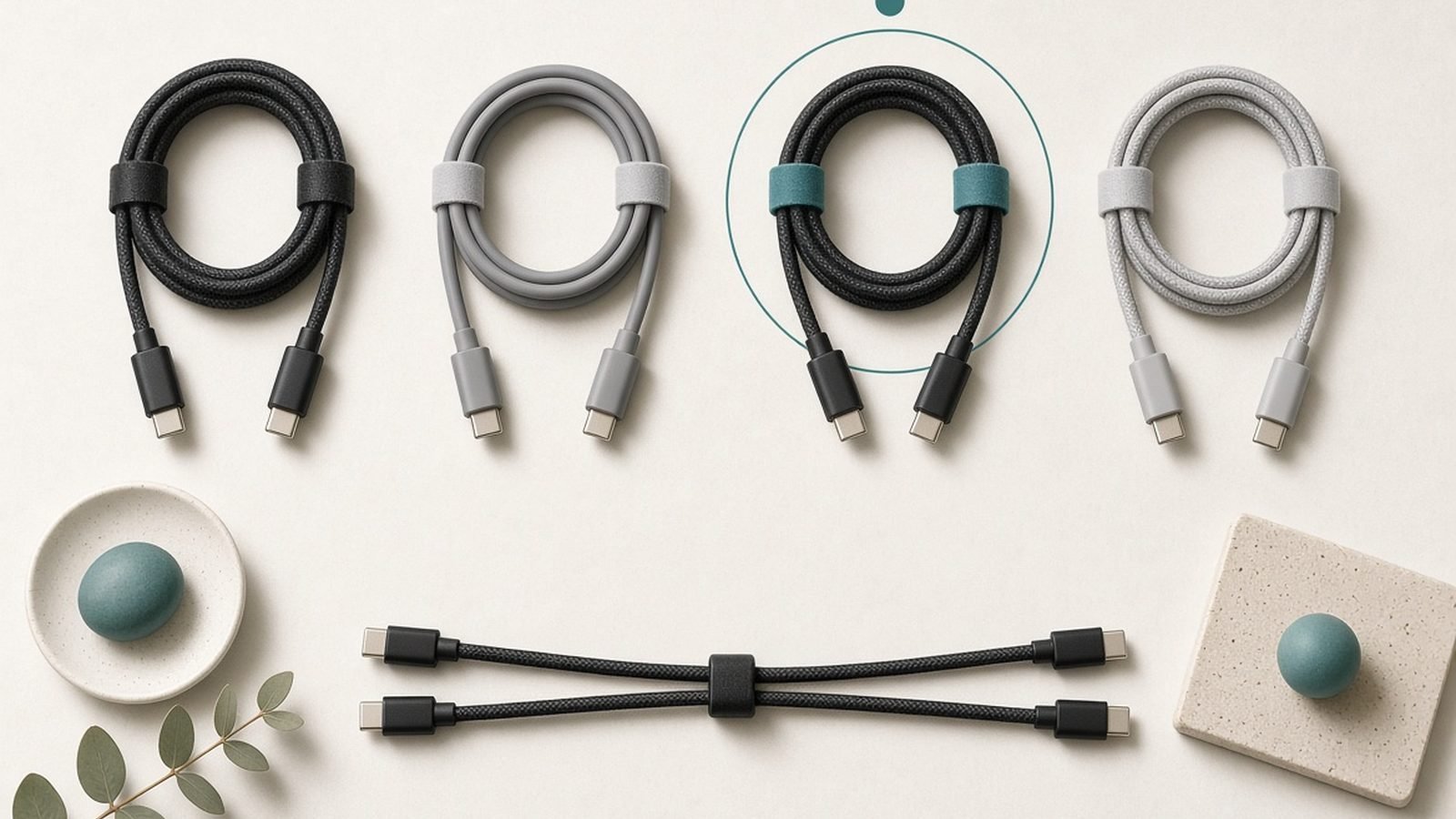
USB-C cables are the number-one reason for slow charging, and the frustrating part is that a bad cable looks identical to a good one. Many cheap cables are wired for USB 2.0 data and only rated for low wattage; some are “charge-only” and cut corners further. A worn cable also develops internal breaks that throttle current with no visible damage.
- Swap in a cable you know fast-charges another device.
- For anything above 60W (most laptops, high-wattage phones), the cable needs an e-marker chip — many thin or old cables don’t have one and silently cap at 60W or less.
- Check both ends for lint, bent pins, or a loose fit.
If a known-good cable fixes it, replace the bad one. A properly rated braided cable such as the Check price: Anker 240W USB-C Cable handles any phone or laptop. For why two identical-looking cables behave so differently, see USB-C Cables Explained: Why They're Not All the Same.
Step 2: Check the Charger’s Wattage and Ports
The charger is the next suspect. Two things matter: its total output, and how that output is split.
- Read the label. A 5W or 12W brick will never fast-charge a modern device. You want a USB-C PD charger rated at least 20W for phones, 45W+ for tablets, 65W+ for laptops.
- USB-A ports are slow. If your charger has both USB-A and USB-C, the USB-A port almost always charges slower. Use the USB-C port.
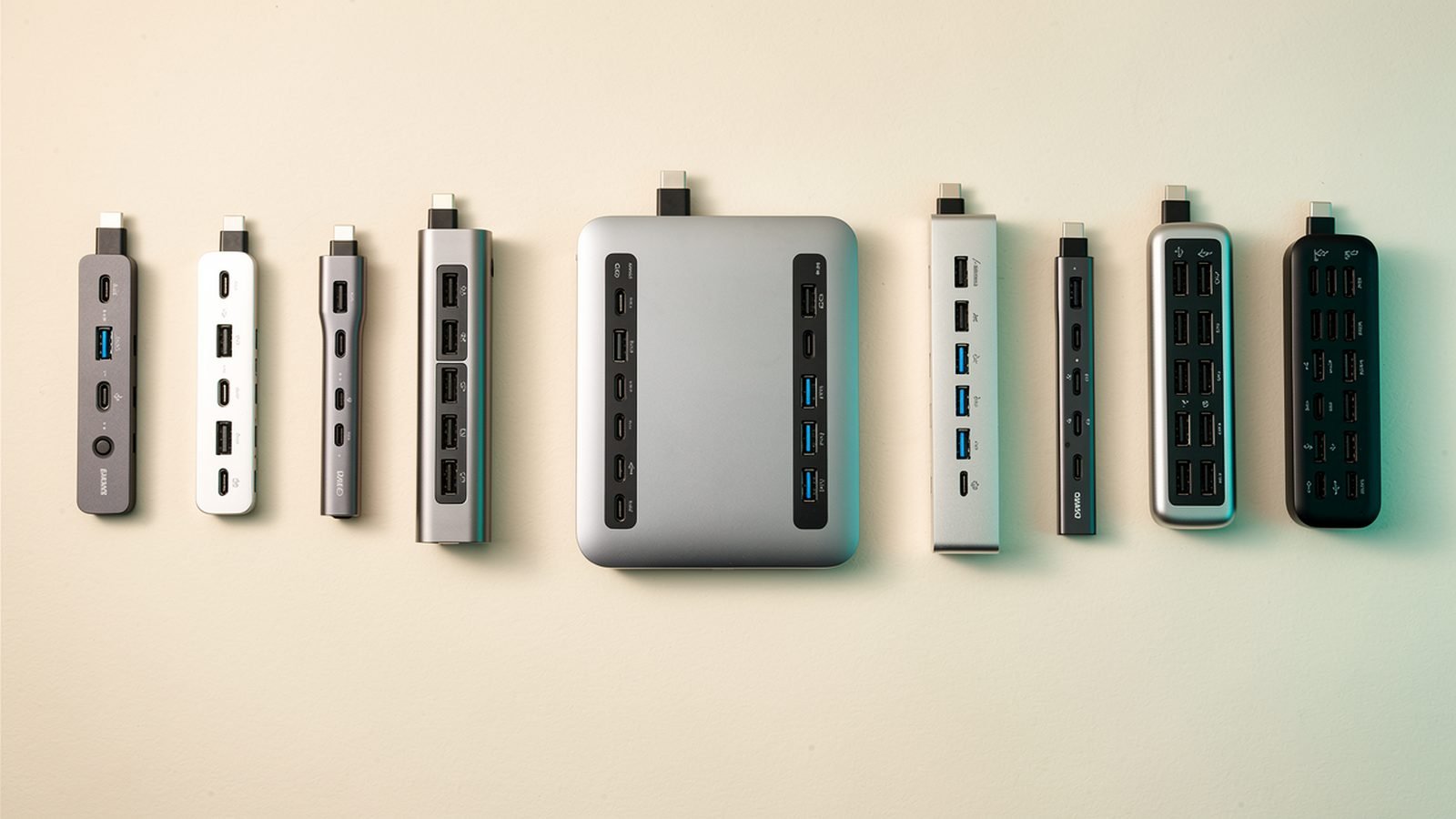
- Multi-port sharing. Many chargers split power when several ports are in use — a 65W charger might drop one port to 18W when two devices are plugged in. Unplug the others and test with just your device.
If your charger is old, an underpowered brick is a common hidden bottleneck. A modern GaN charger is smaller, cooler and delivers full rated power more reliably — our picks are in Best GaN Chargers 2026: 30W to 160W Compared & Ranked.
Step 3: Confirm Both Devices Support the Same Fast-Charging Standard
Fast charging only happens when the charger and device negotiate a shared standard. The universal one is USB Power Delivery (USB-PD). If either side doesn’t support it — or supports only a brand-specific protocol the other doesn’t — they fall back to a slow default of around 5–15W.
- Check that your charger explicitly lists USB-PD (or PD 3.0 / PPS). Generic “fast charge” branding isn’t a guarantee.
- Some phones use proprietary standards (older OnePlus, Oppo, some Motorola) that only hit top speed with the maker’s own charger. On a third-party PD charger they’ll charge at a safe but slower PD rate.
- A full explanation of how this handshake works — and why PPS matters for Samsung and Pixel phones — is in USB Power Delivery (USB-PD) Explained.
If the charger and device both do PD and it’s still slow, the negotiation may be failing at the cable (back to Step 1) or the port (Step 4).
Step 4: Clean the USB-C Port
Compacted lint at the bottom of a USB-C port stops the plug seating fully, breaking the pins that carry high current and signal the fast-charge handshake. This is extremely common on phones carried in pockets, and it produces exactly the symptom of “charges, but slowly.”
- Shine a torch into the port — lint looks like a grey wall at the bottom.
- Use a wooden or plastic toothpick, never metal, and gently scrape the lint out.
- Finish with a short burst of compressed air.
- Do the same on the charger’s port if it’s a desktop unit.
After cleaning, the plug should seat with a firm, full-depth click.
Step 5: Manage Heat
Batteries deliberately slow their charging when they get hot — it’s a safety feature, not a fault. If you’re charging while gaming, streaming, or navigating, or the device is in direct sun, it will throttle input to protect the cell.
- Stop using the device while it fast-charges, or at least drop demanding apps.
- Remove a thick case during a fast charge if the device runs hot.
- Charge on a cool, hard surface, not on a bed or sofa where heat is trapped.
A device that fast-charges fine cold but slows after a few minutes is almost always thermal throttling.
Step 6: Check Device Settings and Software
Some slowdowns are deliberate, buried in settings.
- Battery-protection features (iPhone’s Optimised Battery Charging, Samsung’s Protect Battery, various “adaptive charging” modes) intentionally slow charging near 80% or overnight. That’s healthy — but it can look like a fault.
- Low-power or eco modes can cap charging speed on some laptops and phones.
- Reboot the device. A hung charging controller occasionally resolves with a restart.
- Update the OS. Charging behaviour is firmware-controlled, and updates sometimes fix negotiation bugs.
Troubleshooting: Isolating the Bottleneck Fast
If you’re not sure which link is at fault, isolate variables one at a time:
- Known-good charger + known-good cable on your device. Fast? The problem was your old charger or cable.
- Your charger + known-good cable. Slow? The charger is weak or lacks PD.
- Known-good charger + your cable. Slow? The cable is the culprit — replace it.
- Everything known-good but still slow? Clean the port, then suspect the device’s battery or charging IC — worth a service check if the device is under warranty.
A USB power meter (a small inline gadget, around $12 / £10) shows the actual watts flowing and removes all the guesswork if you troubleshoot cables often.
FAQ
Why is my phone charging so slowly on USB-C?
Most often the cable or charger. Test with a cable and USB-PD charger you know fast-charge another device — swap both at once. If it’s still slow, clean the charging port with a wooden toothpick, and check whether a battery-protection setting or heat is throttling the charge deliberately.
Does the USB-C cable really affect charging speed?
Yes, a lot. Cheap or worn cables are often wired for low wattage, and anything above 60W needs a cable with an e-marker chip. A cable can look identical to a fast one yet cap your charge at a fraction of the speed. Swapping the cable is the single most effective fix.
How many watts do I need to fast-charge?
It depends on the device: roughly 20W+ for phones, 45W+ for tablets, and 65W+ for laptops, using a USB-PD charger. Going higher than your device supports won’t speed things up — the device only draws what it’s rated for — but going lower will bottleneck it.
Why does my laptop charge slowly over USB-C?
Usually an underpowered charger or a cable that lacks an e-marker chip and caps at 60W. Laptops often need 65–100W. Confirm the charger’s wattage on its label, use a cable rated for high power, and plug into the charger’s USB-C PD port rather than a shared or USB-A port.
My charger and cable are both good but charging is still slow. Why?
Suspect a dirty port, thermal throttling, or a battery-protection setting first. If none apply, the charger and device may not share a fast-charging standard — confirm both support USB-PD. If everything checks out and it’s still slow, the device’s battery or charging controller may be failing.
Is slow charging bad for my battery?
No — slow charging is actually gentler on a lithium battery than fast charging, since it generates less heat. Battery-protection features slow charging on purpose to extend lifespan. Slow charging is only a “problem” when it’s unintentional and below the speed your device supports.
Zen Tech Hub may earn a commission from links on this page, at no extra cost to you.