A dead camera five minutes before a call is one of the most common Windows headaches, and it almost never means your hardware is broken. In our research across support threads and manufacturer forums, most cases where a webcam is not working on Windows 11 come down to a privacy toggle, a driver glitch, or an app grabbing the camera before anything else can. This guide walks through the fixes in the order most likely to save you time. Work through them top to bottom; most people are back on camera before they reach the driver section.
Quick Fixes to Try First
Before you touch any settings, rule out the obvious. These take under two minutes combined and resolve a surprising share of problems.
Close every app that uses the camera. Windows generally lets only one app access the webcam at a time. If Teams is holding it, Zoom shows a black screen. Quit Zoom, OBS, Camera, and browser tabs, then reopen just the one you need.
Check the physical privacy shutter. Many webcams and laptops ship with a sliding cover or kill switch. A closed shutter is the classic cause of a webcam black screen.
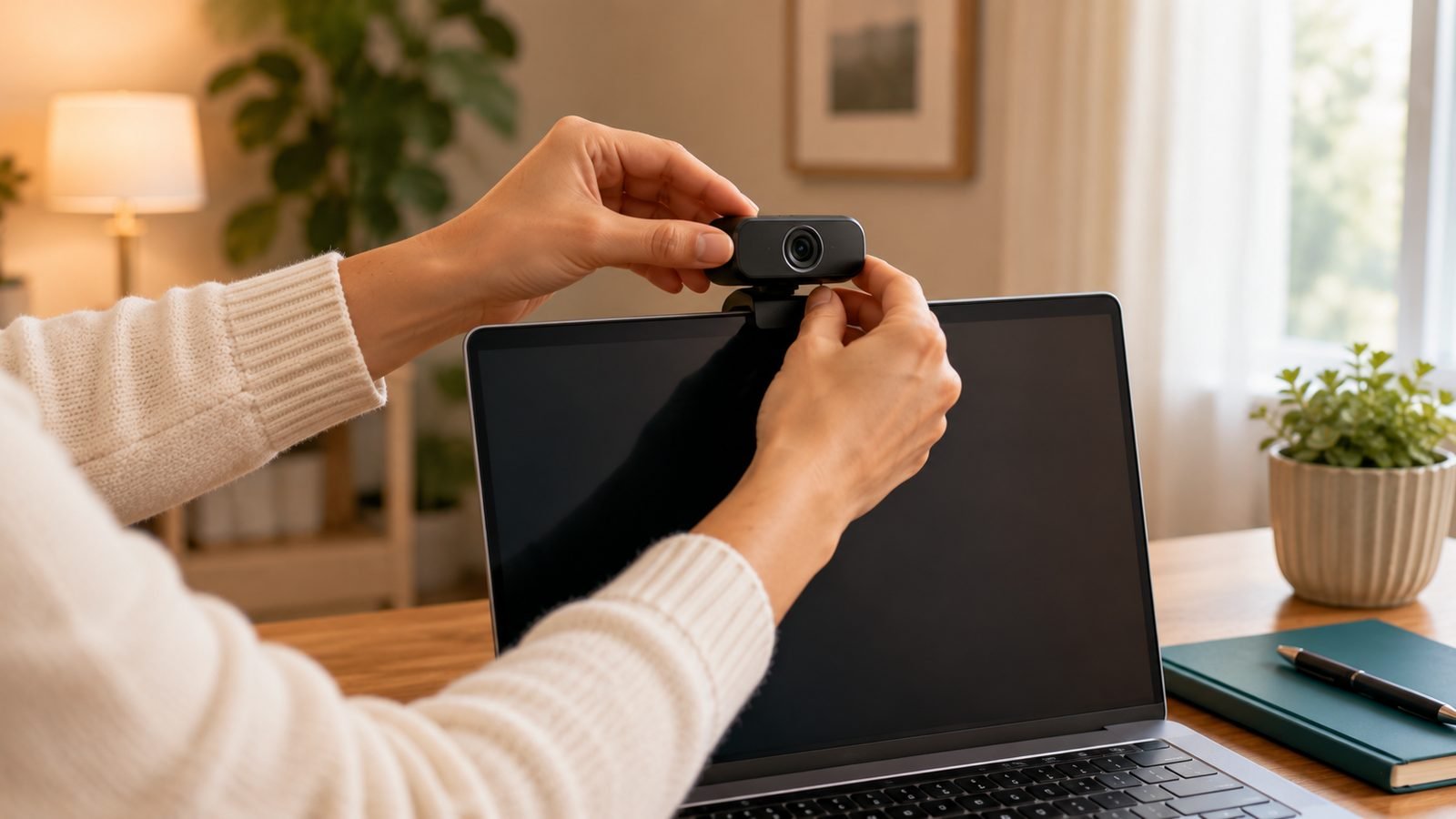
Unplug and replug an external webcam into a different USB port directly on the PC, not a hub.
Restart Windows. A reboot clears a hung camera process more reliably than closing apps one by one.
Check Windows Camera Privacy Settings
Windows 11 puts hard permission gates in front of the camera, and an update or a new install can flip them off. This is the number-one reason a webcam is not detected by apps even though the device itself is fine.
Go to Settings > Privacy & security > Camera and confirm:
Camera access is turned On at the top. This is the master switch for the whole device.
Let apps access your camera is On.
Scroll the app list and toggle on the specific apps you use, such as Camera, Teams, or your browser.
One catch worth knowing: Zoom, OBS, and other desktop programs installed outside the Microsoft Store are grouped under Let desktop apps access your camera near the bottom. If that toggle is off, your camera not working in Zoom is almost certainly this setting, not Zoom itself.
Update or Reinstall Drivers
If privacy settings look right but the webcam is still missing, the driver is the next suspect. You’ll need to update webcam drivers or, more often, reinstall a corrupted one. Open Device Manager (right-click Start) and look under Cameras and Imaging devices.
No camera listed, or a yellow warning triangle? That points to a driver or connection fault rather than a settings problem.
To update: right-click the camera, choose Update driver > Search automatically.
If updating does nothing: right-click the device, choose Uninstall device, then restart. Windows reinstalls a clean driver on boot, which clears most corruption.
For external webcams, the manufacturer’s own software often carries a newer driver than Windows Update. Logitech (Logi Options+), Insta360, and Elgato all publish current downloads. Grabbing the latest version directly is the most reliable way to fix webcam issues on Windows 11 when the built-in driver is stale.
Fix App-Specific Issues (Zoom, OBS, Teams)
Sometimes Windows sees the camera perfectly and one app doesn’t. The fix lives inside the app.
Zoom: Open Settings > Video and pick the correct camera from the dropdown. If the preview is a webcam black screen, another app still has the camera open, so quit it. Camera not working in Zoom after a laptop swap is usually the wrong device selected here.
OBS: Your webcam won’t appear until you add it. Under Sources, click + > Video Capture Device and select your camera. If it shows but the image is black, right-click the source, open Properties, and try a different Video Format such as MJPEG.
Teams: Choose the camera under Settings > Devices. Teams often holds the camera in the background, so quit it from the system tray, not just the window, before testing elsewhere.
A fast diagnostic: open the built-in Camera app. If your face shows there, the hardware and drivers are fine and the problem is confined to the other app’s settings.
Hardware and USB Troubleshooting
Still nothing? Now it’s worth checking the physical side.
Try a different USB port, prioritising those on the back of a desktop, which wire directly to the motherboard.
Skip the hub. Unpowered USB hubs and long extension cables often can’t deliver enough power for a 4K webcam, which shows up as a device that connects then drops.
Test on another computer. If the webcam is not detected on a second machine either, the fault is the device or cable, not your Windows install.
Swap the cable on webcams with a detachable USB-C lead. A frayed or cheap cable is a common, easily missed culprit.
When to Replace Your Webcam
If you’ve reinstalled drivers, cleared privacy settings, and tested on a second computer with no luck, the webcam has probably failed. Older models can also lose driver support on newer Windows 11 builds. Replacing a five-year-old camera is often cheaper than the hours spent fighting it, and modern units have far better low-light handling and mics.
Logitech MX Brio 4K
The is our default recommendation when a reliable, hassle-free replacement is the priority. In our research it earns consistent praise for something dull but vital: rock-solid driver support and clean integration with Teams, Zoom, and Google Meet. That matters when you’re replacing a camera precisely because the old one had software problems. Priced around $199 / £199.
Pros - Excellent, well-maintained drivers and Logi Options+ software - Sharp 4K sensor with strong low-light performance - Dual noise-reducing mics and a physical privacy shutter
Cons - Premium price for what is still a fixed webcam - 4K at 30fps only; 60fps caps at 1080p
Who it’s for: anyone who wants to plug in a camera, have it work across every app, and never think about it again.
Check price: Logitech MX Brio 4K
Insta360 Link 2
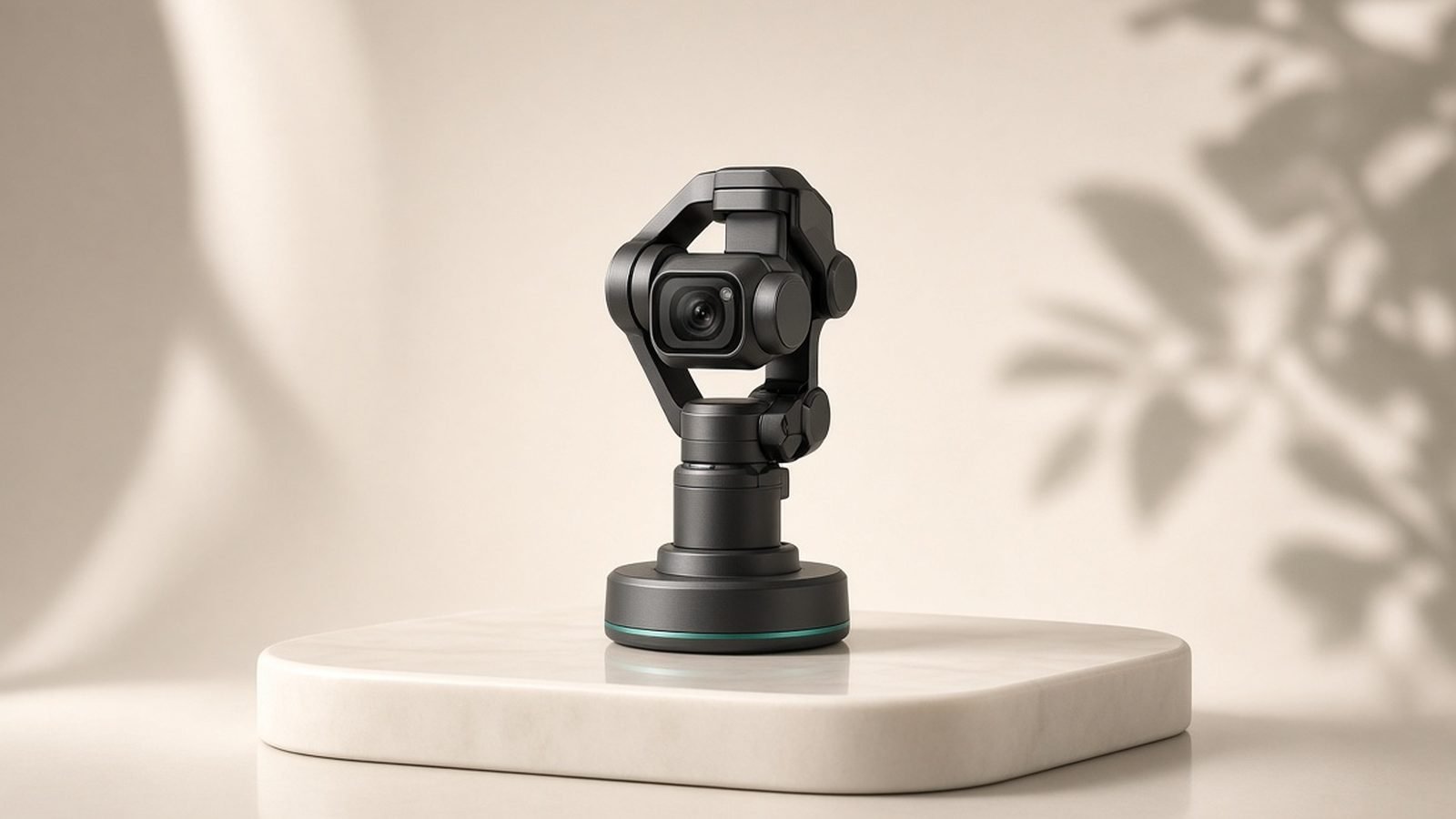
The is the upgrade pick for creators who want their camera to do more than sit still. Its standout feature is AI subject tracking on a gimbal that keeps you centred as you move, plus gesture controls to start and stop tracking hands-free. Based on owner reports, it’s a favourite for solo streamers and presenters. Priced around $199 / £179.
Pros - AI gimbal tracking follows you around the frame - Strong 4K image with good creator-focused controls - Gesture control and multiple shooting modes
Cons - Motorised gimbal is one more thing that can wear out - Feature-heavy software has a steeper learning curve
Who it’s for: creators and presenters who move while they talk and want automatic framing.
Verdict
For most people replacing a broken camera, the Logitech MX Brio 4K is the safer buy purely because its driver support is the thing you’re trying to escape from. Choose the Insta360 Link 2 if AI tracking genuinely fits how you work; otherwise the simpler Logitech will frustrate you less.
Setting up a new one? See our guides on How to Set Up a Webcam for Streaming (2026 Guide) and the Best 4K Webcam for Streaming in 2026, plus more in the Cameras & Creator Gear hub.
FAQ
Why does my webcam show a black screen but everything else works? A webcam black screen usually means either the physical privacy shutter is closed, another app is already using the camera, or the app has the wrong device selected. Close every other camera app, check for a sliding cover, and reselect the camera inside the app’s video settings. If the built-in Camera app shows an image, your hardware is fine.
How do I know if it’s a driver problem or hardware failure? Open Device Manager and look under Cameras. A yellow warning triangle or a missing entry points to drivers, so update or uninstall and reboot to reinstall. If the camera works normally on a second computer but not yours, it’s software. If it fails on every machine you try, the hardware itself has likely failed.
My camera stopped working after a Windows 11 update. What now? Feature updates sometimes reset camera privacy toggles or replace a working driver with a generic one. First recheck Settings > Privacy & security > Camera. Then, in Device Manager, uninstall the camera and restart so Windows reinstalls it, or grab the current driver directly from the manufacturer’s site, which is often newer than Windows Update.
Why isn’t my camera working in Zoom specifically? Two usual causes. First, in Settings > Privacy & security > Camera, make sure “Let desktop apps access your camera” is on, since Zoom is a desktop program. Second, inside Zoom’s Settings > Video, confirm the correct camera is selected. If another app is still holding the camera in the background, quit it fully first.
Zen Tech Hub may earn a commission from links on this page, at no extra cost to you.